This archived walkthrough continues after a theme change and focuses on blocks: enabling editing, adding a block, and moving it to a suitable page region.

Table of contents
Open Table of contents
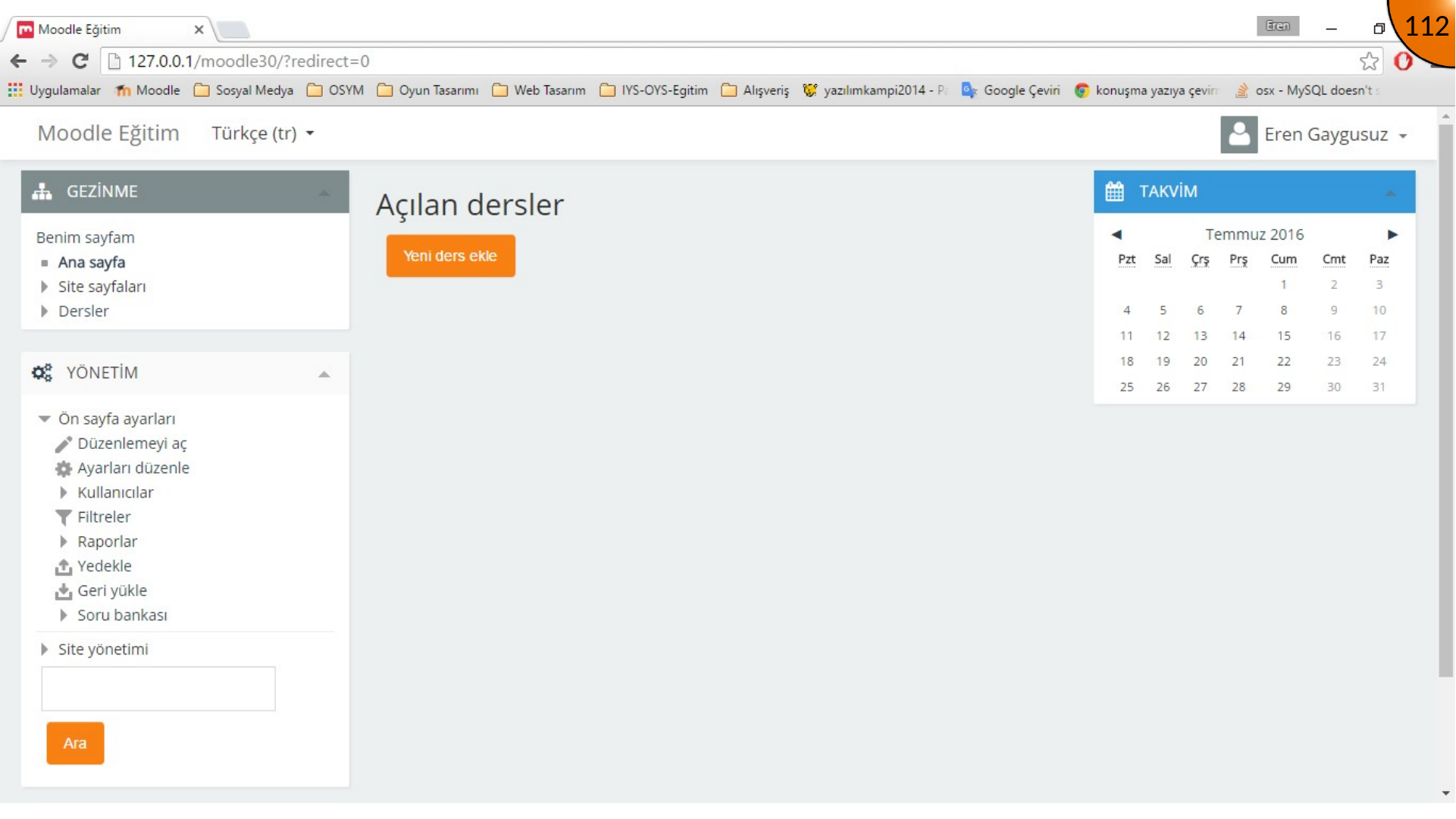
Enabling Front Page Editing
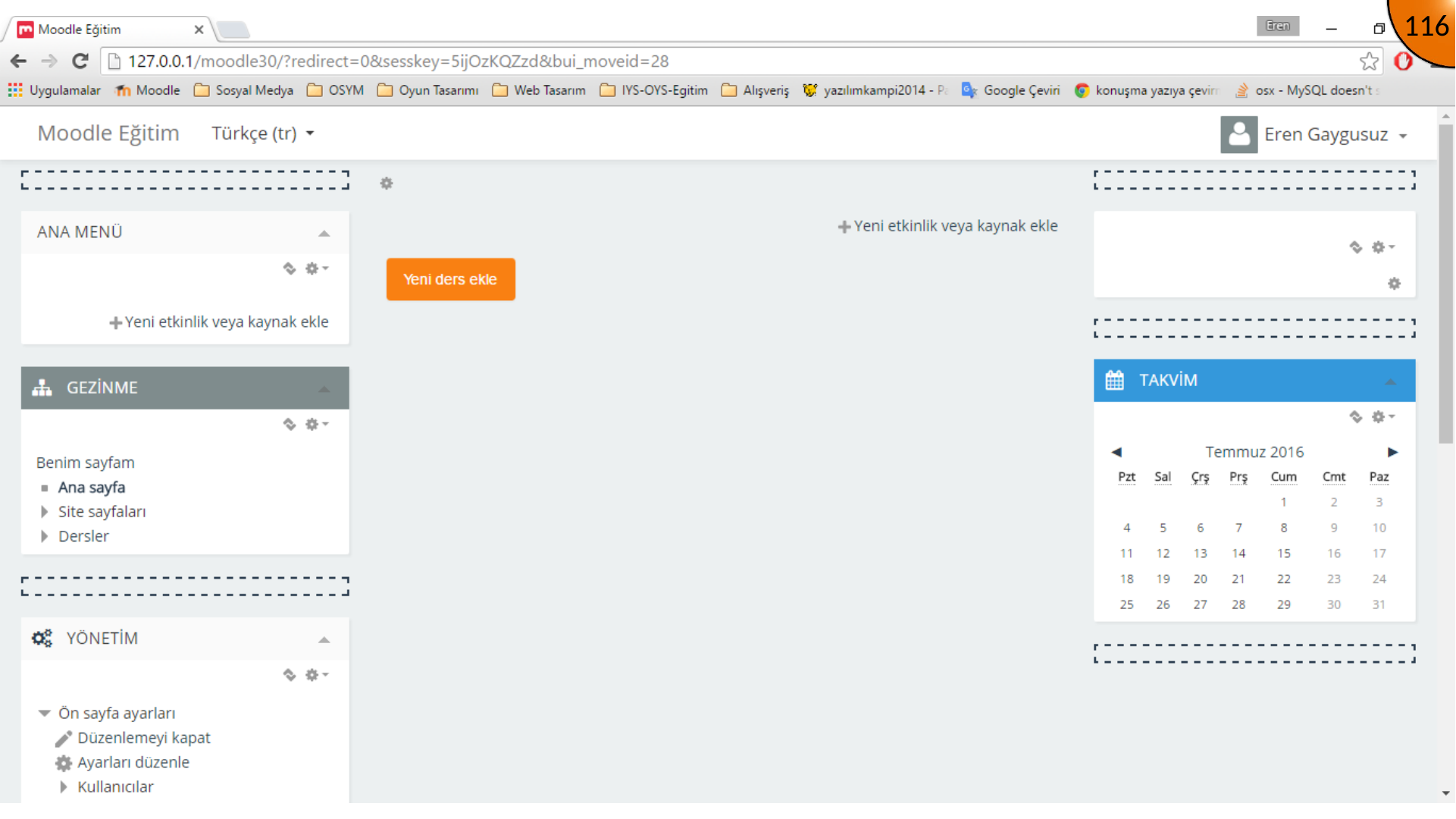
Open the home-page settings and turn editing on. The page then exposes the controls used to add and reposition blocks.
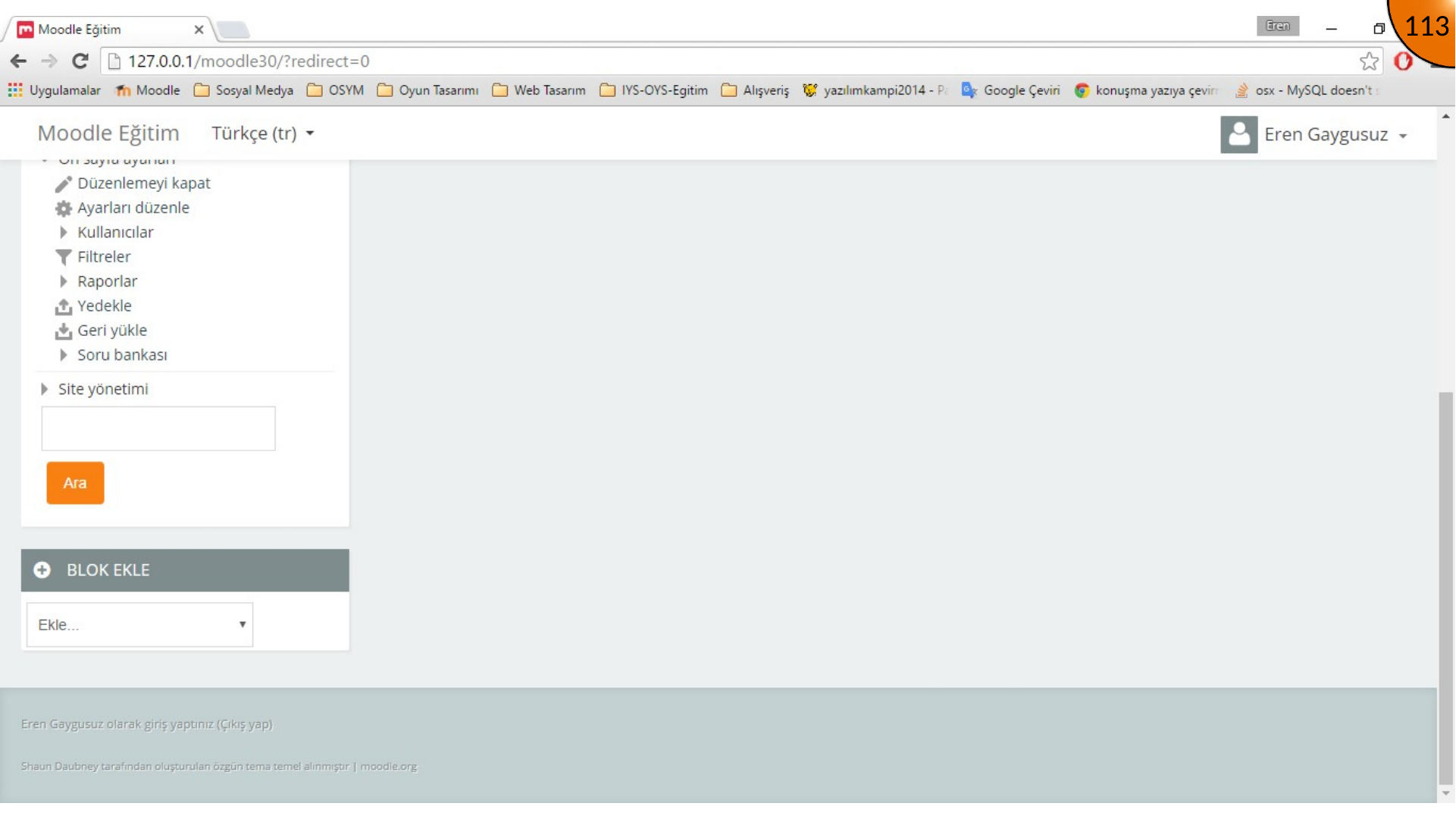
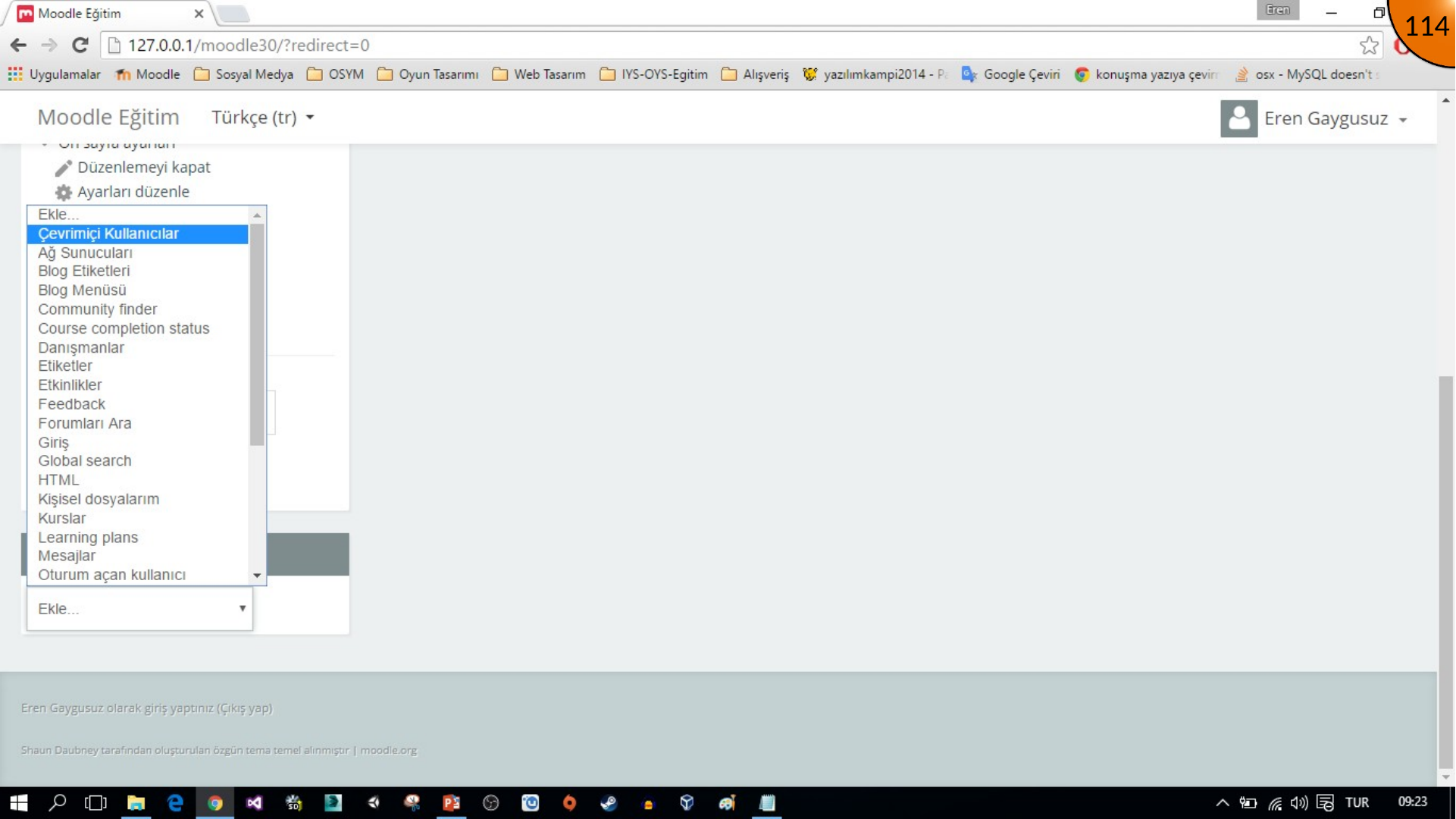
Adding and Positioning a Block
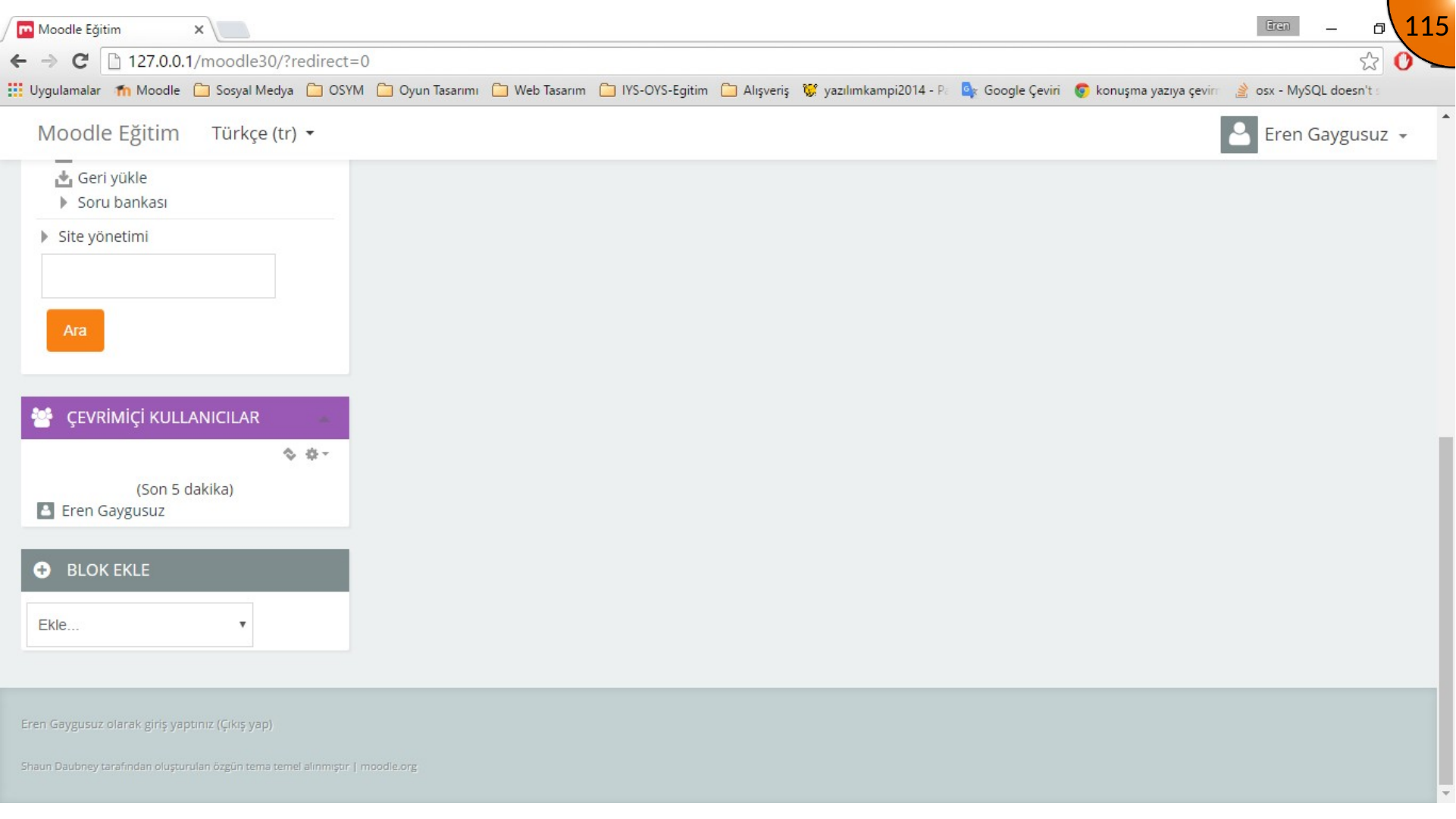
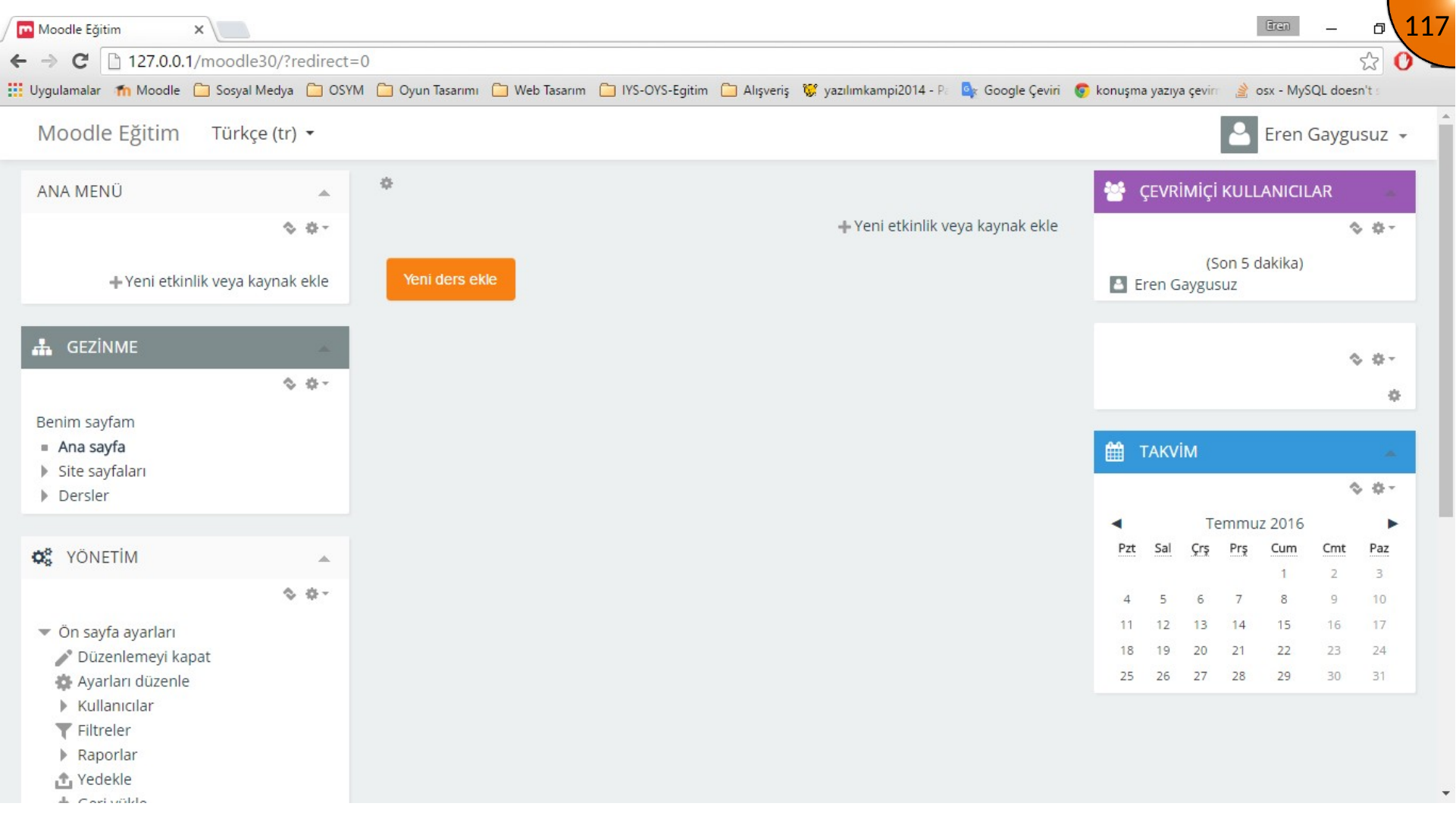
Choose a block from the available list. The archived example adds an online-users block.
Use the theme’s move control to choose an allowed placement area, then select the target position.
Reviewing Activities and Resources
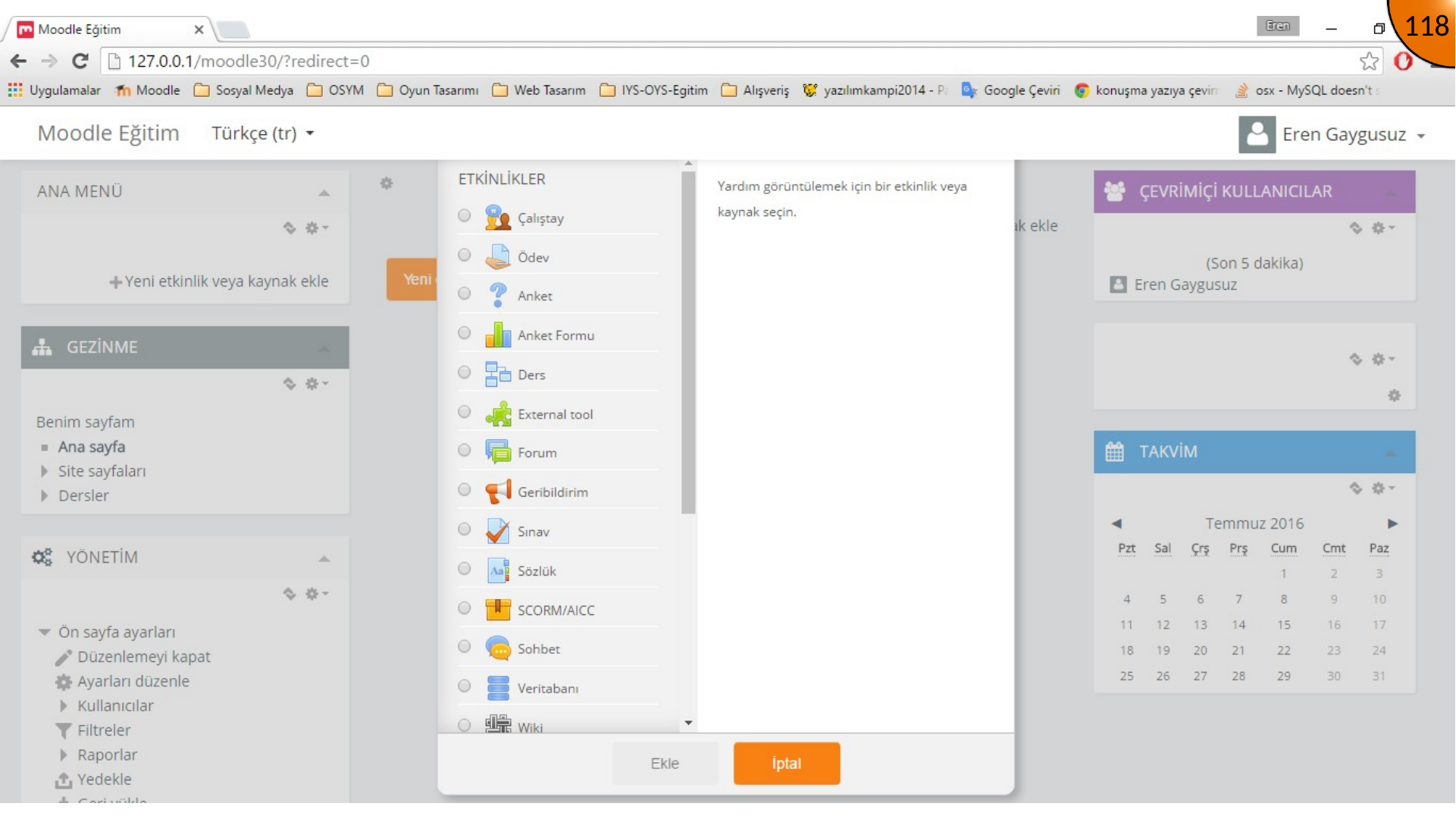
The activity and resource chooser lists the items that can be added to a course or page. The next articles cover those items in focused guides.
Summary
Blocks can personalize Moodle navigation and supporting information, but too many blocks can make a page harder to use. Keep the home page focused and test the result as a learner.
Comments