Course categories keep a Moodle catalog organized, while course settings define how learners enter and use each course. This archived walkthrough creates categories, adds sample courses, and reviews the course page.

Table of contents
Open Table of contents
Creating Course Categories
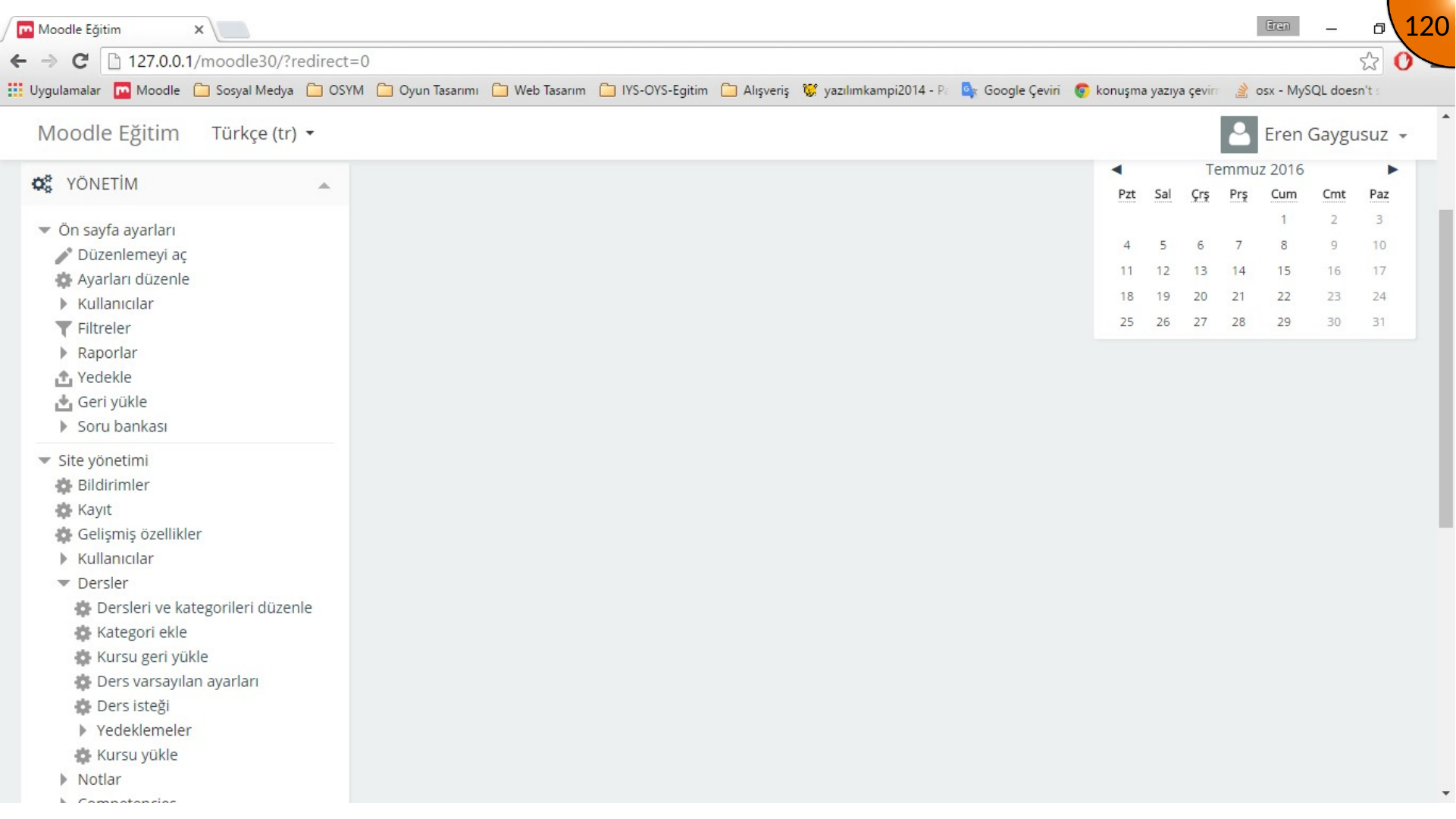
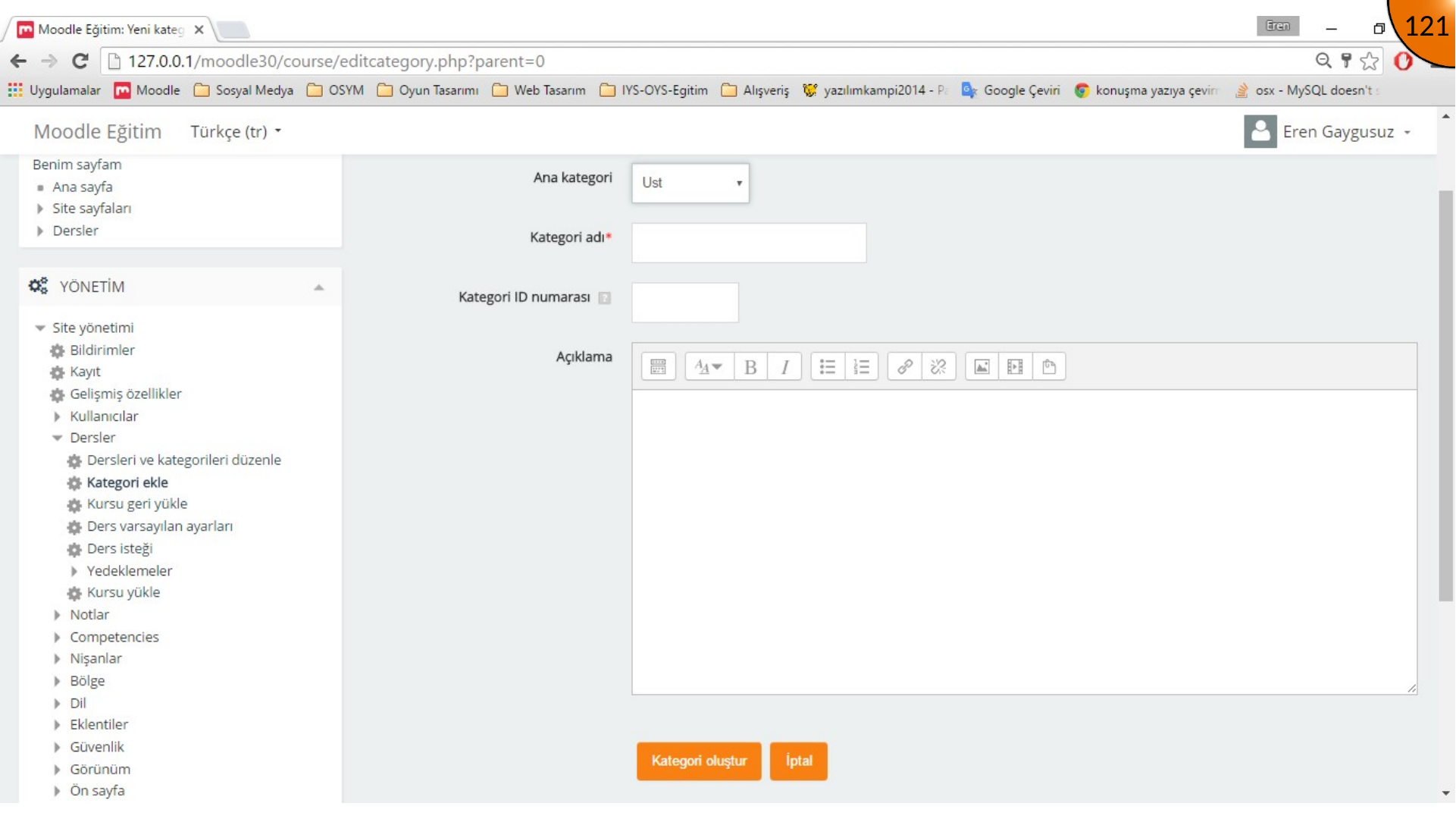
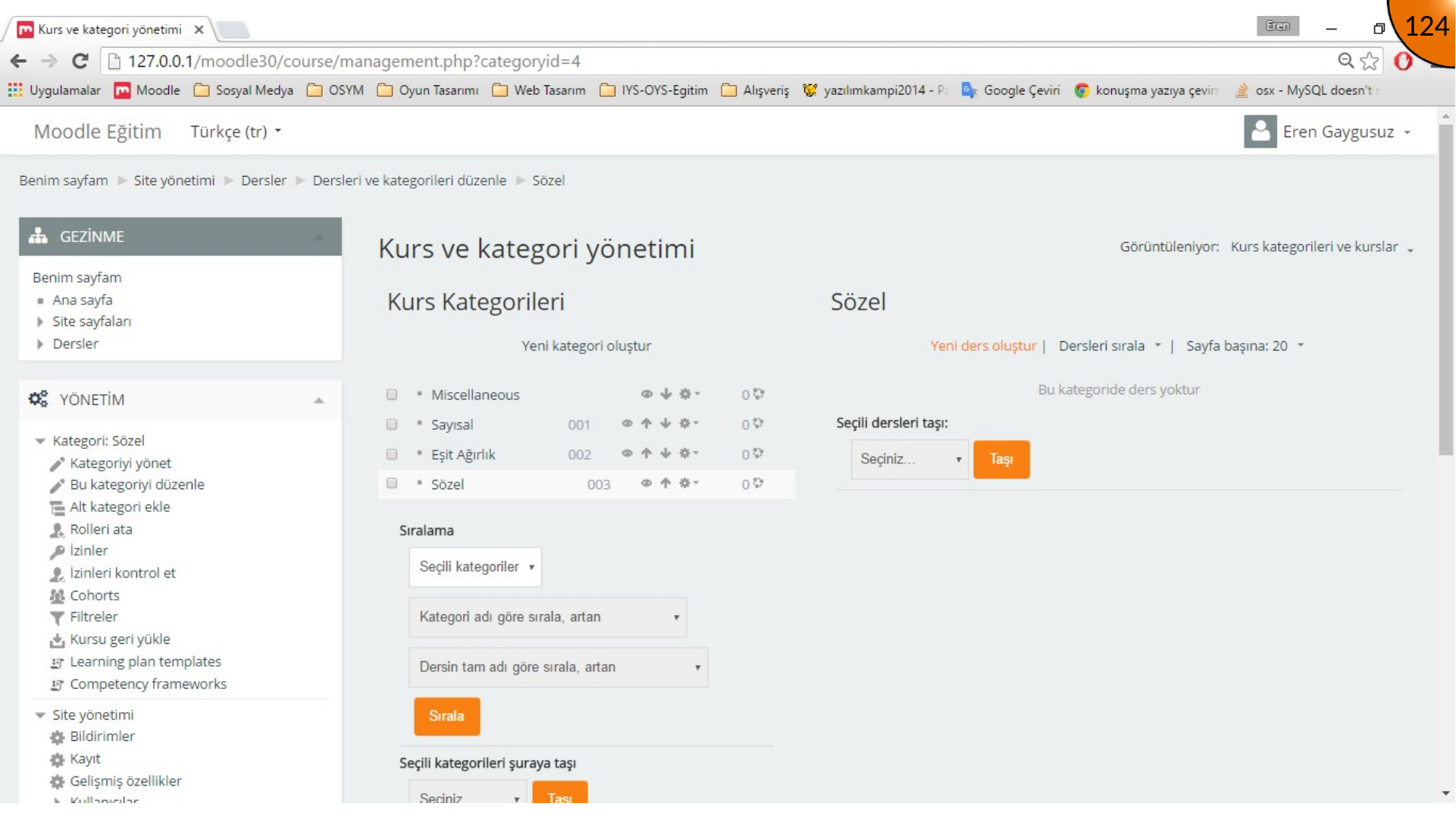
Open Site administration > Courses and create a category. Set a clear name, optional ID number, and description.
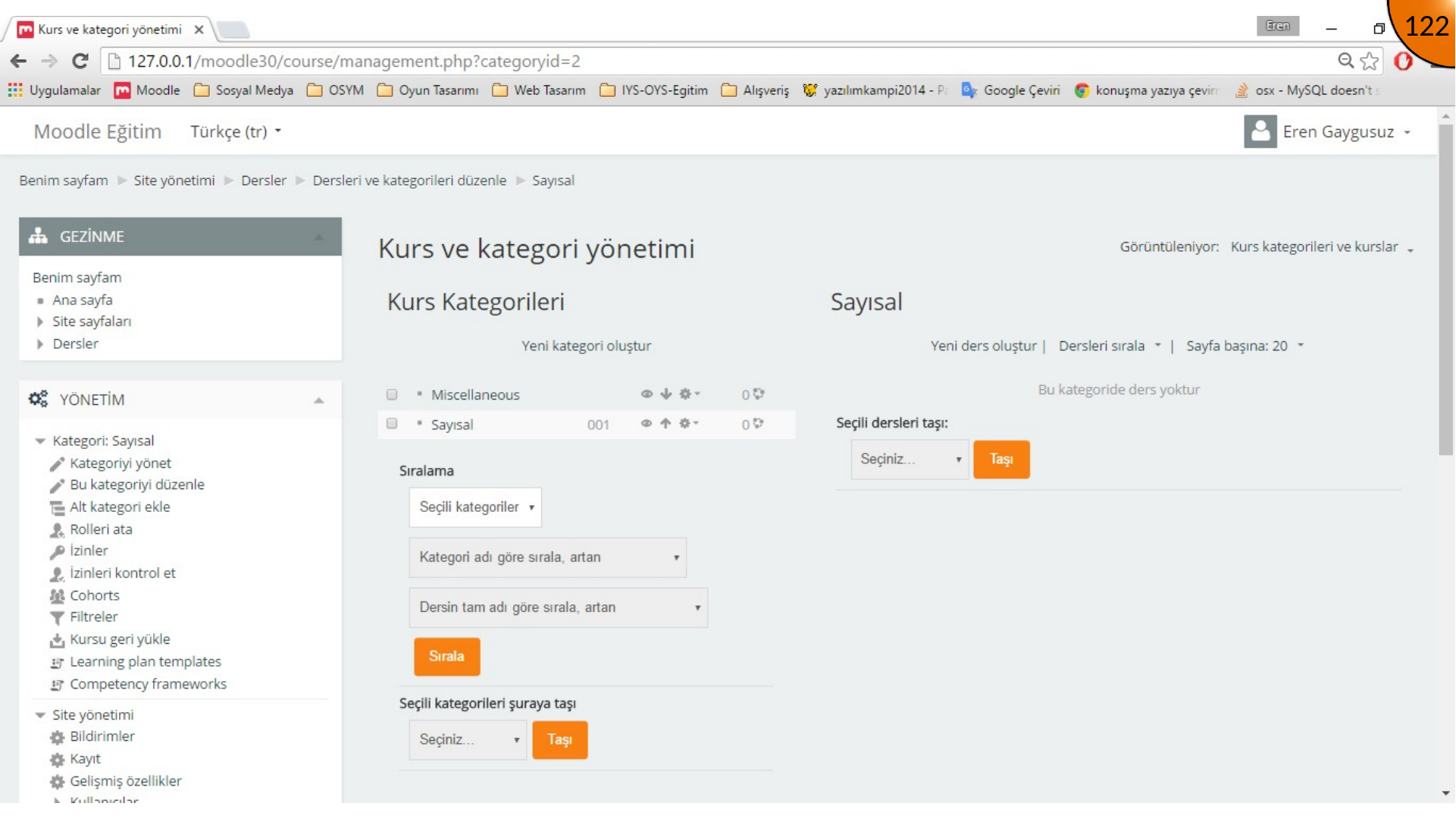
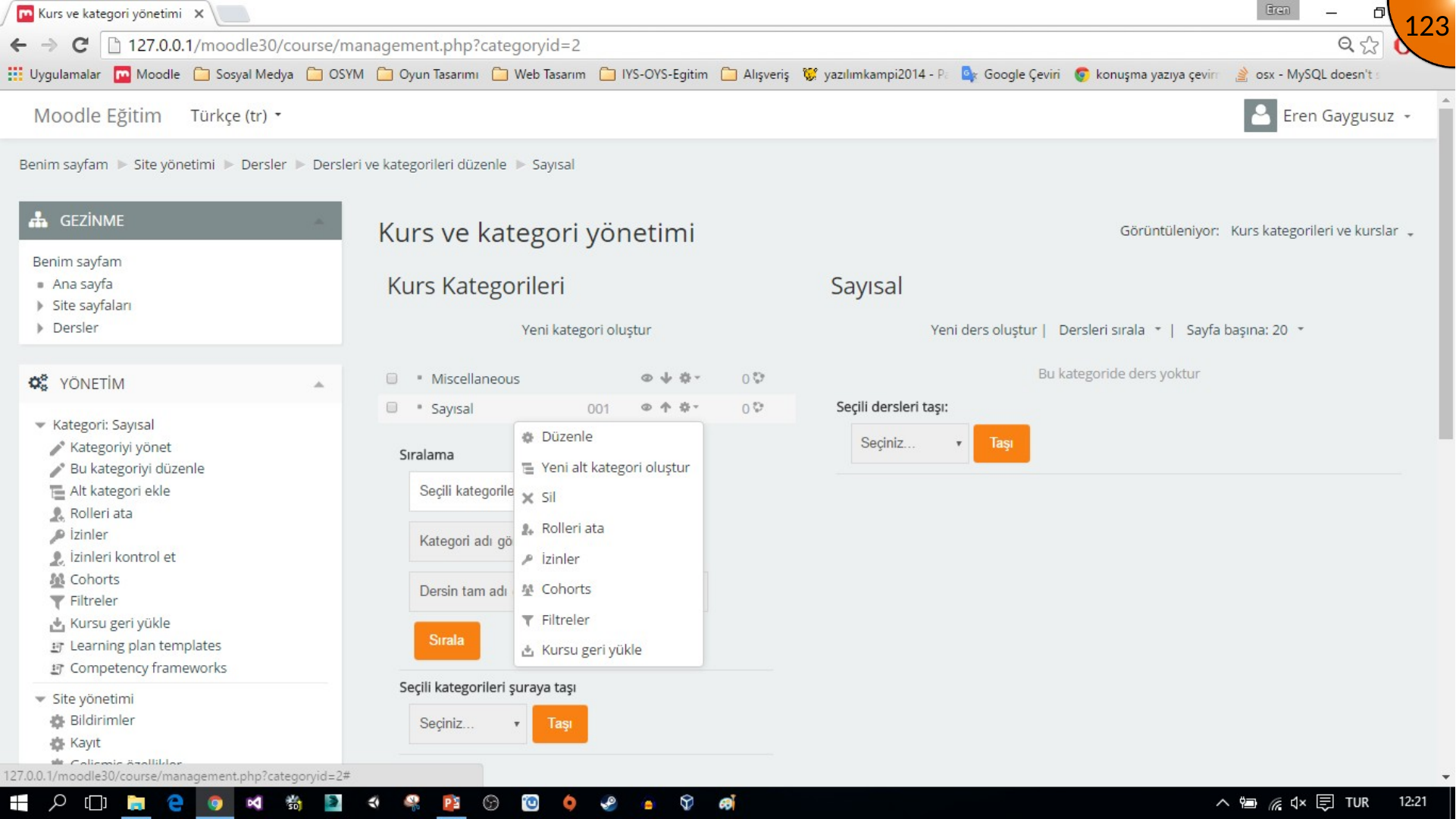
Use the category controls to edit, hide, move, delete, or create subcategories. Build a small, understandable hierarchy rather than deeply nesting every subject.
Creating a Course
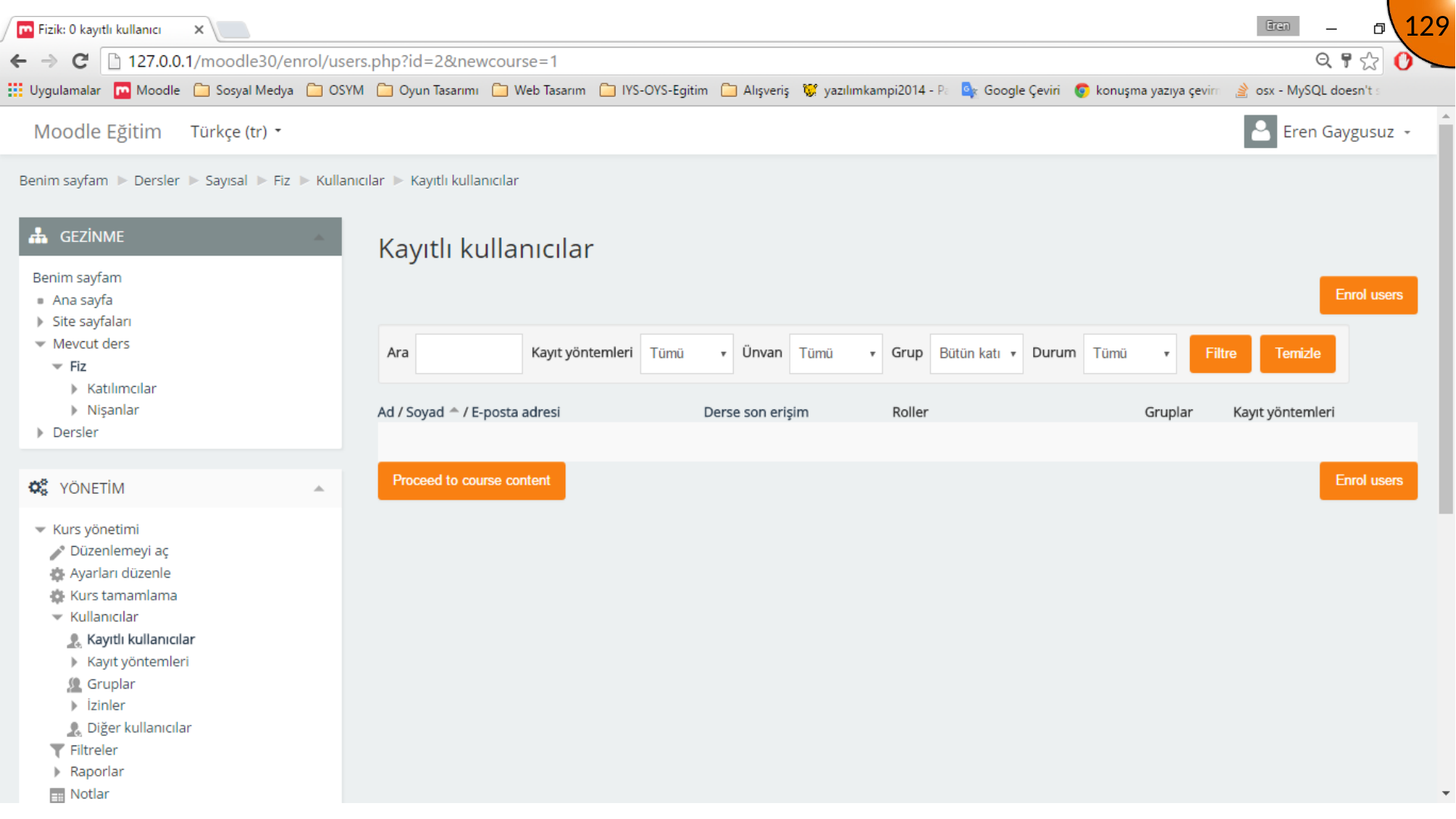
Select the target category and choose Create new course.
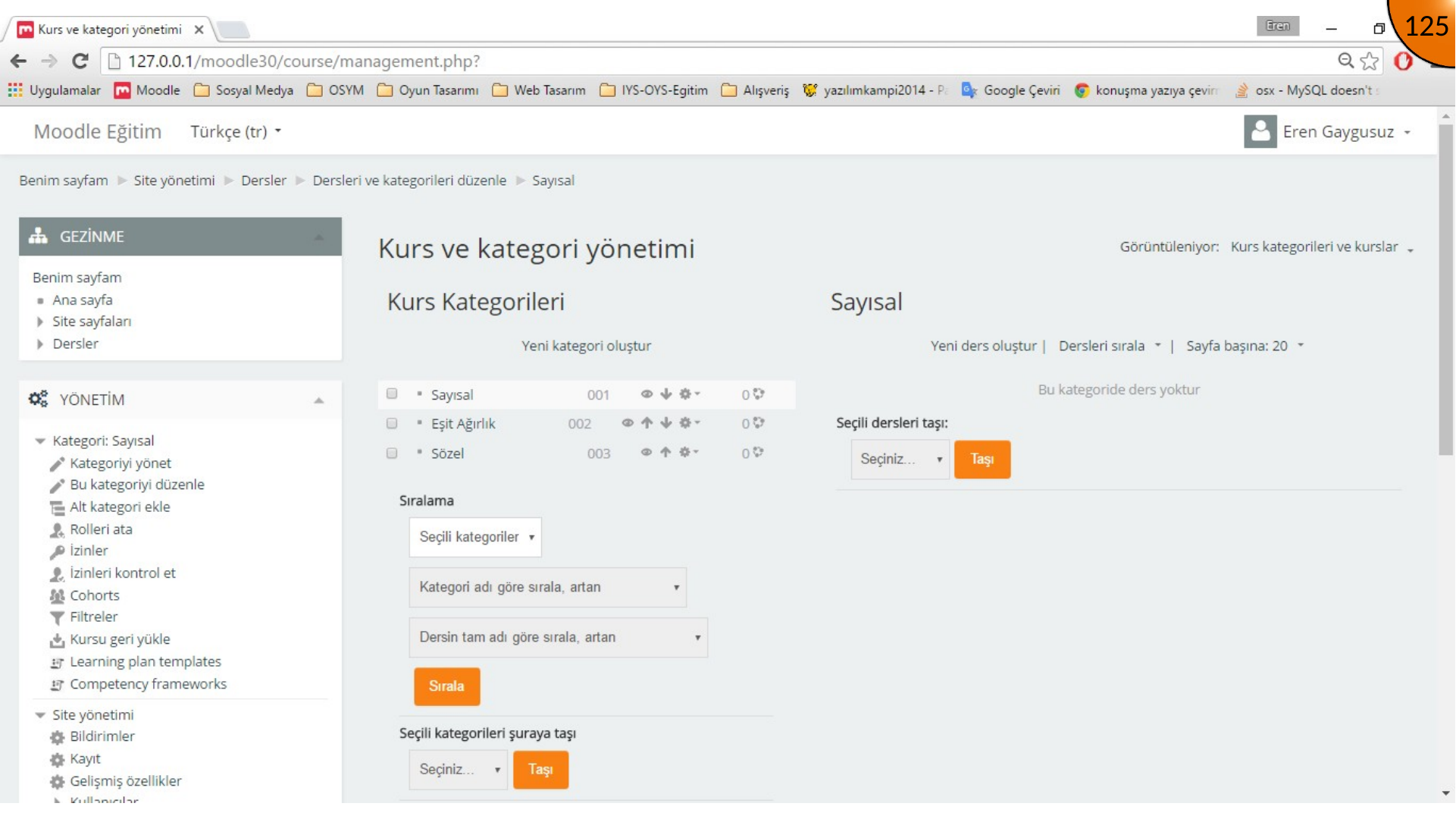
Set the full and short names, category, visibility, start date, ID number, and summary.
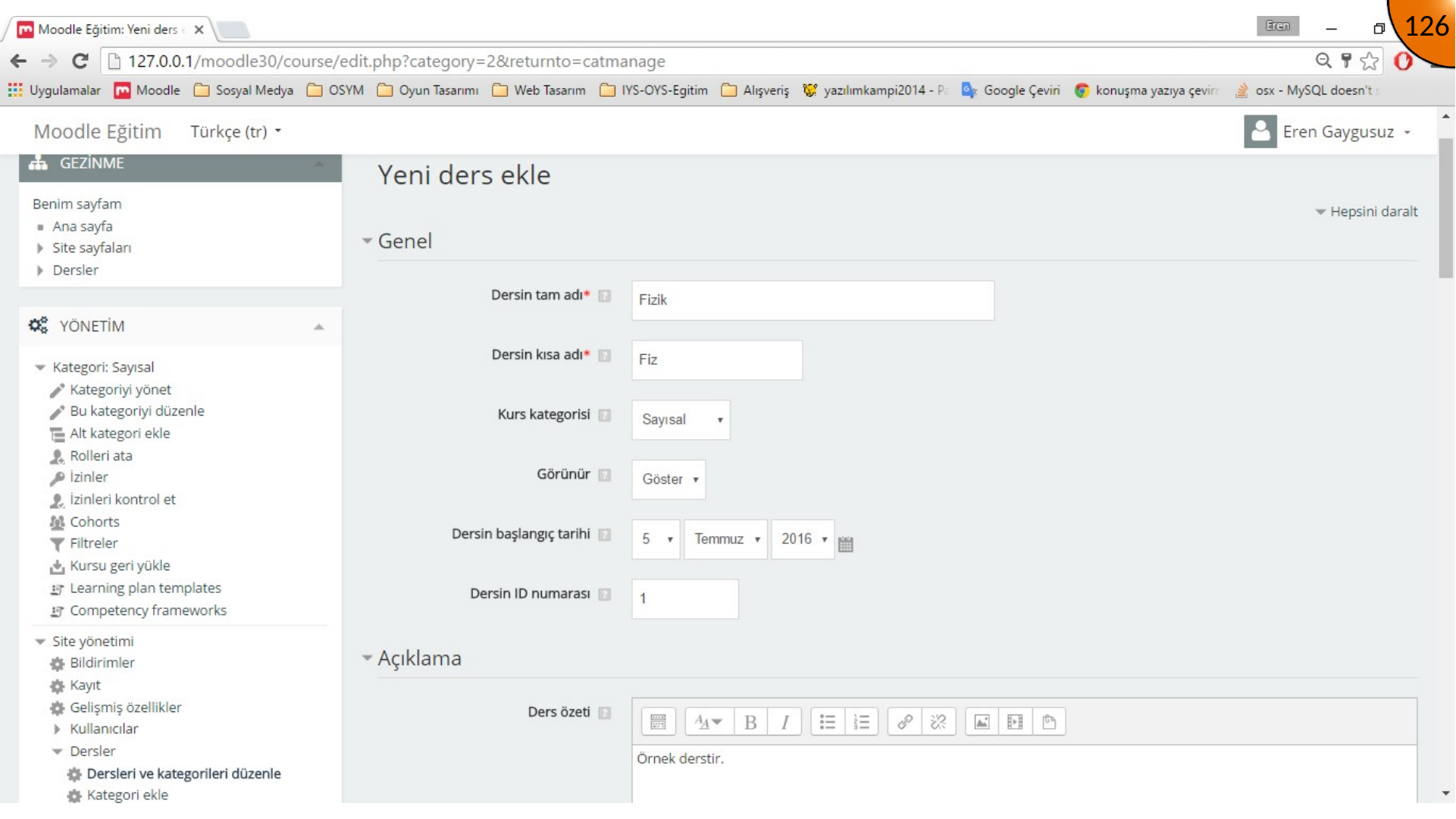
Choose the course format and number of sections. The archived example recommends weekly format; select the format that matches the learning design.
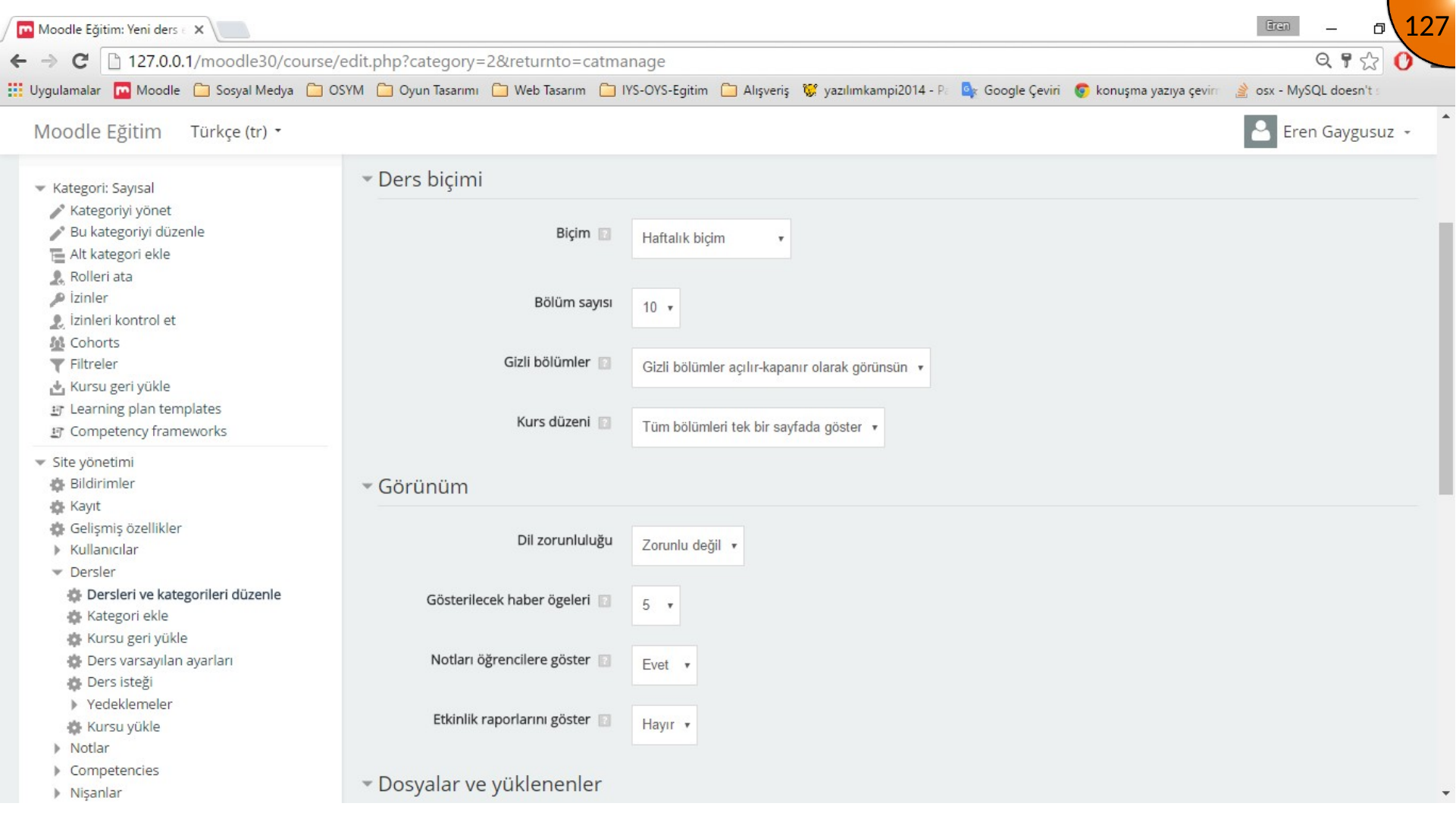
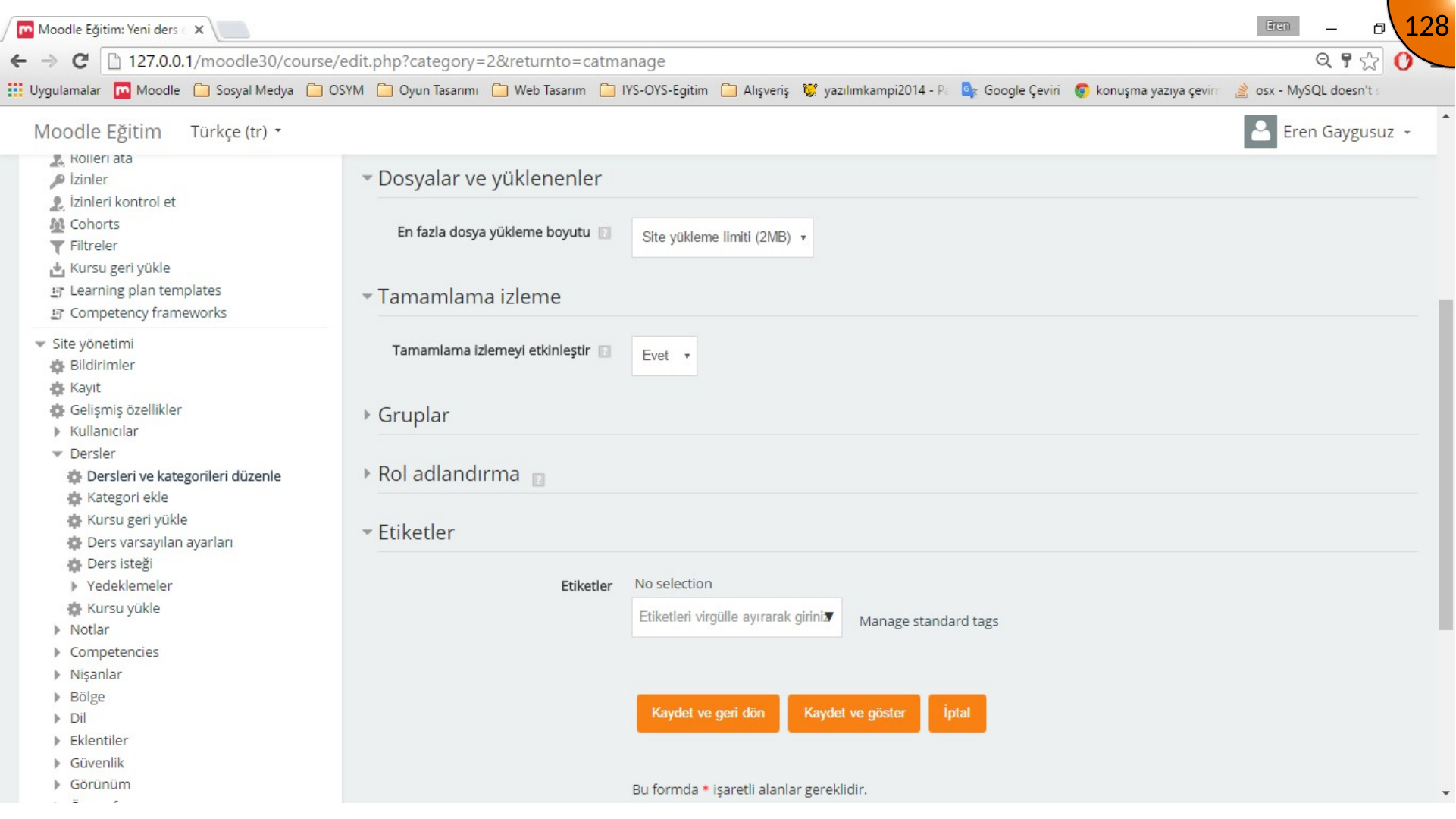
Review upload limits and completion tracking, then save the course.
Preparing the Course Page
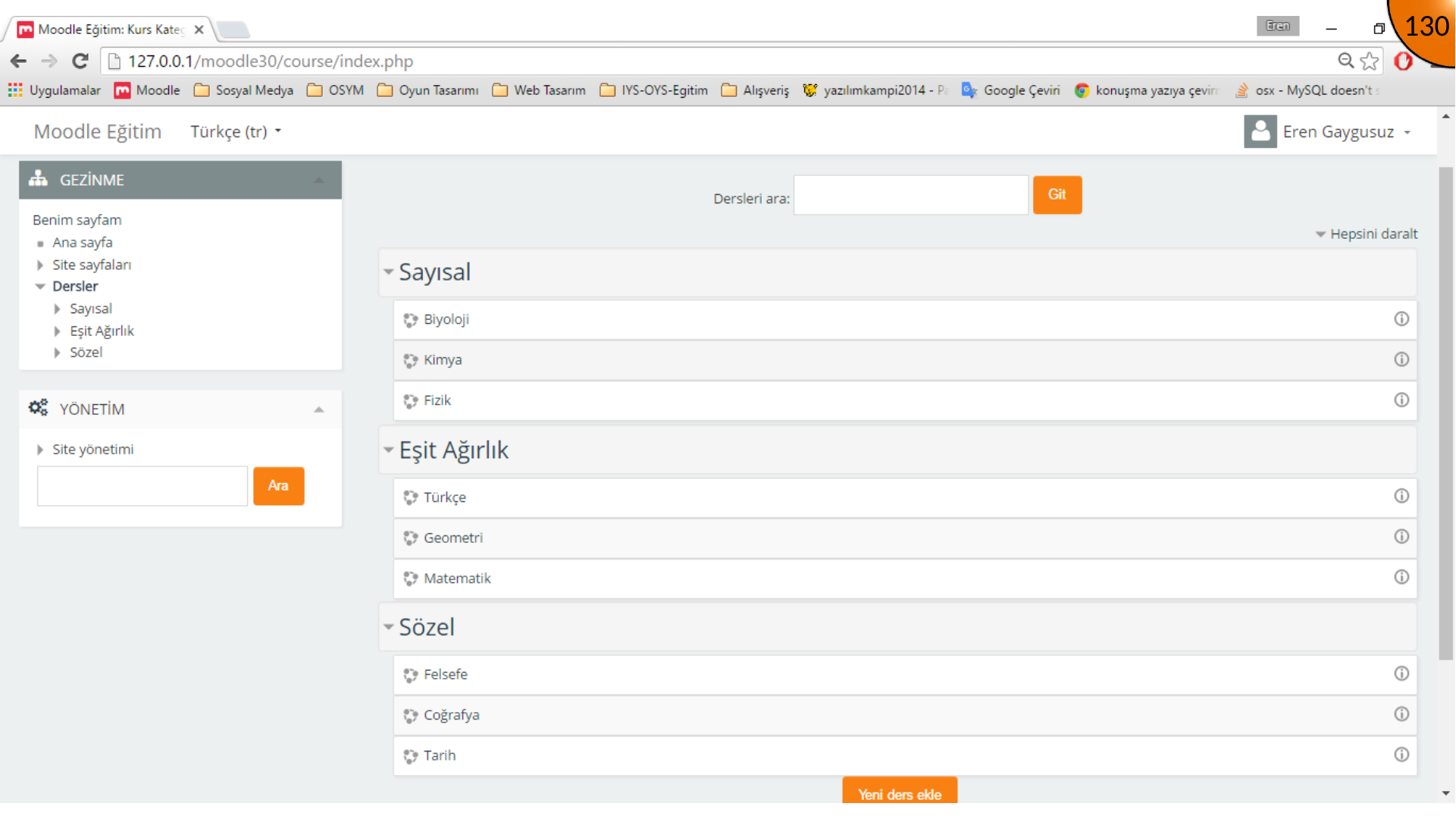
Open the course catalog to verify that categories and courses are listed correctly.
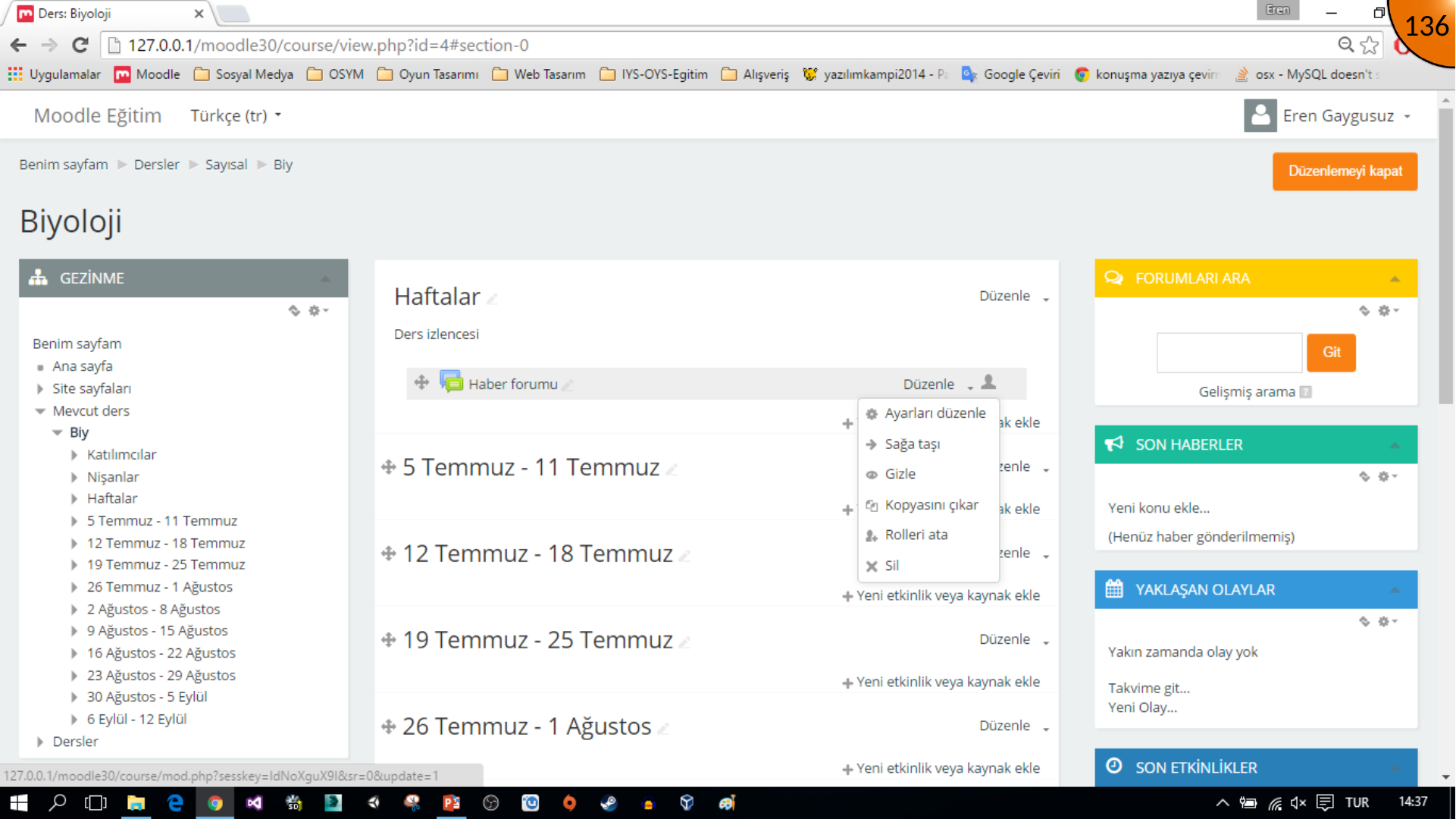
The course page contains course settings, sections, and blocks. Turn editing on before adding or rearranging content.
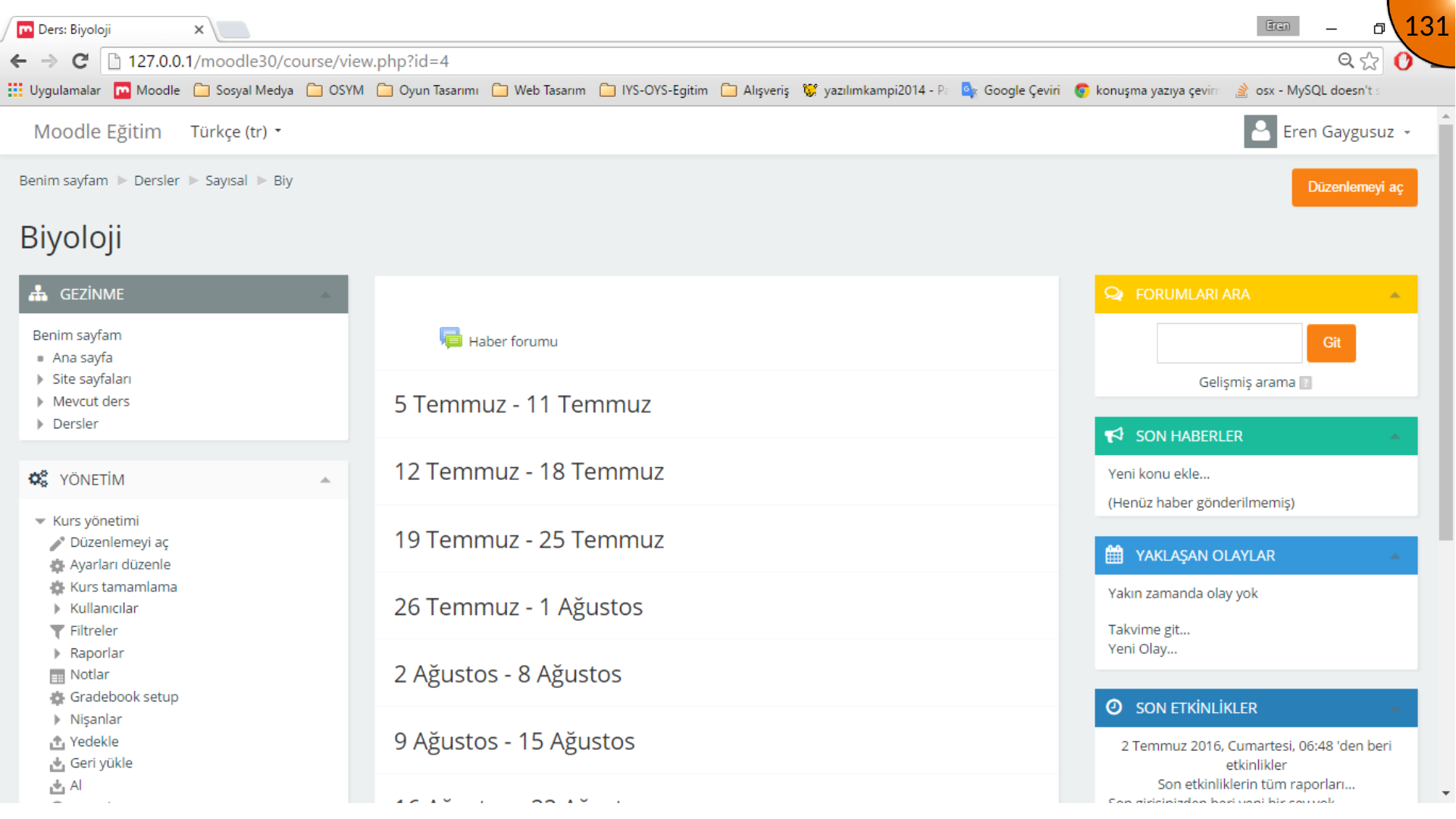
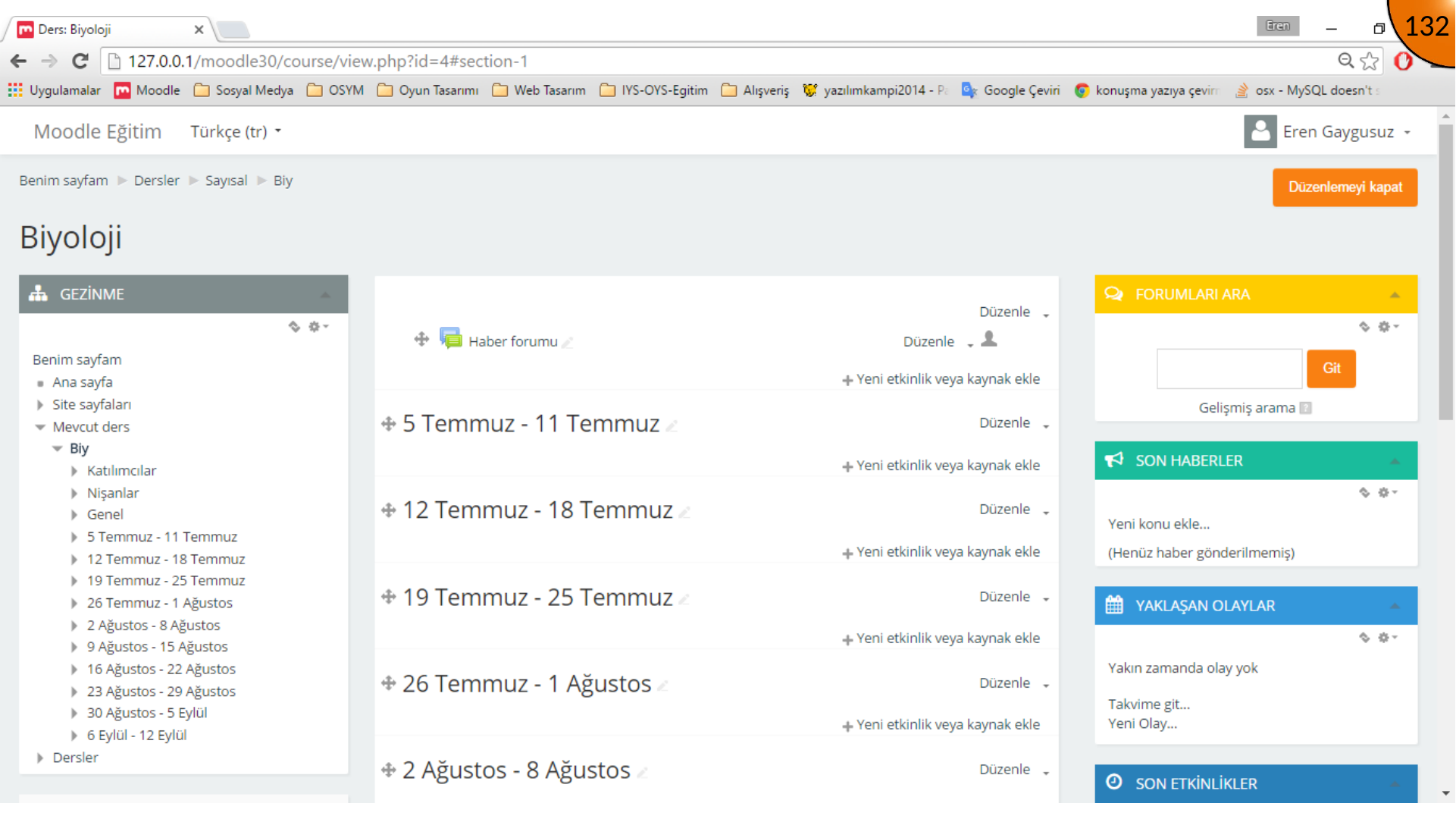
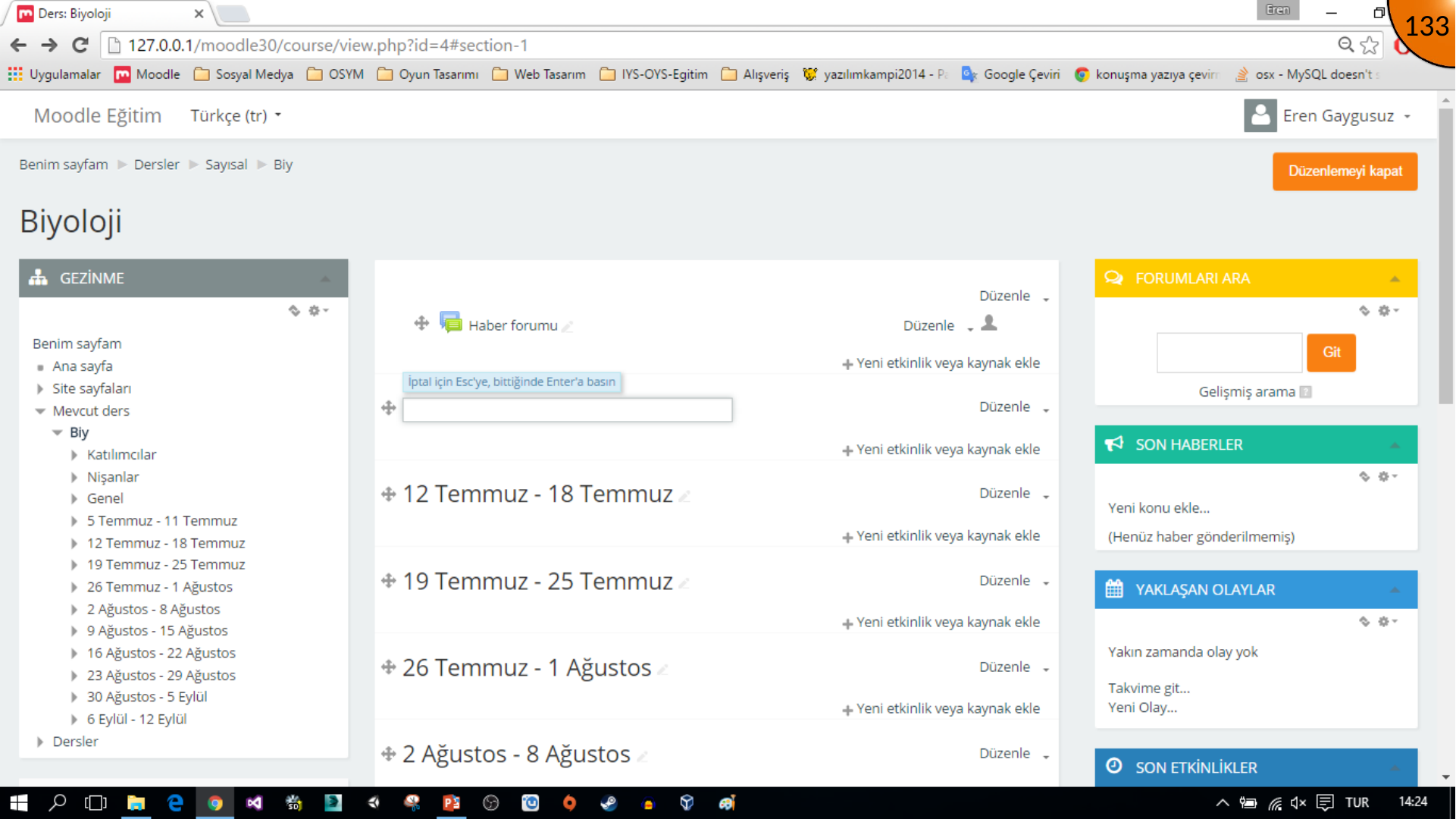
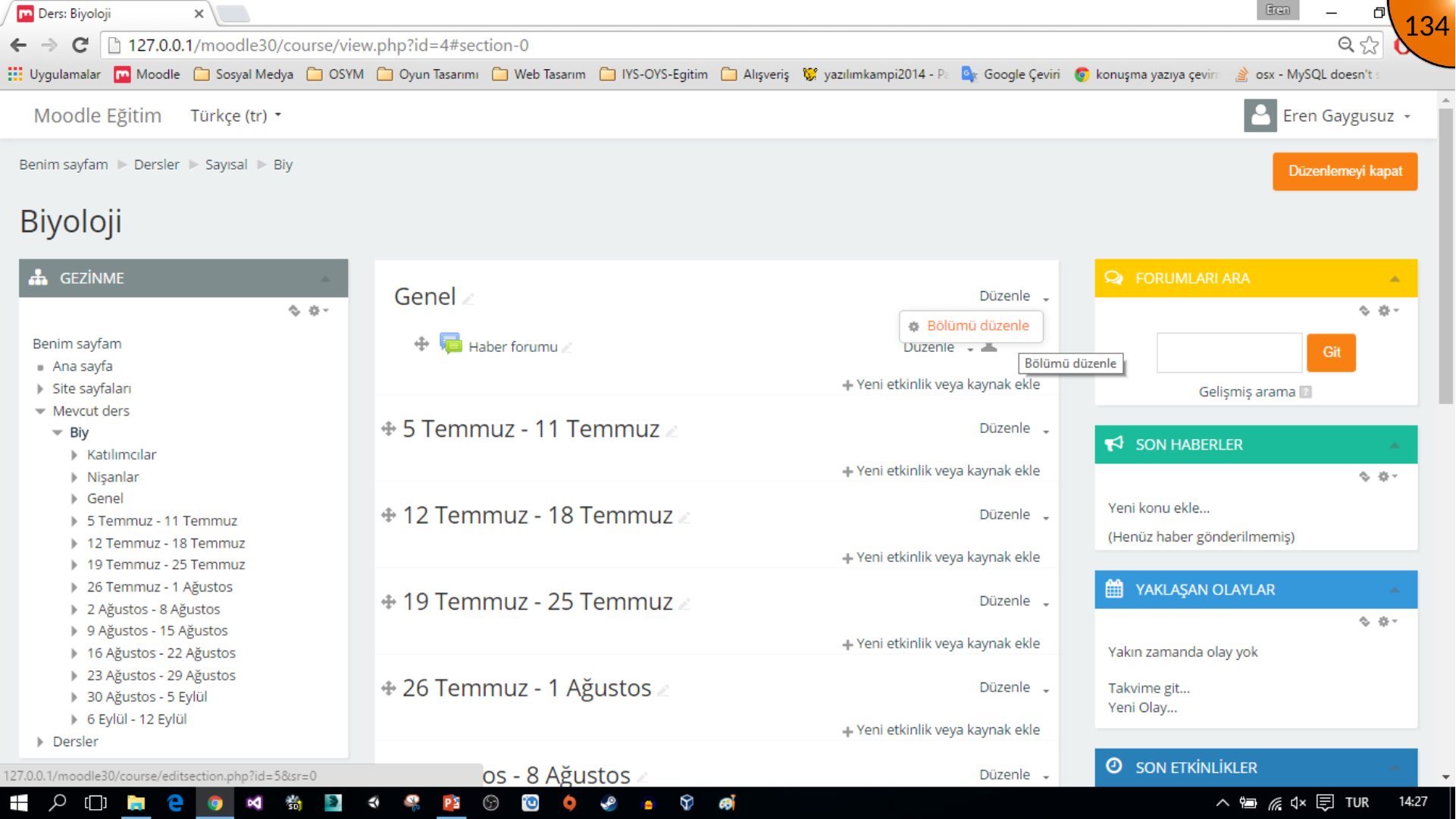
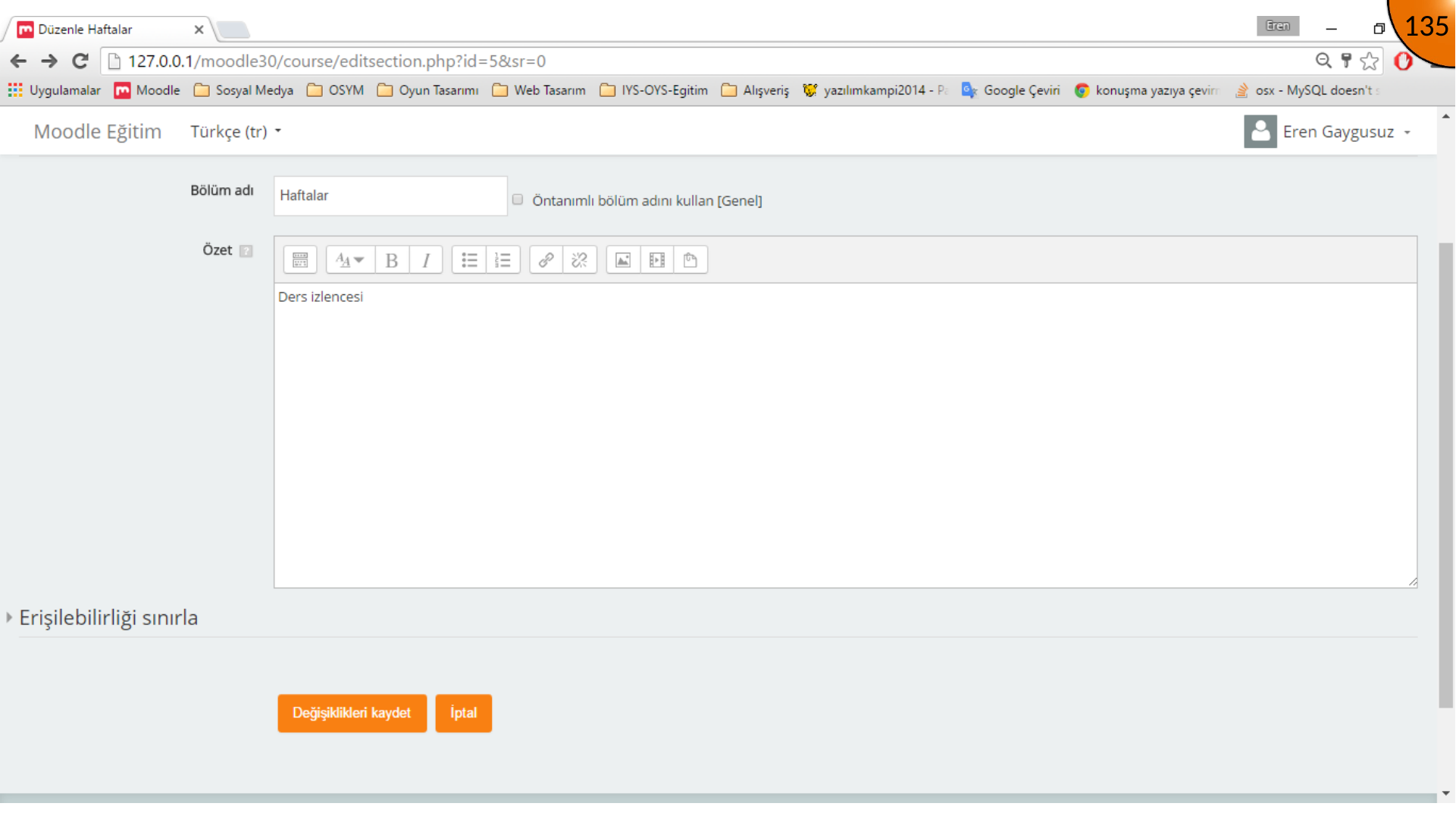
Rename sections and add a section summary to provide learners with context.
Use the activity menu beside existing items, such as the news forum, to manage visibility, movement, or deletion.
Summary
Categories organize discovery, while course settings and sections organize learning. Create a clear structure before adding activities and resources so learners can understand where to begin.
Comments