This archived 2016 walkthrough installs a Moodle theme from the plugin directory. Theme compatibility is version-specific; always use a theme that supports your Moodle release.

Table of contents
Open Table of contents
Finding and Downloading a Theme
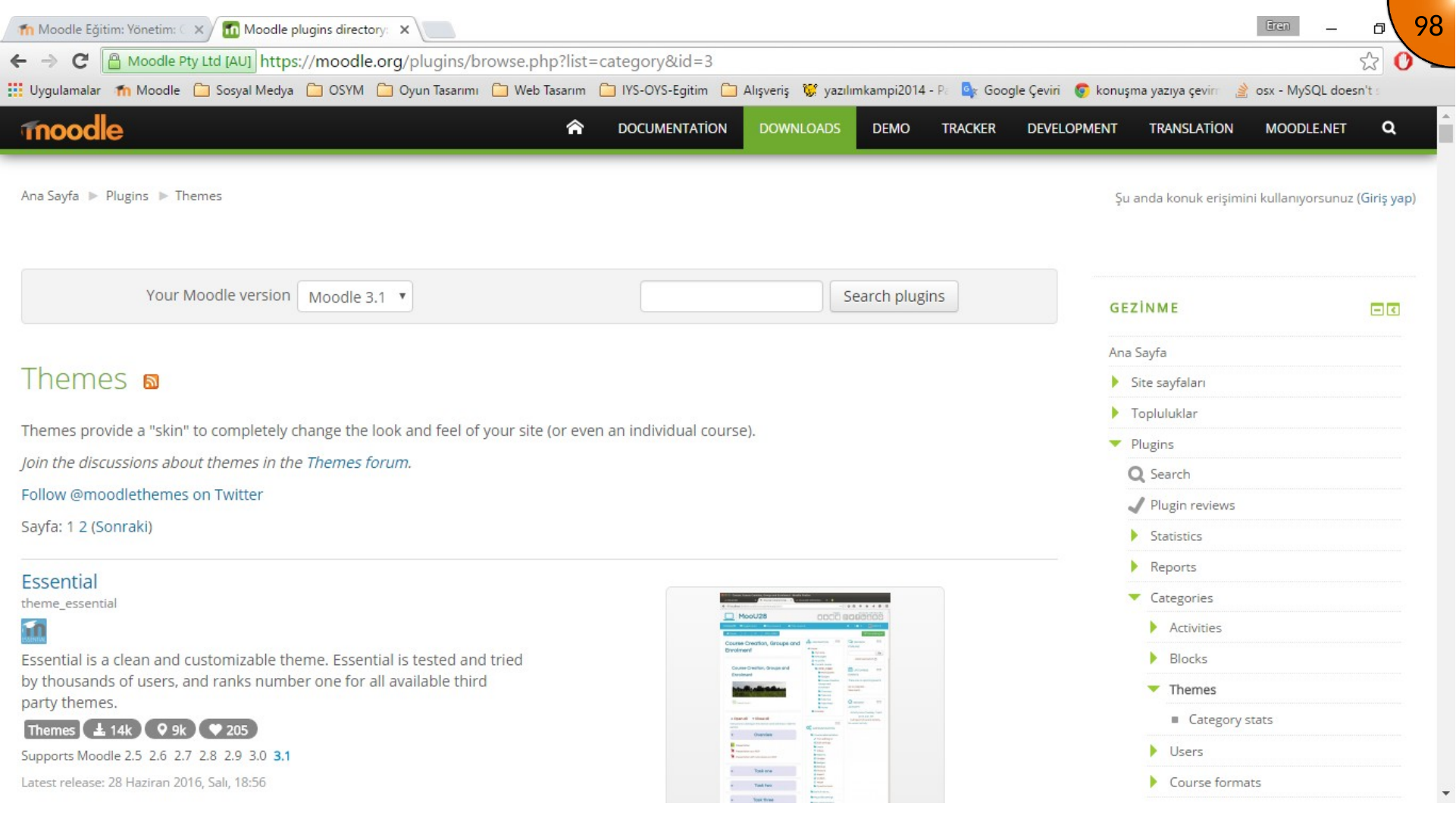
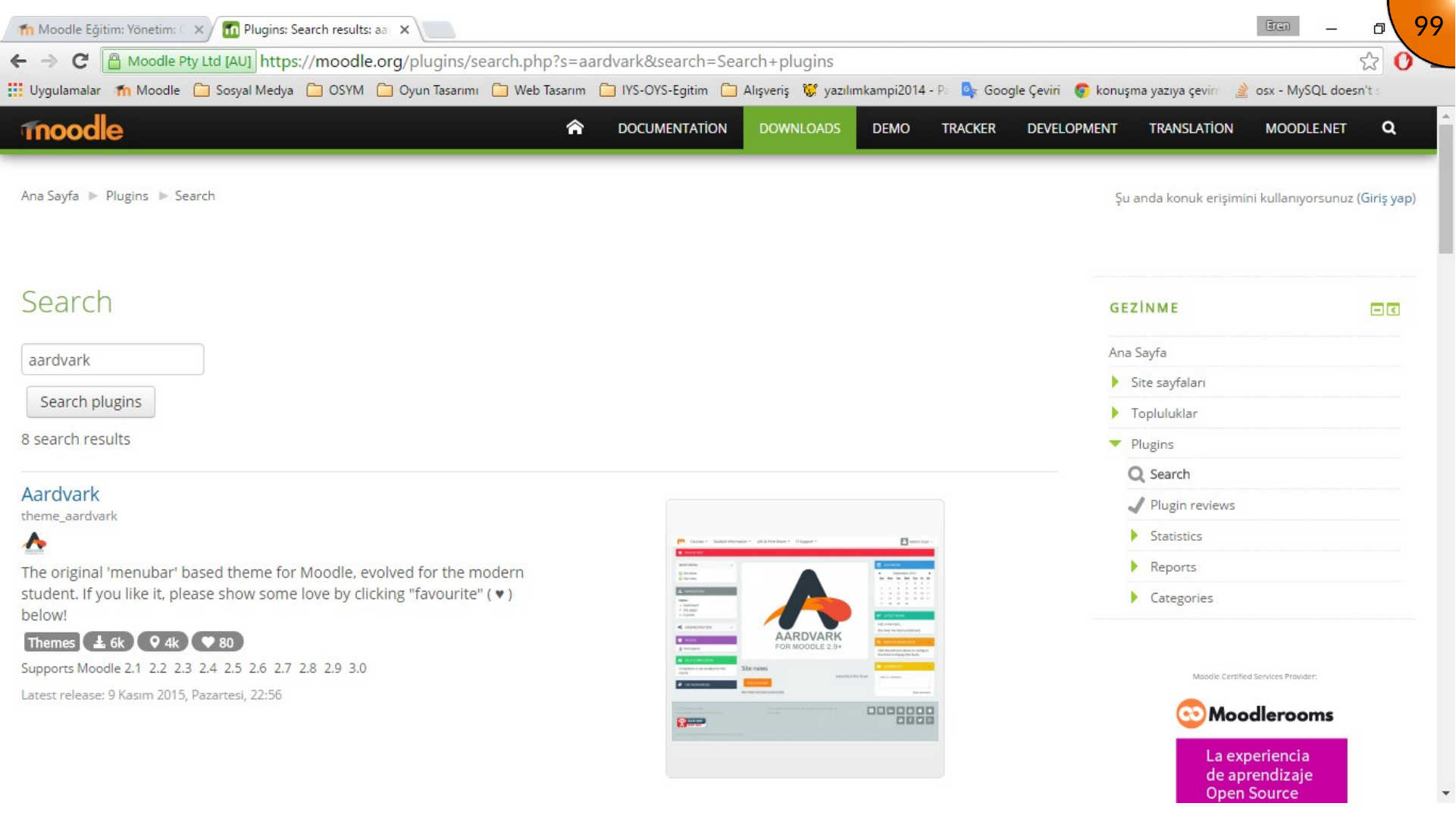
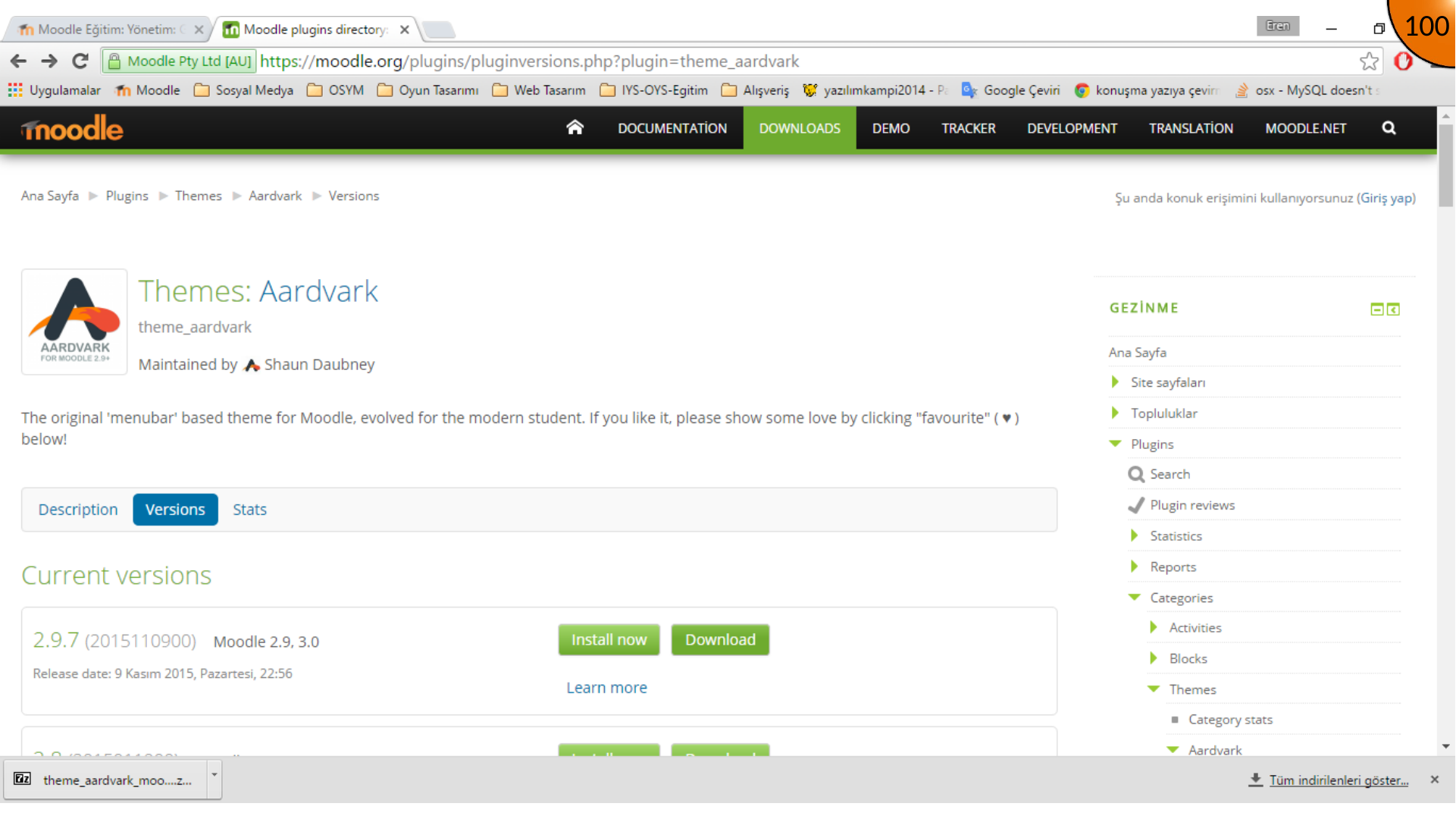
Open the Moodle plugins directory, browse the themes category, search for a suitable theme, and download the compatible release.
Installing the Theme Files
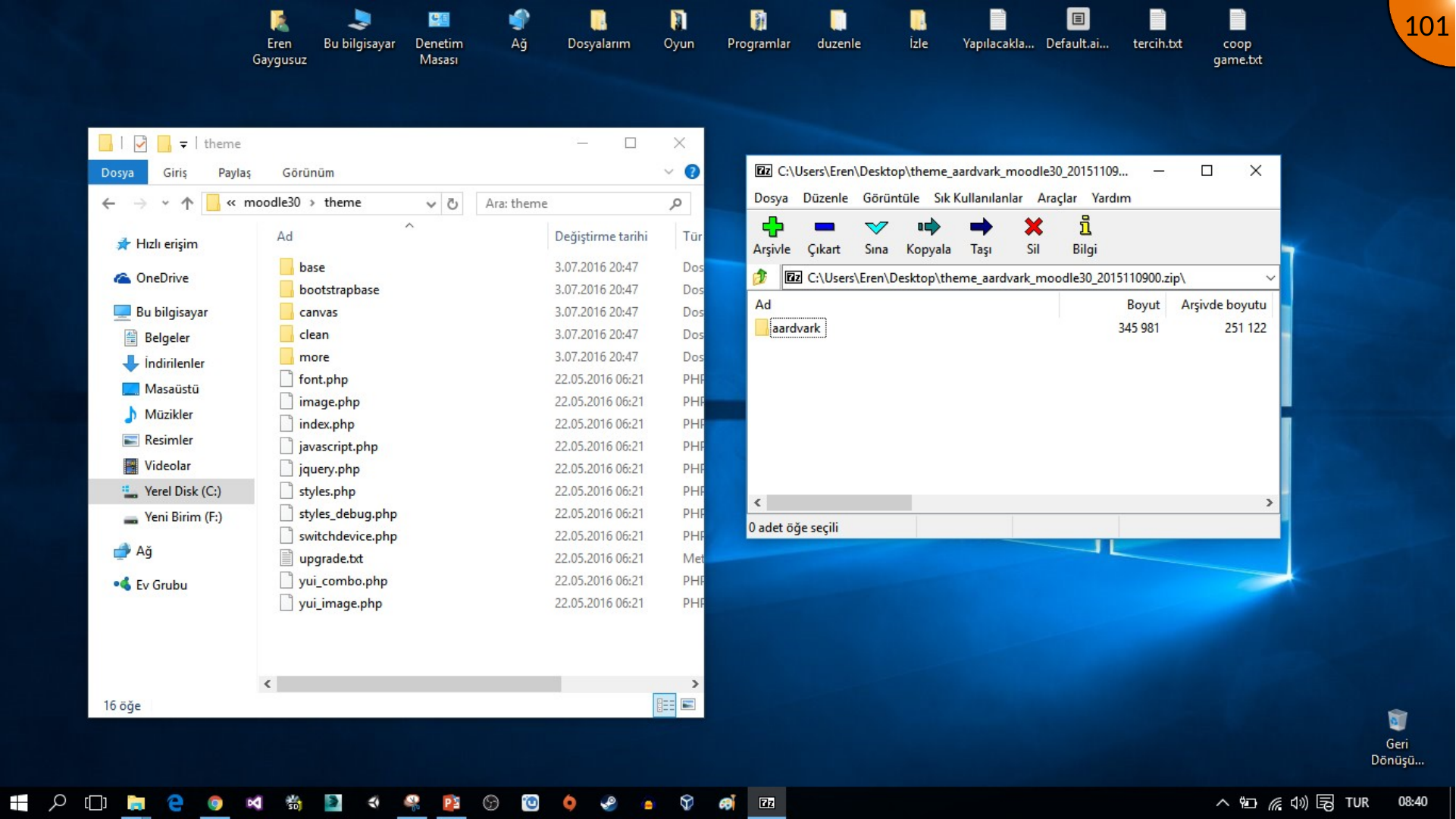
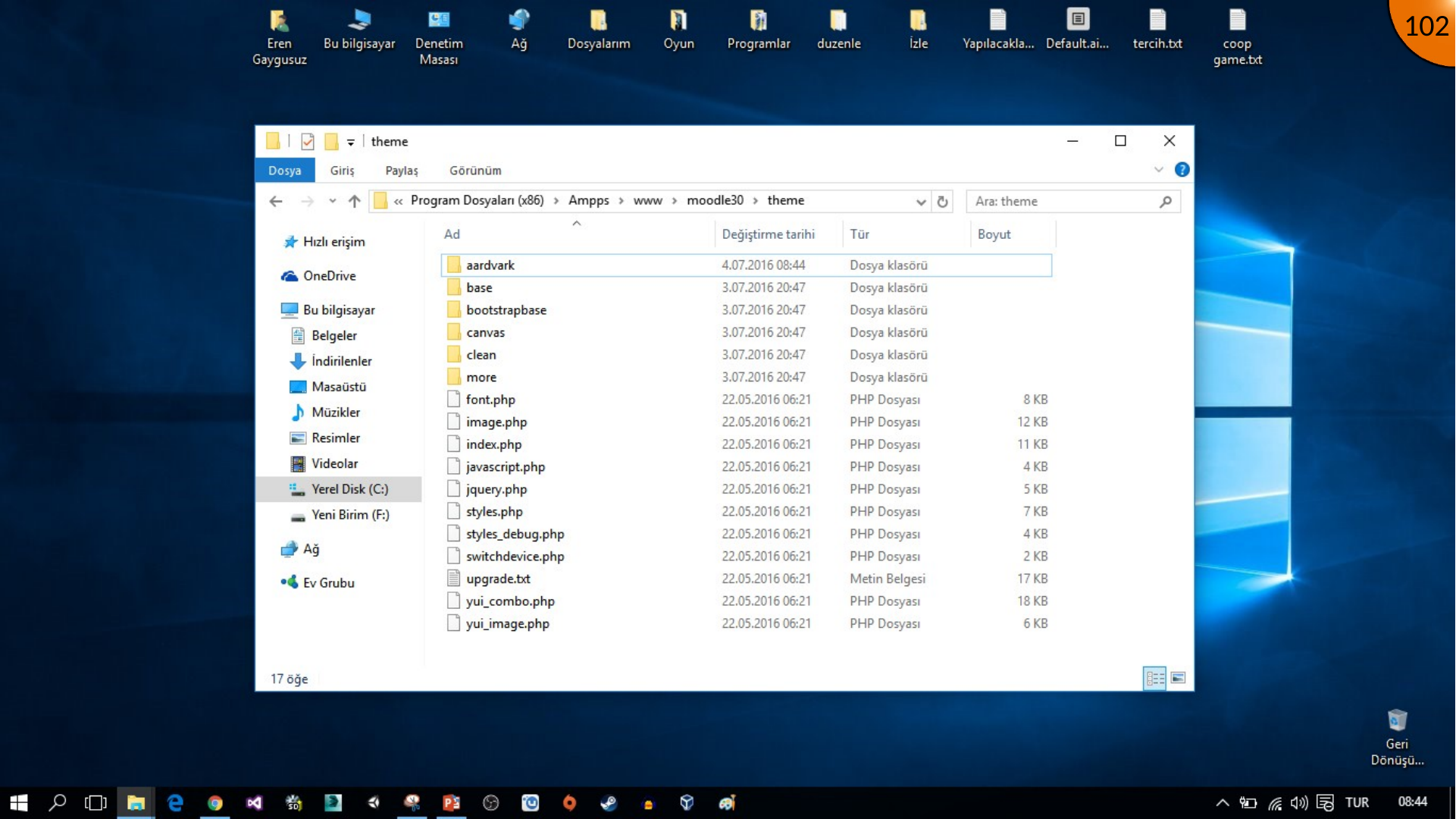
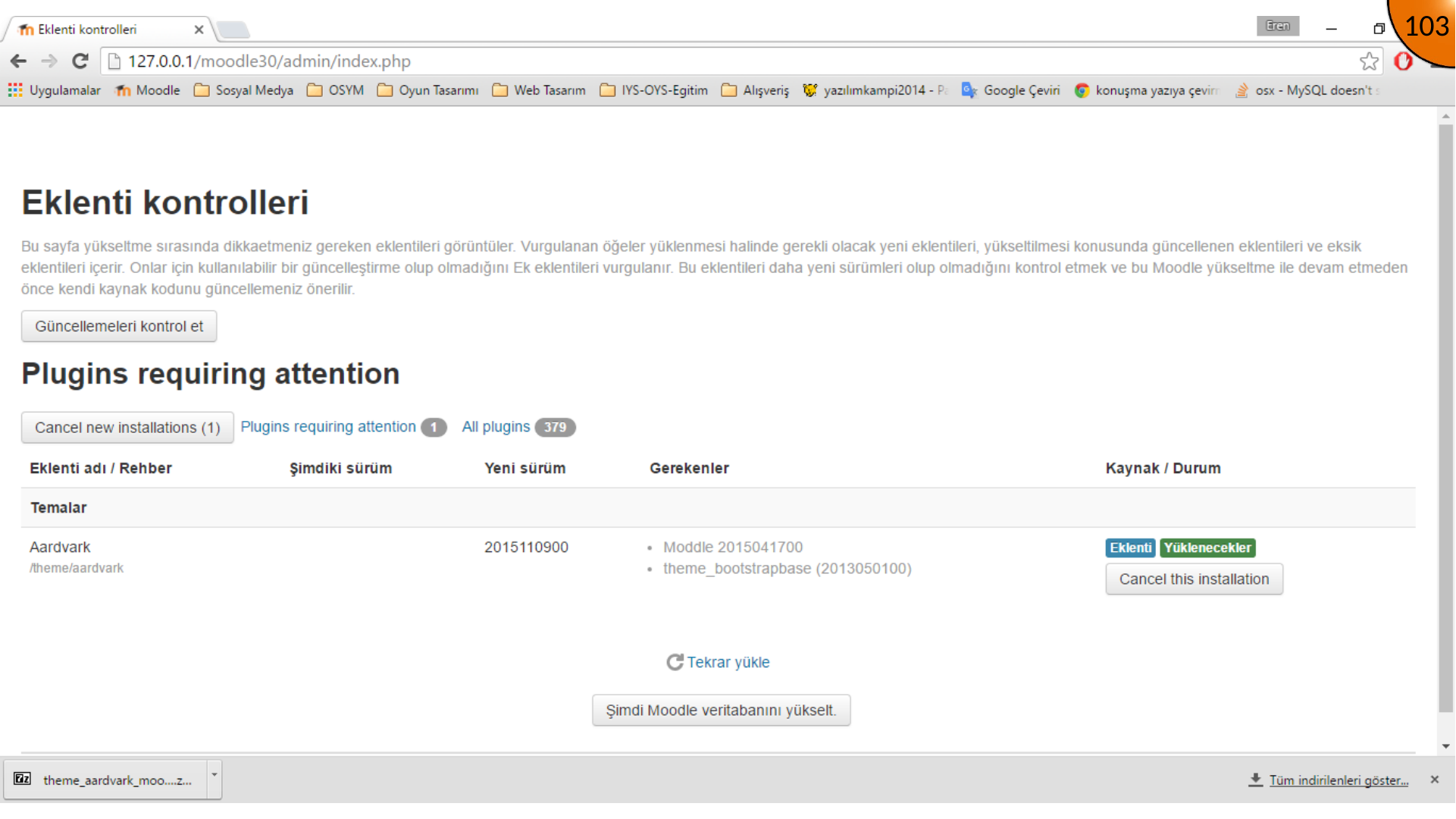
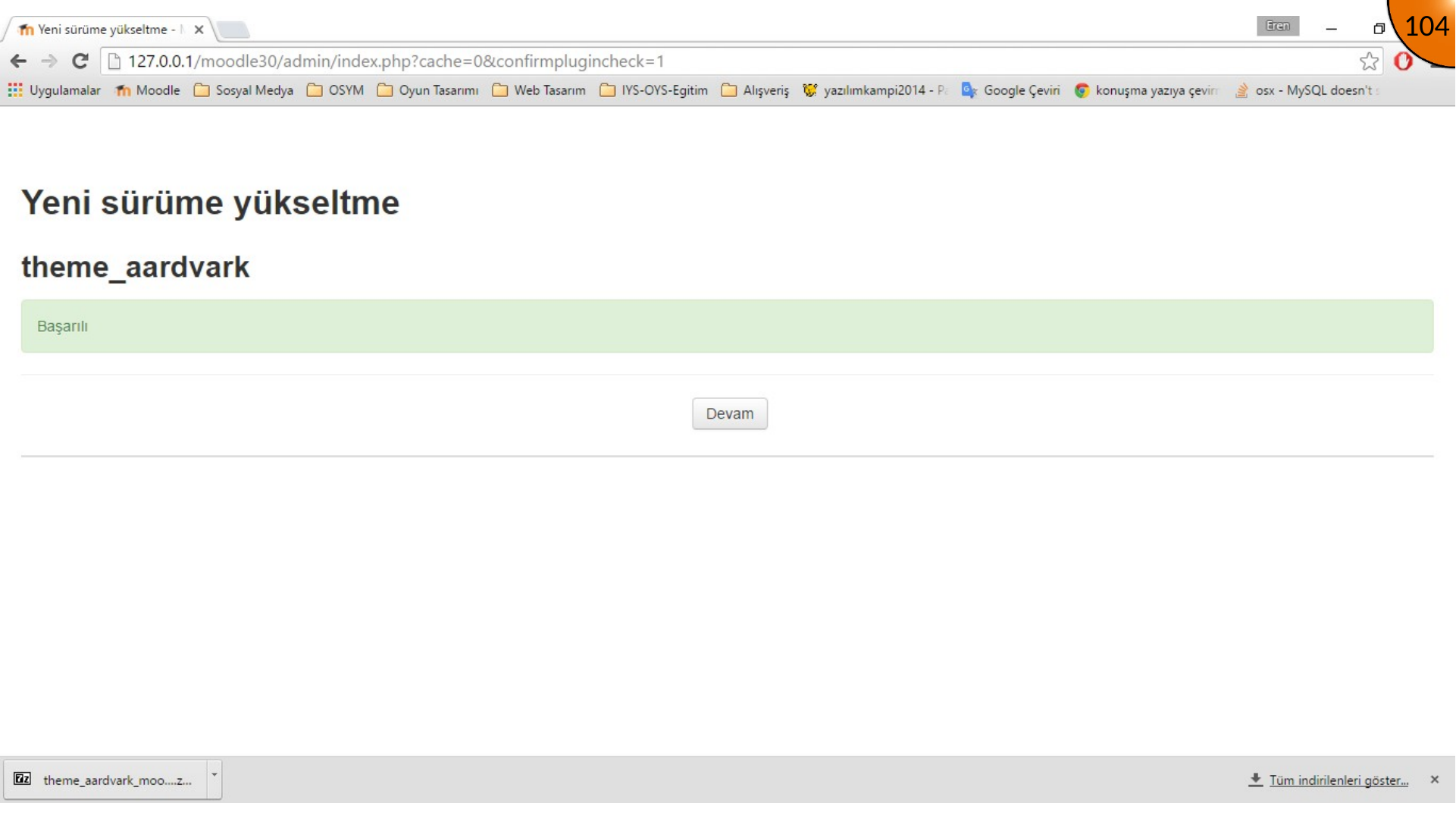
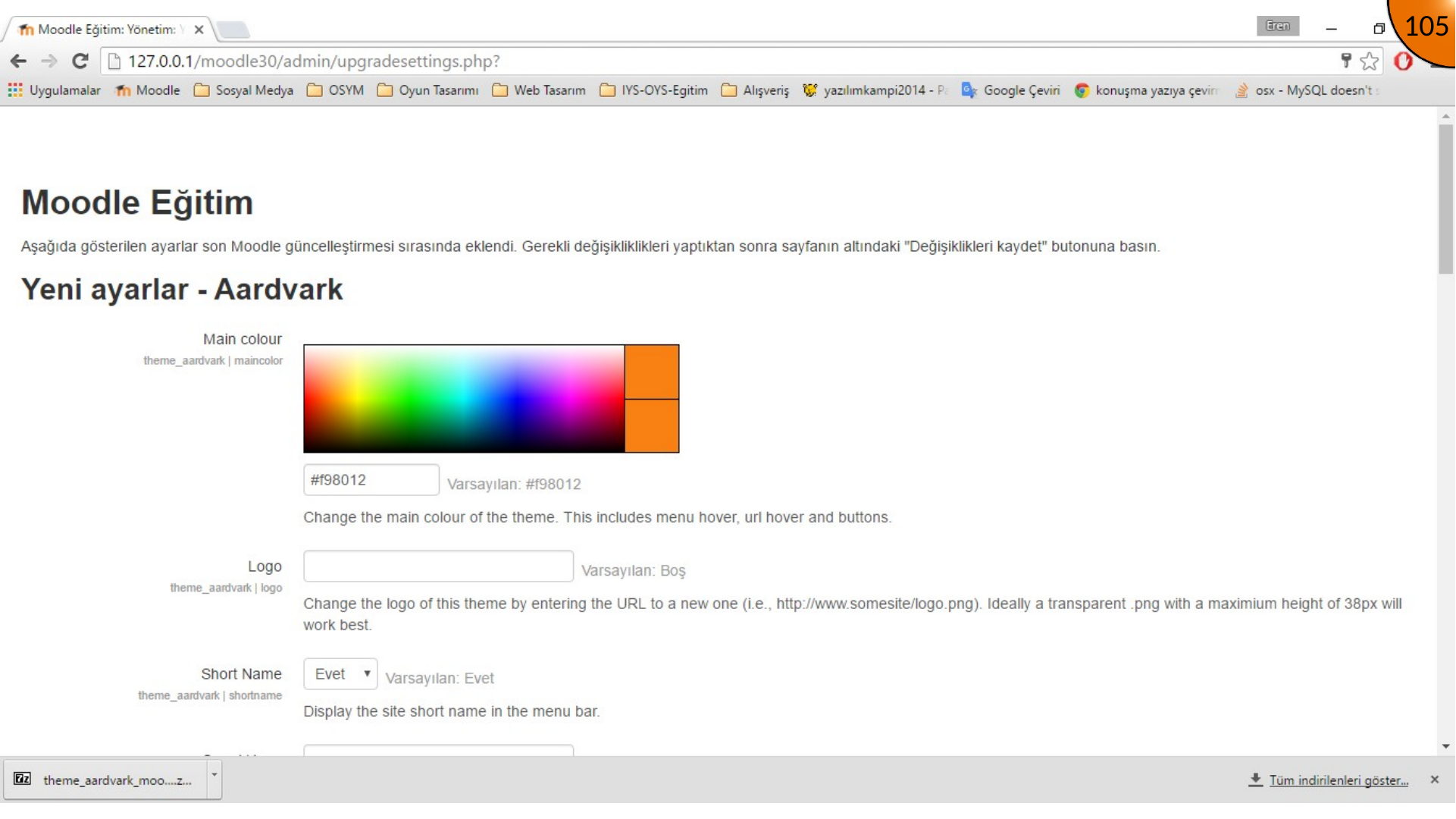
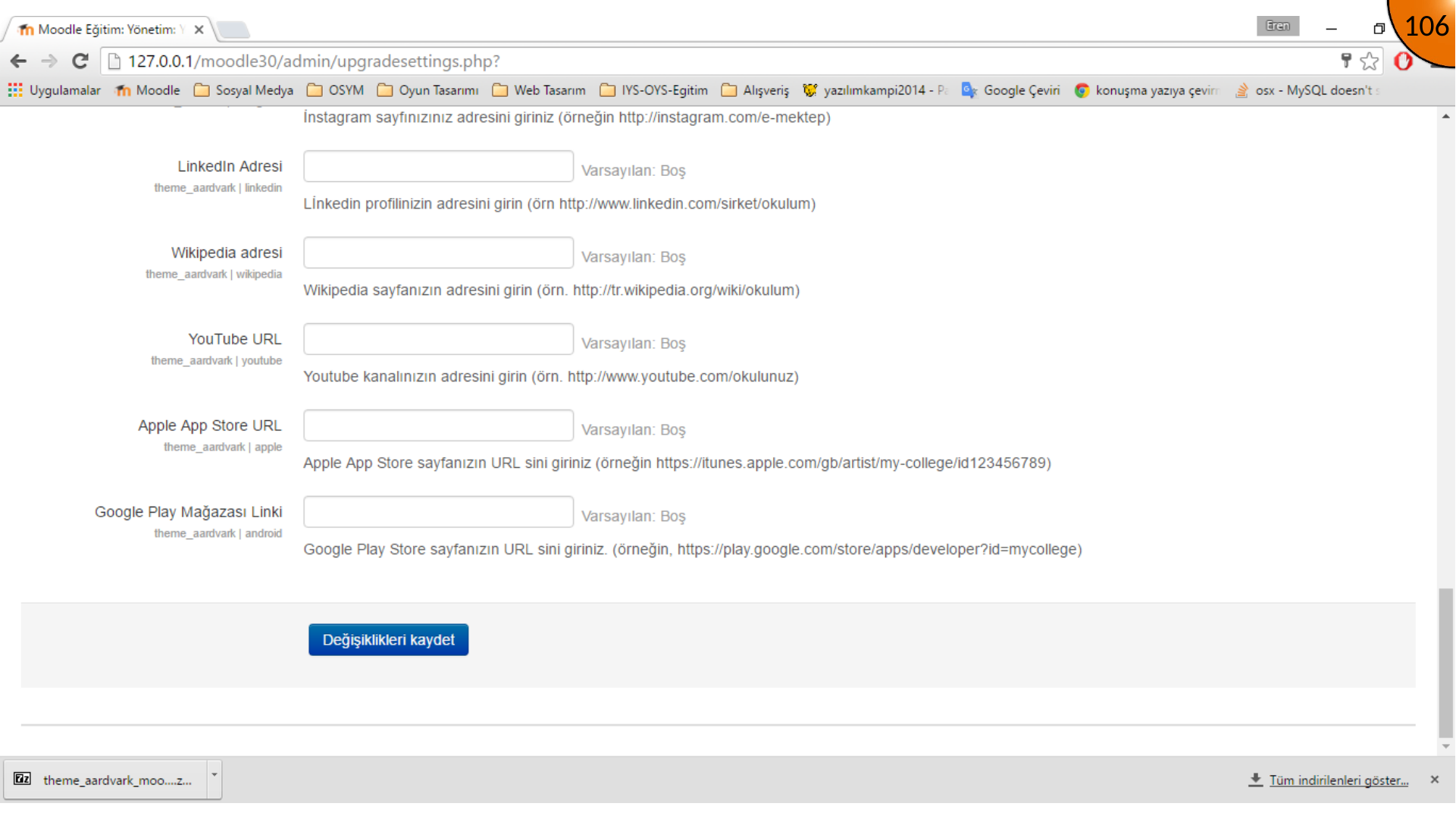
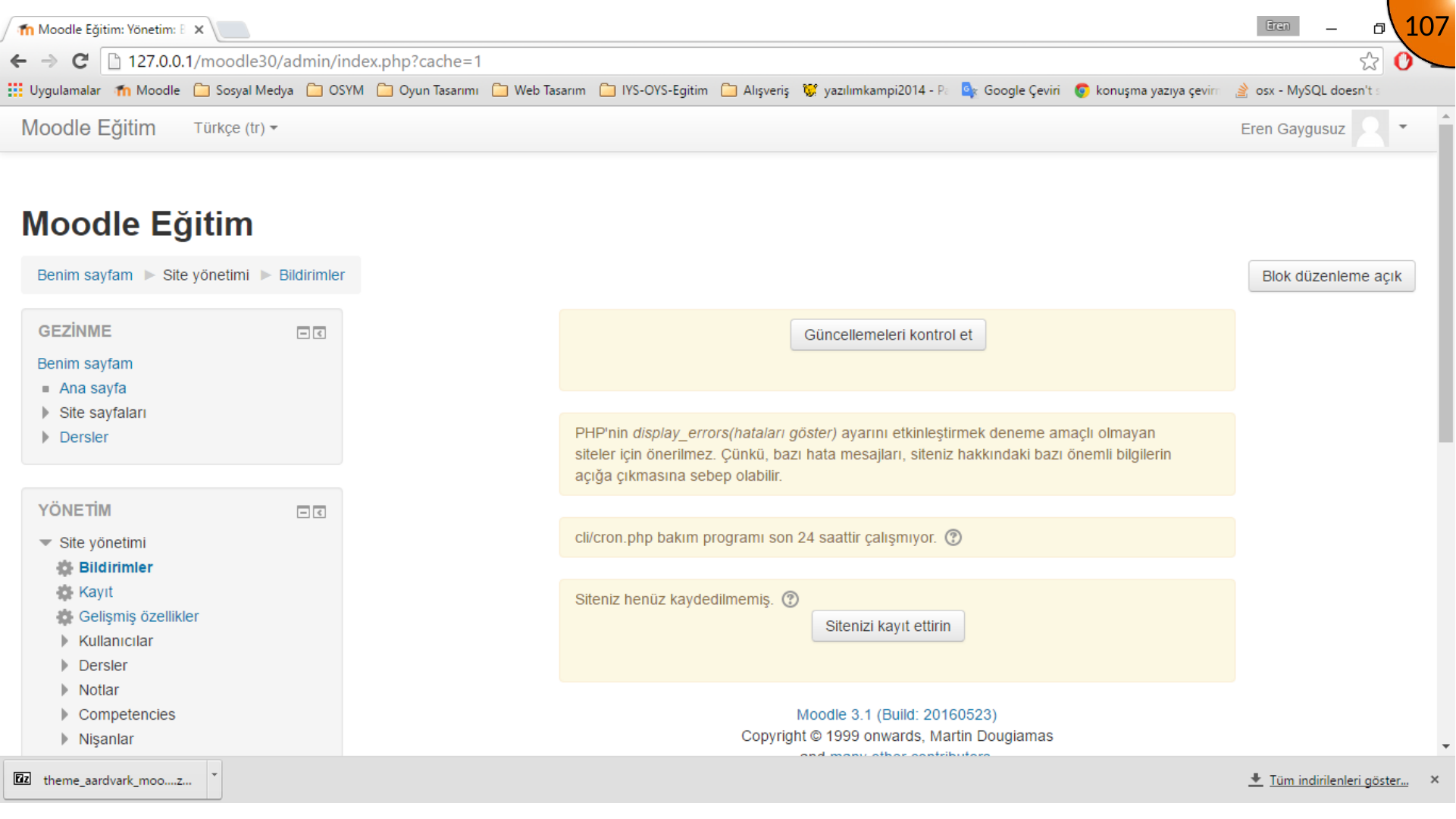
Extract the downloaded theme and place its folder in Moodle’s theme directory. Refresh Moodle, then complete the required database upgrade and configuration steps.
Activating the Theme
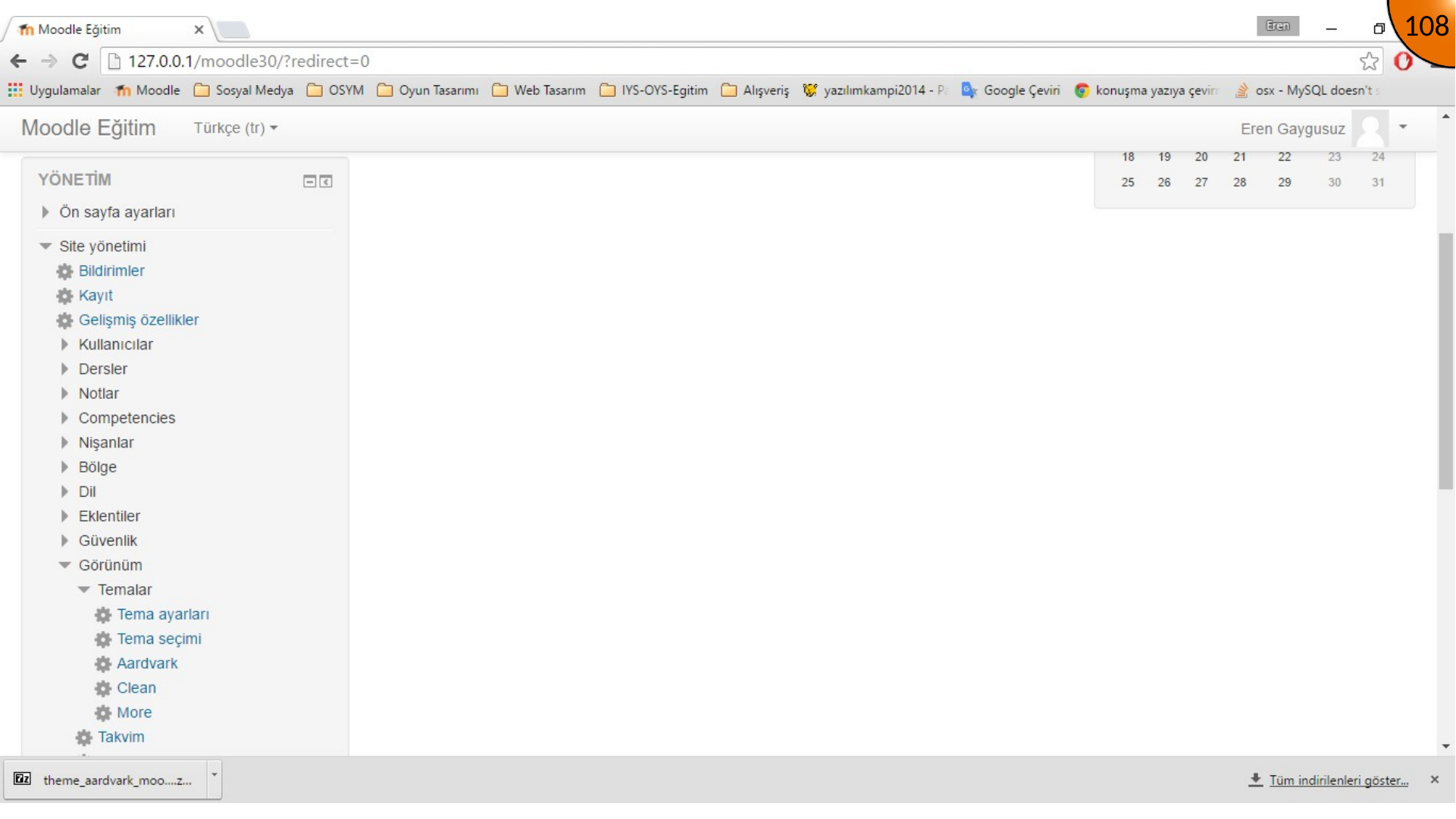
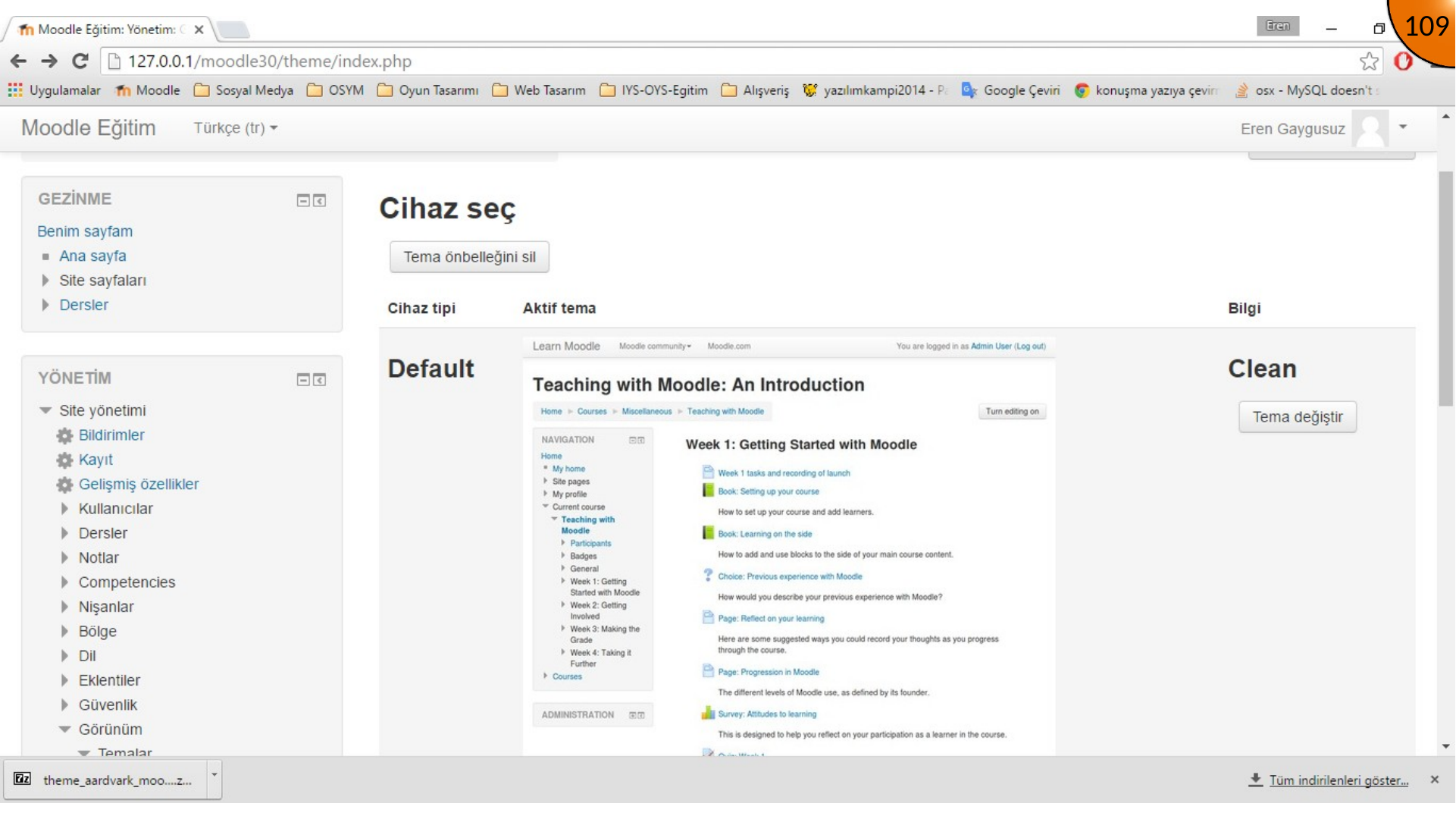
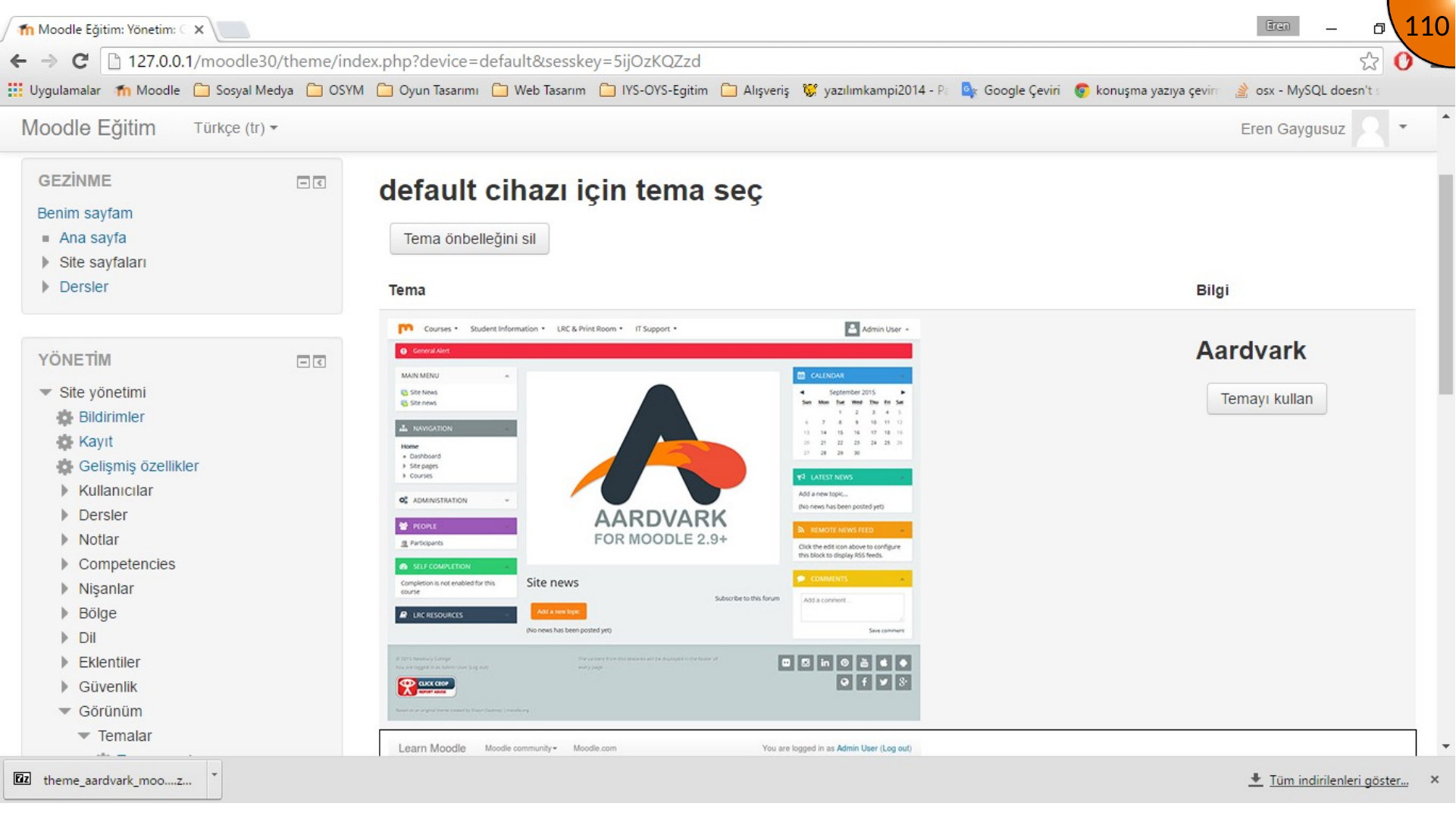
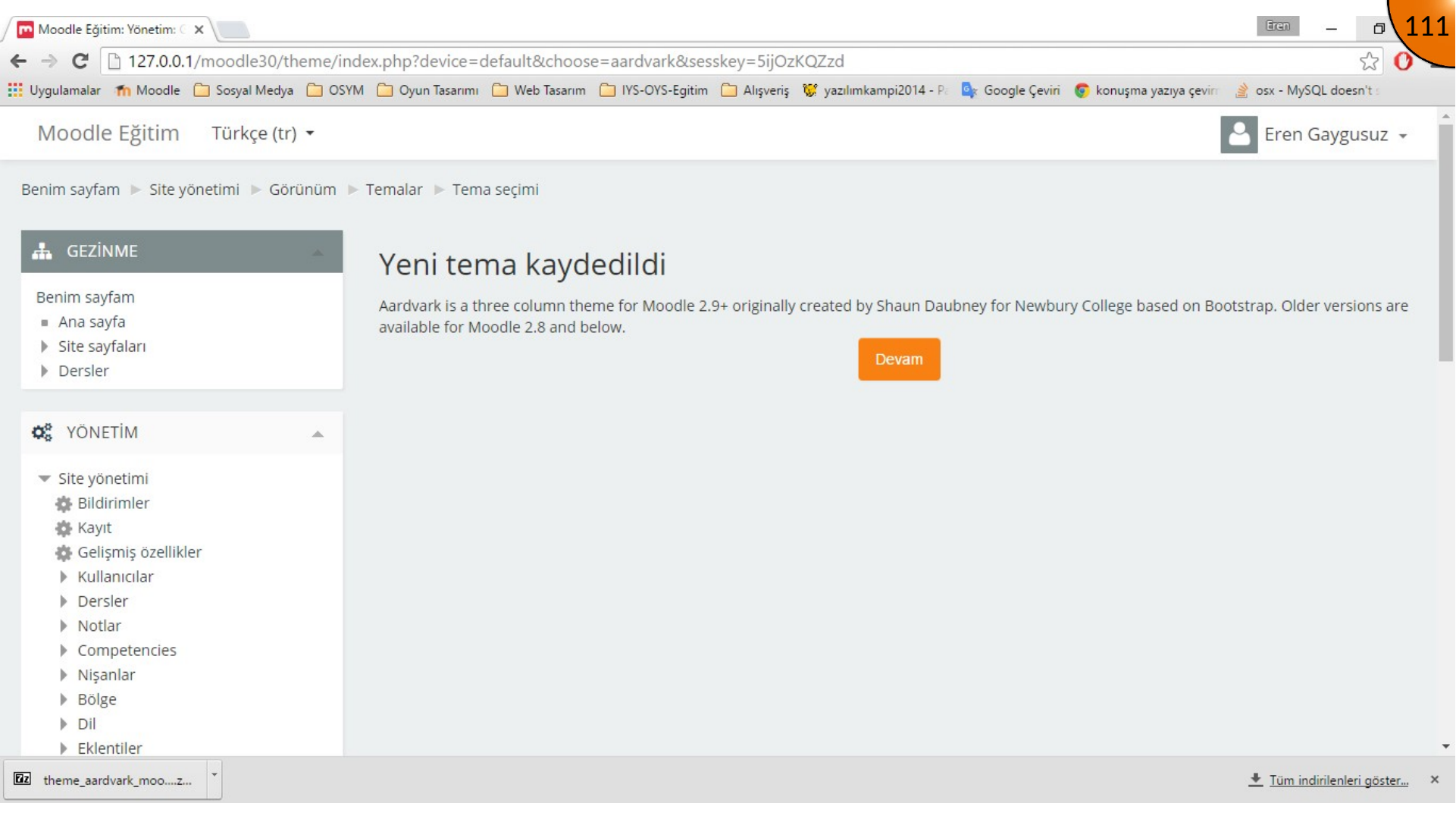
Open Site administration > Appearance > Themes > Theme selector, select the installed theme, and confirm the change.
Summary
Test a new theme with a staging site and learner account before using it in production. Keep the theme, Moodle core, and plugins compatible and updated.
Comments