Files and folders are basic Moodle resources for distributing course material. Use a file for a single document and a folder when learners need a group of related items.

Table of contents
Open Table of contents
Adding a File Resource
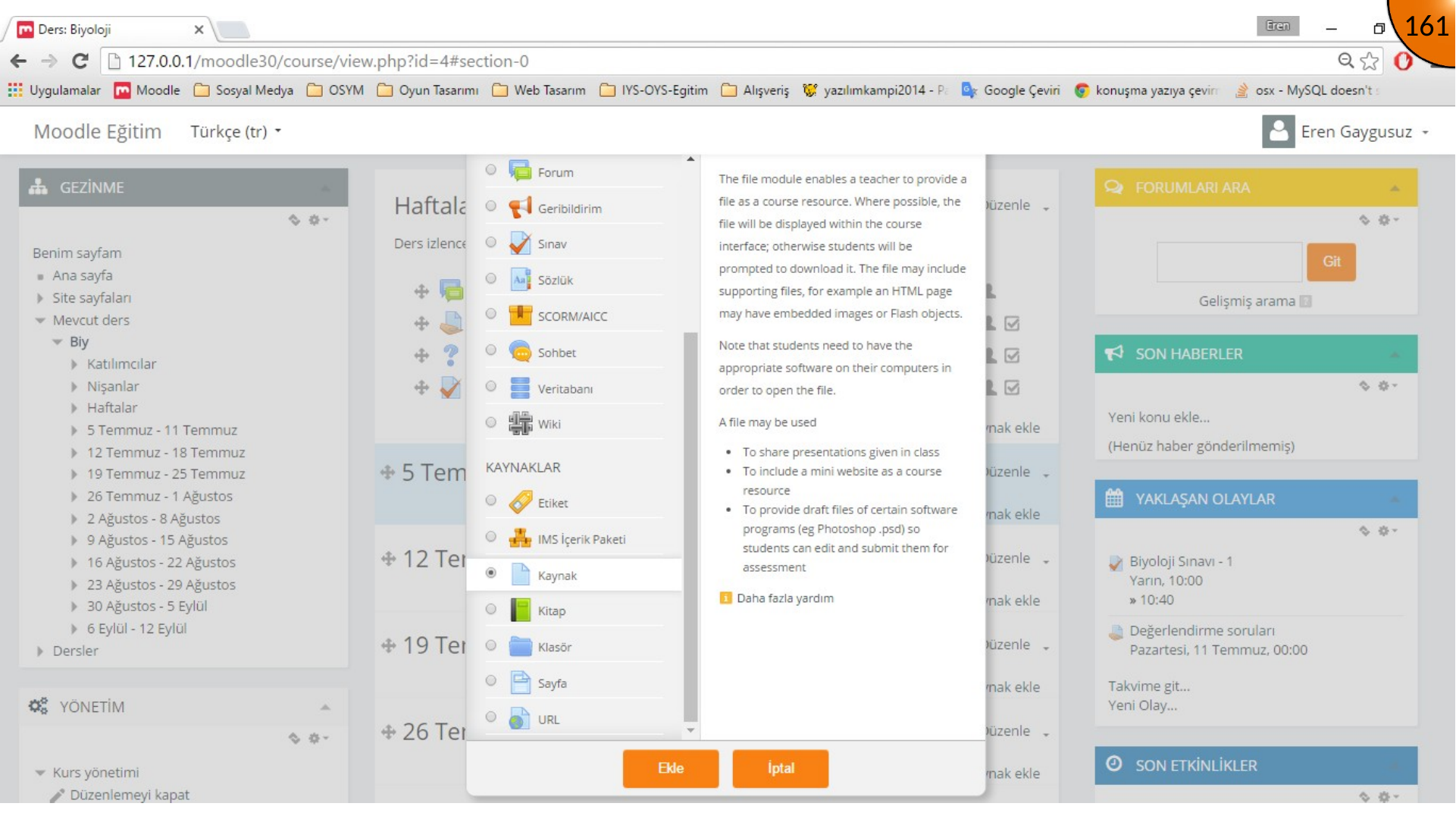
Open Add an activity or resource, choose File, and continue to the resource settings.
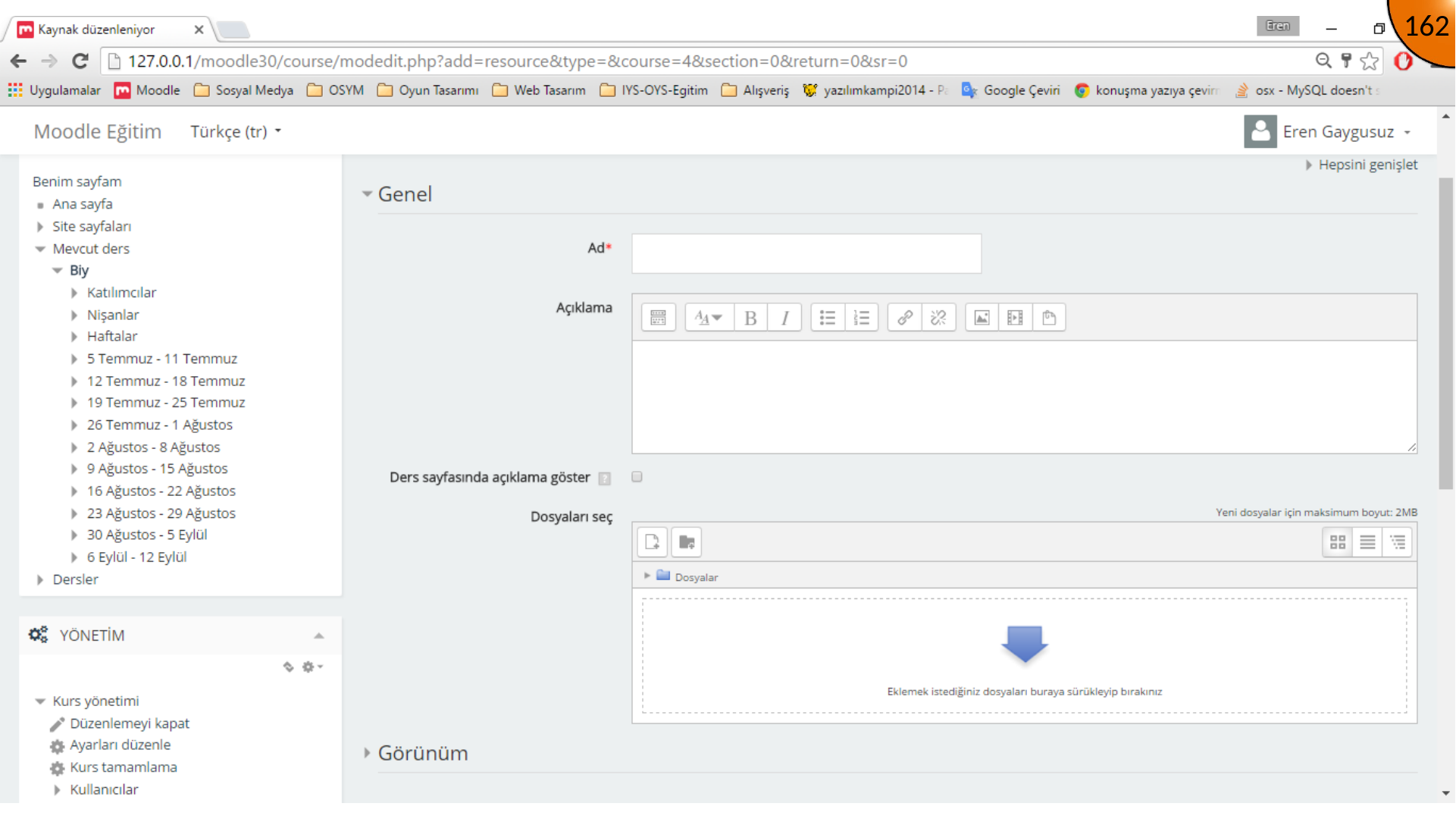
Add a name and description, then upload the document by using the file picker or dragging it into the files area.
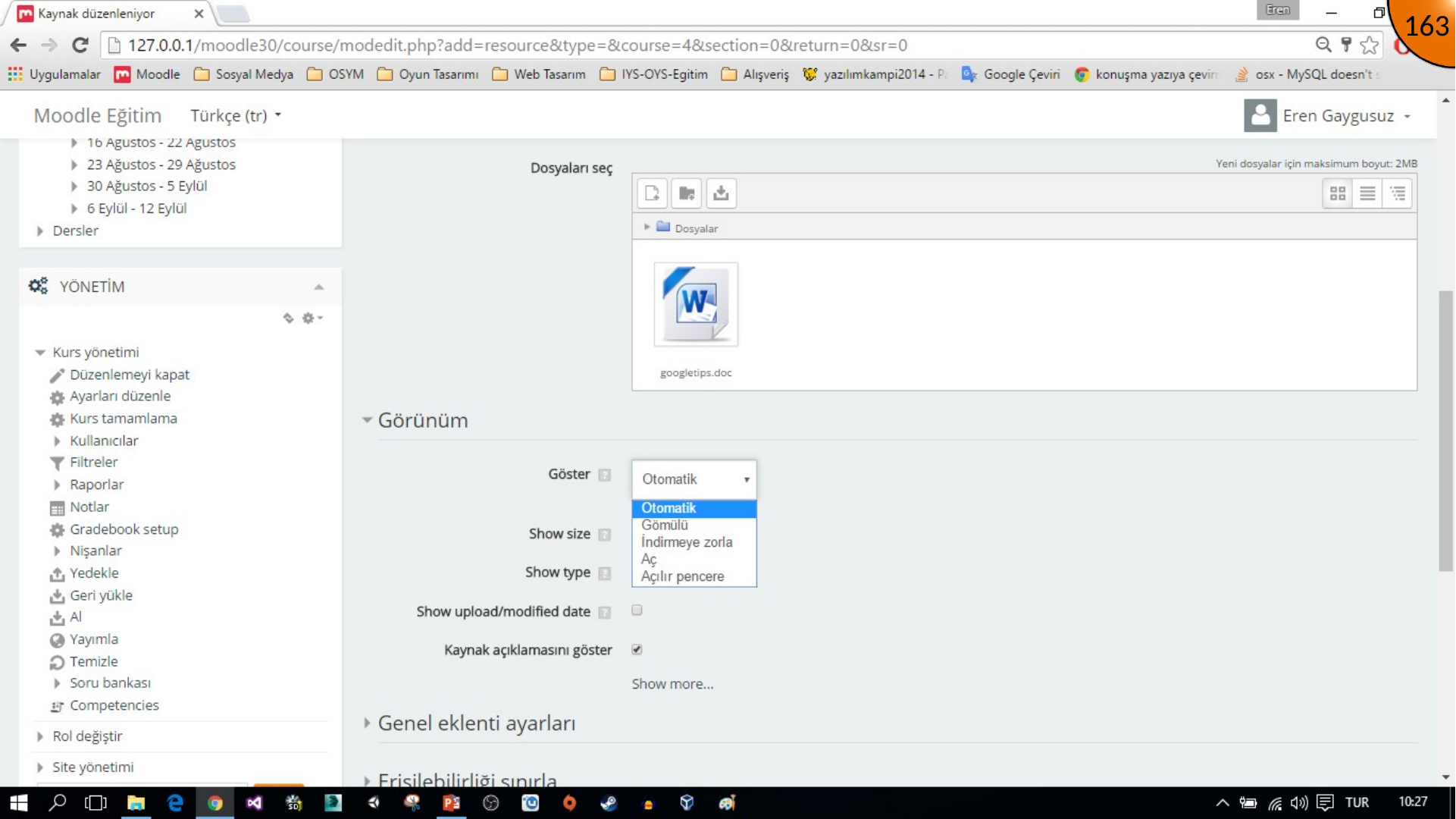
Choose an appropriate display setting. Test the result in the browsers and devices learners will use, because embedded or open-in-browser behavior depends on the file type and browser support.
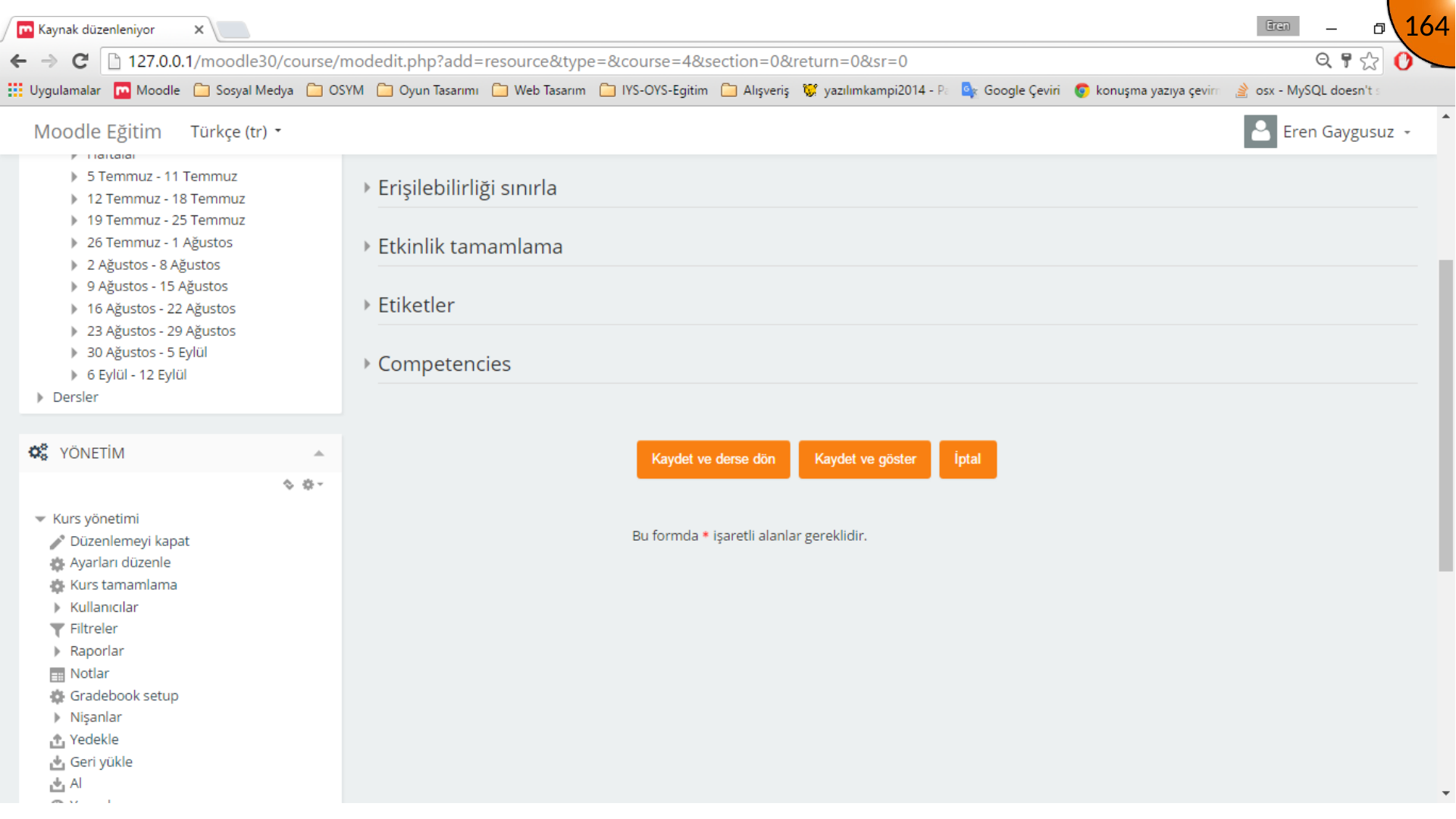
Save the resource and return to the course.
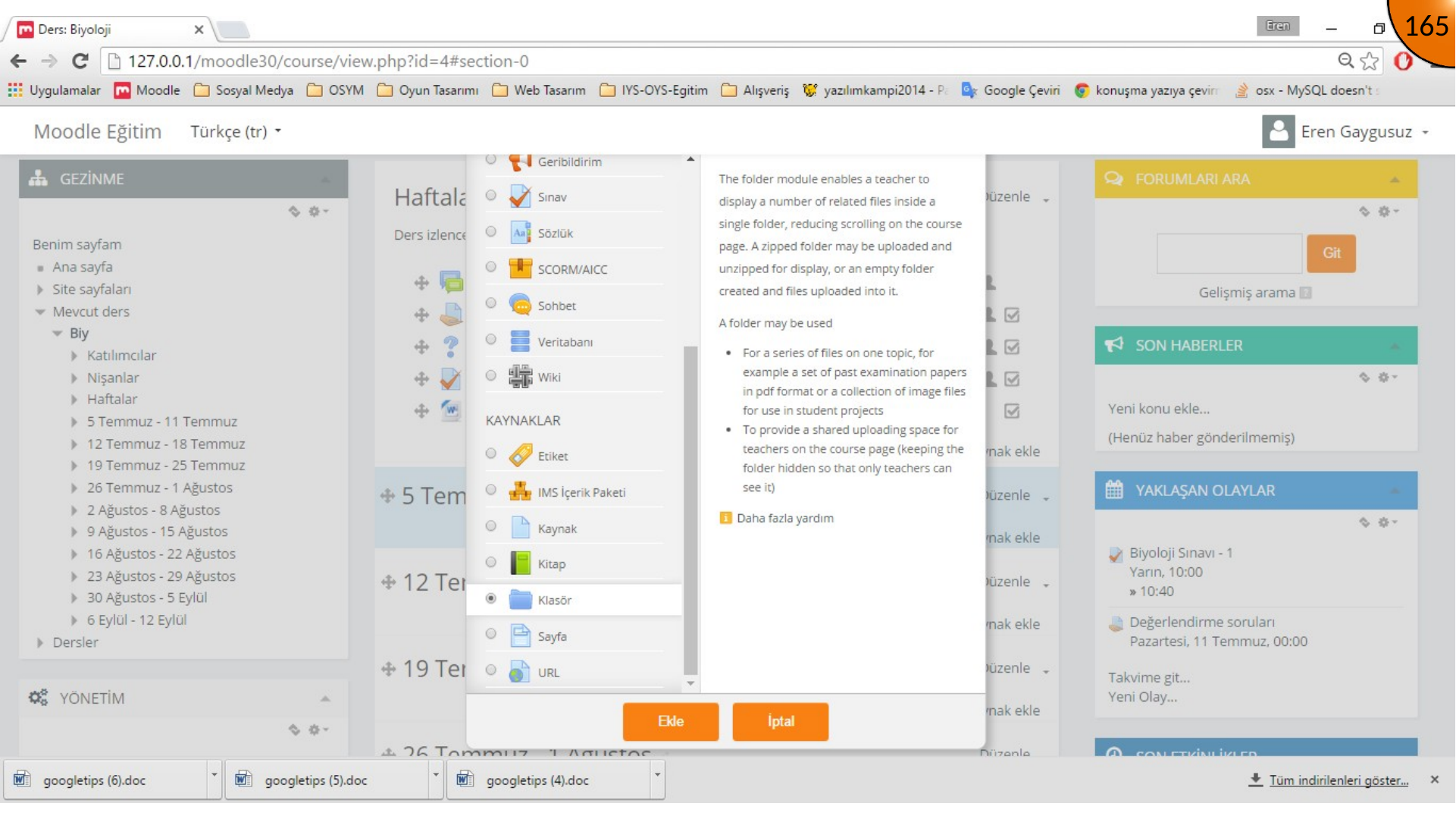
Adding a Folder Resource
Open the resource chooser again and select Folder.
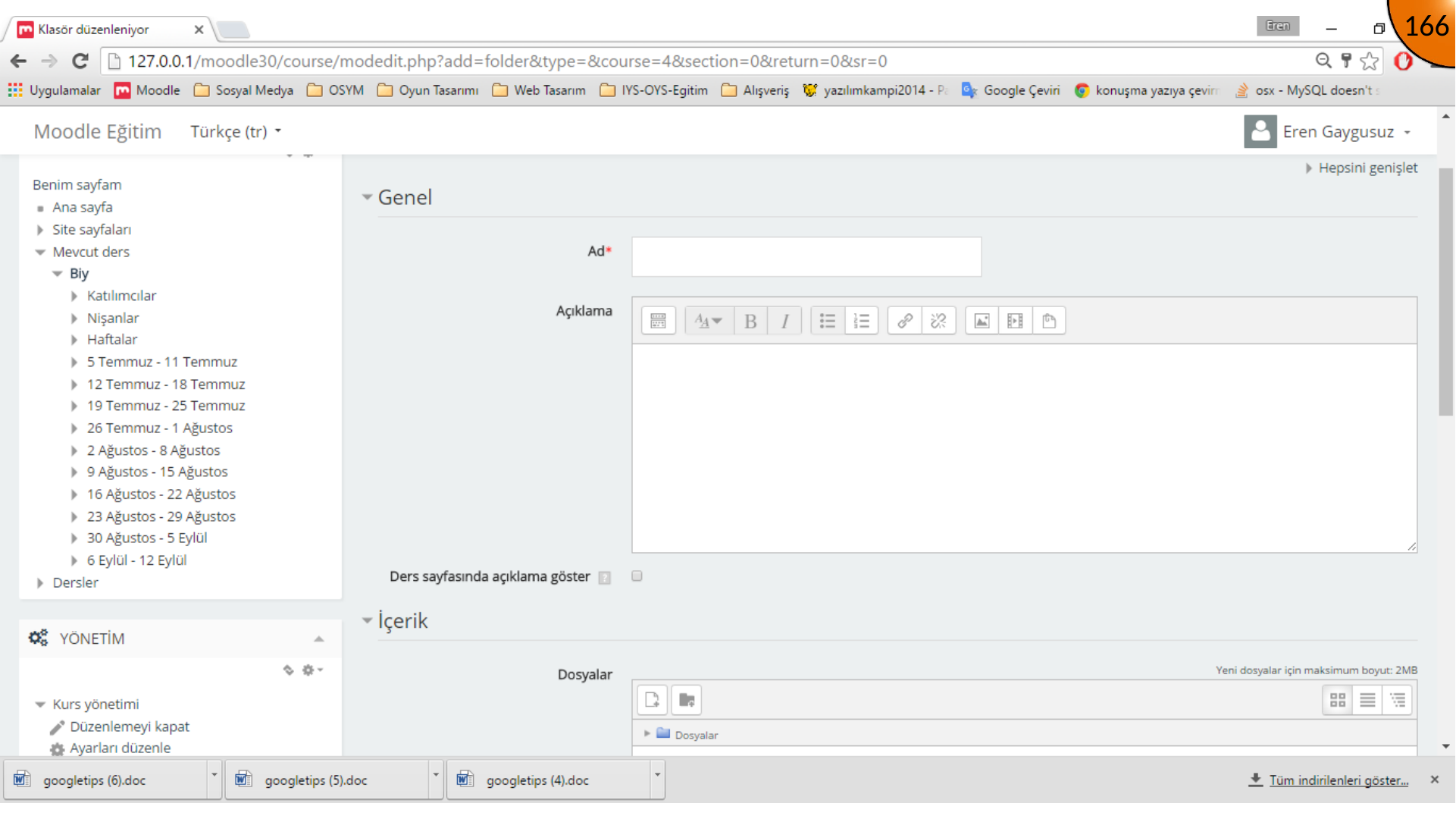
Give the folder a meaningful name and description, then drag related files into its content area.
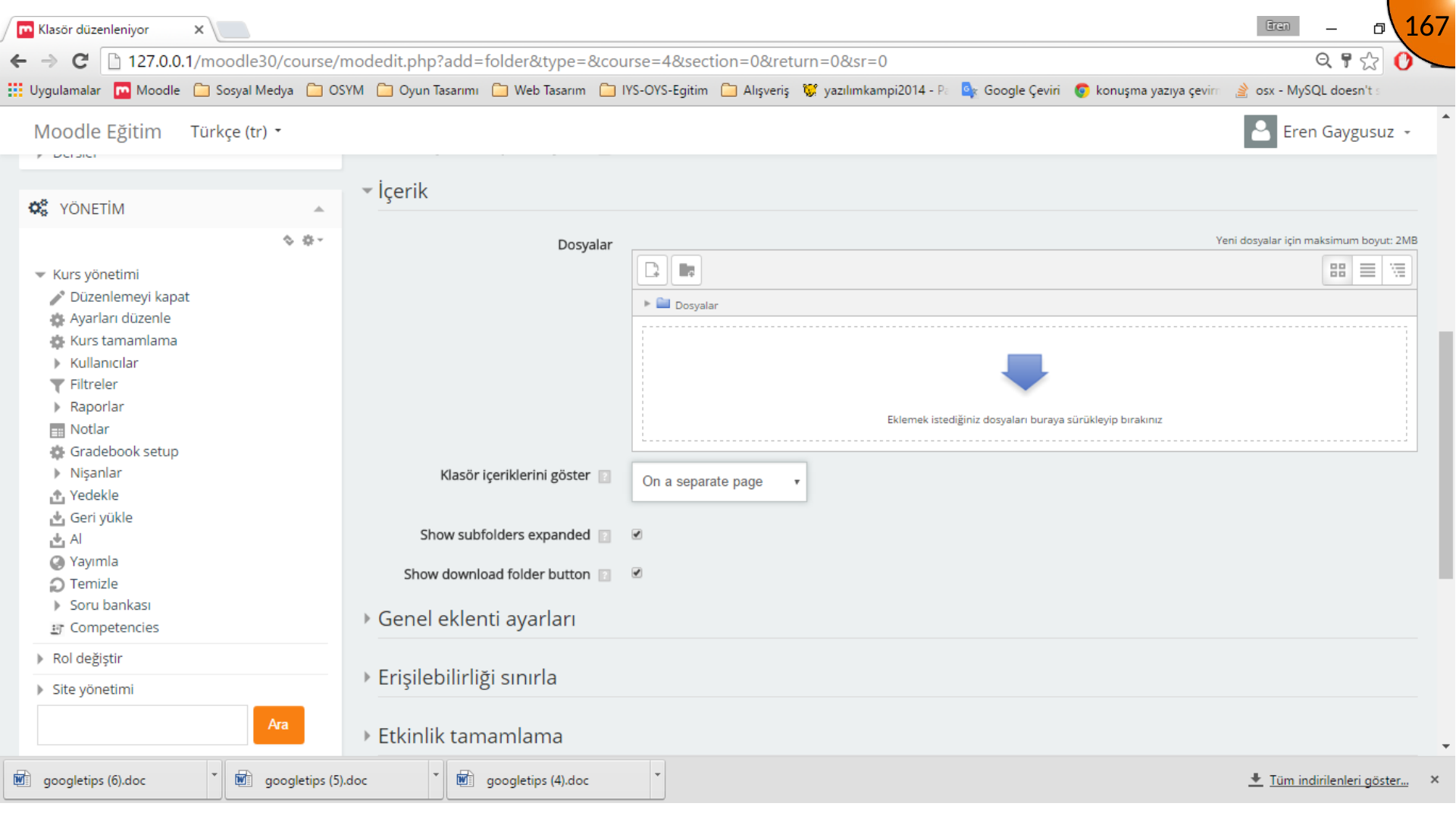
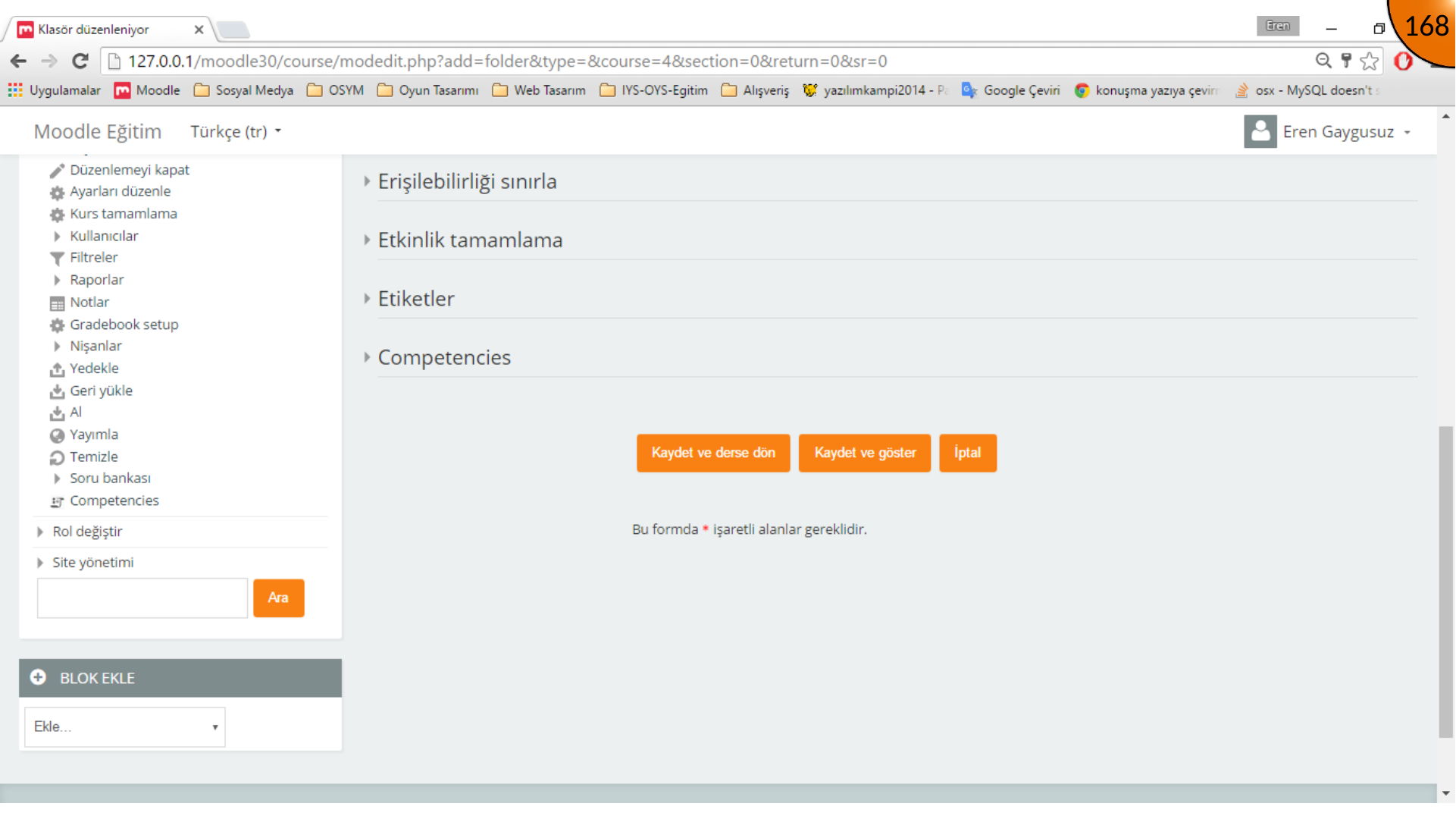
Save the folder to make the grouped resources available to learners.
Summary
Use descriptive filenames, keep folder structures shallow, and avoid uploading duplicate versions of the same material. Check access as a learner after publishing resources.
Comments