A Moodle quiz is the assessment container: it controls access, timing, grading, question behavior, review information, and feedback. Questions are added separately from the question bank after the quiz itself is configured.
Table of contents
Open Table of contents
Creating the Quiz
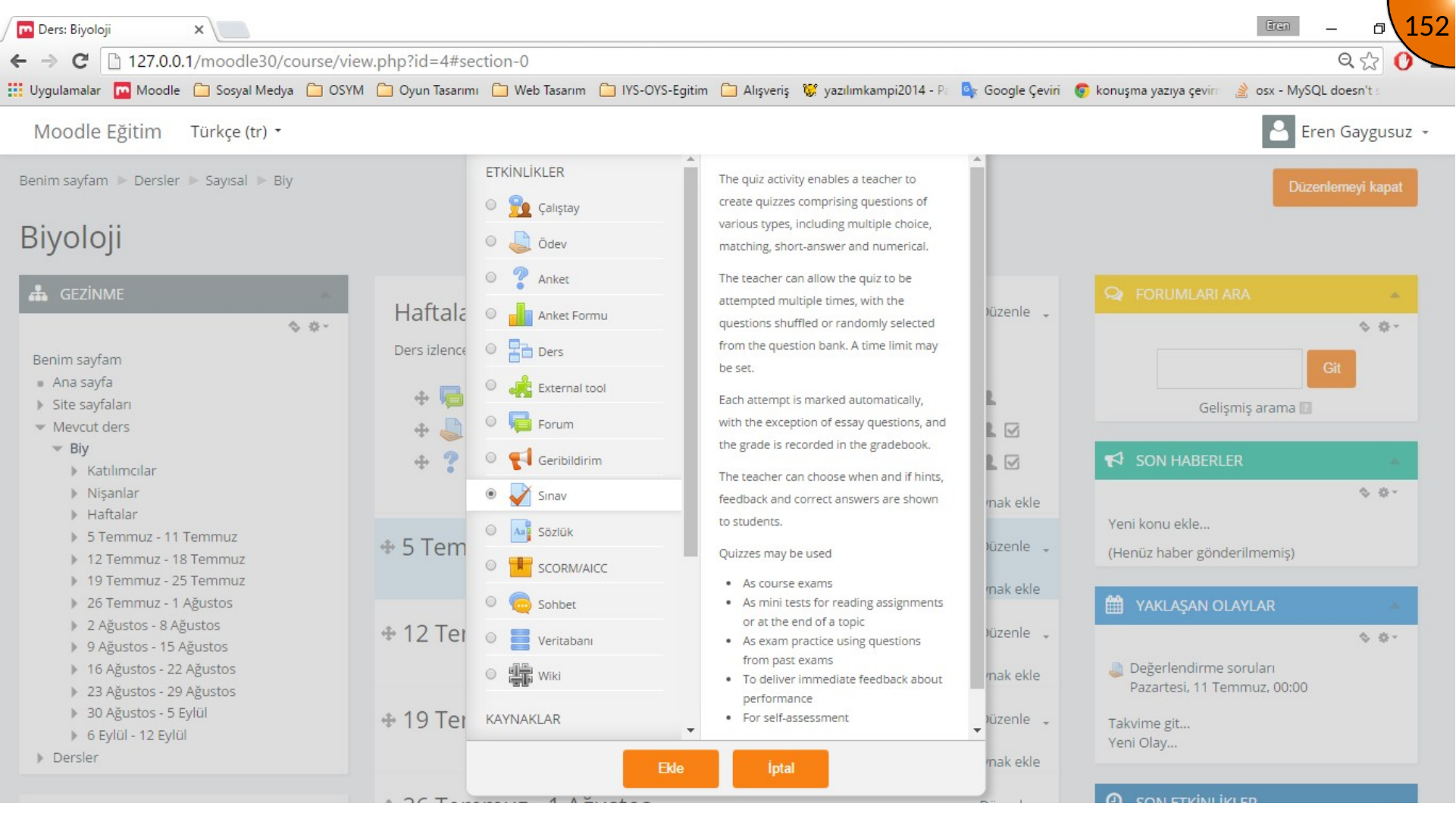
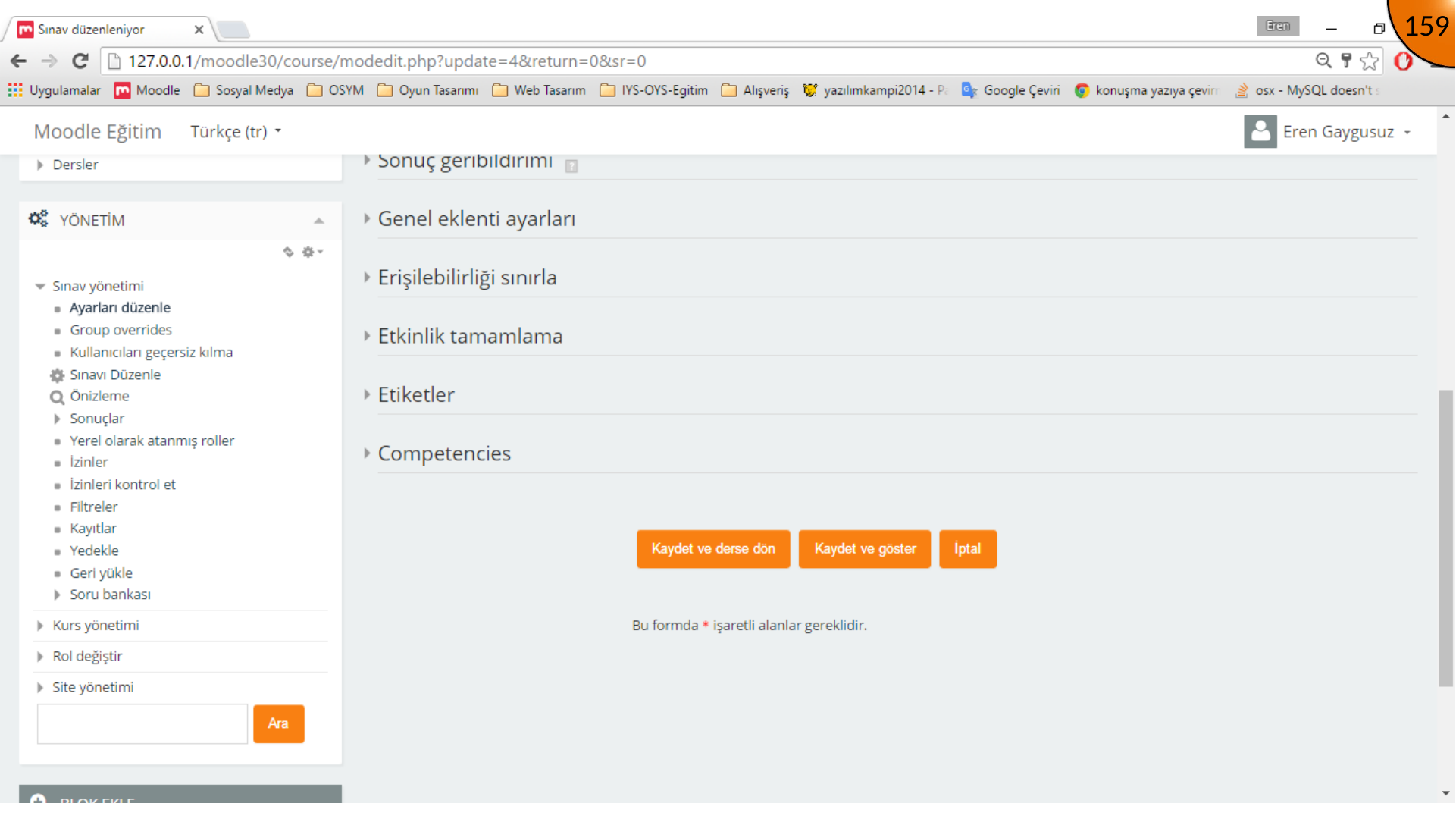
From the course activity chooser, select Quiz and open its settings.
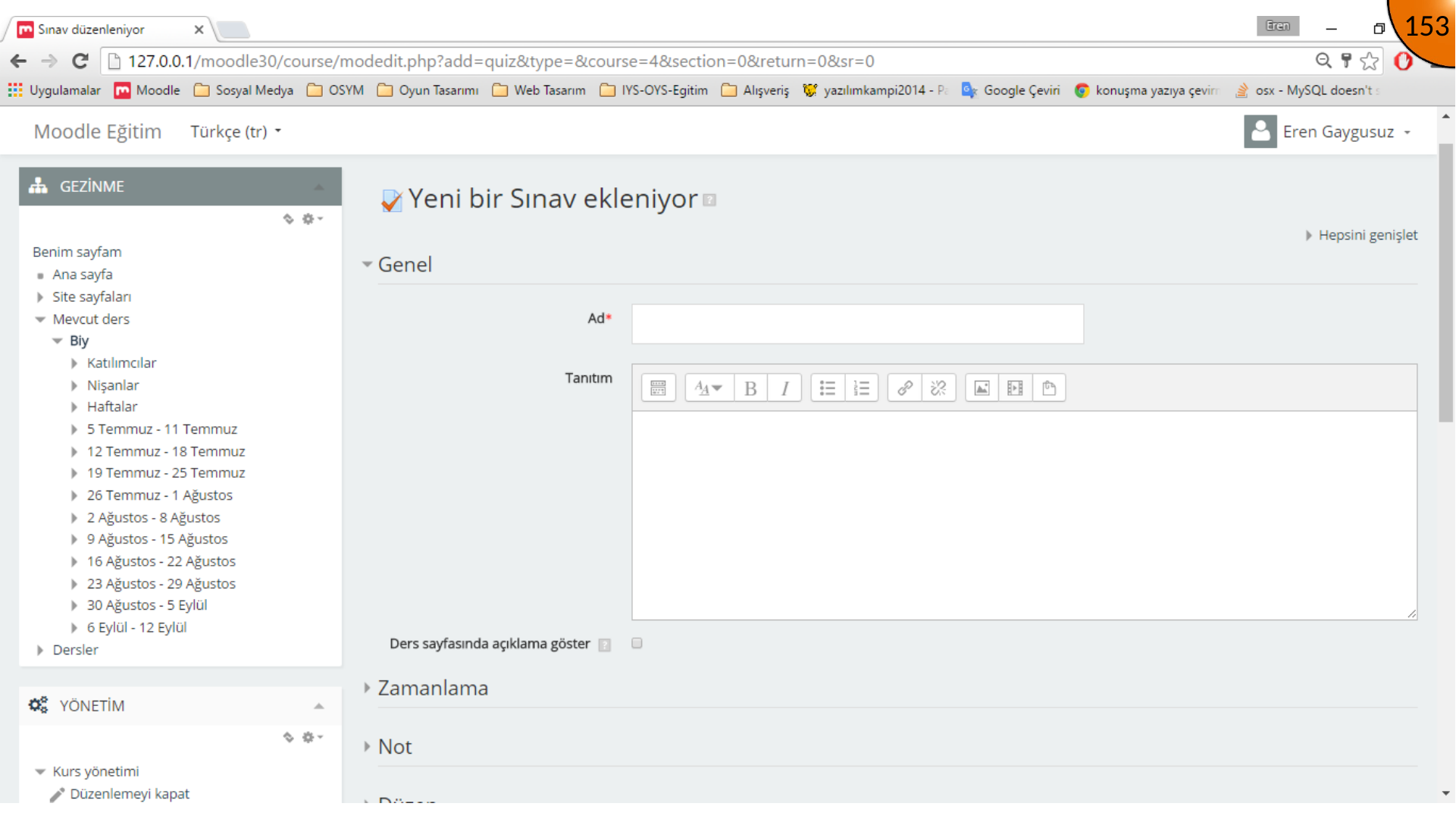
Set a clear quiz name and introduction so learners know the assessment purpose and expectations.
Timing and Grading
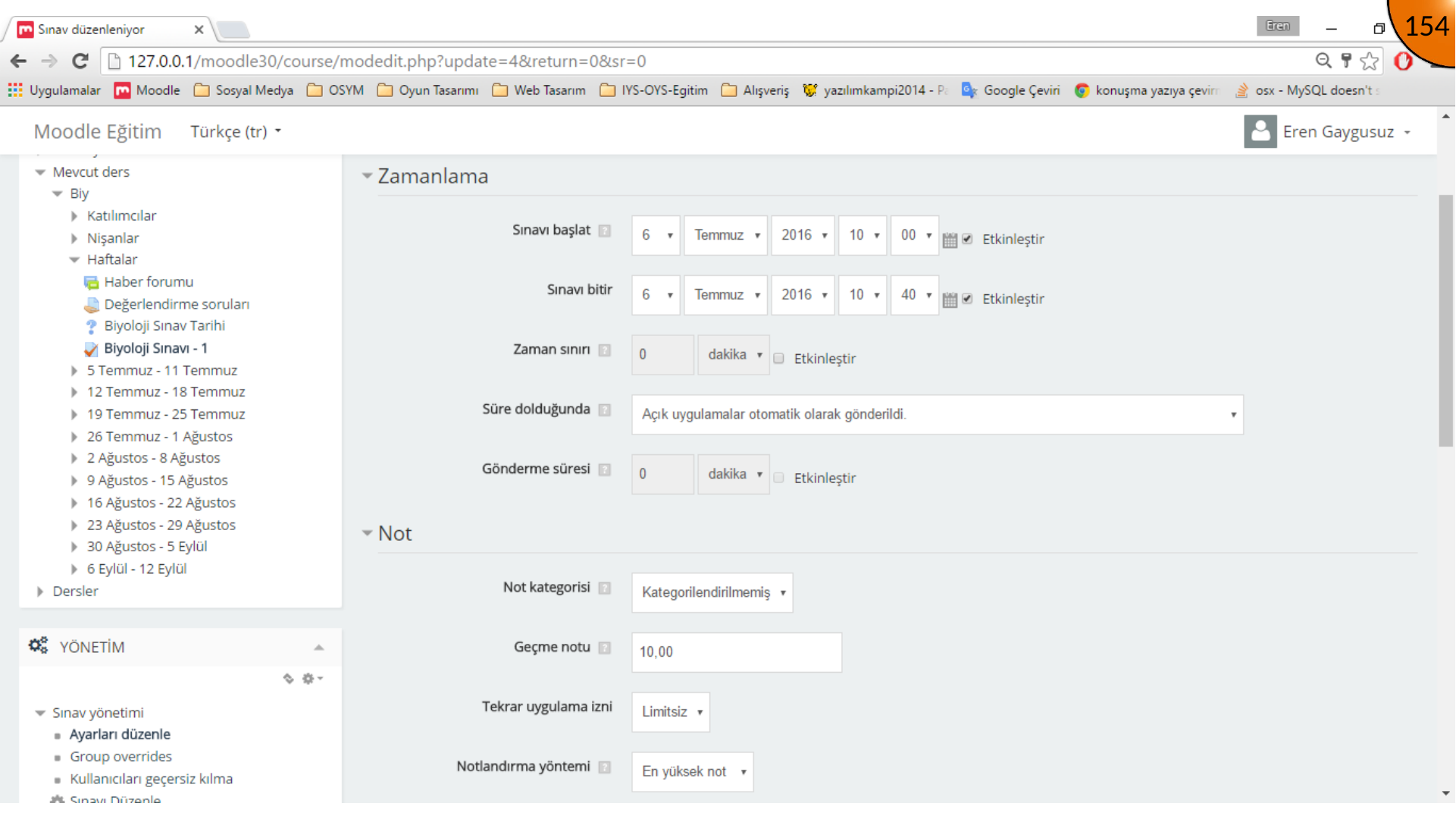
Set the opening and closing dates deliberately. The quiz should be unavailable before its start time and after its close time unless the learning design requires otherwise.
Choose the number of questions displayed per page and verify that the navigation is reasonable for the assessment length.
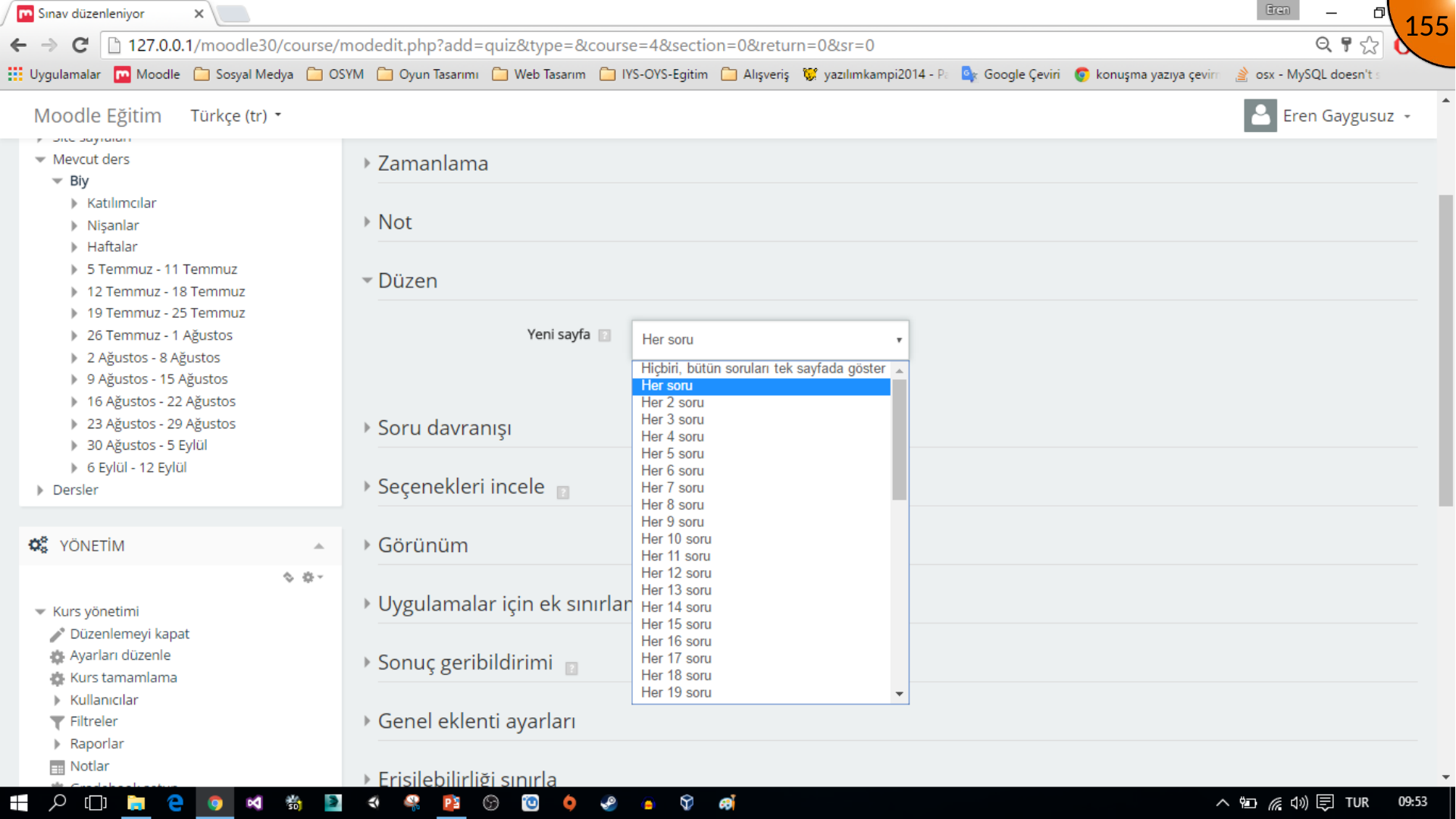
Question Behavior and Review
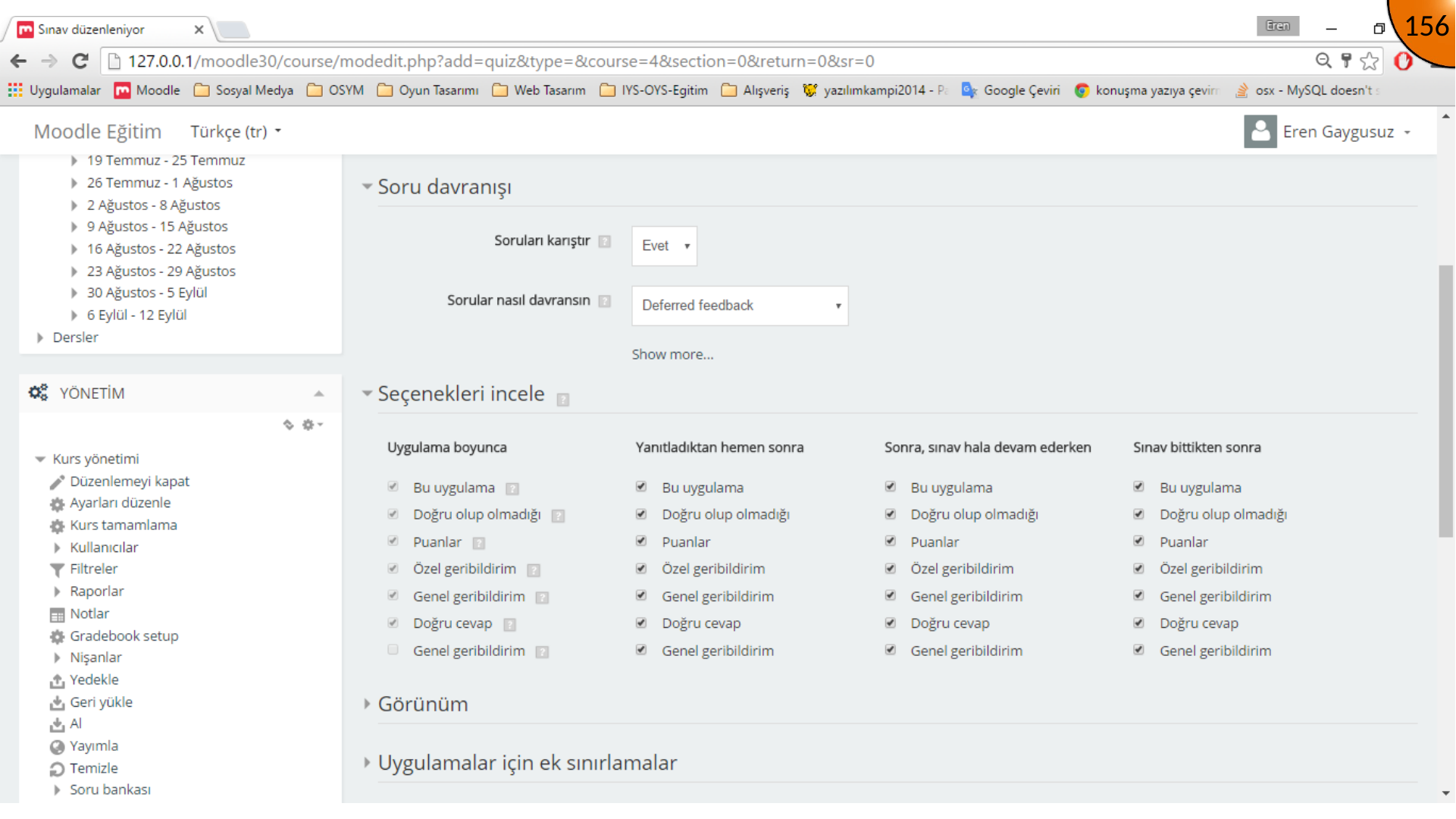
Question behavior controls matters such as question ordering. Review options control what learners can see during and after attempts, including feedback and correct answers.
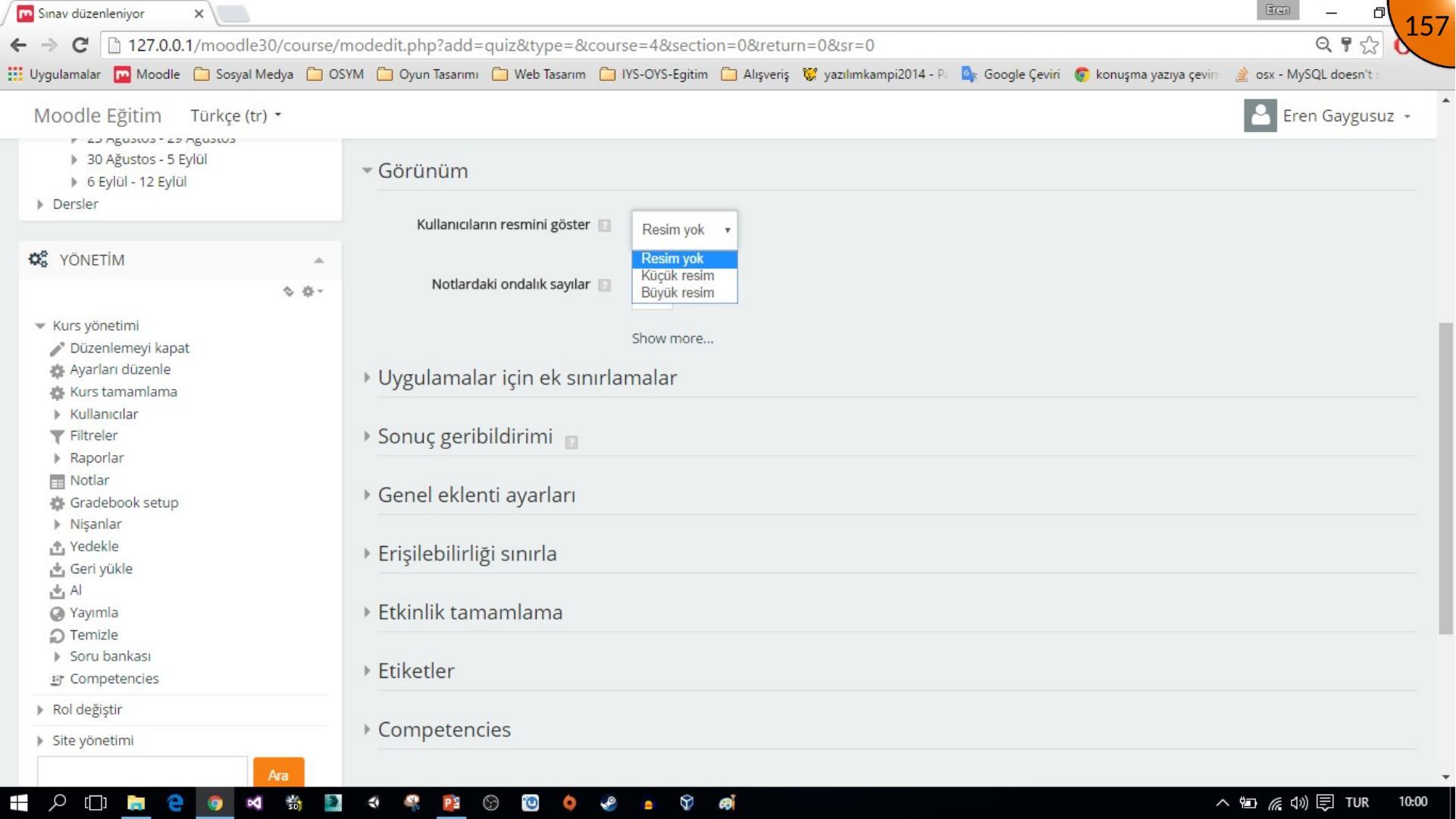
The display settings can control whether user profile images and related information appear during an attempt.
Feedback and Completion
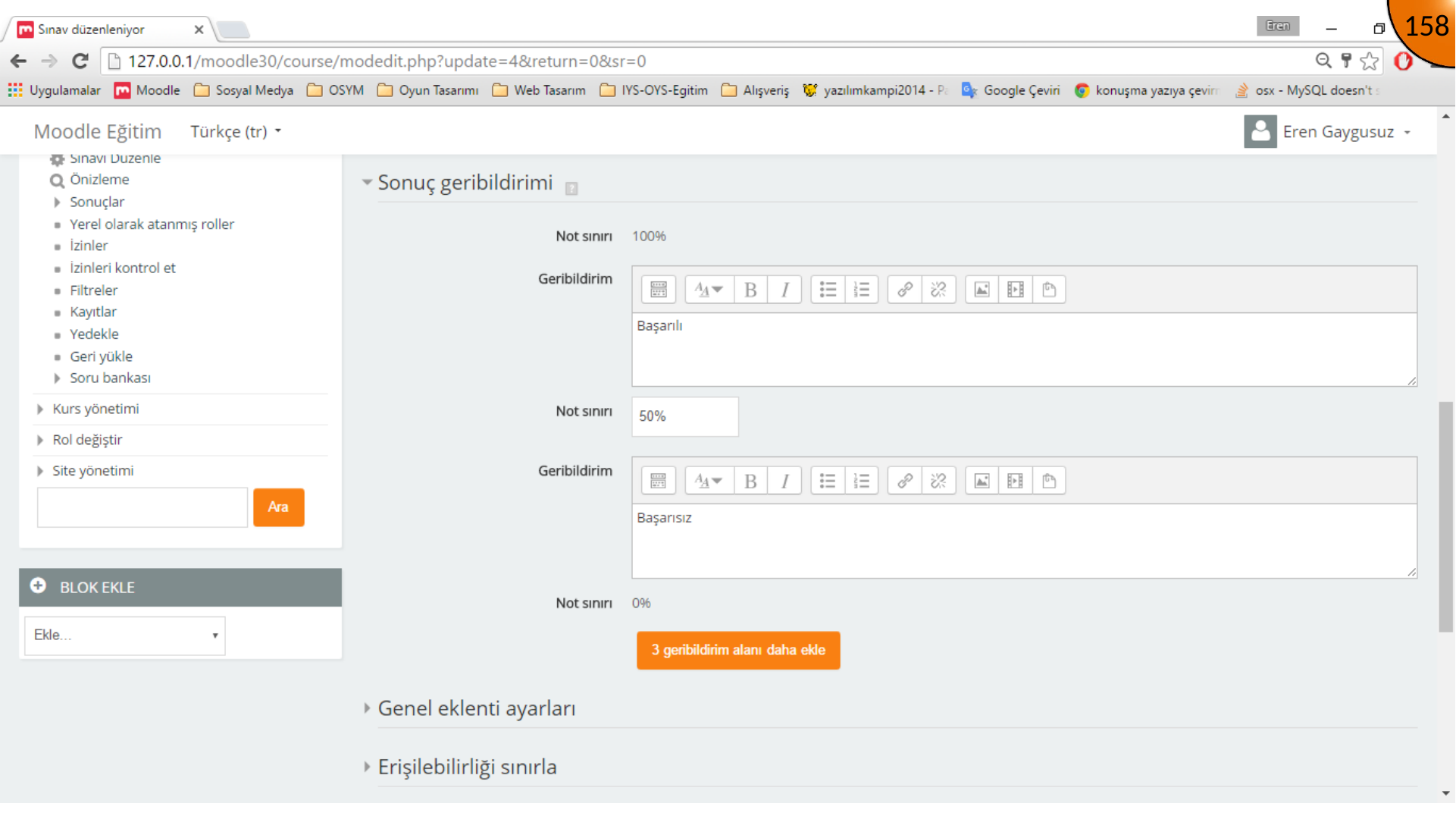
Use overall feedback ranges to provide a useful message for different grade outcomes. For example, a passing range can offer next steps while a lower range can direct learners to review material.
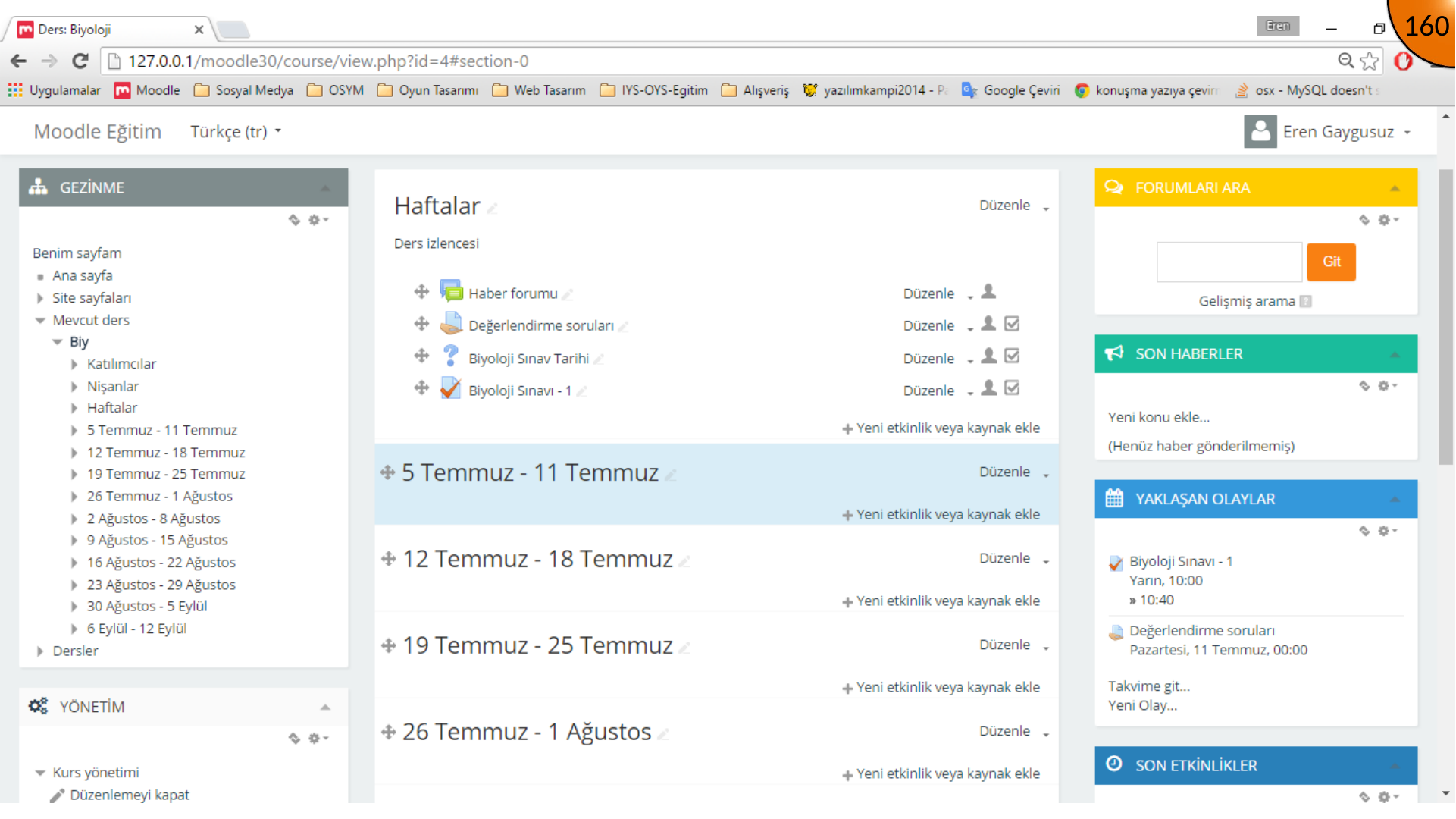
Save the quiz and return to the course. Moodle then lists it as an upcoming activity when its schedule is configured.
Summary
Configure the quiz before adding questions: timing, grading, review settings, and feedback should reflect the intended assessment rules. Test a quiz with a learner account before using it for a real assessment.
Comments