Embedding a video in a Moodle Page resource lets learners watch it without leaving the course. This archived walkthrough uses YouTube’s embed code and Moodle’s HTML editor.

Table of contents
Open Table of contents
Creating a Moodle Page
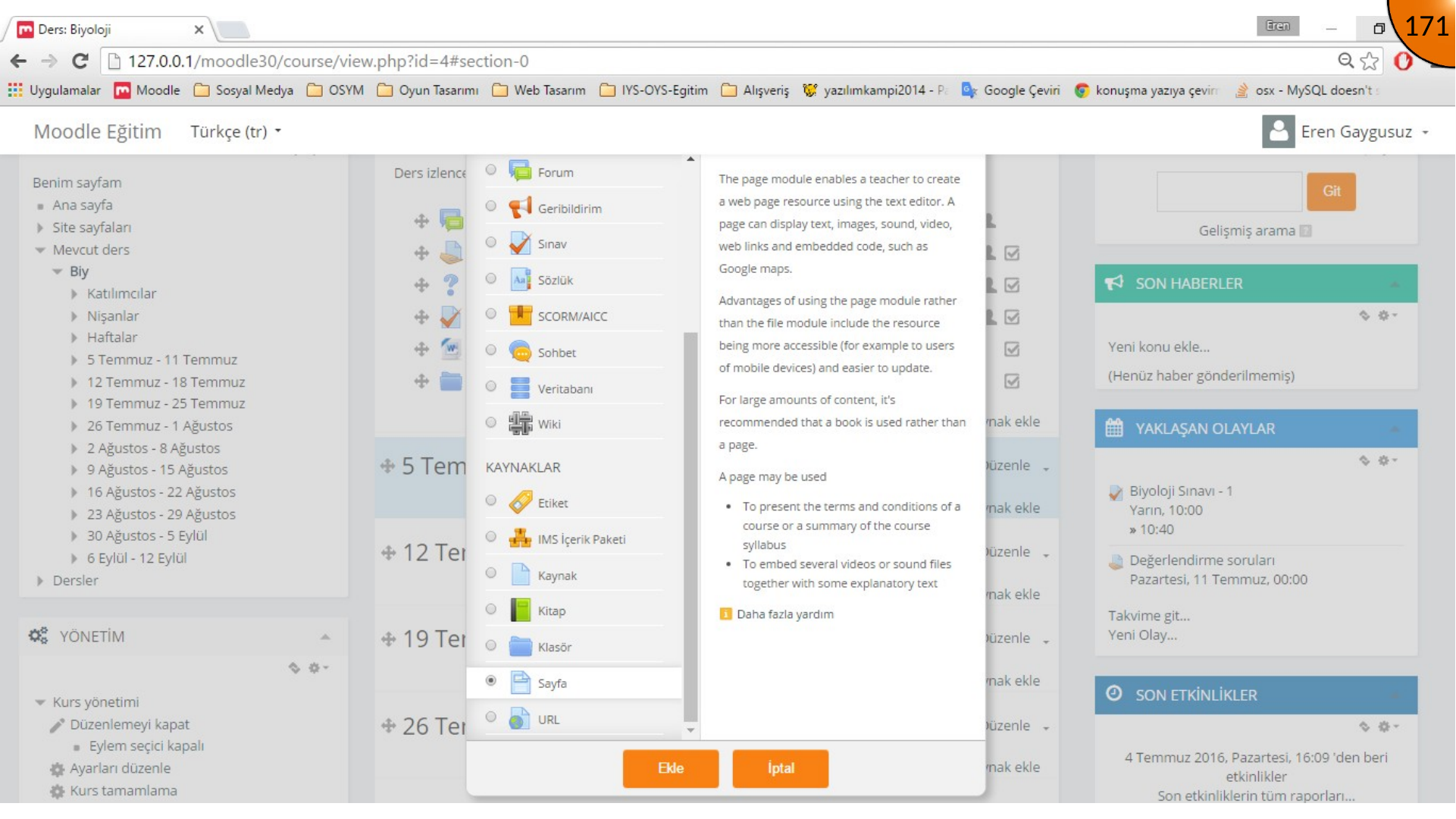
Open the course activity chooser, select Page, and give the page a clear name.
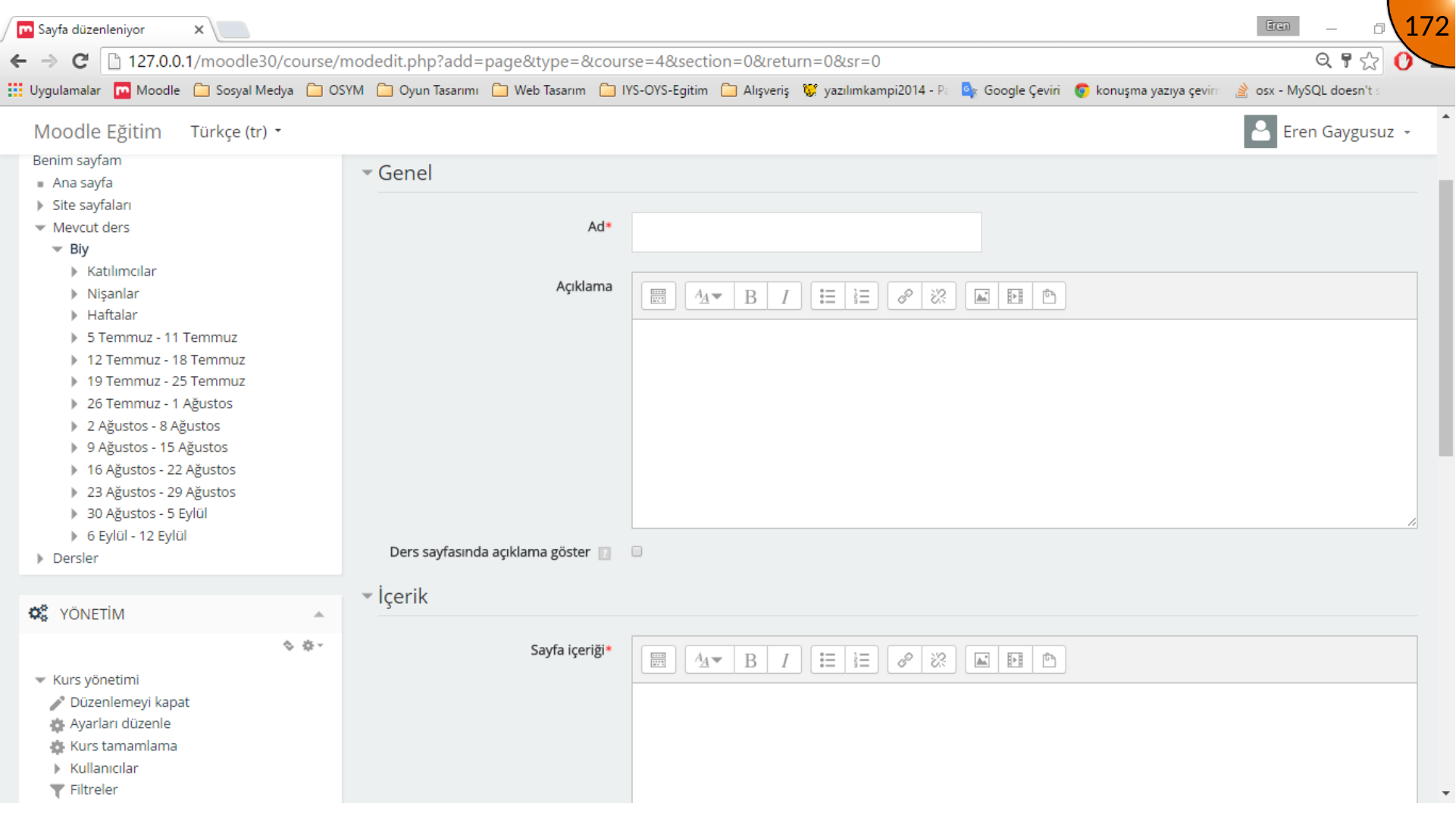
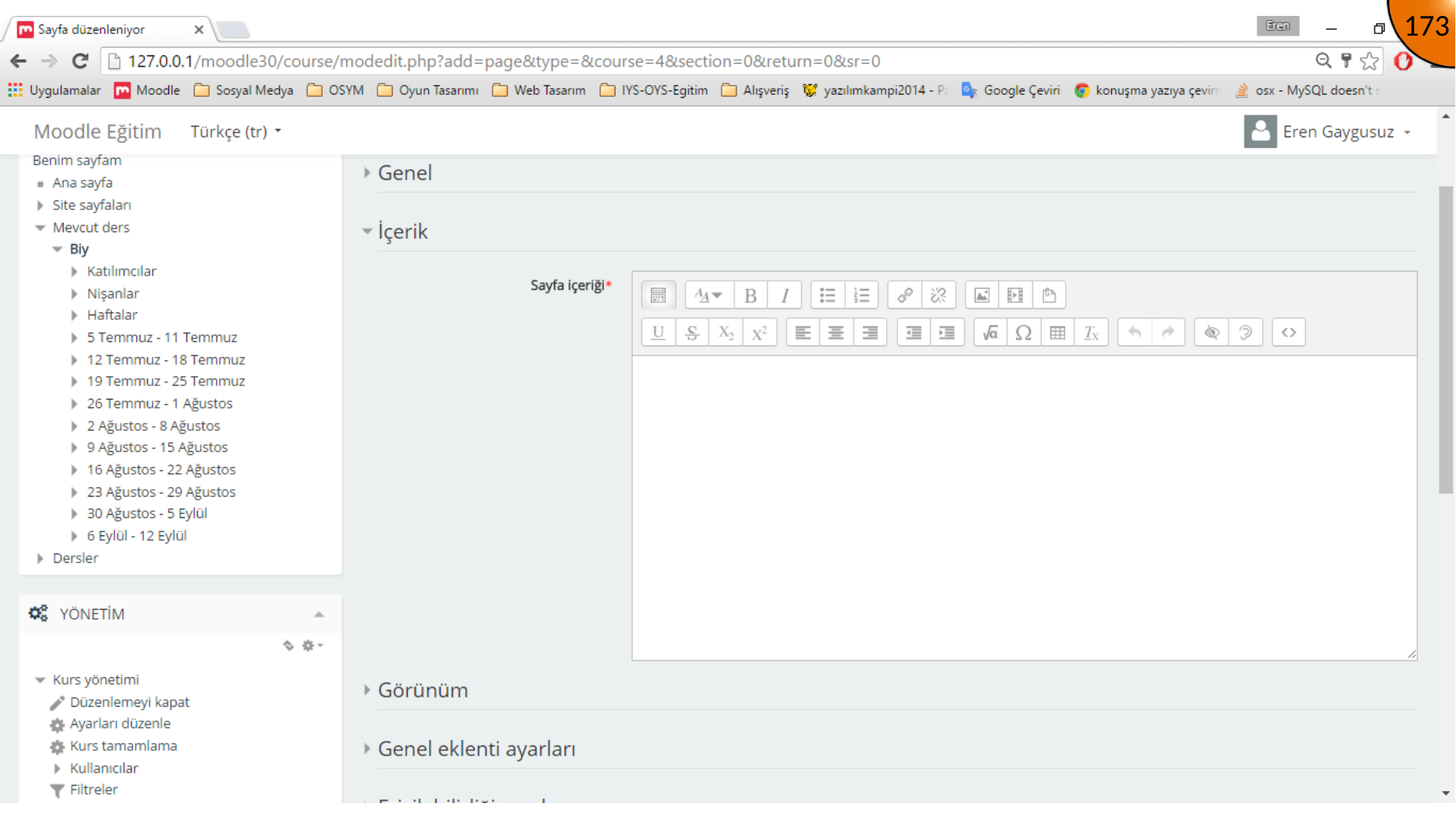
Opening HTML Mode
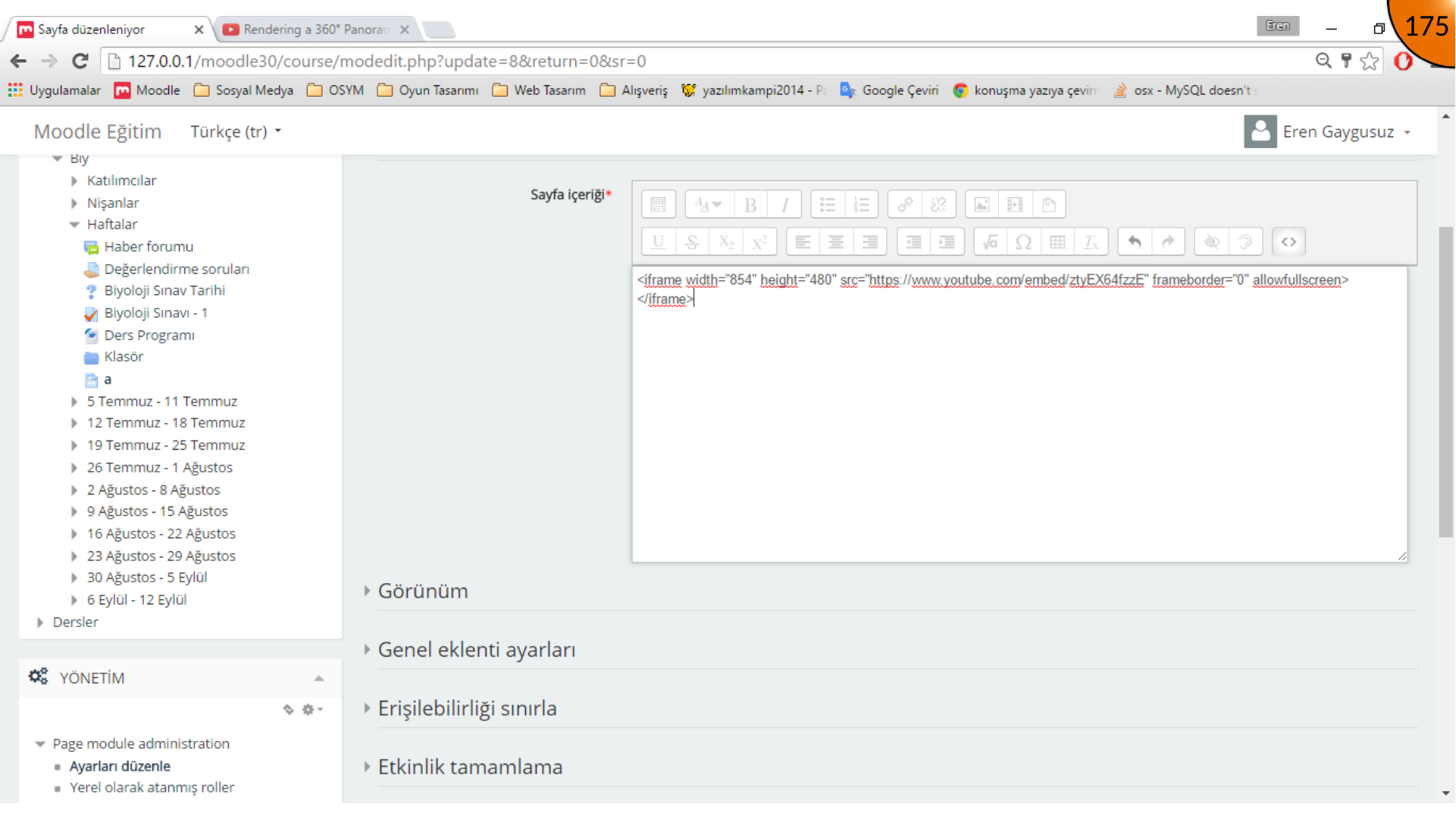
In the content editor, expand the toolbar and switch to HTML source mode. This is where the embed markup is pasted.
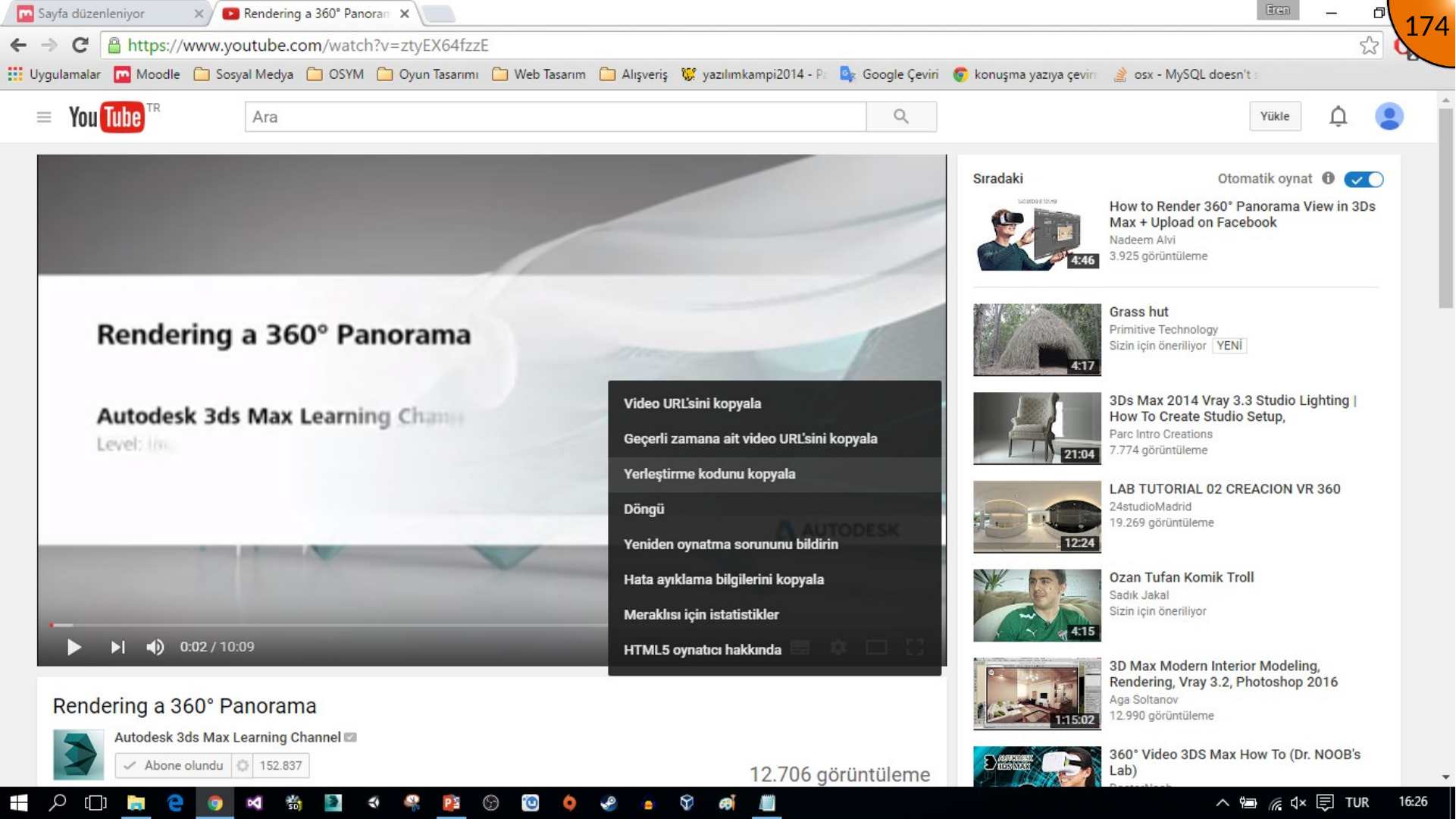
Copying and Adding the Embed Code
On YouTube, open the video menu and copy the embed code. Paste it into Moodle’s HTML source area.
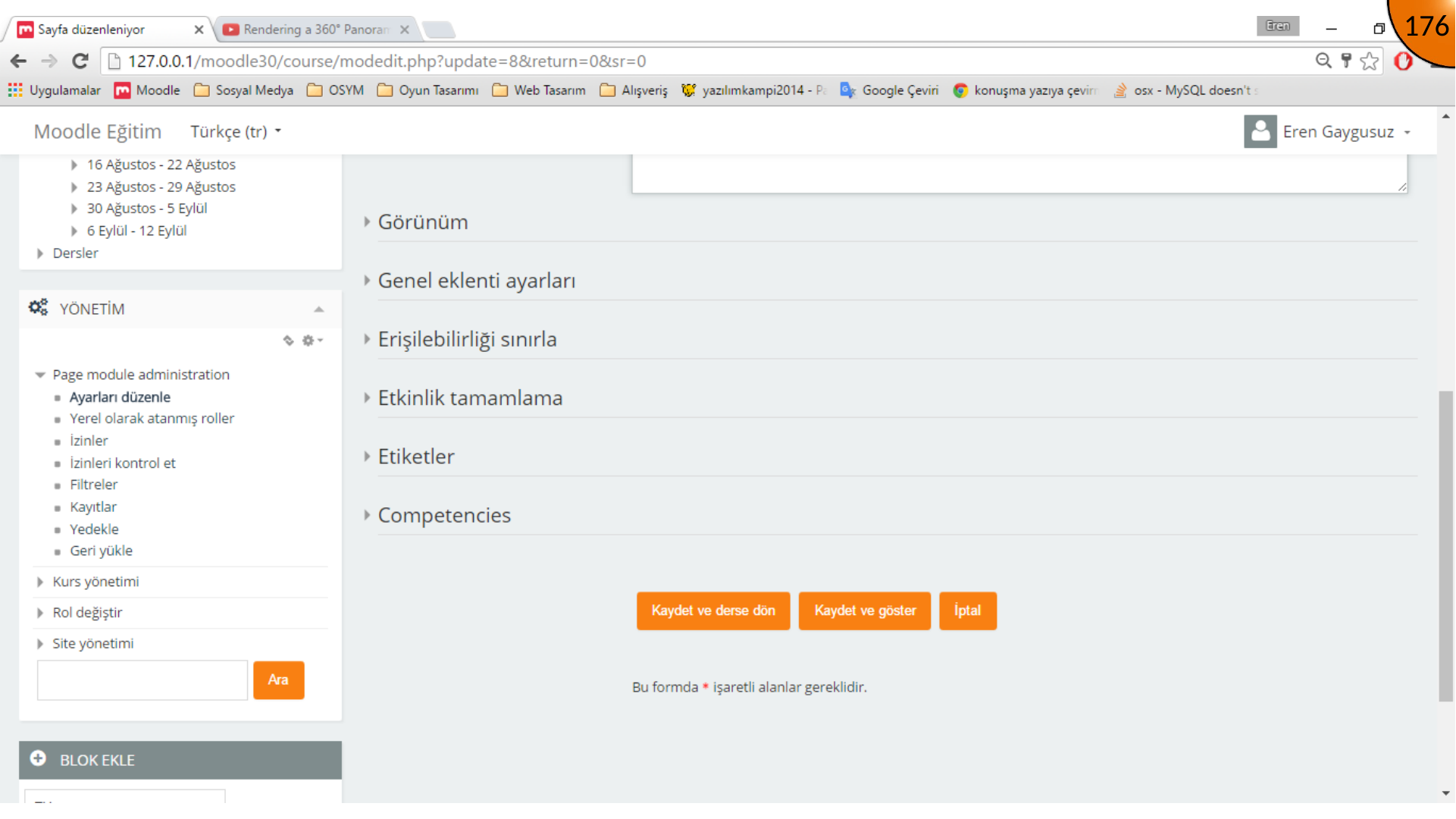
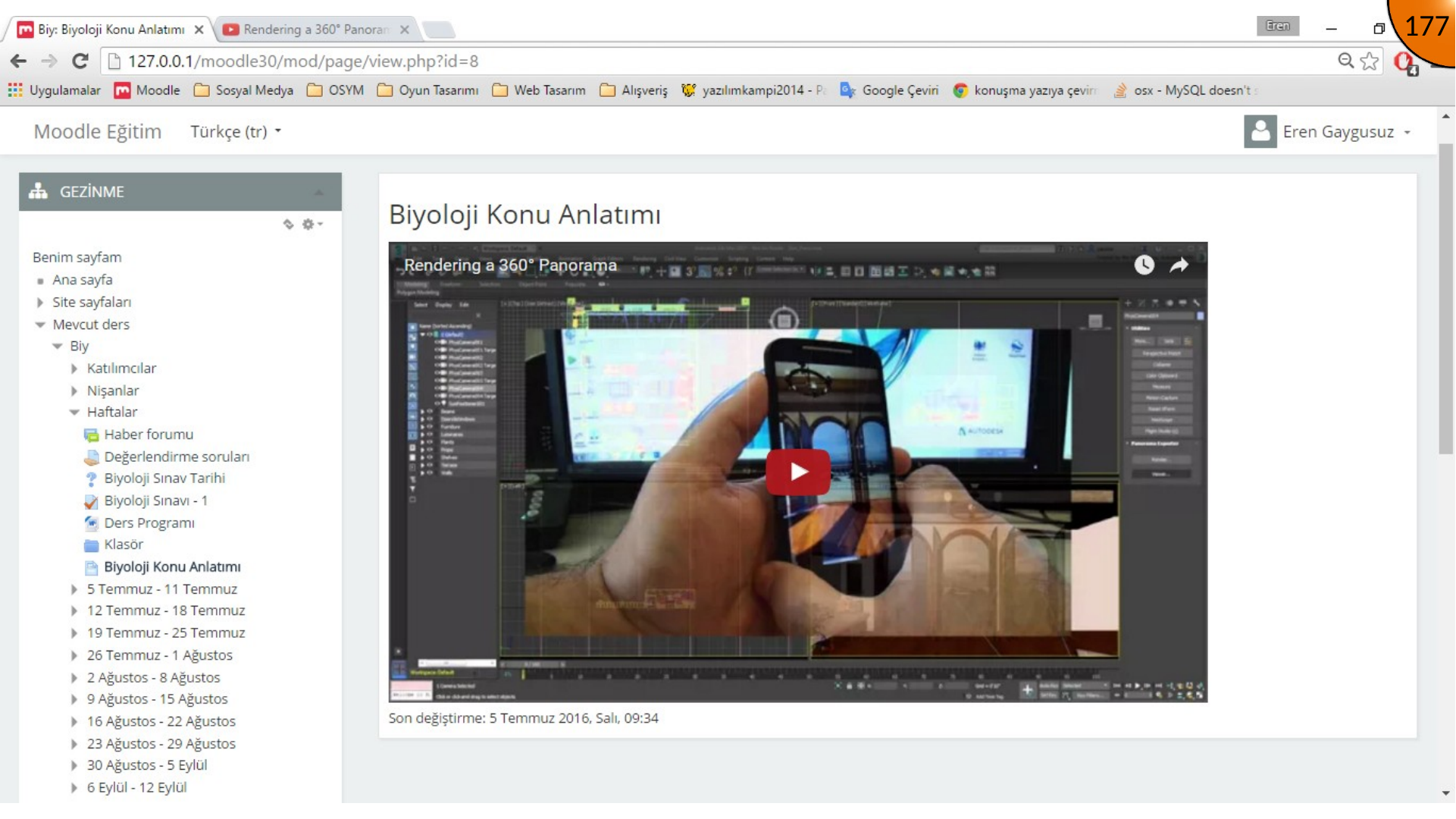
Save and display the page, then verify that the video player appears and plays for a learner account.
Summary
Use the official embed code, ensure the video is permitted to be embedded, and provide captions or a transcript when possible. Test the page on the devices learners use before publishing it.
Comments