Assignments and choice activities solve two different course needs. An assignment collects learner work for review or grading; a choice activity lets learners select from a defined set of options, such as a preferred exam date or session.
This archived 2016 walkthrough uses the older Moodle interface, but the core configuration ideas—clear instructions, availability dates, submission types, options, results, and completion—still apply.
Table of contents
Open Table of contents
Adding an Assignment
Open the course, turn editing on, then select Add an activity or resource.
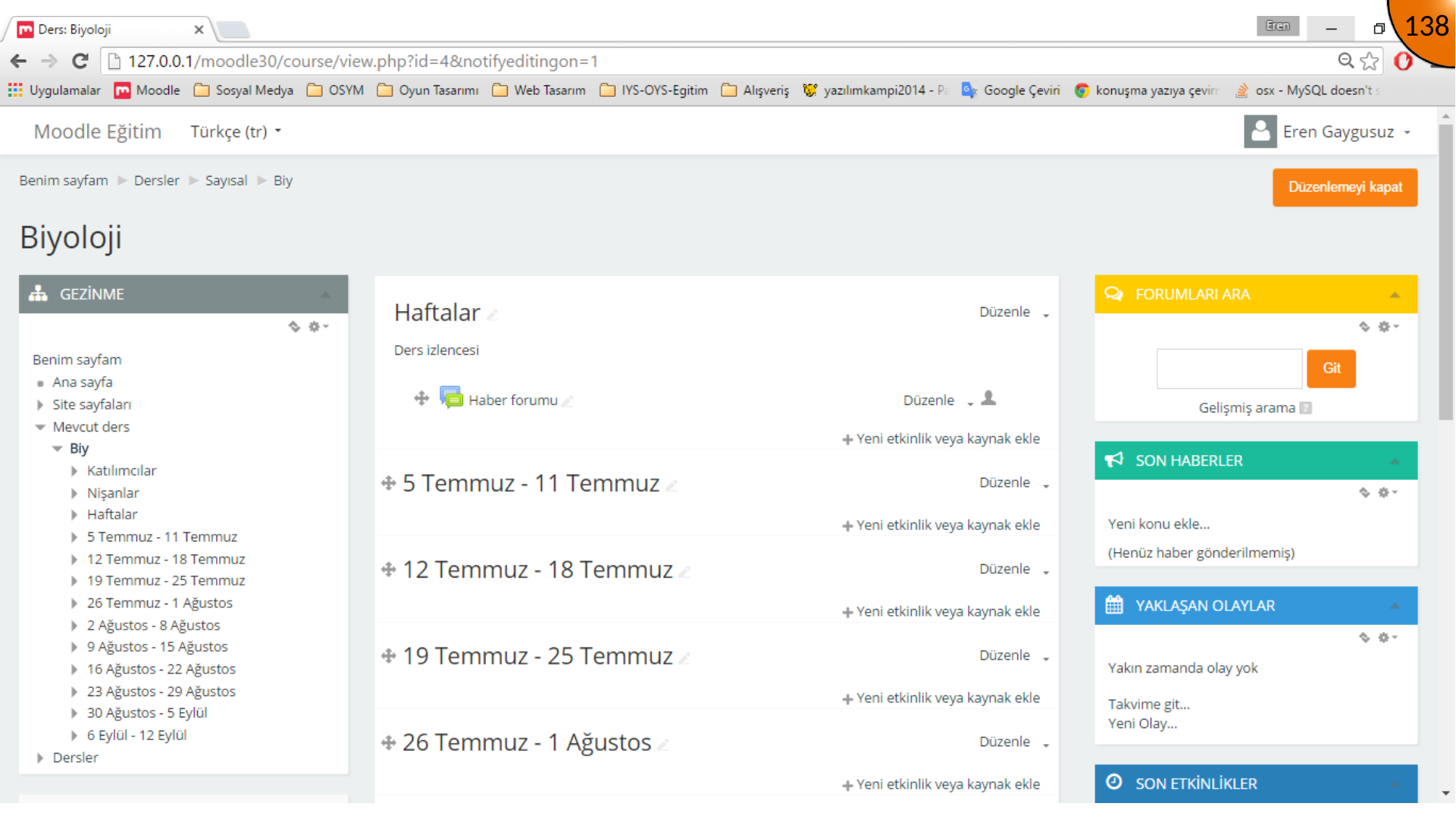
Choose Assignment and continue to the activity settings.
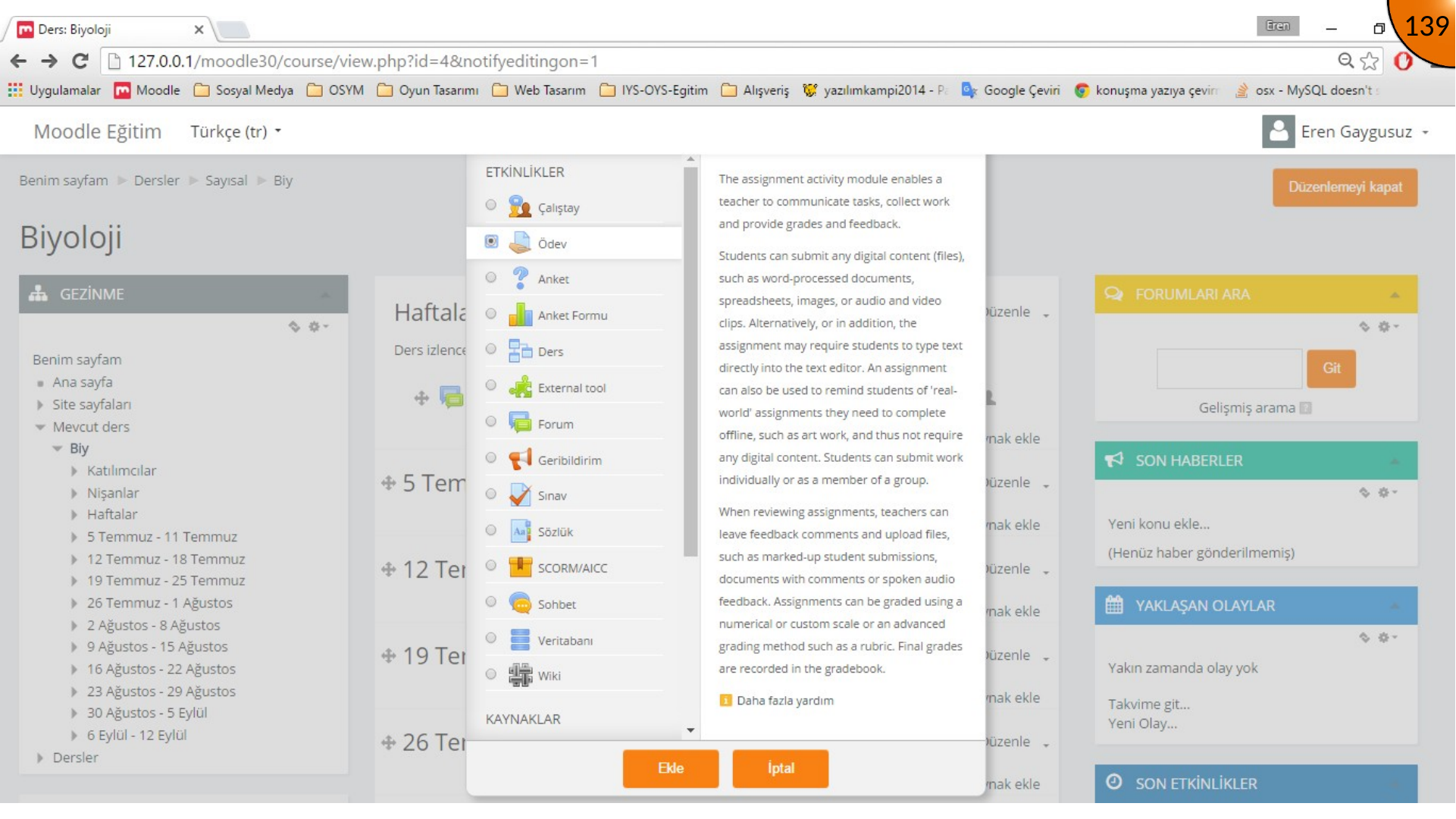
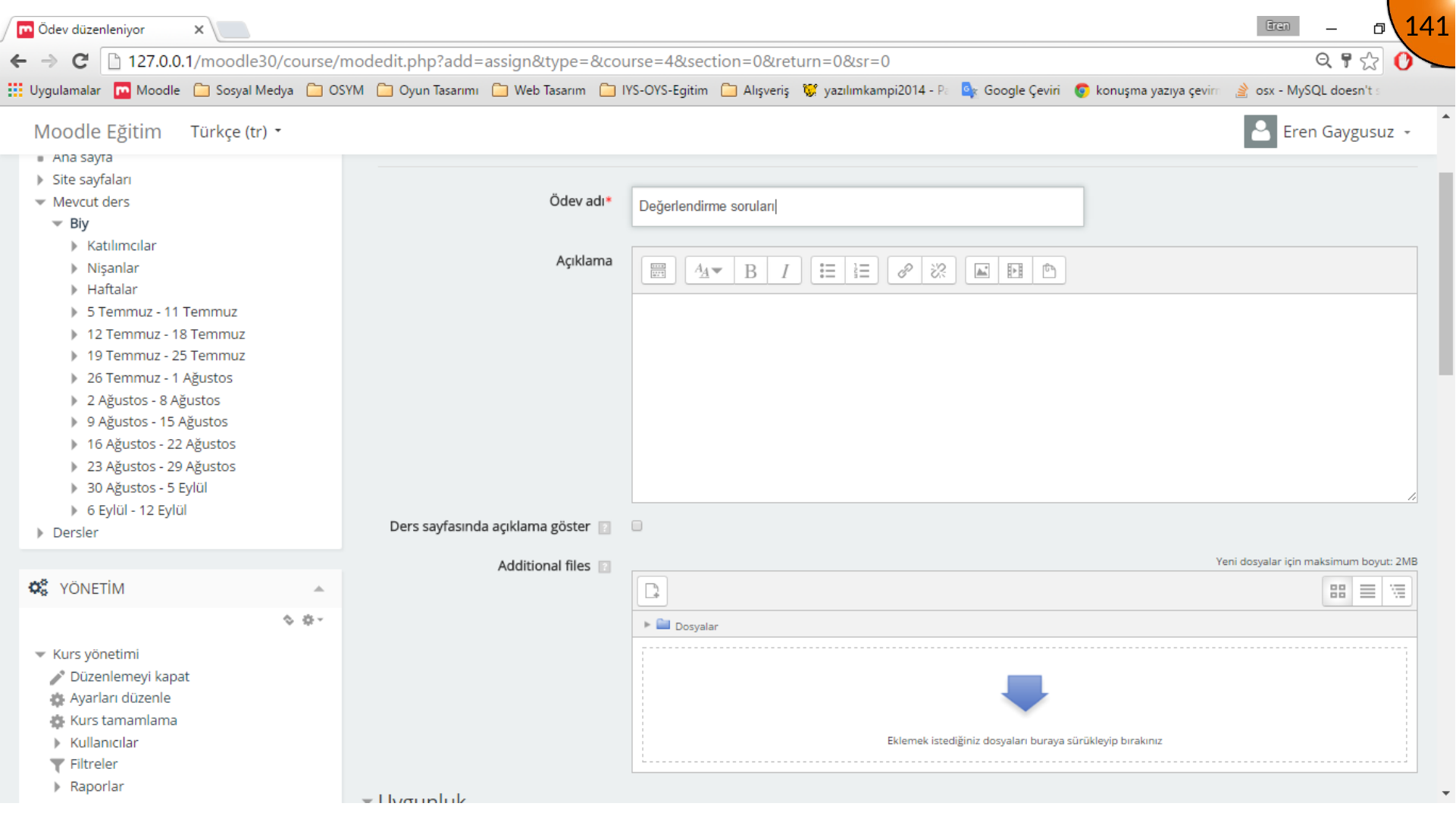
Give the assignment a clear name and add instructions. Supporting files can be uploaded in the additional-files area when learners need a template, rubric, or reference document.
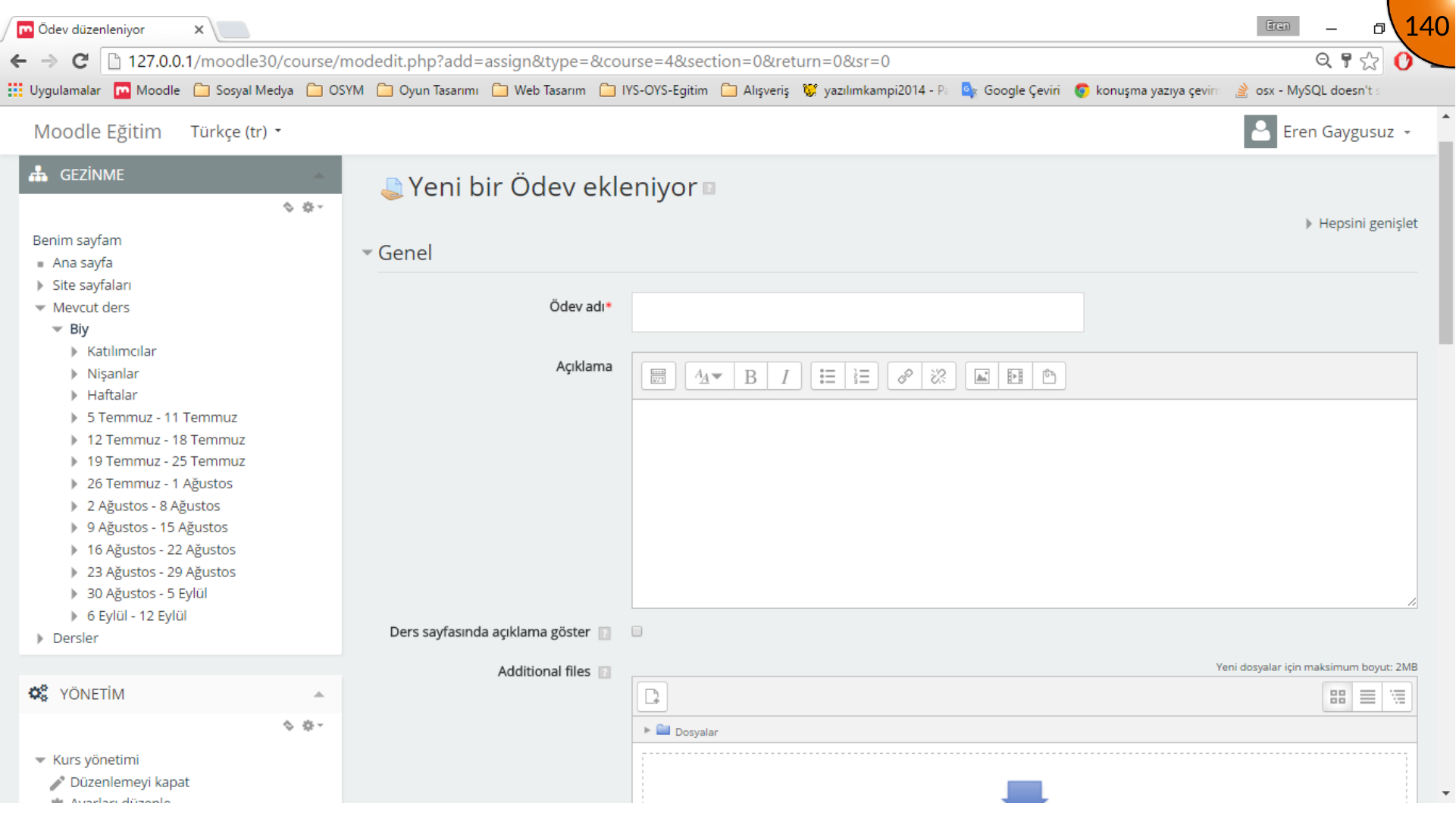
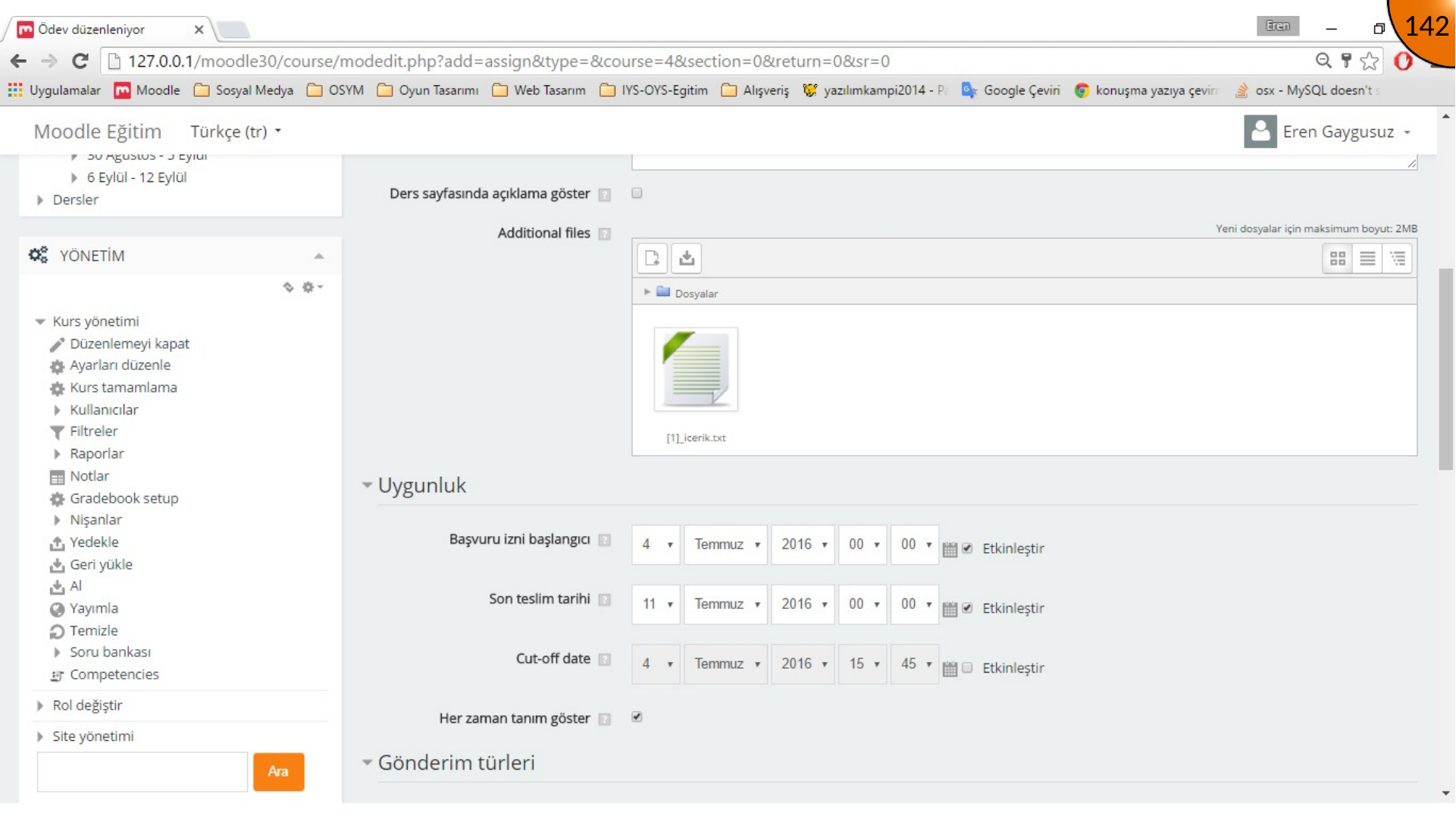
Set the allow-from date and due date deliberately. Learners need enough notice, and the deadline should align with the course calendar.
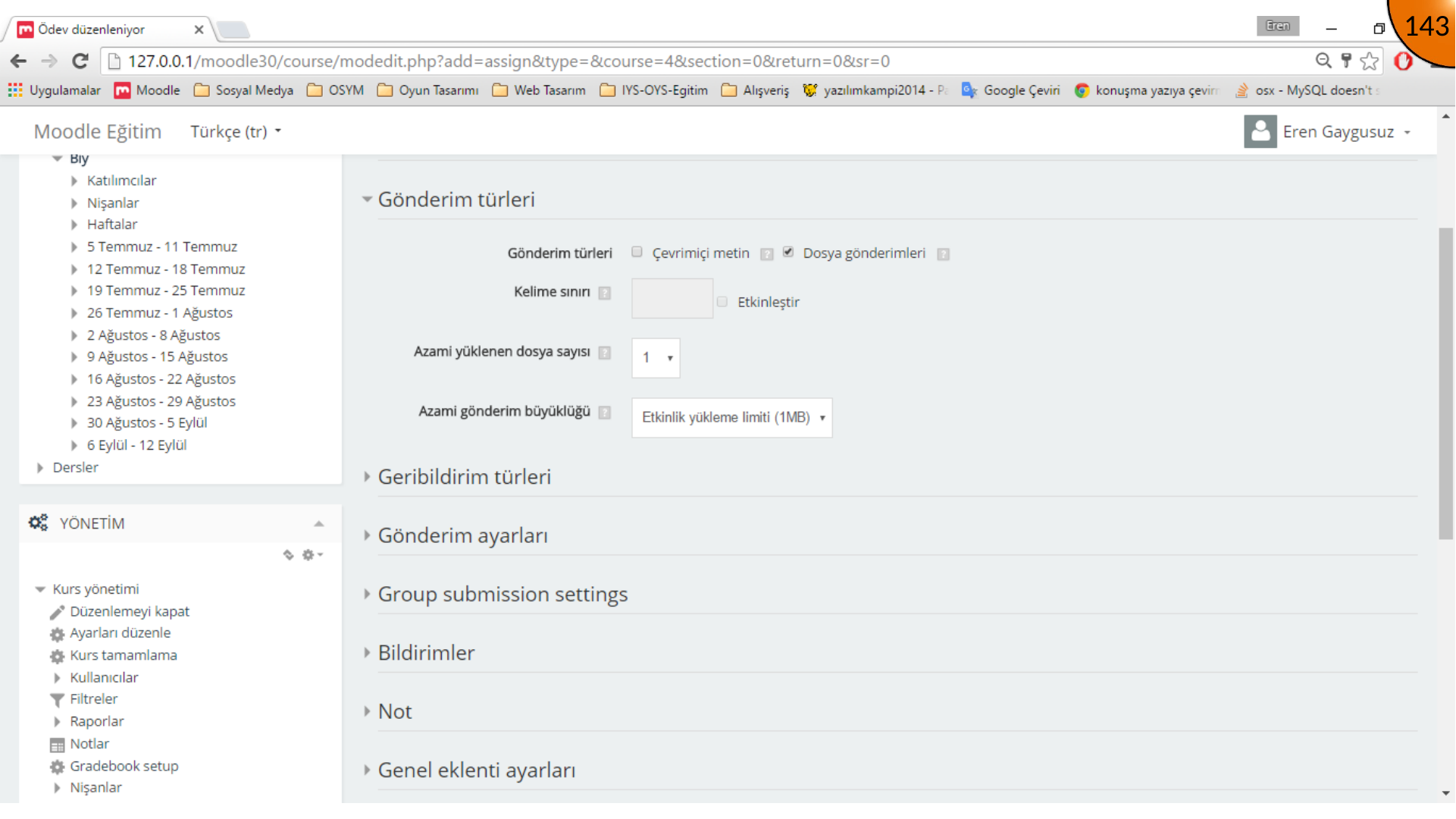
Choose whether submissions use online text, uploaded files, or both. Save the activity when the settings match the intended submission workflow.
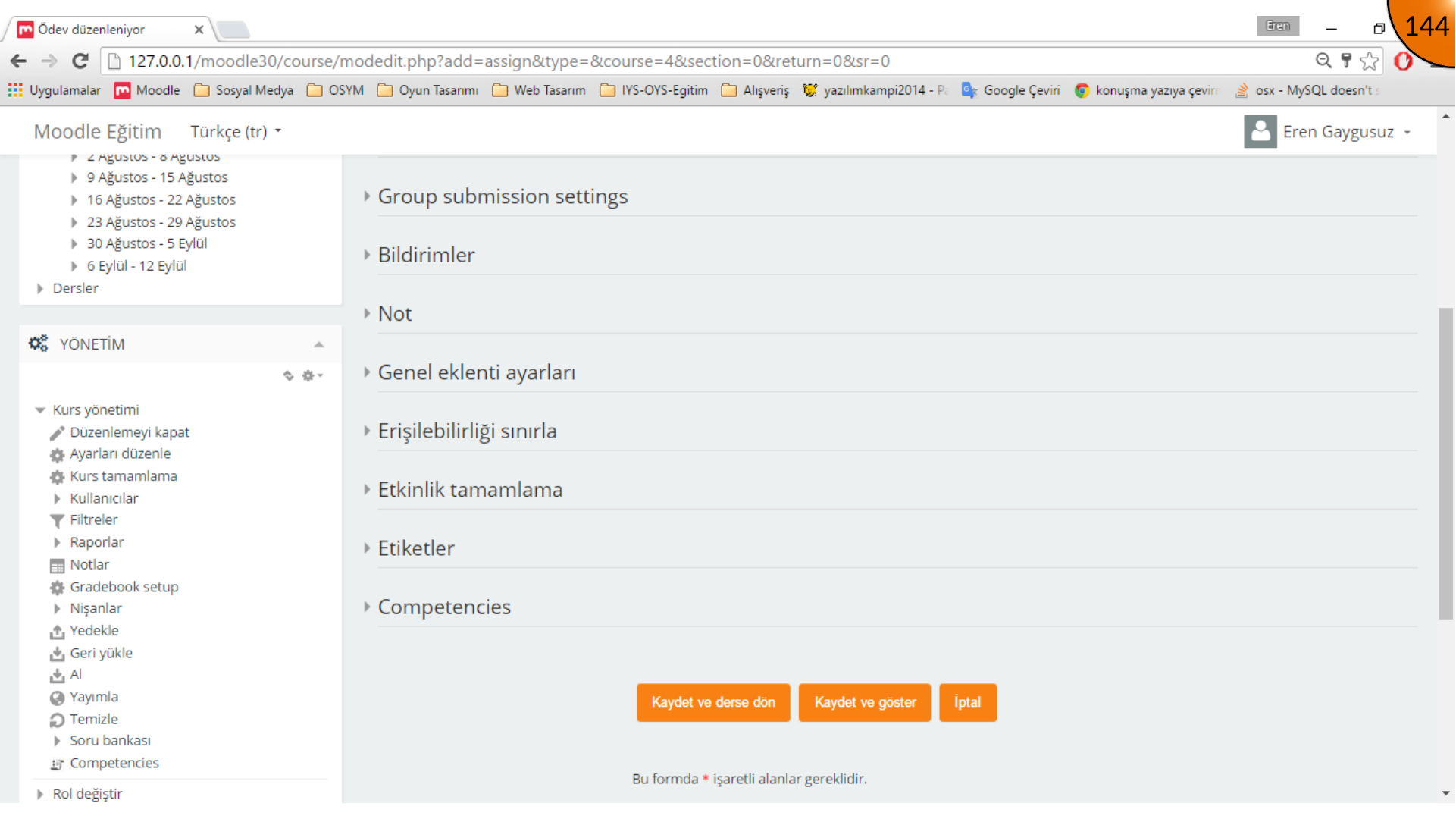
The course page now shows the assignment and its date information in the relevant blocks.
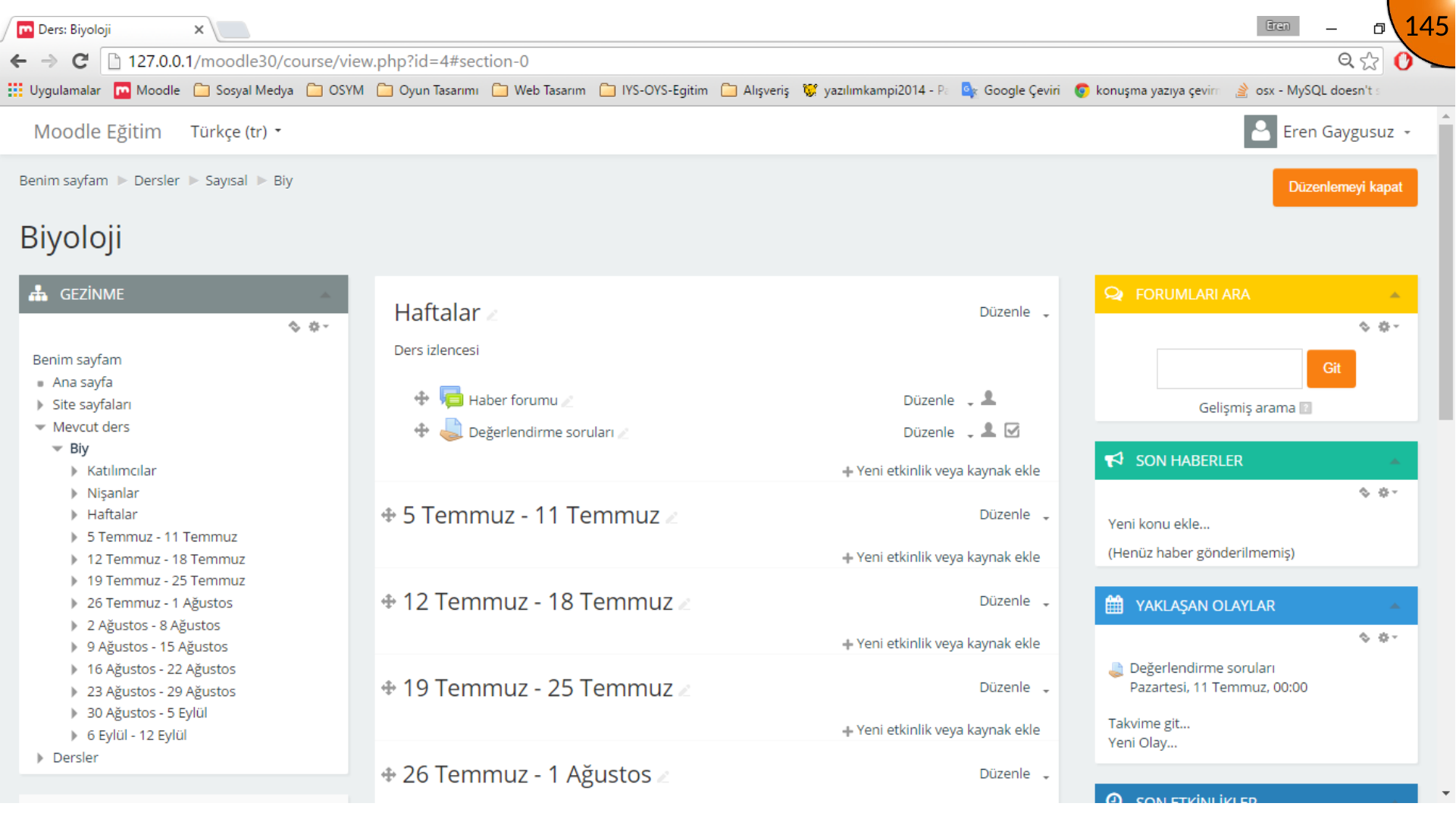
Adding a Choice Activity
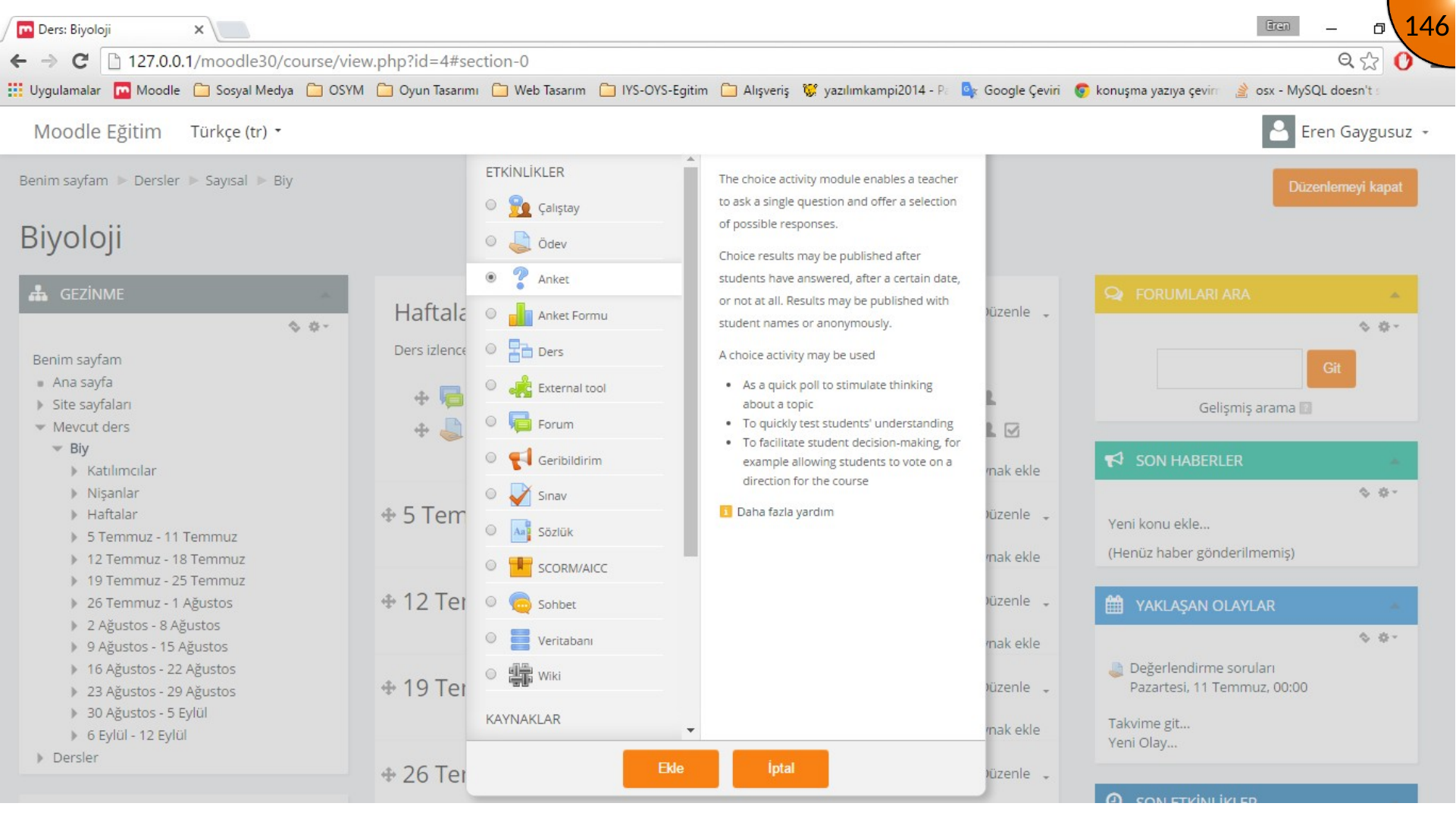
Open the activity chooser again, select Choice, and create the activity.
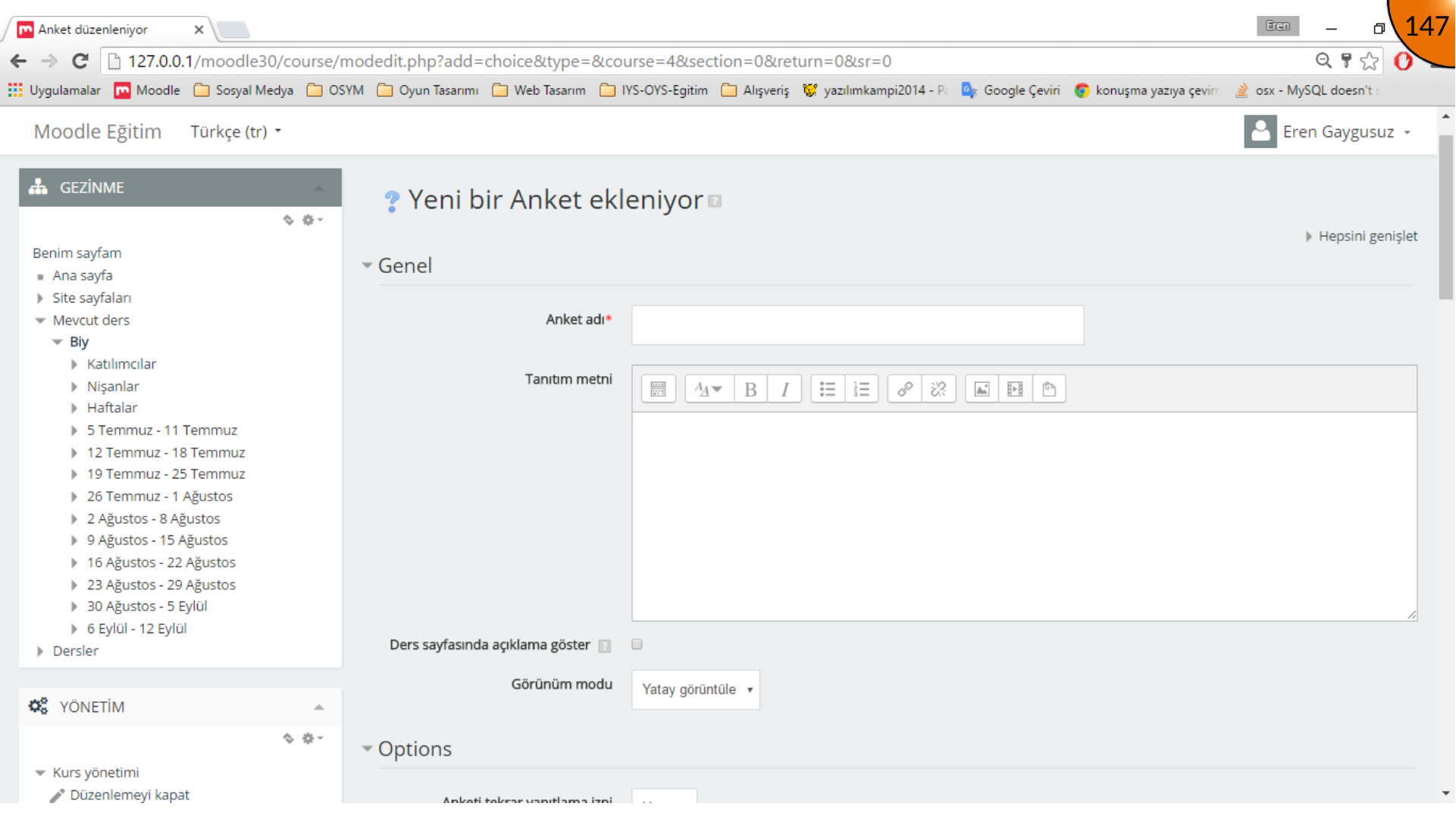
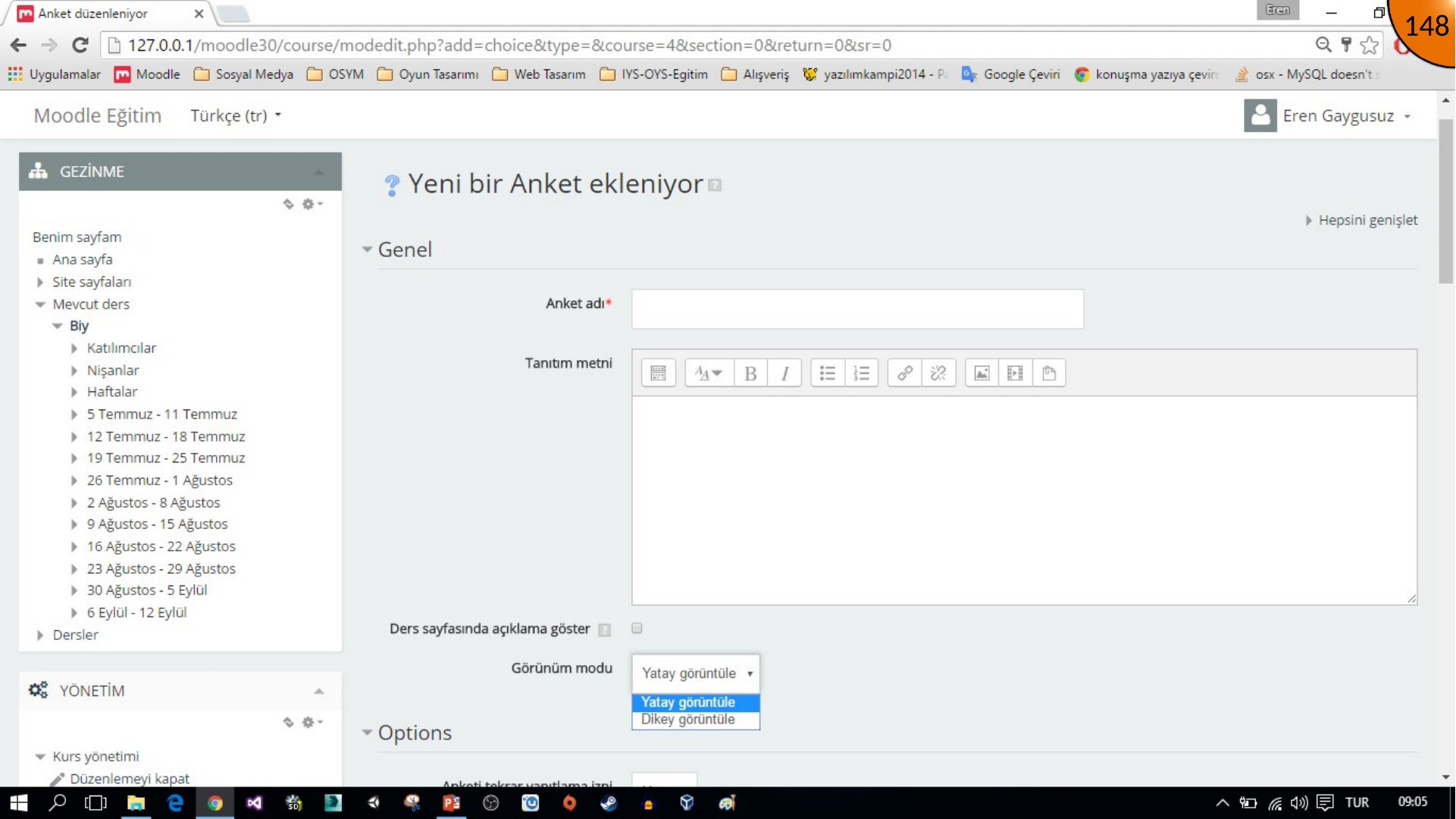
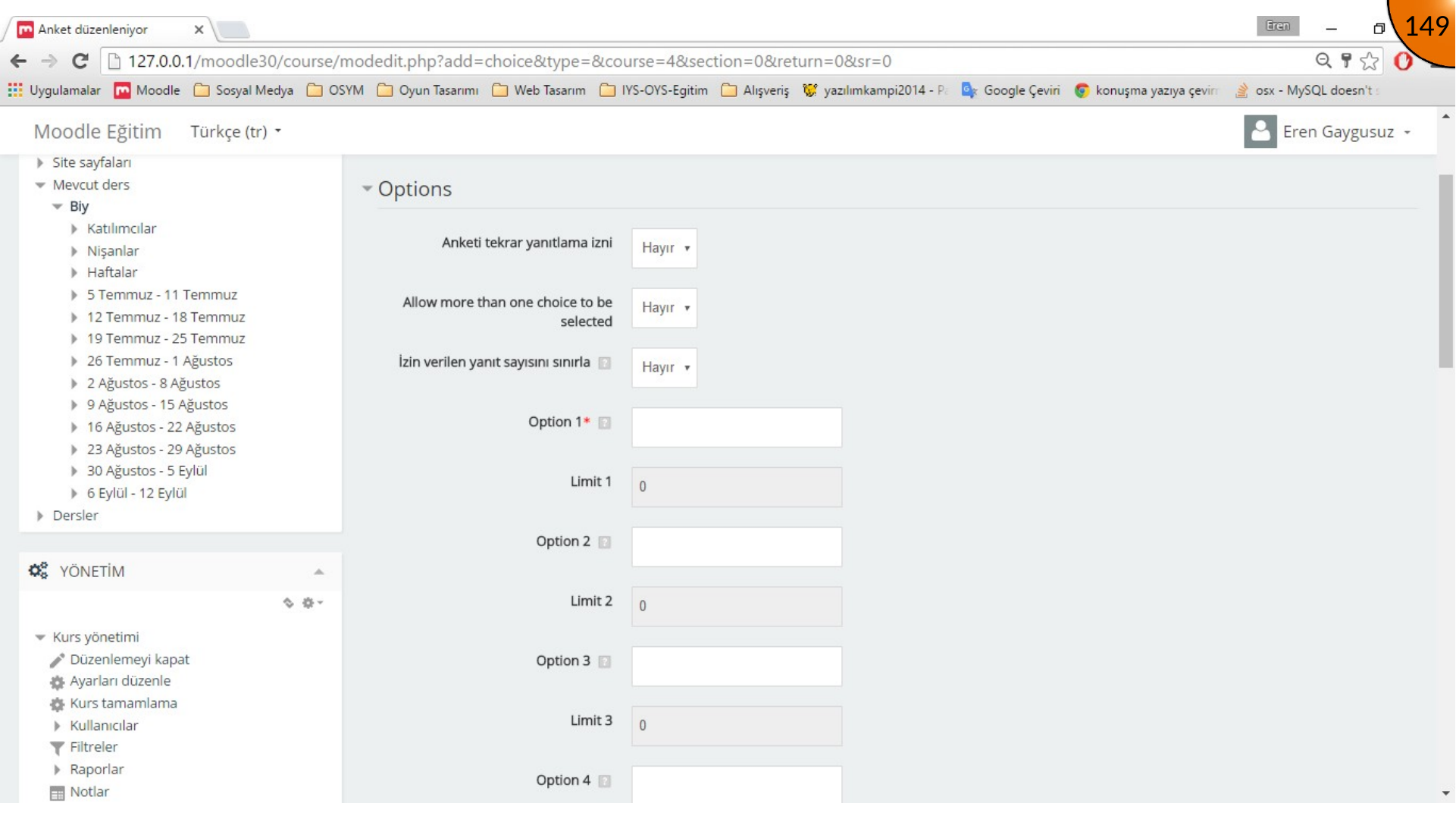
Set the title, introduction, and preferred display style. The archived example uses a choice activity to collect learner preferences for an exam date.
Add the answer options. Use the option controls to add more fields when needed.
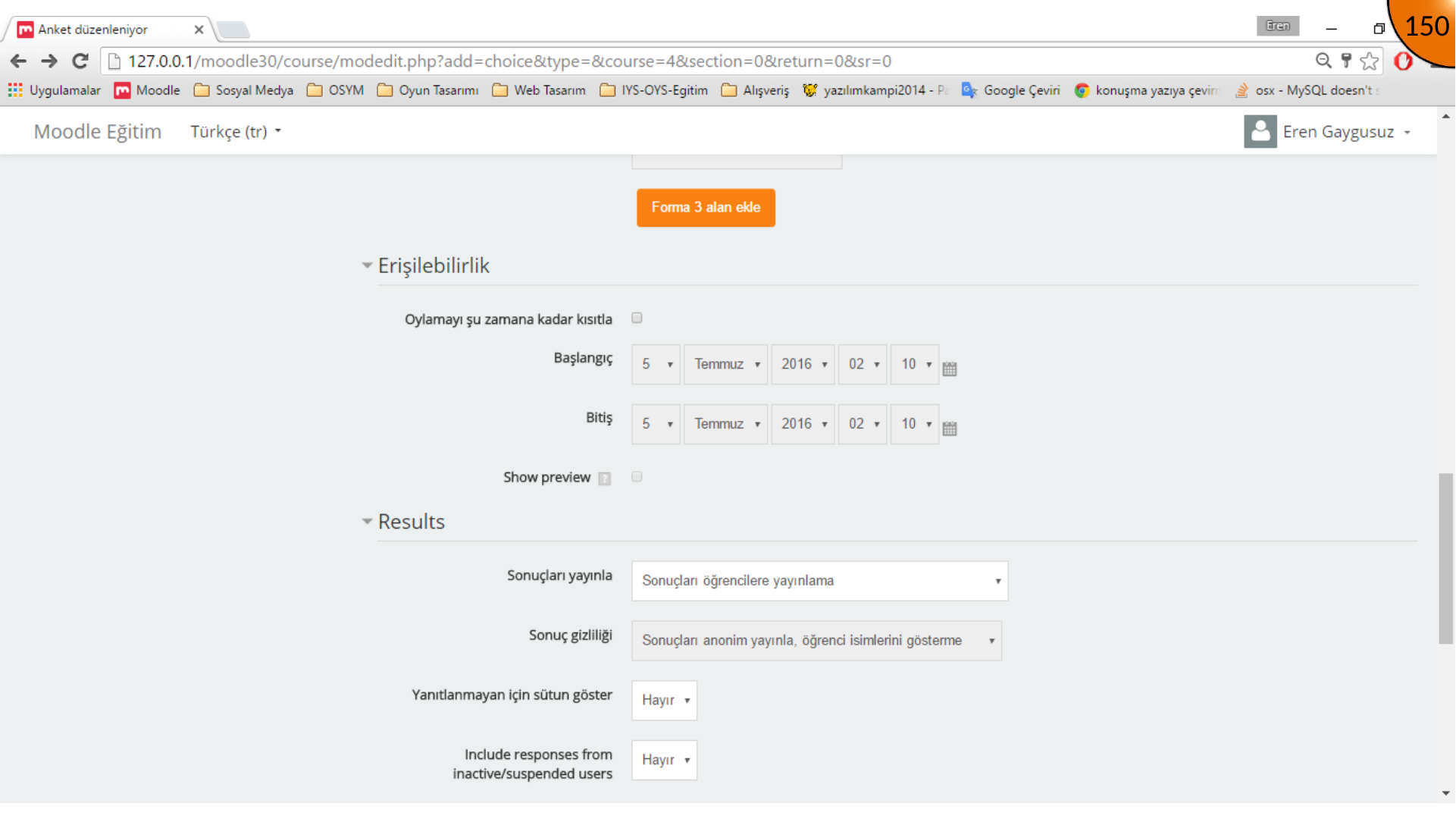
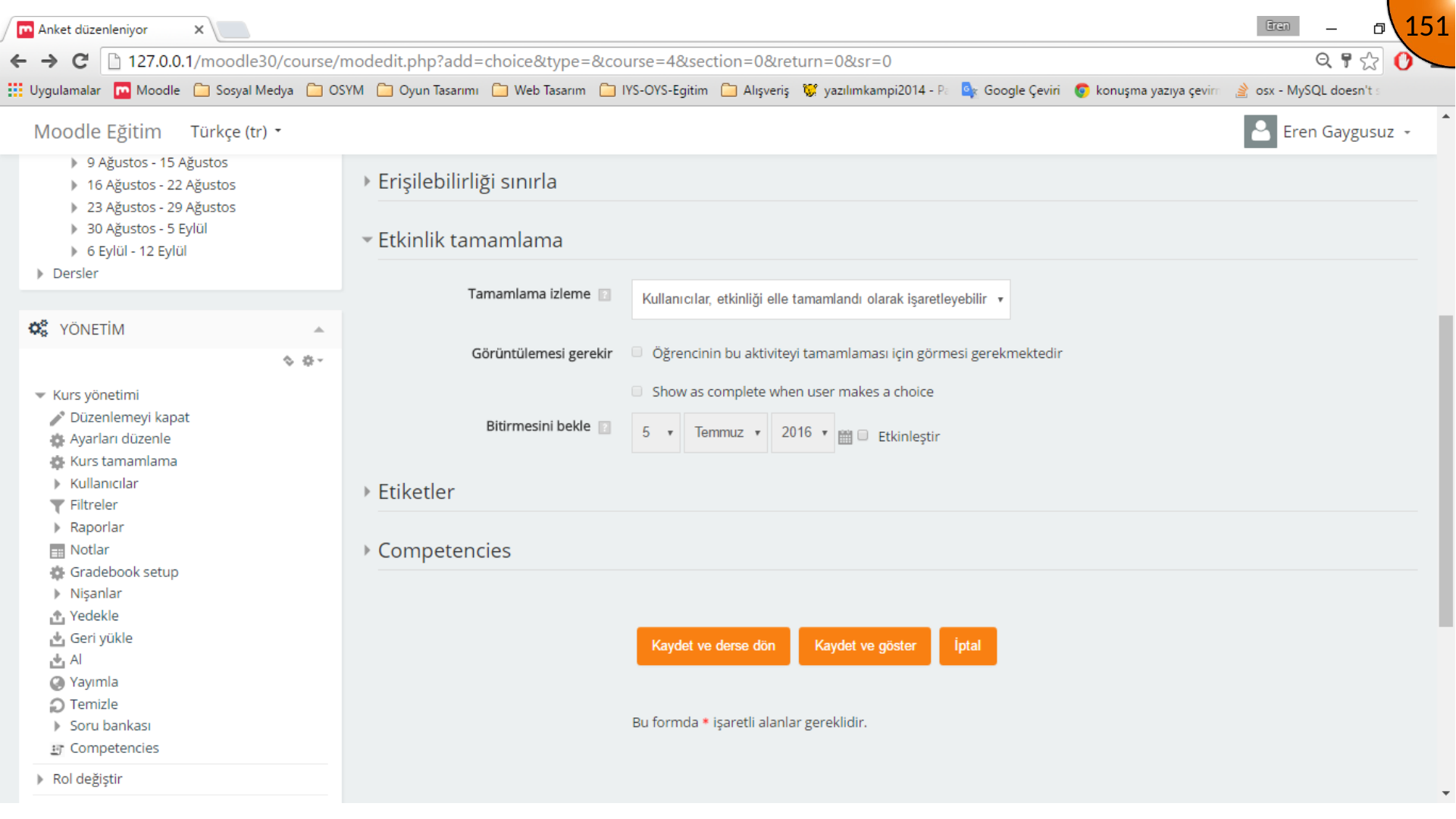
Configure availability, results visibility, and completion tracking. Completion conditions should reflect what learners must actually do, such as submitting a choice.
Save and return to the course.
Summary
Use assignments for assessed work and choice activities for lightweight decisions or votes. In both cases, write clear instructions, set realistic dates, and review the activity as a learner before opening it to the class.
Comments