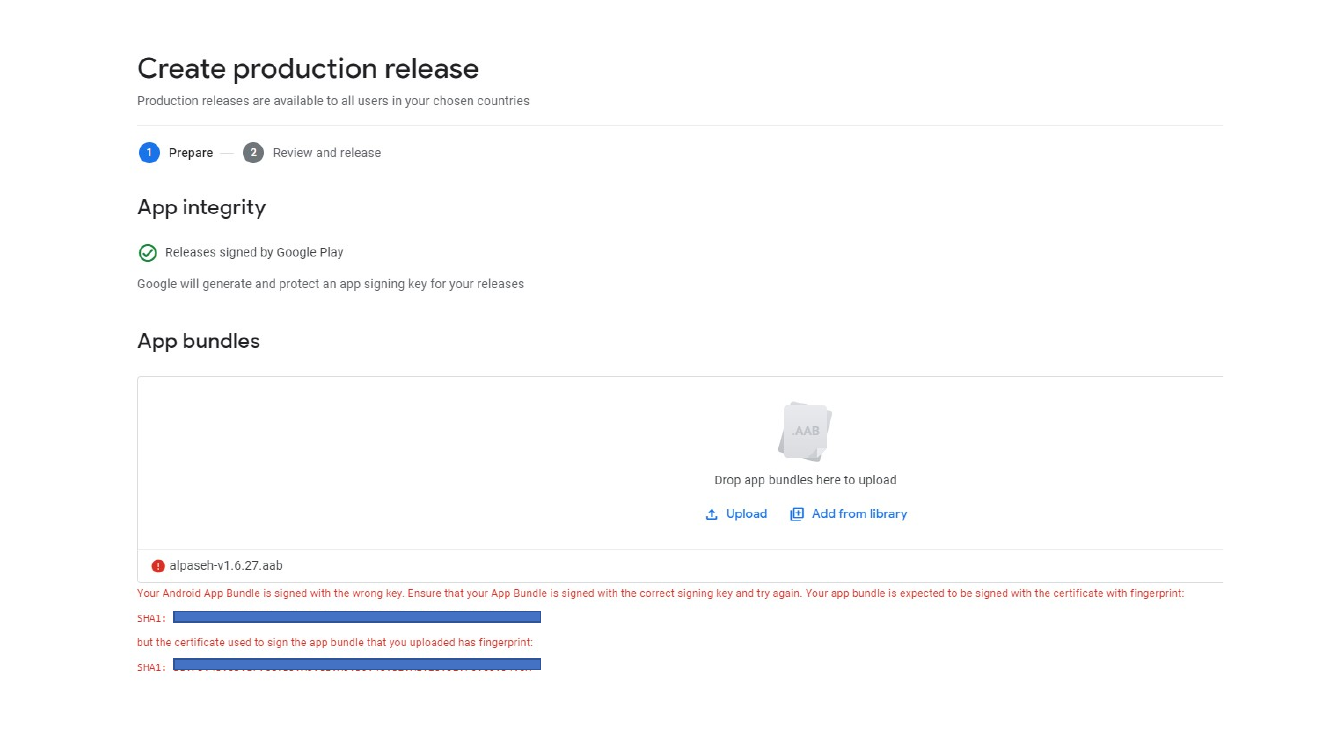
When an Android application is published on Google Play, the signing key becomes part of the release workflow. If a Unity project is later signed with a different keystore, Google Play will reject the new build because the uploaded Android App Bundle no longer matches the expected upload key.
This guide explains how to create a new keystore in Unity, build the project with that keystore, export the required certificate as a PEM file, and request an upload key reset from Google Play Console. The optional support form flow is included at the end for cases where the standard request path is not enough.
Table of contents
Open Table of contents
Why the Keystore Must Match
Google Play uses signing information to verify that a new release belongs to the same application. If you create a new keystore and immediately upload a build signed with it, Google Play sees that the certificate fingerprint is different and blocks the release.
The fix is not simply uploading the new build again. First, Google Play needs to approve the new upload key. For that request, you will need a PEM certificate exported from the new keystore.
Creating a New Keystore in Unity
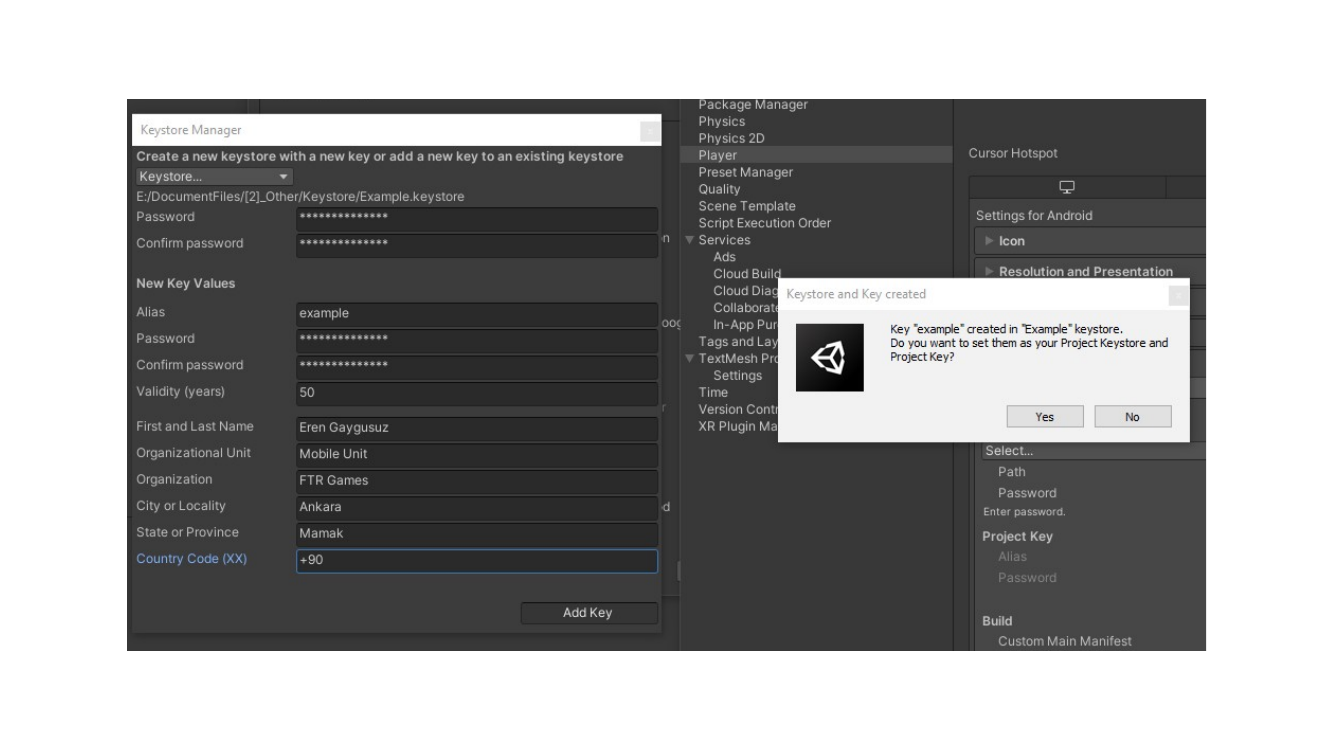
Open your Unity project and go to Project Settings > Player > Publishing Settings. In the Android publishing settings, open Keystore Manager and choose the option to create a new keystore.
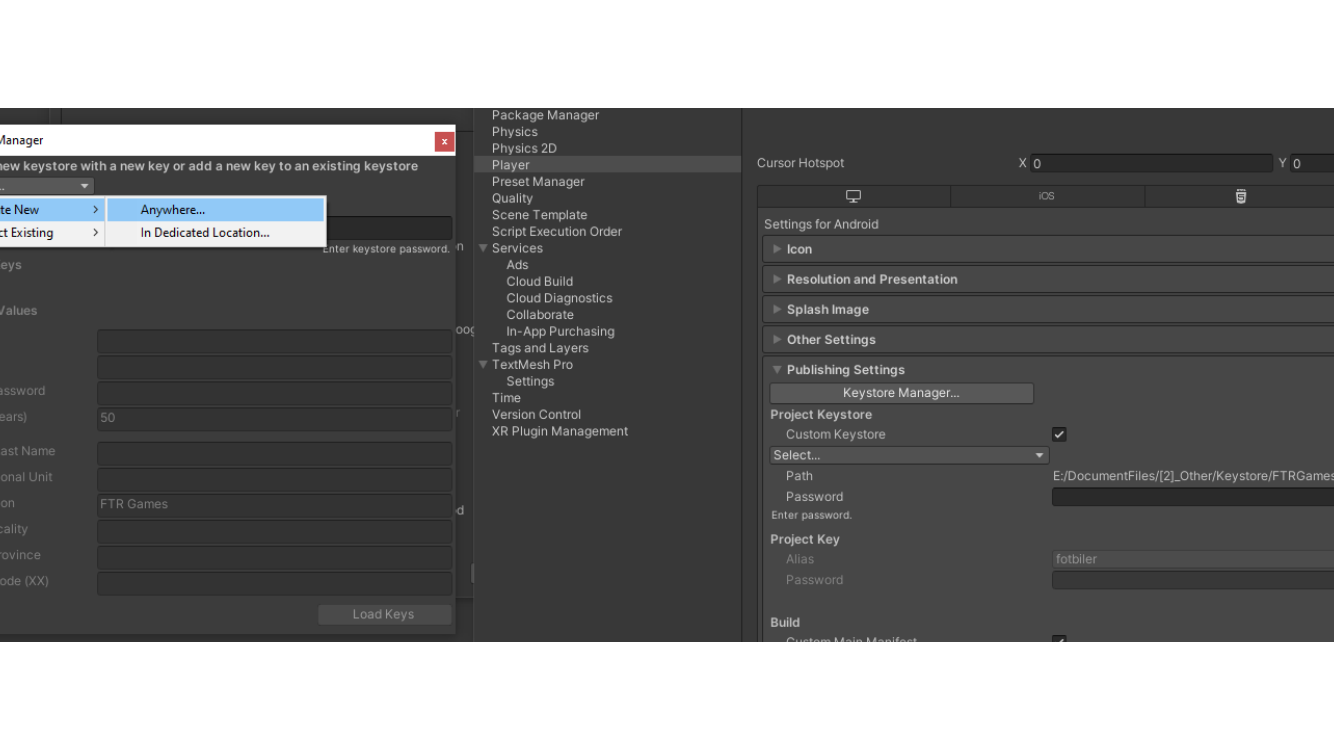
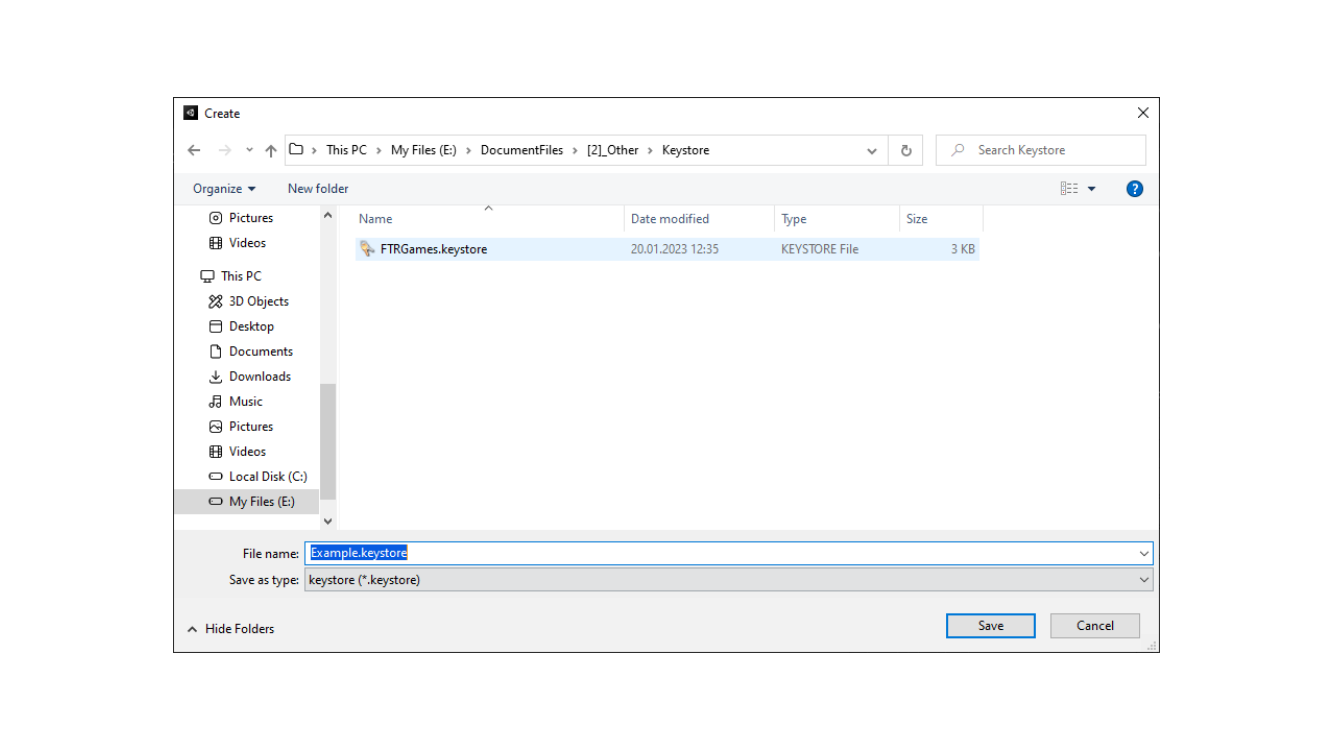
Select where the keystore file will be saved. Keep this file in a safe folder, because it will be needed for future Android releases.
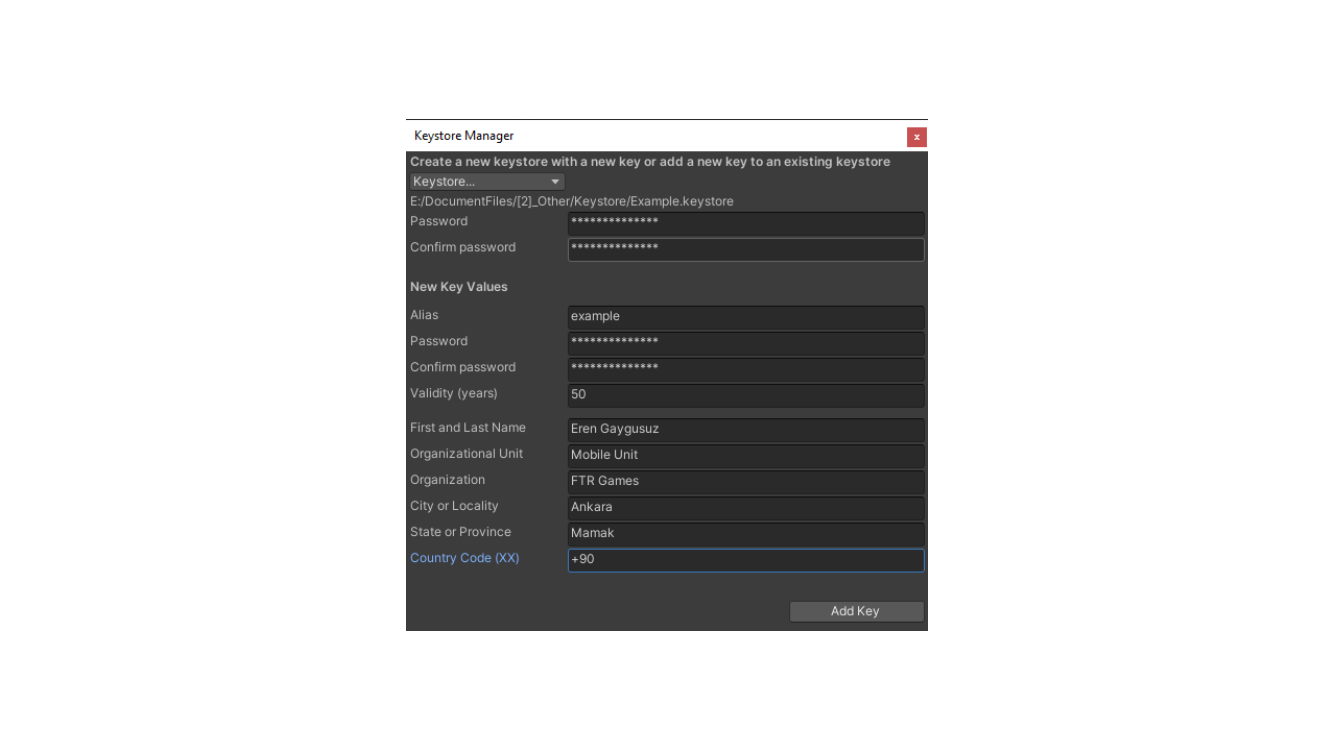
Fill in the keystore password, key alias, key password, validity period, and certificate owner details. After the fields are ready, add the key.
Unity asks whether the new key should be used as the project keystore and project key. Confirm this so the next Android build is signed with the new keystore.
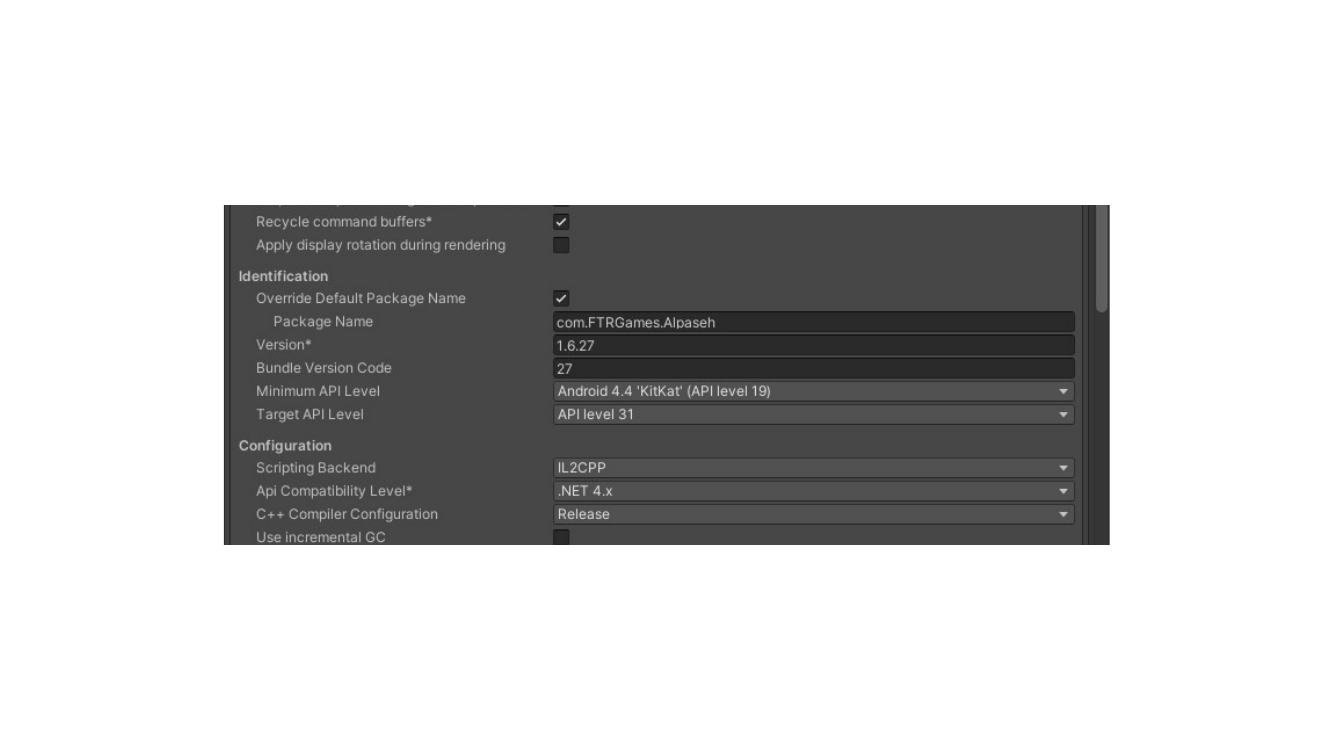
Before building a new release, increase the application version and Bundle Version Code. Google Play requires every uploaded release to have a higher version code than the previous one.
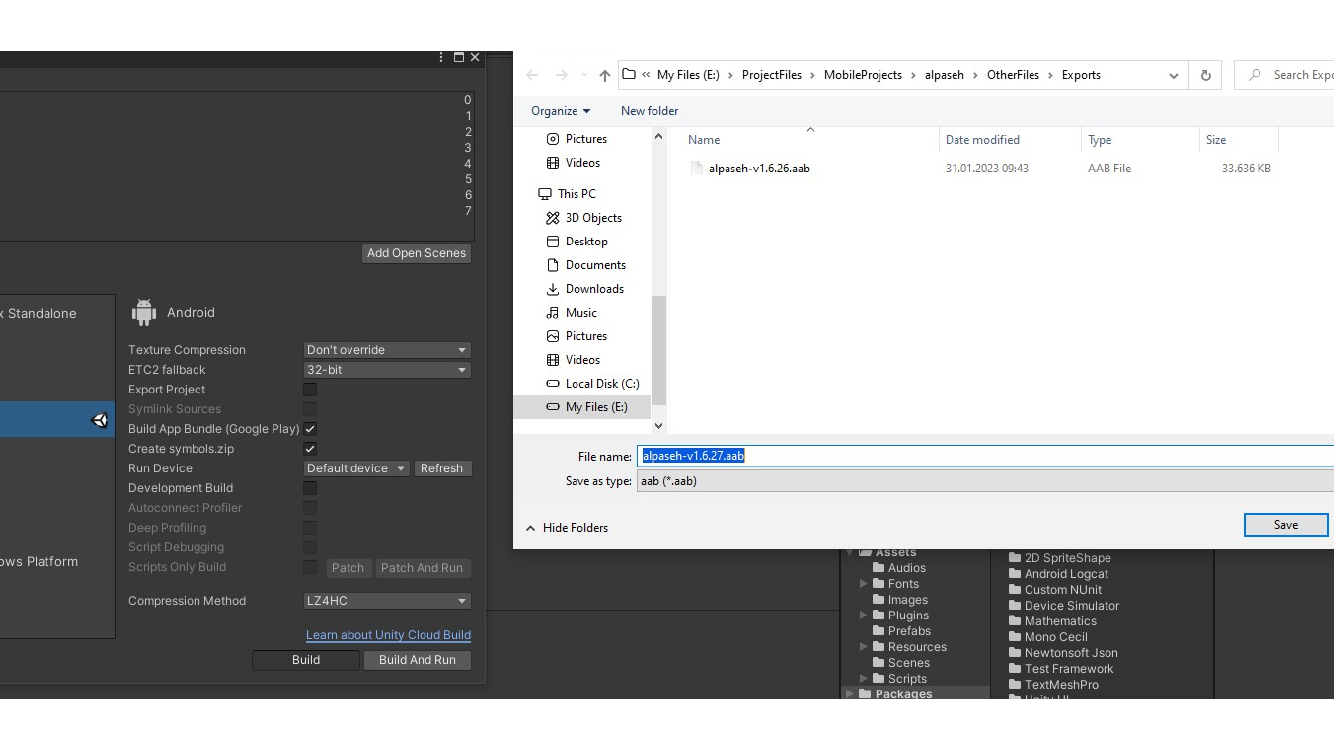
Build the Android App Bundle with the new signing configuration.
If you upload this bundle before completing the reset process, Google Play displays a signing mismatch error.
Exporting the Keystore Certificate as PEM
Google Play Console needs a PEM certificate for the new upload key. One practical way to export it on Windows is to use KeyStore Explorer.
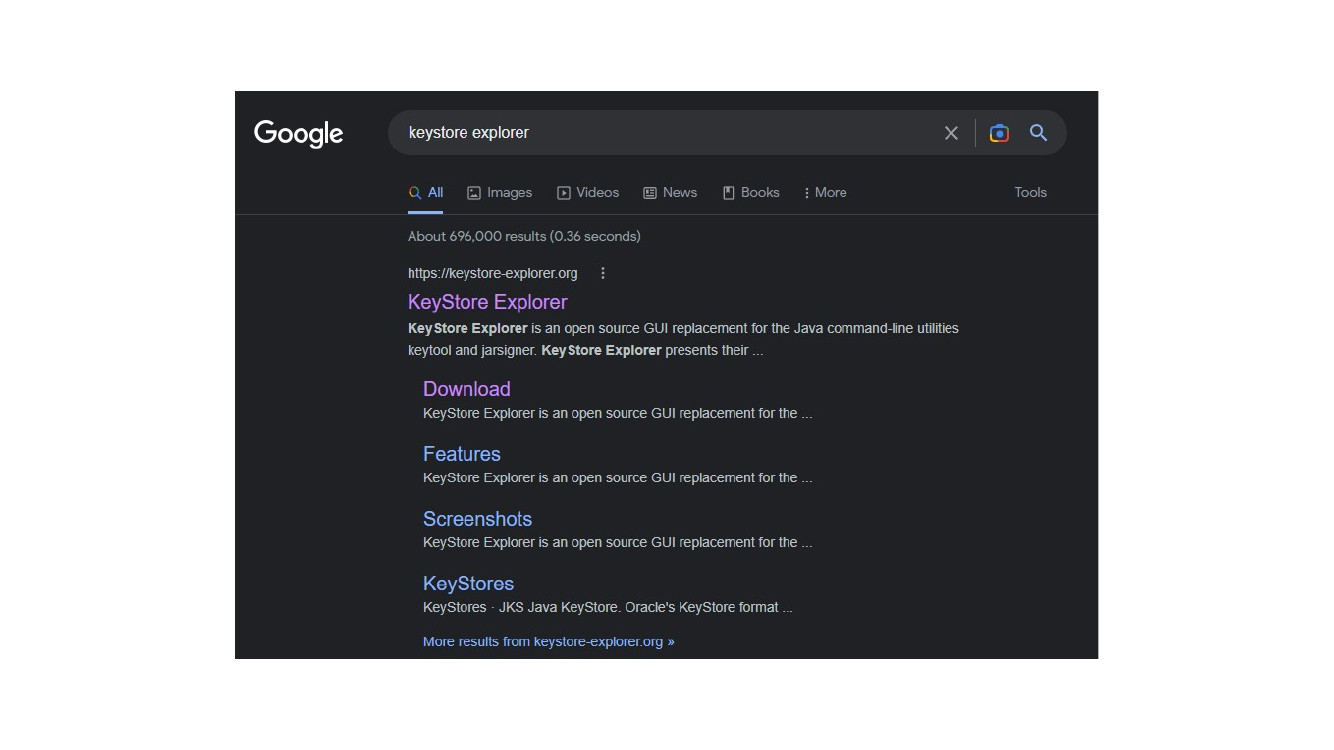
Search for KeyStore Explorer and open the download page.
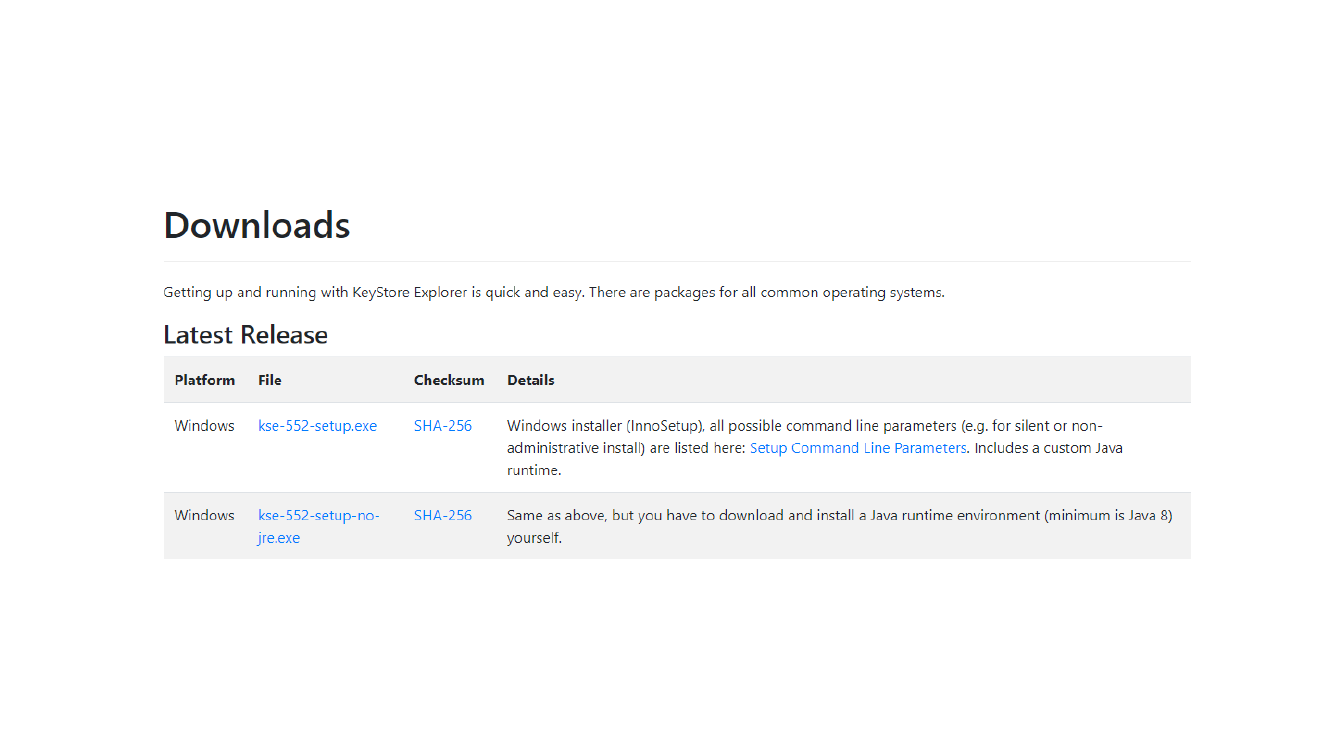
Download the installer that matches your operating system. In this example, the Windows package is used.
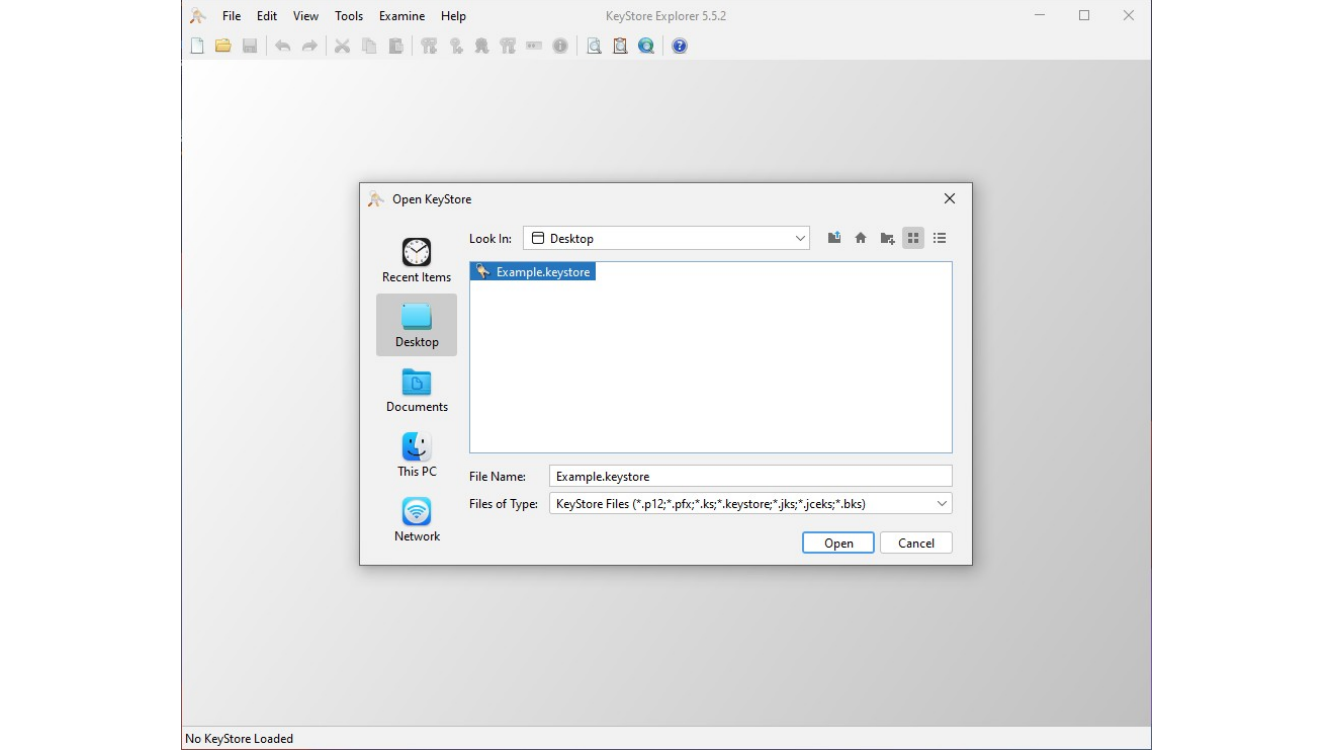
After installing KeyStore Explorer, open the keystore file created in Unity.
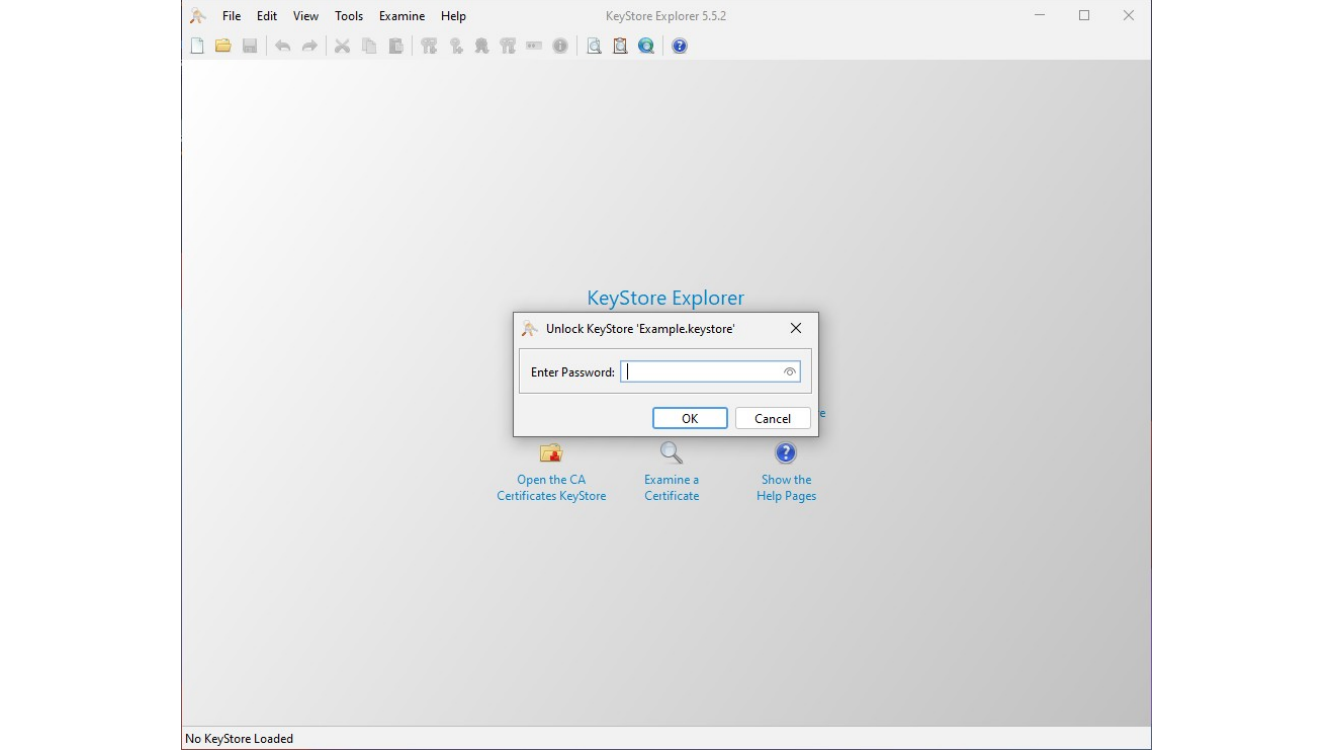
Enter the keystore password.
When the keystore opens, select the key entry. This is usually the alias you created in Unity.
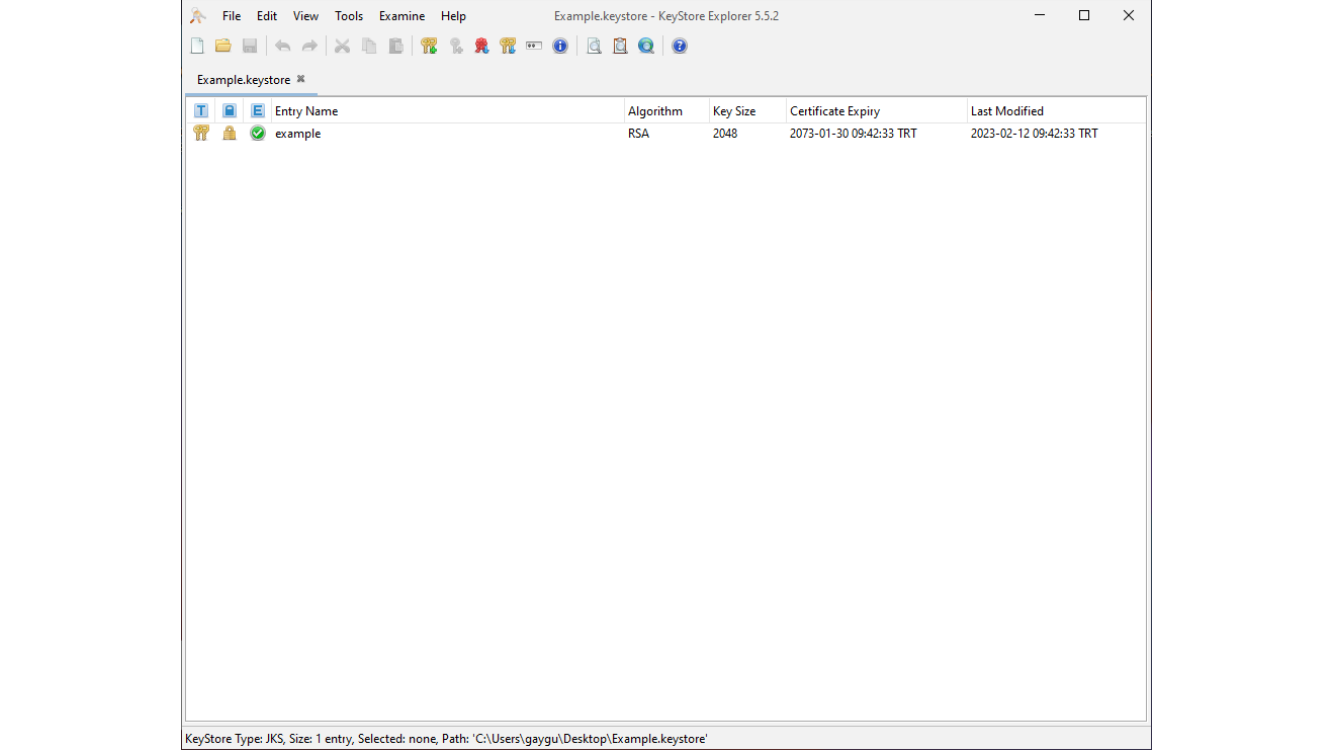
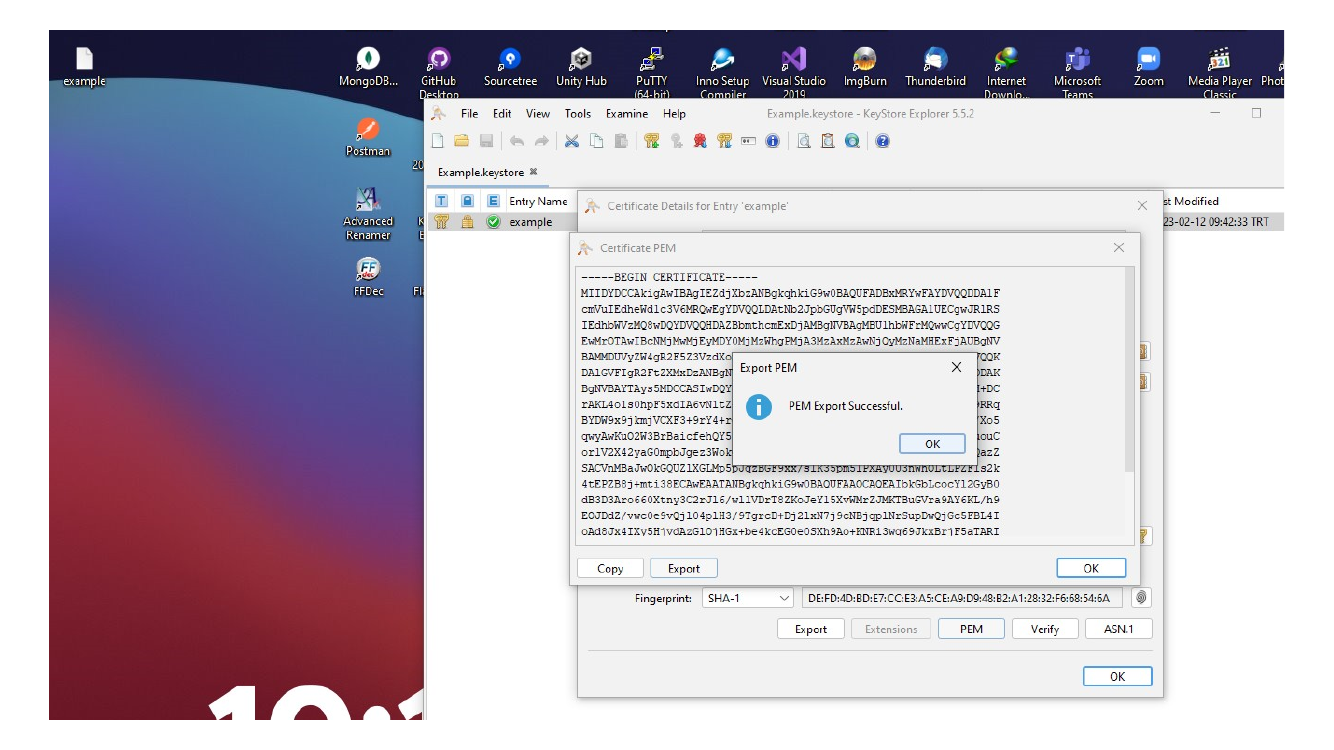
Open the certificate details and choose the PEM option.
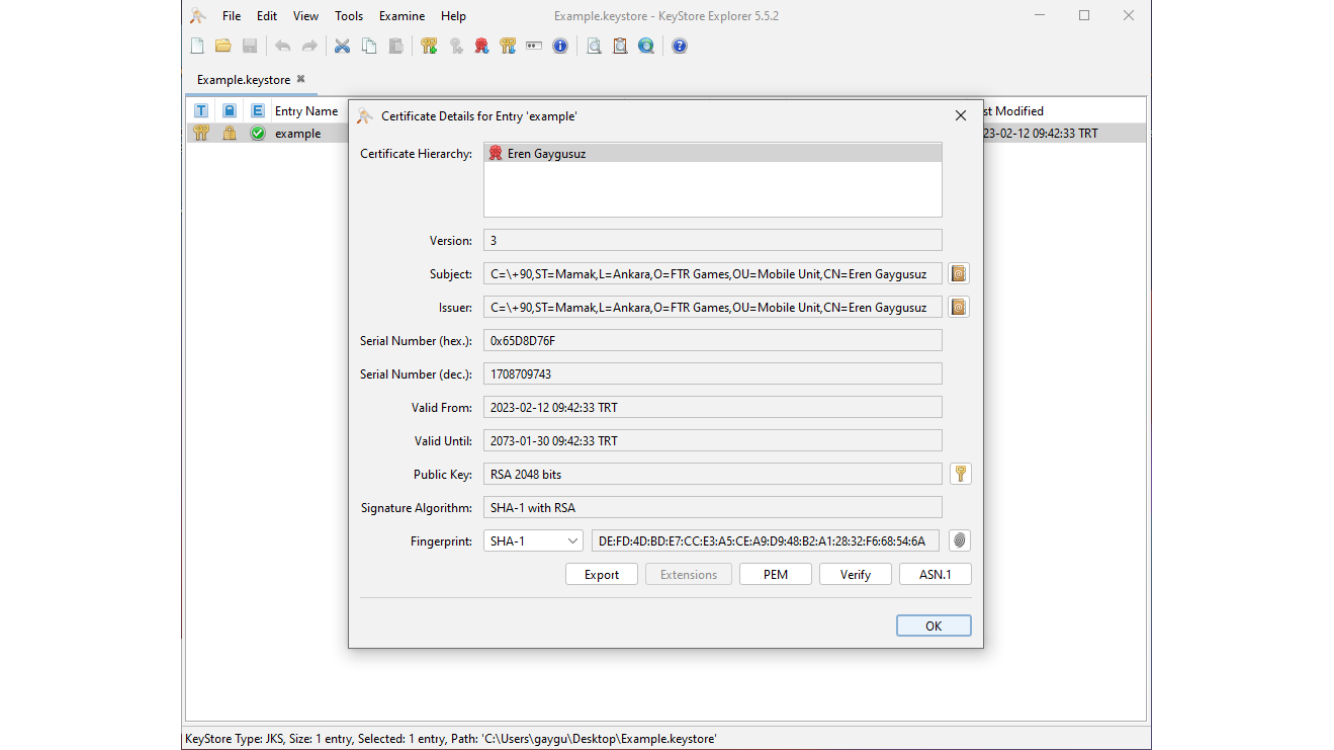
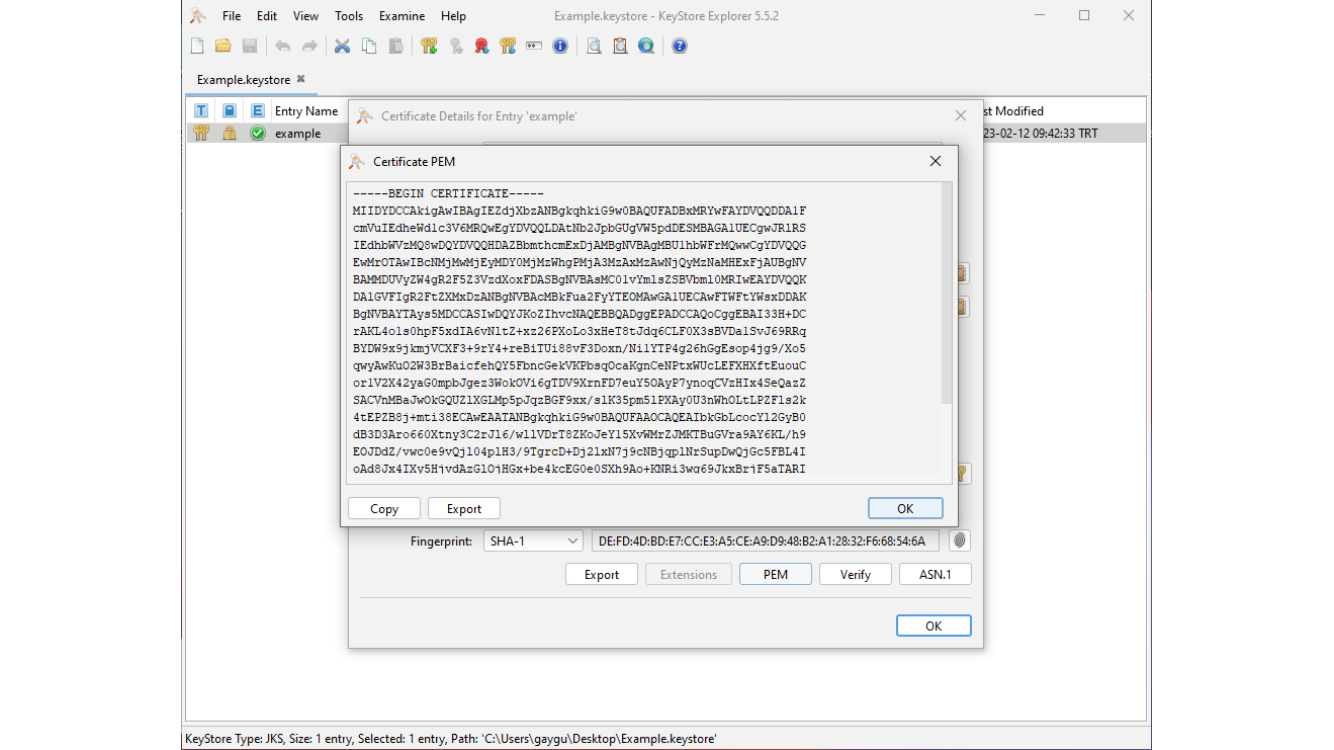
Use Export to save the PEM certificate.
In the save dialog, choose All Files and give the PEM file a clear name. Using the same base name as the keystore makes it easier to recognize later.
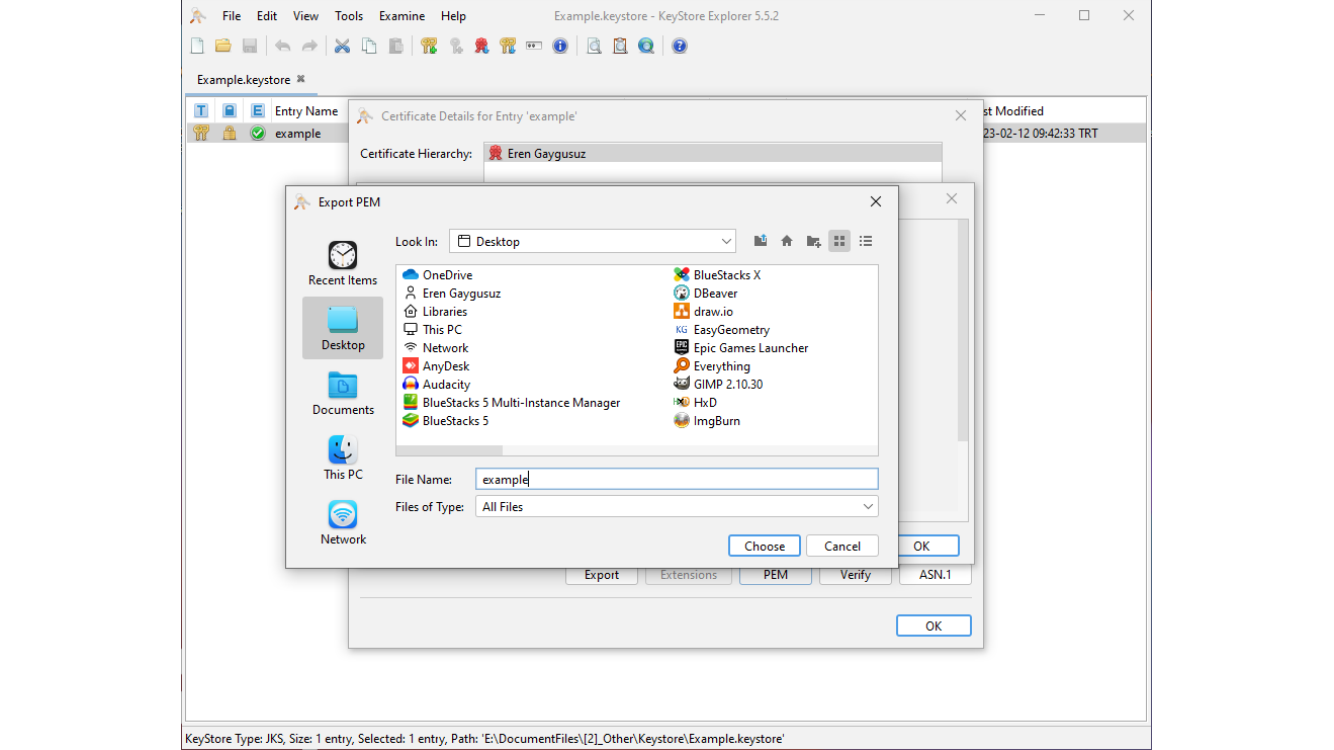
After the export succeeds, you should see the PEM file in the selected location.
Requesting Upload Key Reset in Google Play Console
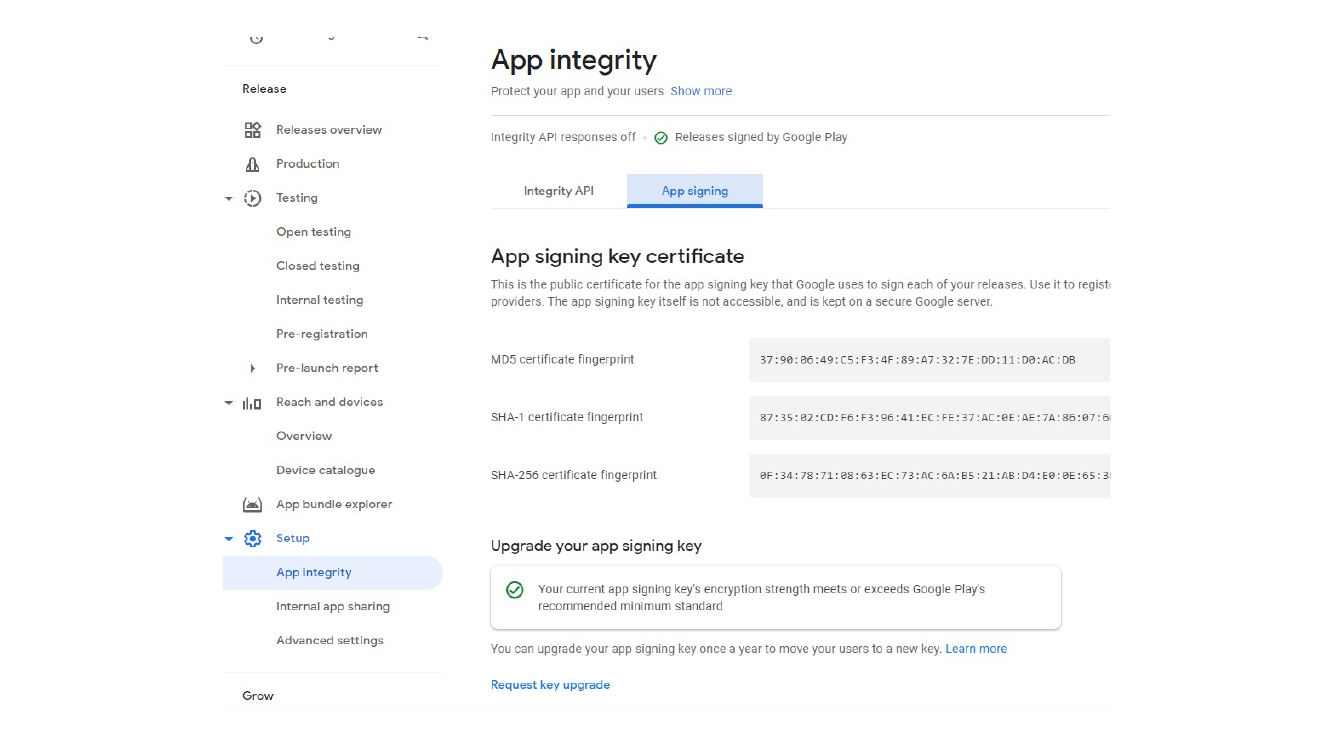
Open your application in Google Play Console and go to App integrity > App signing. Find the upload key reset option.
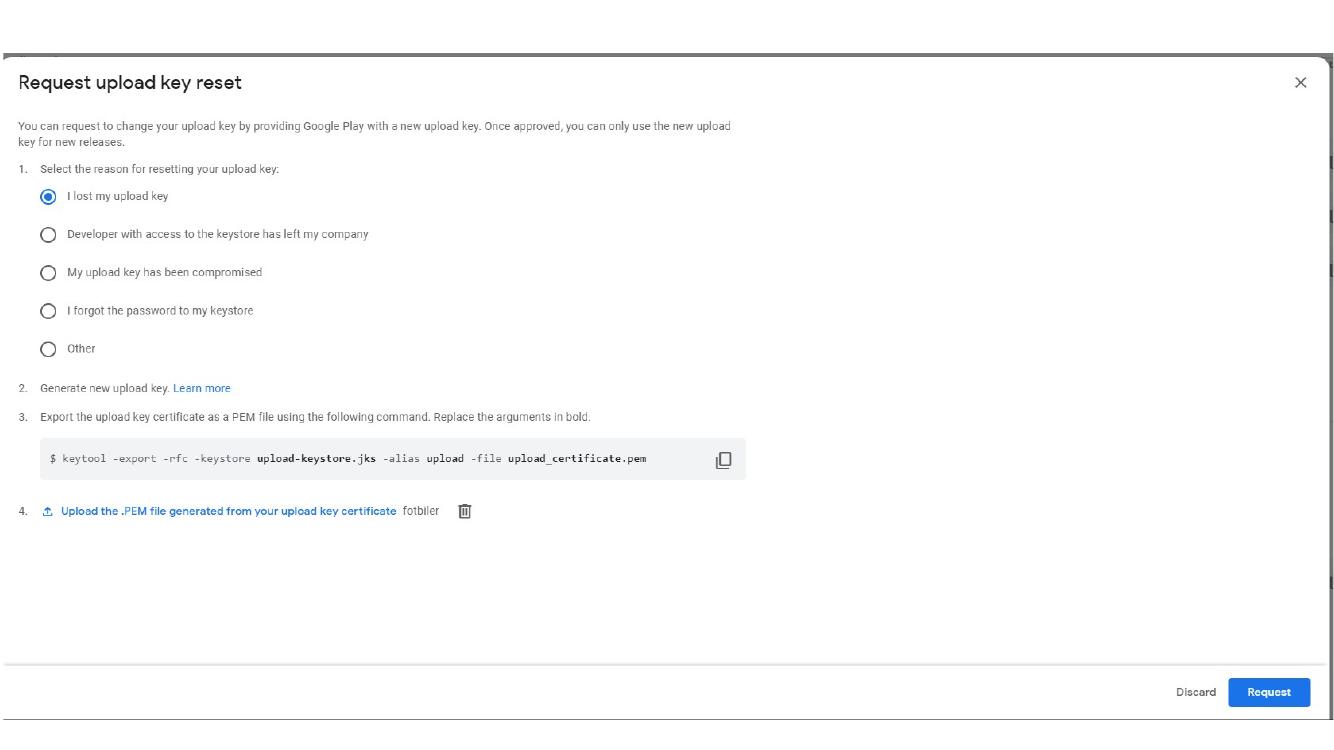
Choose a reset reason, attach the PEM certificate, and submit the request. In the example, the reset reason is selected as a lost upload key.
After Google approves the reset, wait until the new upload key becomes active. Then upload a new release signed with the new Unity keystore.
Optional Support Form Flow
If the standard upload key reset flow does not cover your situation, you can contact Google Play Developer Support through the Google Play Console issues form.
Fill in the developer account, app name, package name, and issue description. Explain that the previous app signing or upload key can no longer be used and that you want to update it with a new one.
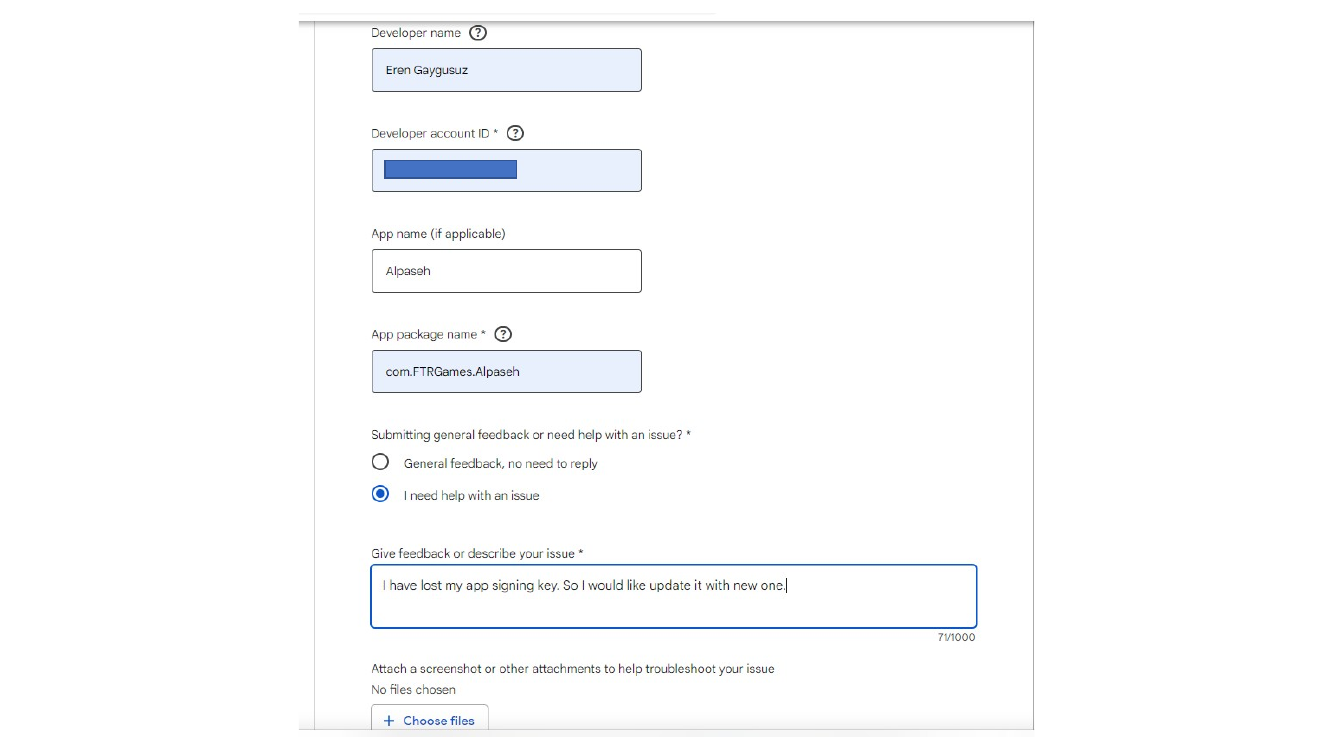
After submitting the form, Google sends a support email. Follow the instructions in the email and attach the PEM file if requested.
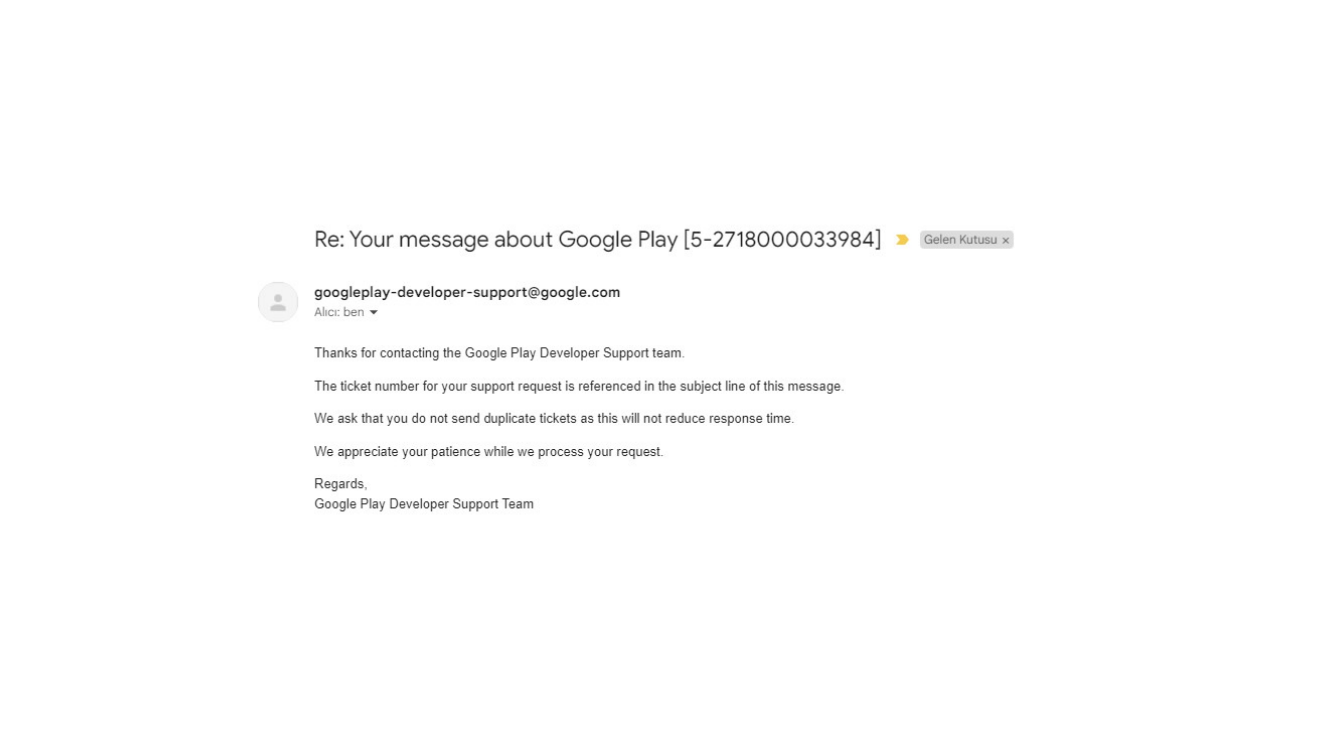
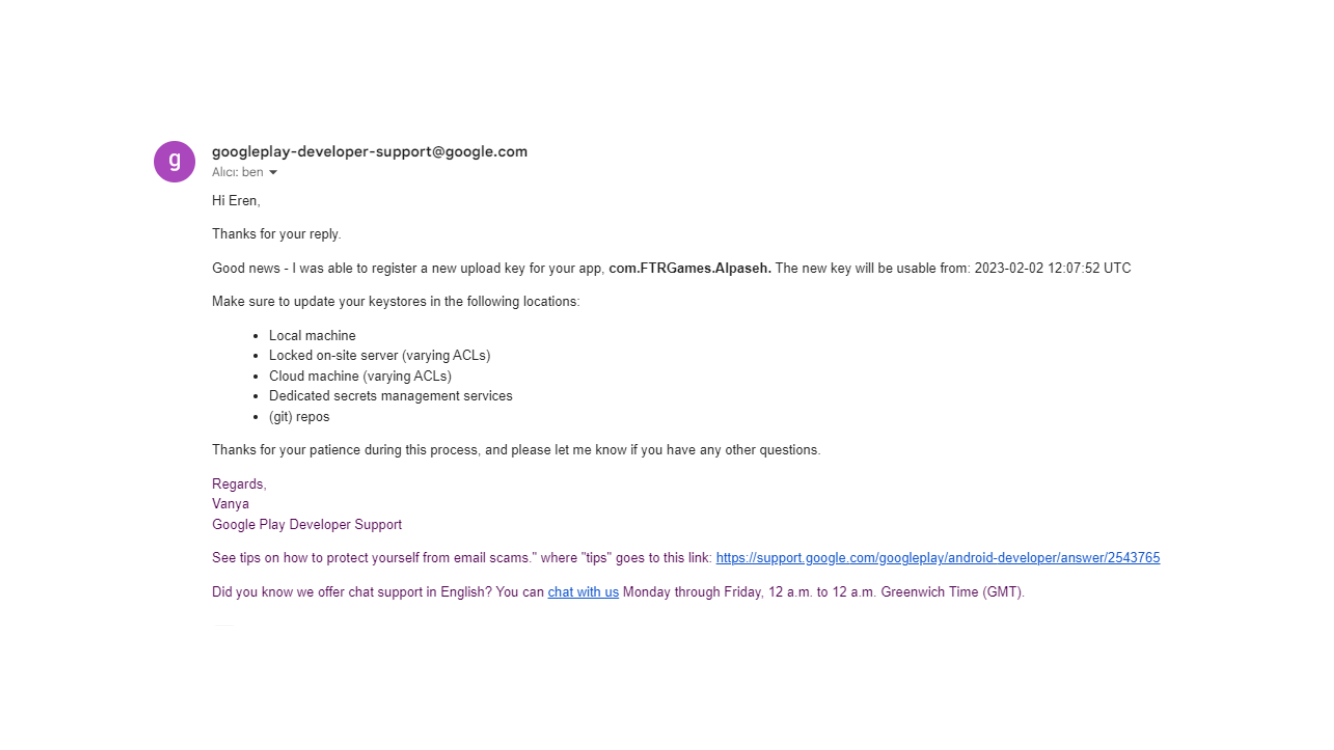
When the request is accepted, Google confirms that the new upload key has been registered and tells you when it can be used.
Summary
The keystore change flow has four important parts: create a new keystore in Unity, build the app with that keystore, export the keystore certificate as a PEM file, and request an upload key reset in Google Play Console. Until Google approves the new upload key, builds signed with the new keystore will continue to fail with a signing mismatch error.
Store the keystore file, alias, passwords, and PEM certificate securely. They are part of the release process, and losing them can interrupt future Android publishing work.
Comments