Unity stores Asset Store downloads under the user’s AppData folder by default. On Windows, that folder is usually located under C:\Users\<User>\AppData\Roaming\Unity\Asset Store-5.x. If your system drive is a smaller SSD, downloaded Asset Store packages can quickly take up a lot of space.
In this guide, I move the real package folder to another drive and create a Windows junction at the original Unity path. Unity continues to use the same visible path, but the files are physically stored in the new folder.

Table of contents
Open Table of contents
Why Move the Asset Store Folder?
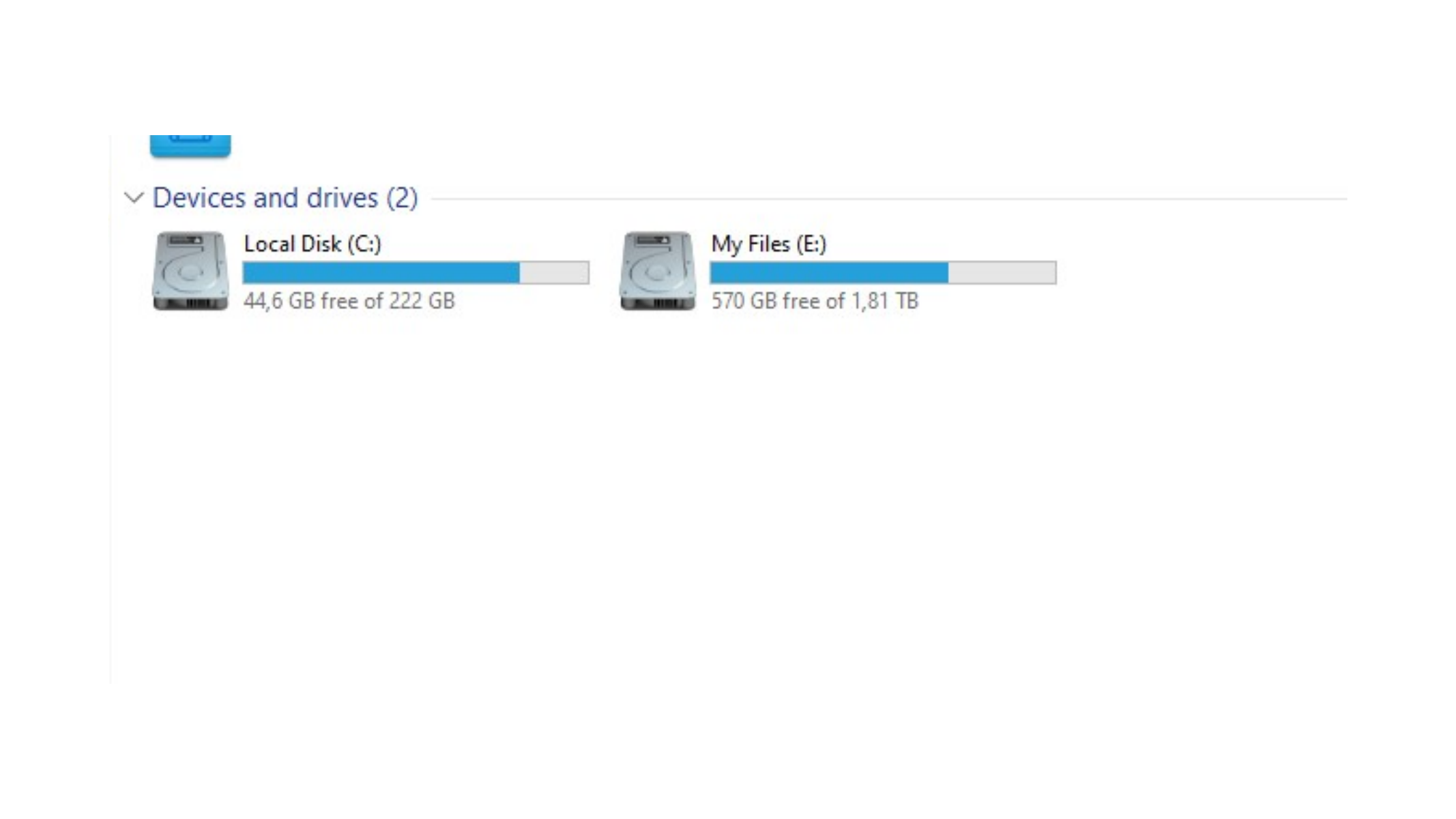
In this example, the C drive has limited SSD space, while the other drive has much more free space. Asset Store packages can be large, so keeping them on the system drive is not always ideal.
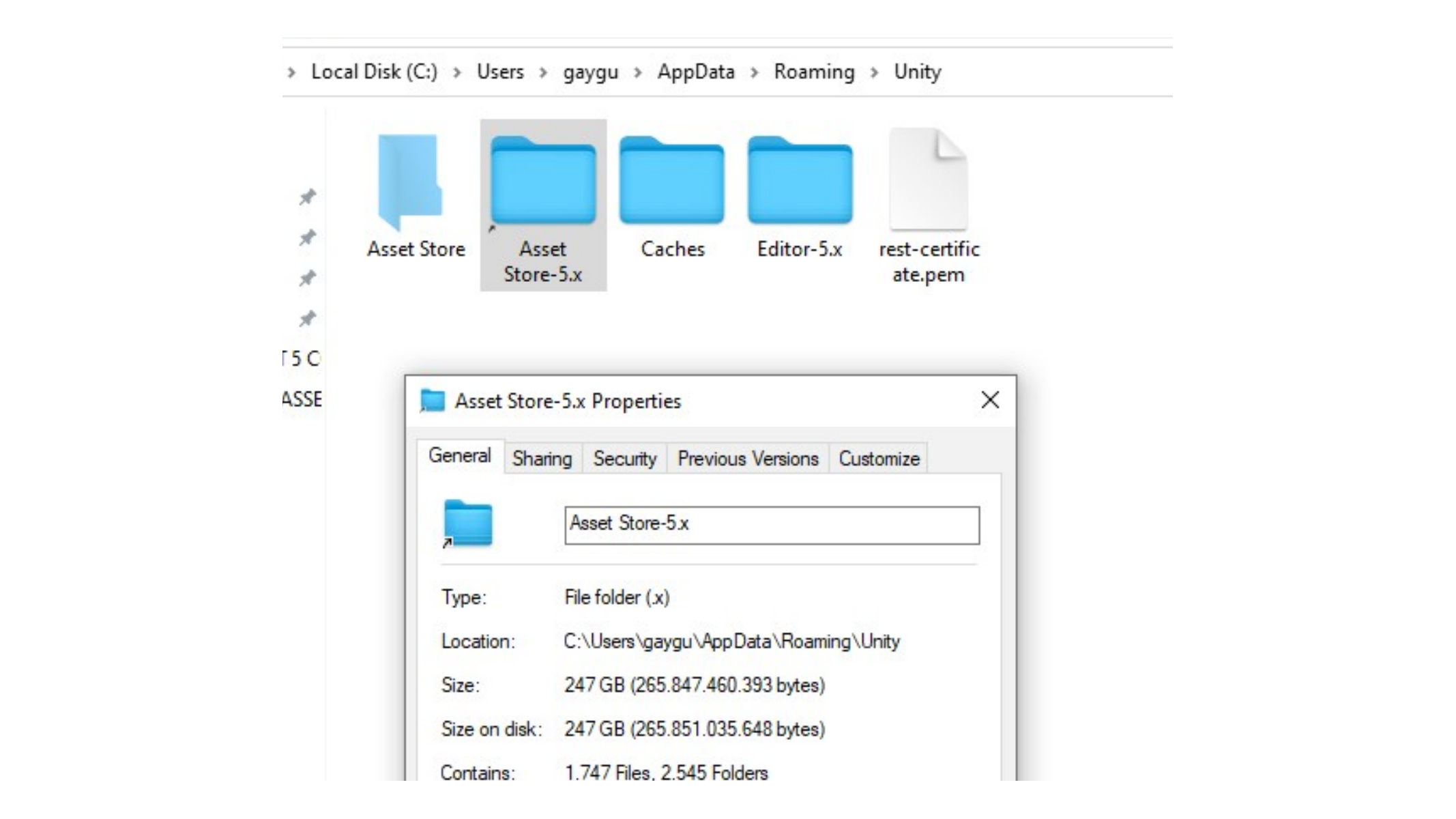
The folder Unity uses by default is inside the roaming AppData directory:
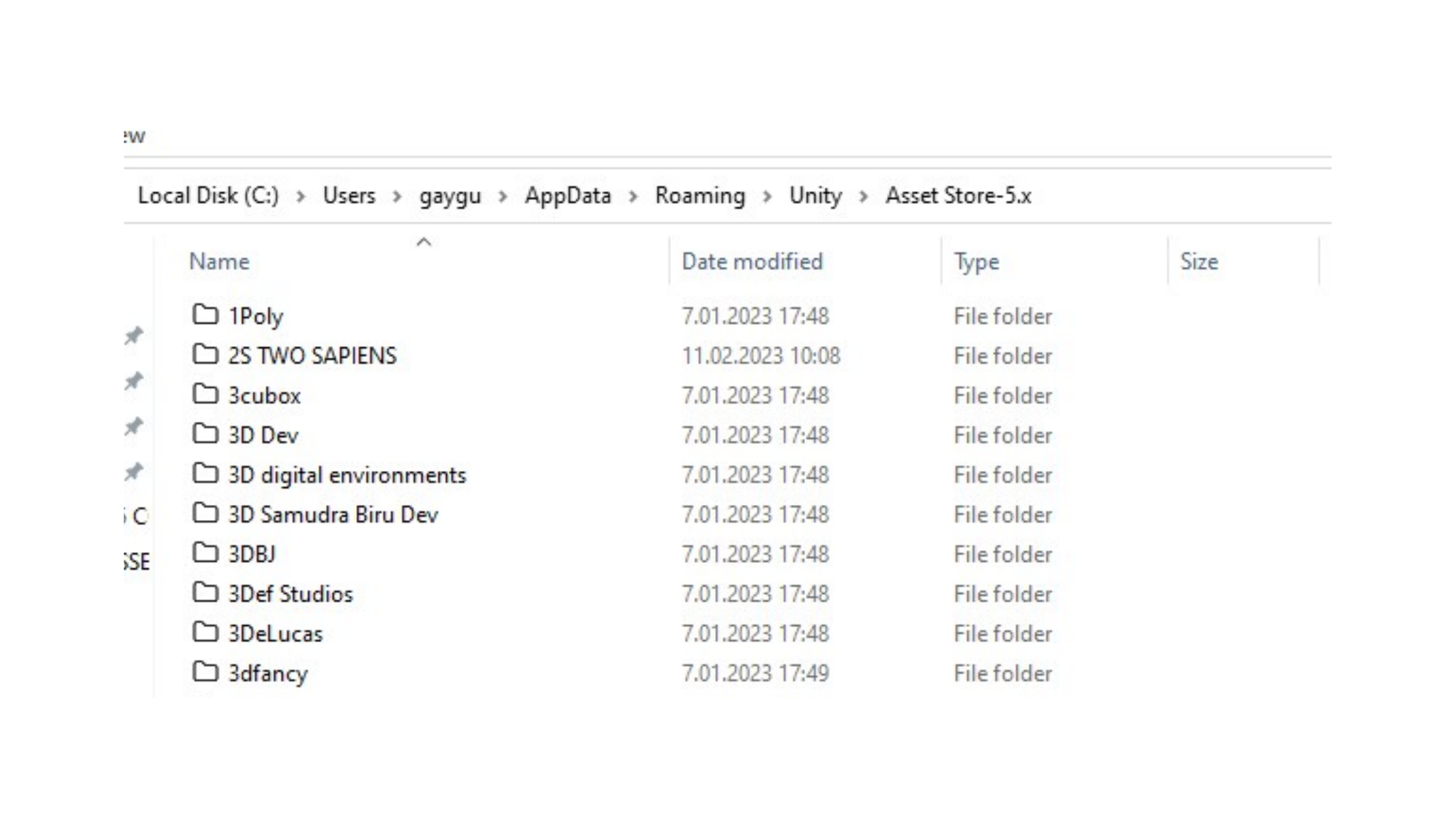
C:\Users\<User>\AppData\Roaming\Unity\Asset Store-5.xIf you have already downloaded packages, this folder may contain many asset folders and can grow significantly over time.
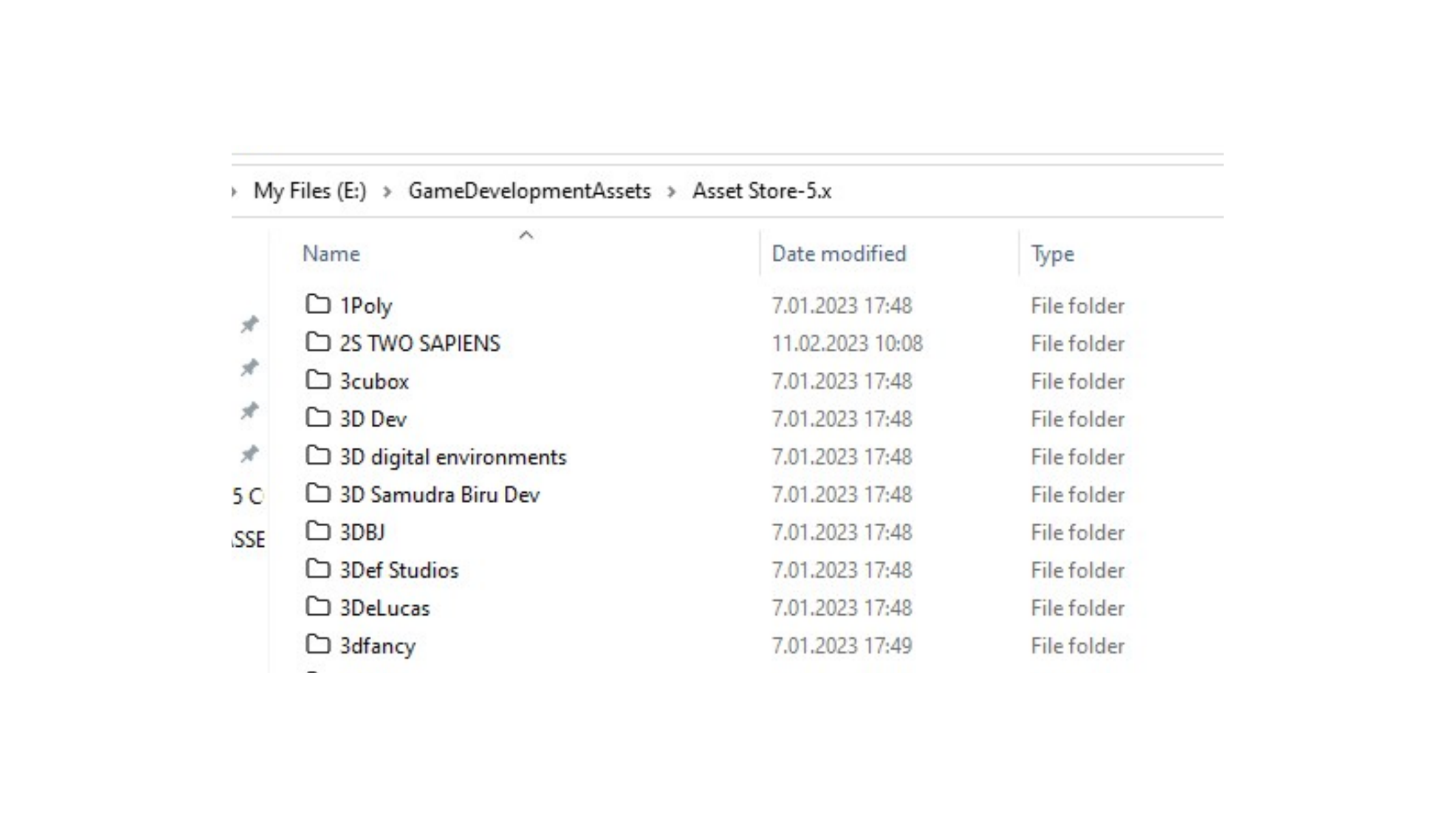
This screen shows Downloaded Unity Asset Store packages inside the default folder.
Preparing the New Folder
Create the new folder on the drive where you want to store the packages. In the original example, the target folder is created on another drive under a game development assets directory:
E:\GameDevelopmentAssets\Asset Store-5.xYou can use a different path, but keep the folder name clear so it is easy to recognize later.
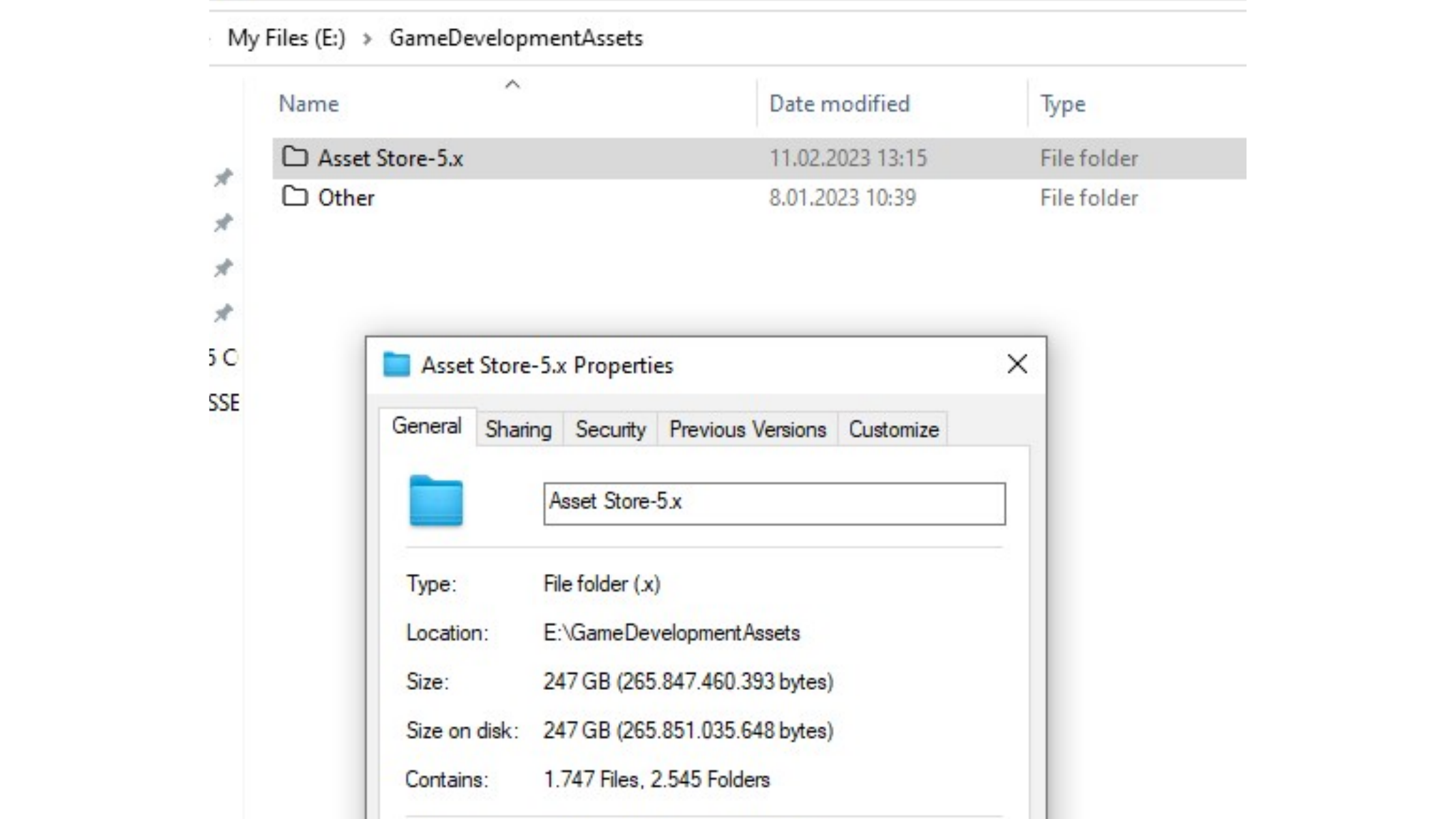
If the old Asset Store-5.x folder already contains downloaded packages, move those folders into the new target folder. After moving the files, remove the original Asset Store-5.x folder from the AppData Unity directory. The original path must be empty or absent before the junction can be created there.
Creating the Junction
Open Command Prompt and create a junction with mklink /J. The first path is the path Unity expects to use. The second path is the real folder on the other drive.
mklink /J "C:\Users\<User>\AppData\Roaming\Unity\Asset Store-5.x" "E:\GameDevelopmentAssets\Asset Store-5.x"In the command:
/Jcreates a directory junction.- The first path is the junction path, which replaces Unity’s original folder.
- The second path is the real storage location.
This screen shows Command Prompt showing mklink junction creation for Unity Asset Store folder.
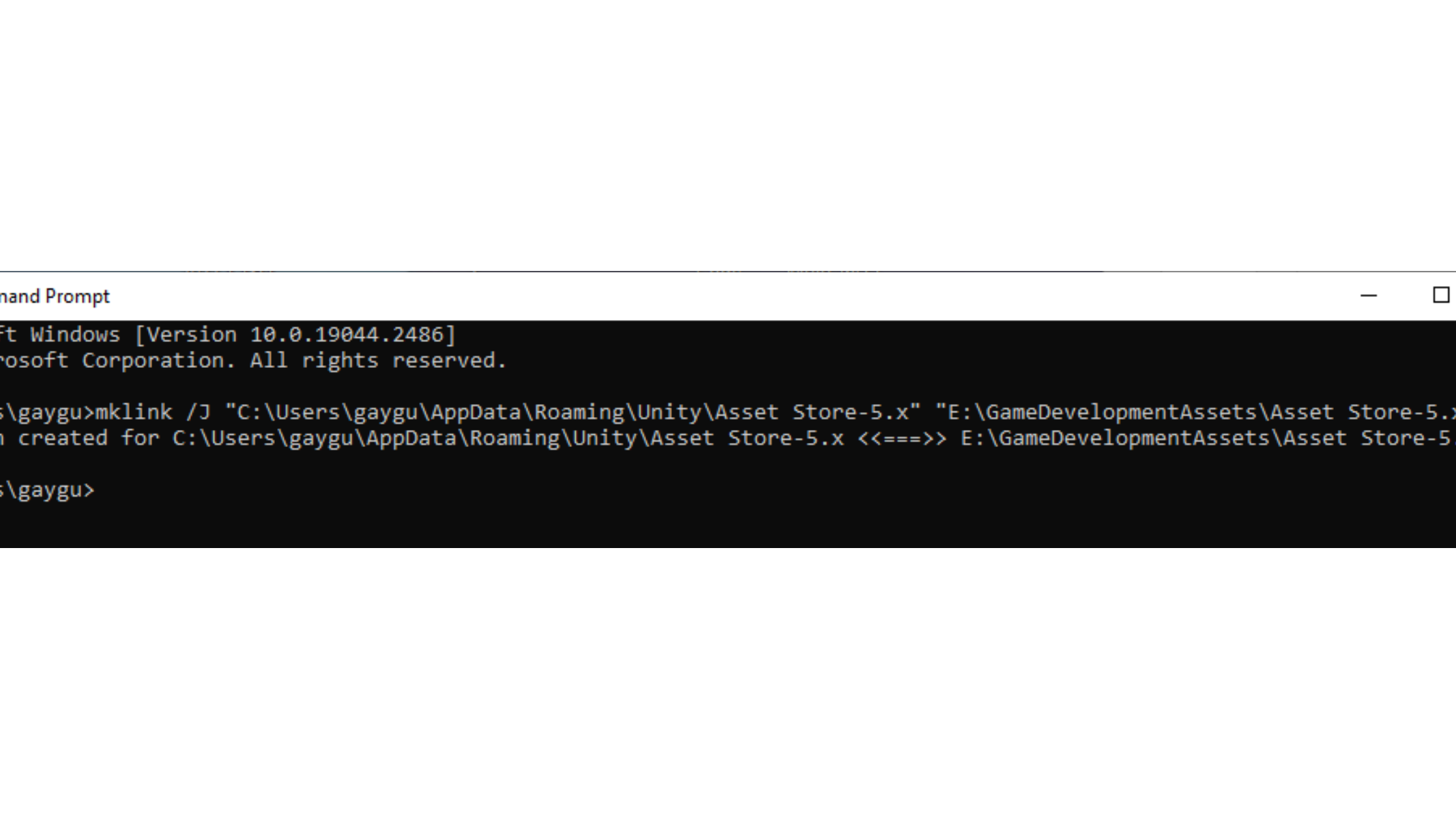
After the command succeeds, Unity still sees the default AppData path, but Windows redirects that path to the folder on the other drive. When Unity downloads Asset Store packages, the files are written to the new target folder.
Checking the Result
Download or import an Asset Store package from Unity and check the new folder. The downloaded content should appear in the folder on the secondary drive, not as new physical files on the C drive.
This approach is useful when the C drive is small but another drive has plenty of space. The symbolic-link concept is also explained in this How-To Geek guide to symbolic links, which is a helpful reference for understanding the underlying Windows behavior.
Summary
The visible Unity Asset Store path does not really change. Instead, that path becomes a junction that points to a real folder somewhere else. This lets Unity continue working normally while keeping large Asset Store downloads on a drive with more available space.
Comments