The Moodle site name and home-page settings define the first impression learners receive. This archived 2016 walkthrough changes the full and short site names, then reviews which content Moodle displays to visitors and authenticated users.

Table of contents
Open Table of contents
Opening Front Page Settings
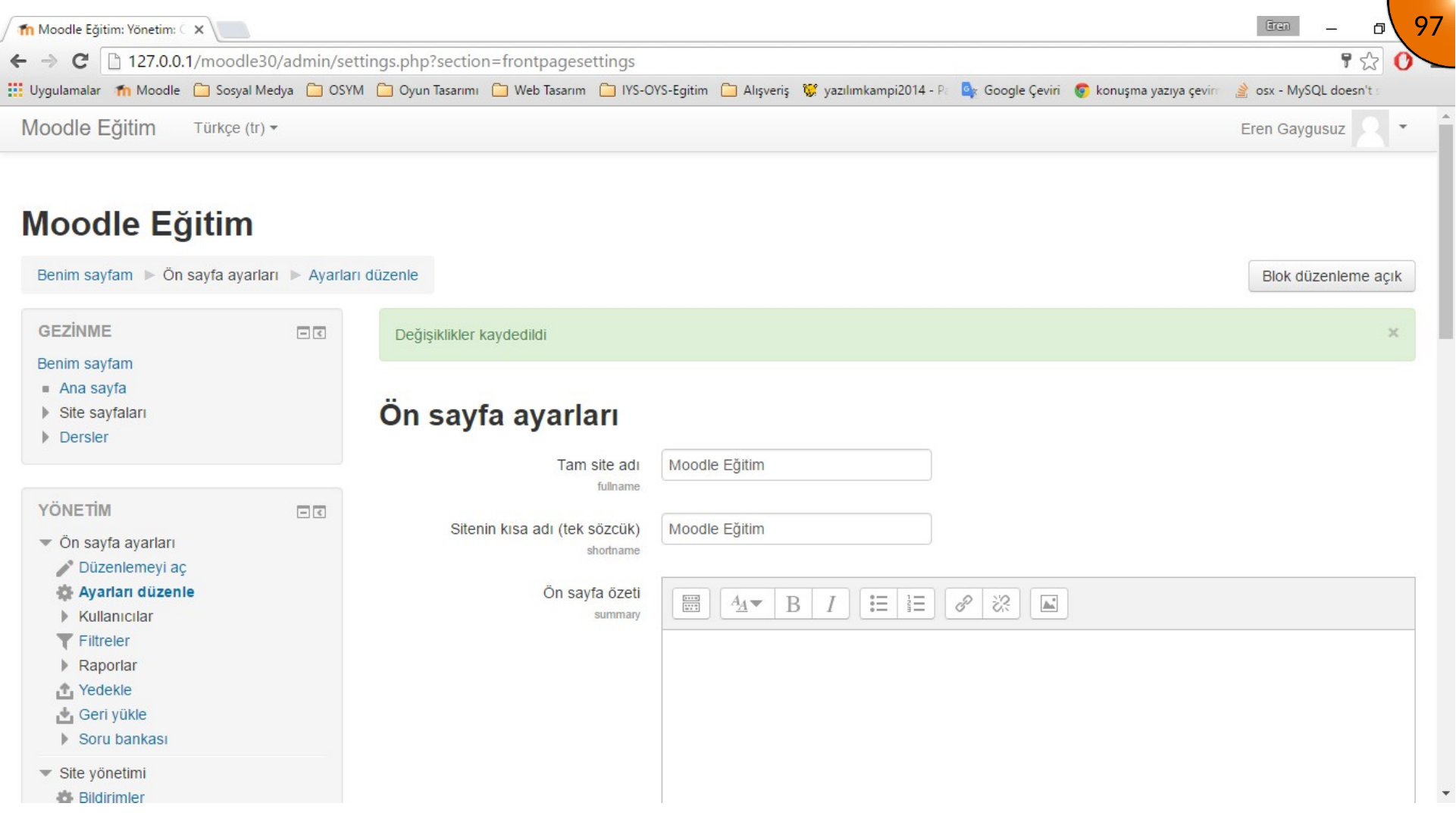
Sign in as an administrator and open the front-page or home-page settings from the administration menu. The original interface shows the current site name and description in the top-left area of the home page.
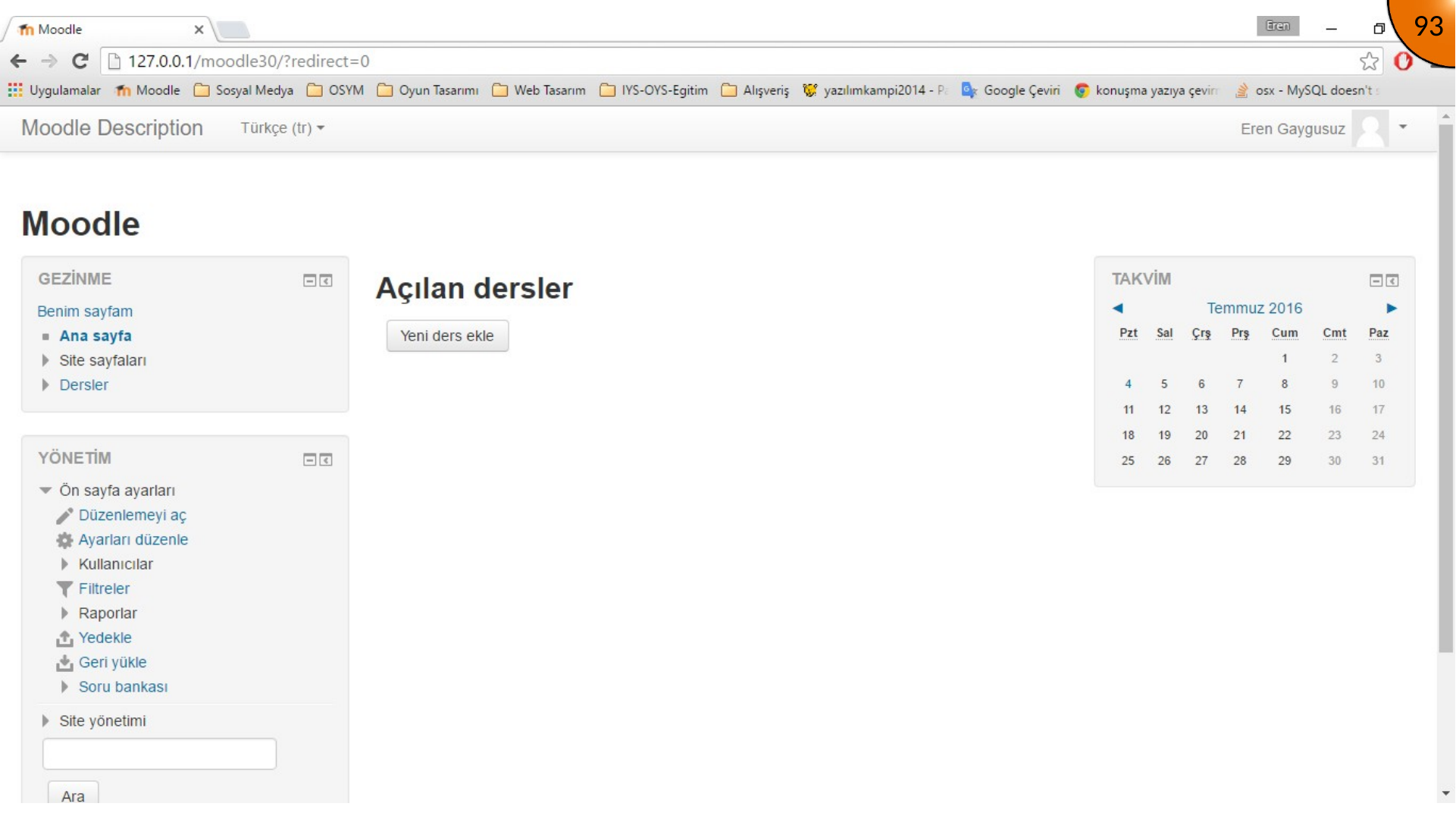
Setting the Full and Short Site Names
Update the full site name and the short name with clear, consistent values. The full name is displayed prominently; the short name is used in places where the complete name would be too long.
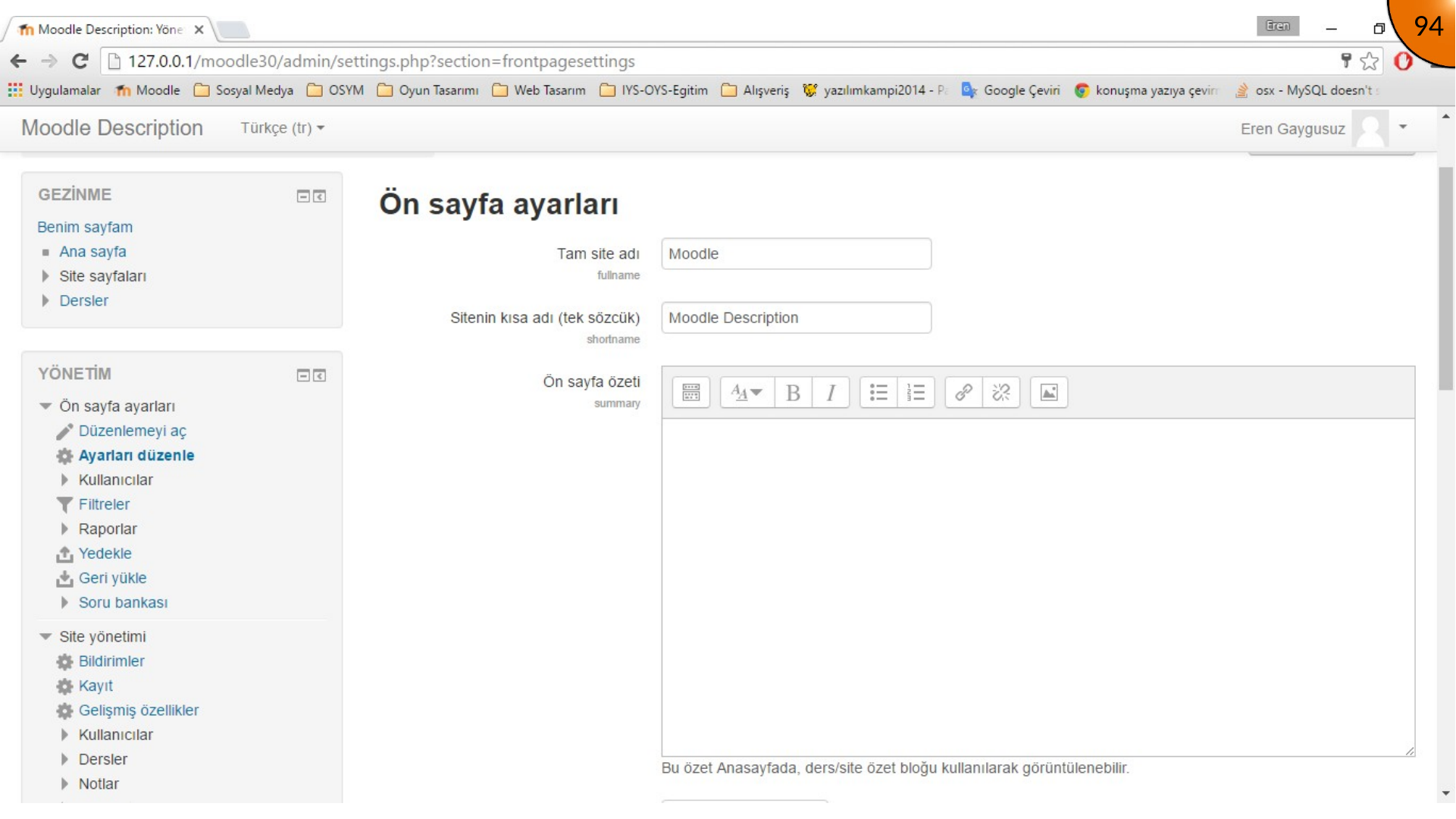
Use a short name that is stable, recognizable, and appropriate for URLs, navigation, and reports. Avoid changing it frequently after courses and integrations are active.
Choosing Home Page Content
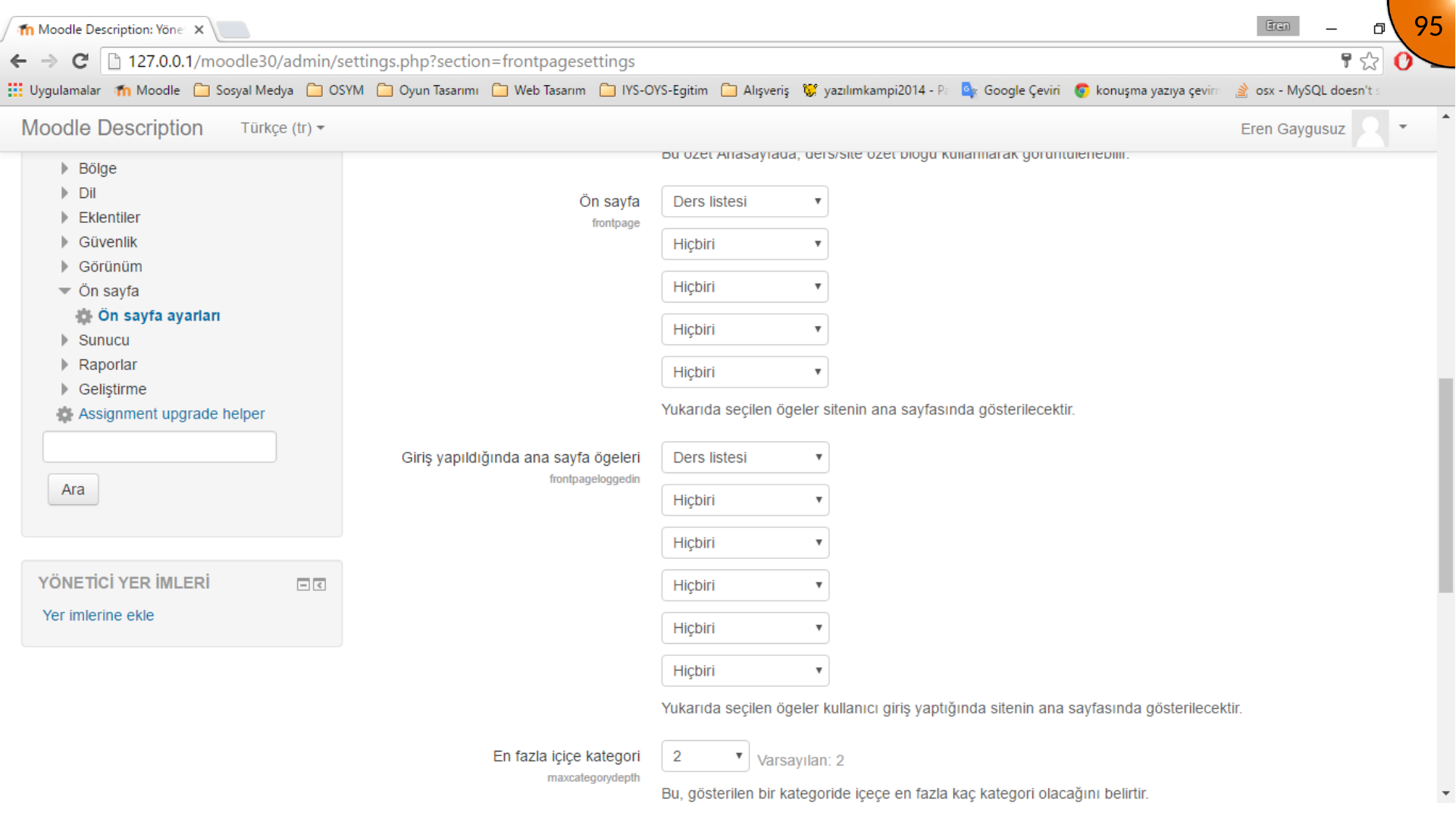
Further down the settings page, choose what appears on the home page for visitors who are not signed in and for users who are signed in. Options depend on the Moodle version and enabled features, but can include site news, course lists, categories, blocks, and a custom summary.
Save the changes at the bottom of the page.
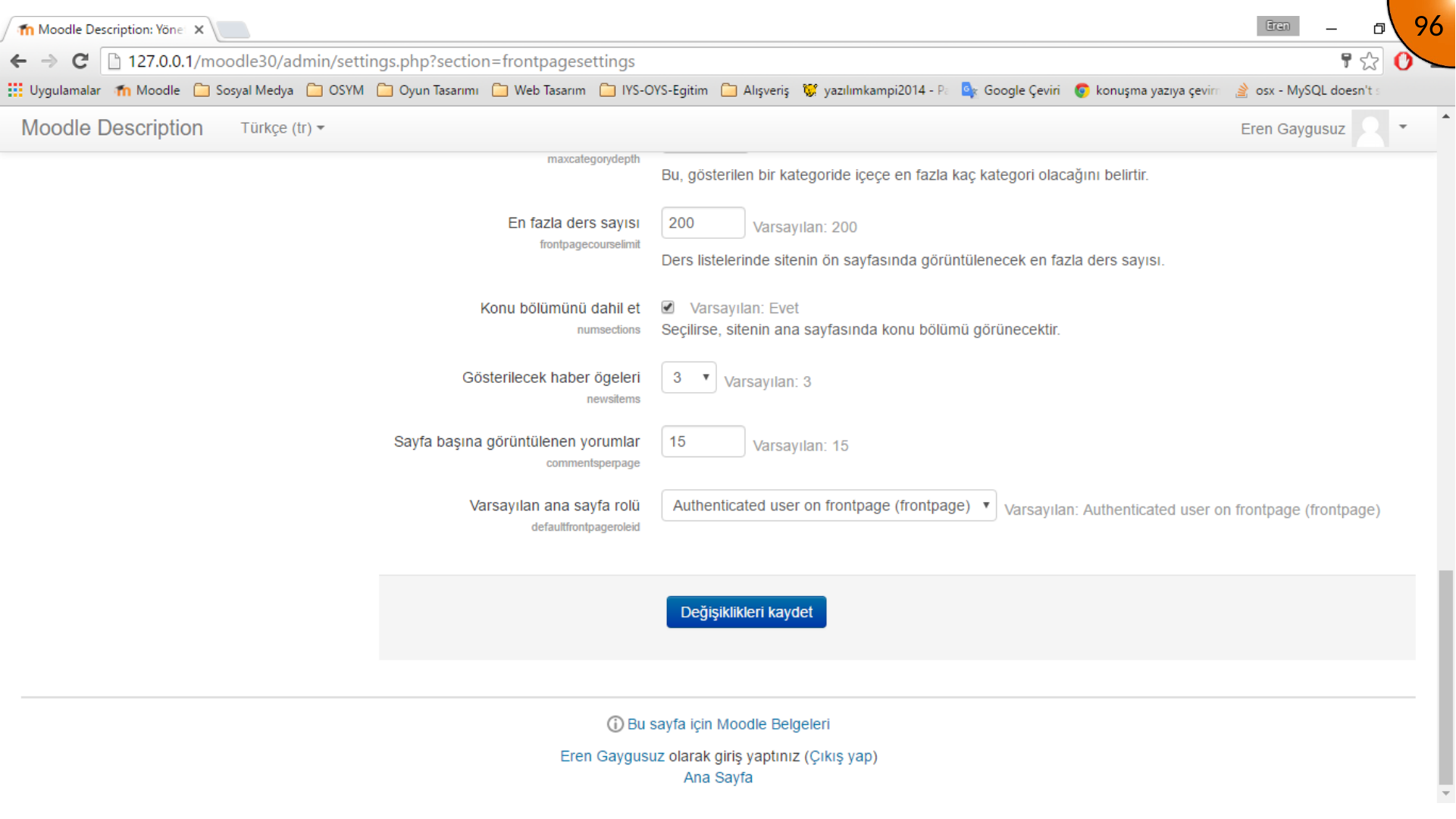
Return to the home page to confirm that the new site identity is displayed correctly.
Summary
The full site name, short name, and home-page content settings shape Moodle’s public identity and initial navigation. Keep these values consistent with the institution or project, and review the home page as both a guest and a signed-in learner after making changes.
Comments