After enabling self-registration, administrators need a safe process for approving accounts, updating profiles, assigning elevated access, and enforcing sensible password rules. This archived 2016 walkthrough covers that user-management flow.
The screens belong to an older Moodle version, but the security principles are current: grant administrator access sparingly, use strong passwords, and verify account changes with a non-administrator account.
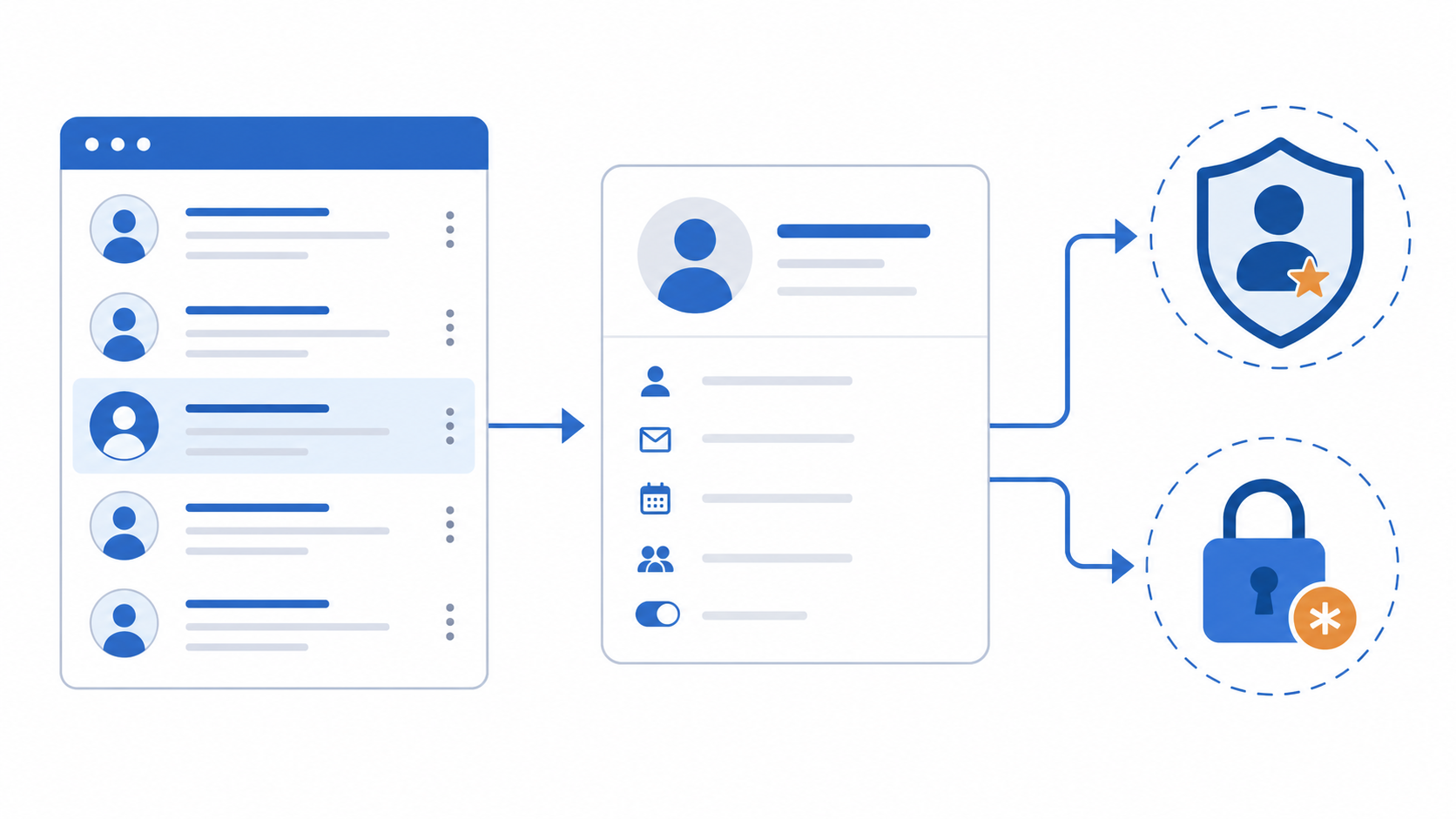
Table of contents
Open Table of contents
Reviewing and Approving Registrations
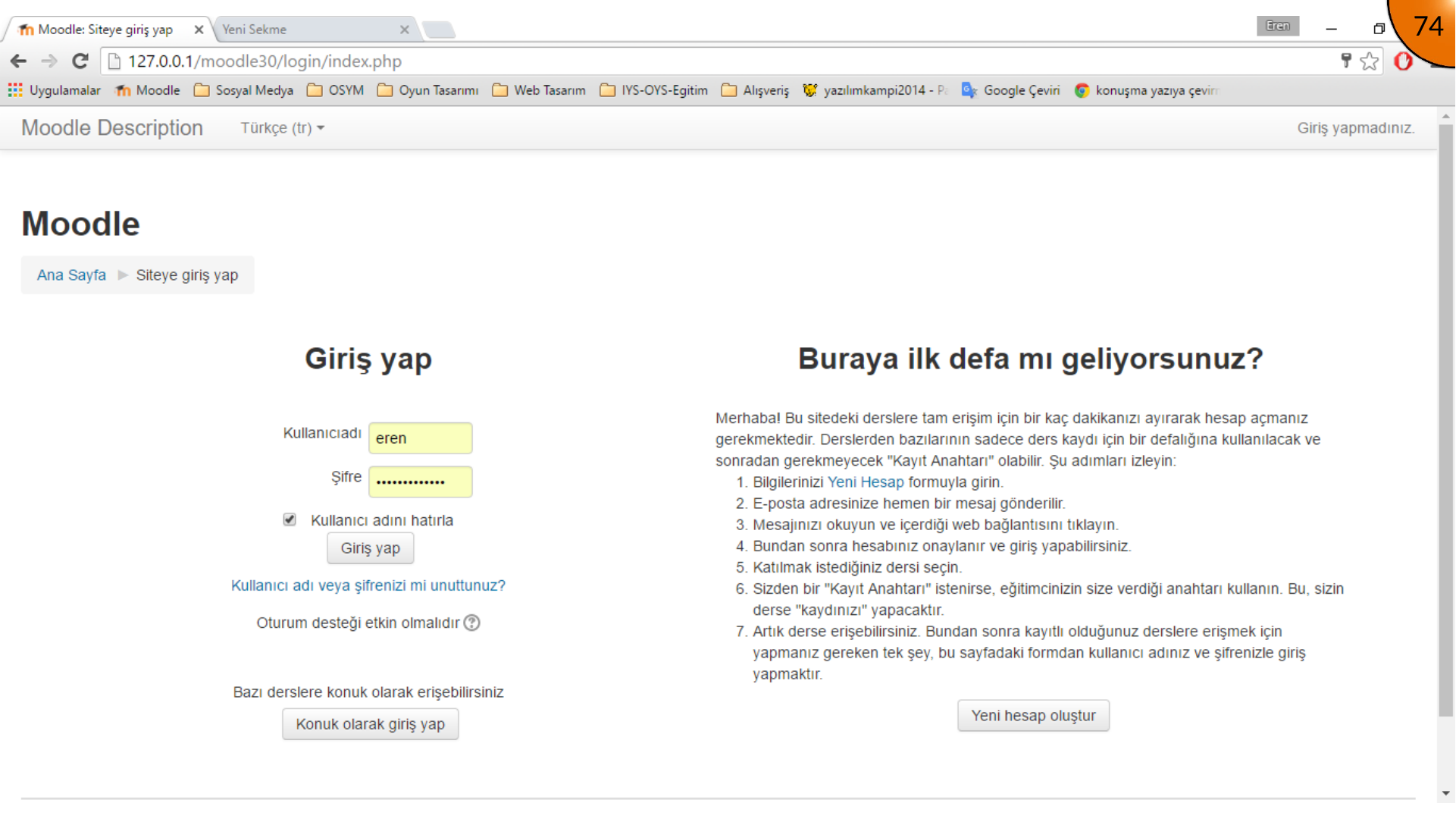
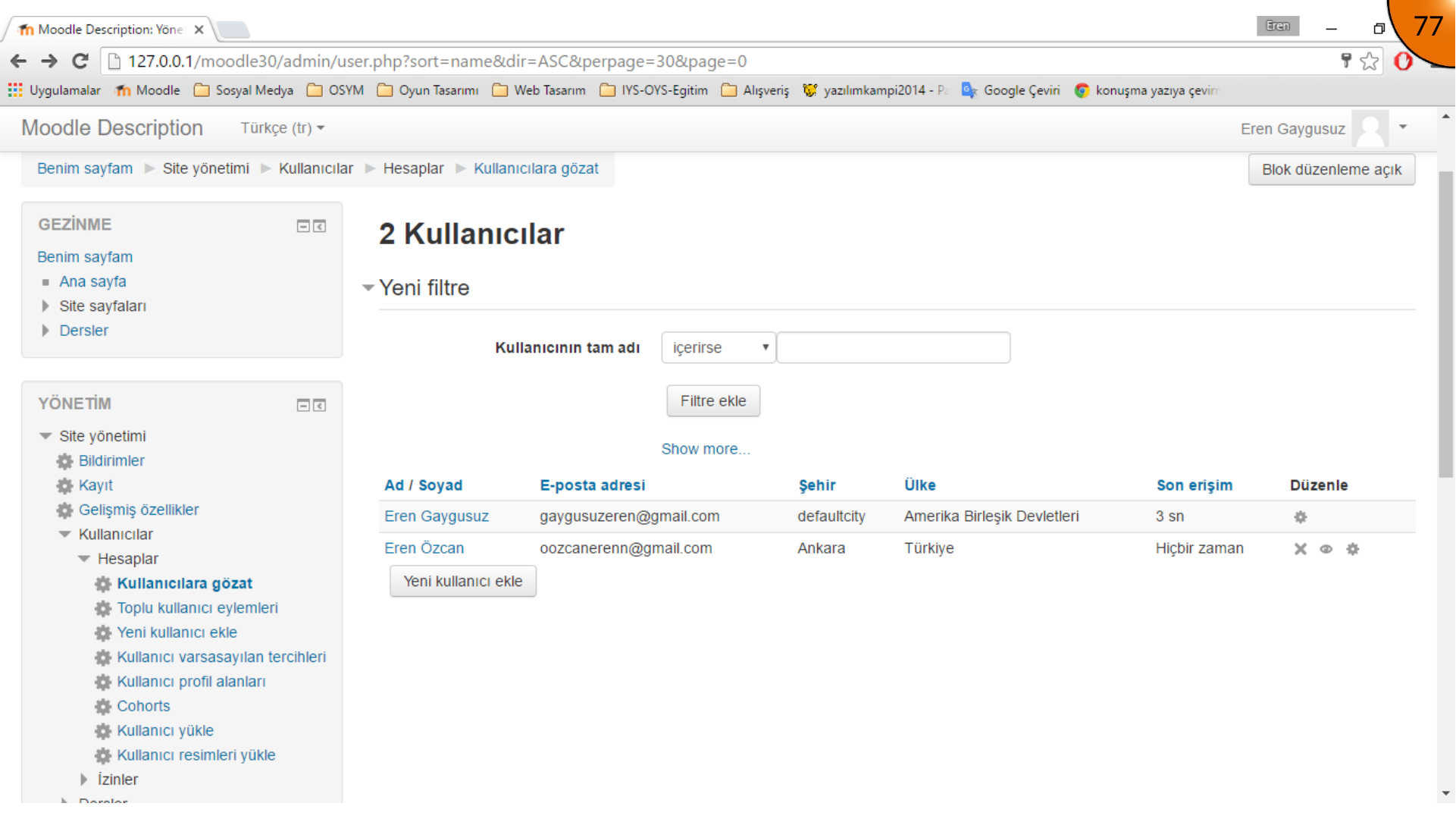
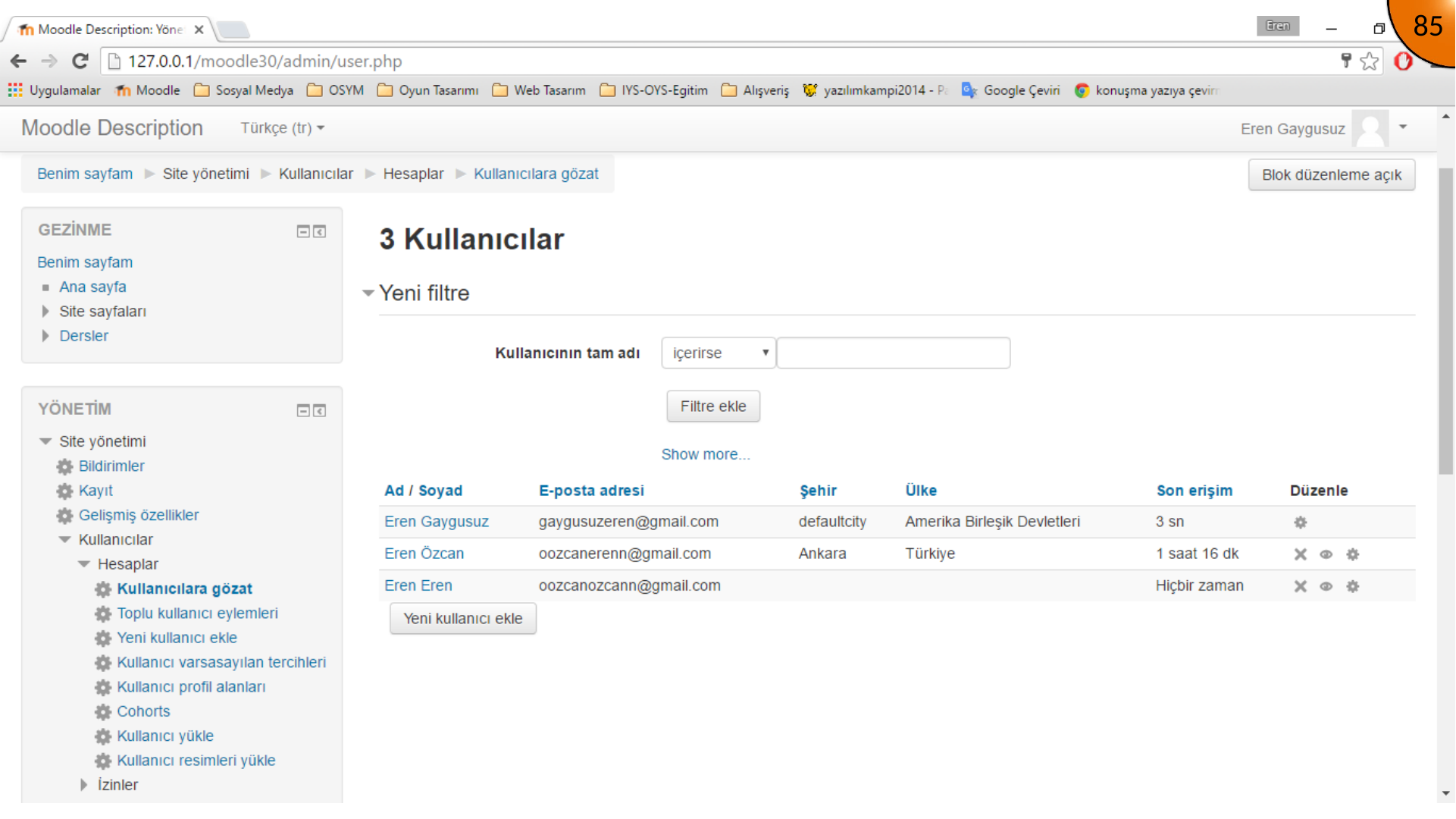
Open Site administration > Users > Accounts > Browse list of users to see registered and pending accounts.
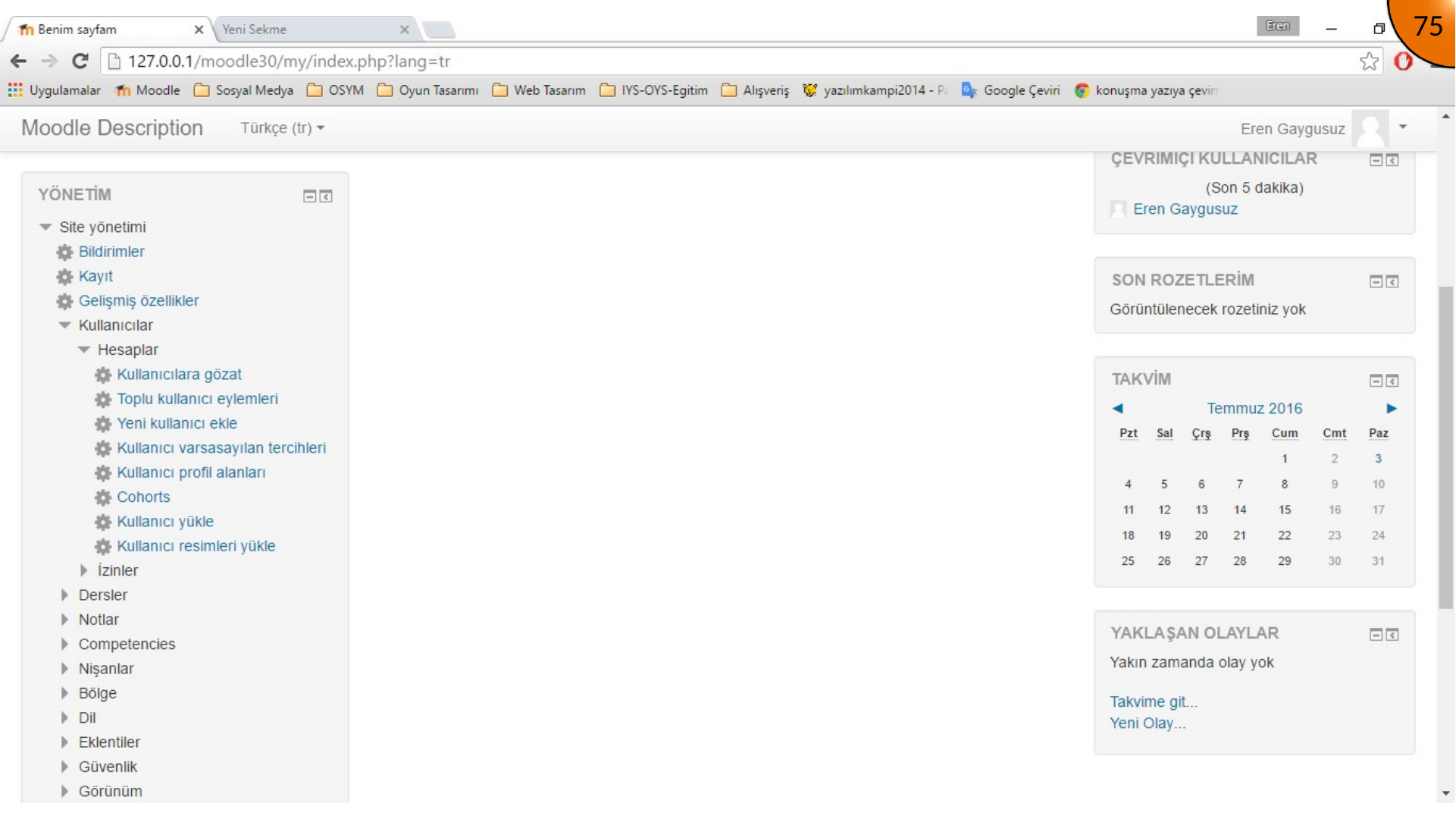
Approve a pending account only after confirming that the registration is valid.
Editing User Profiles
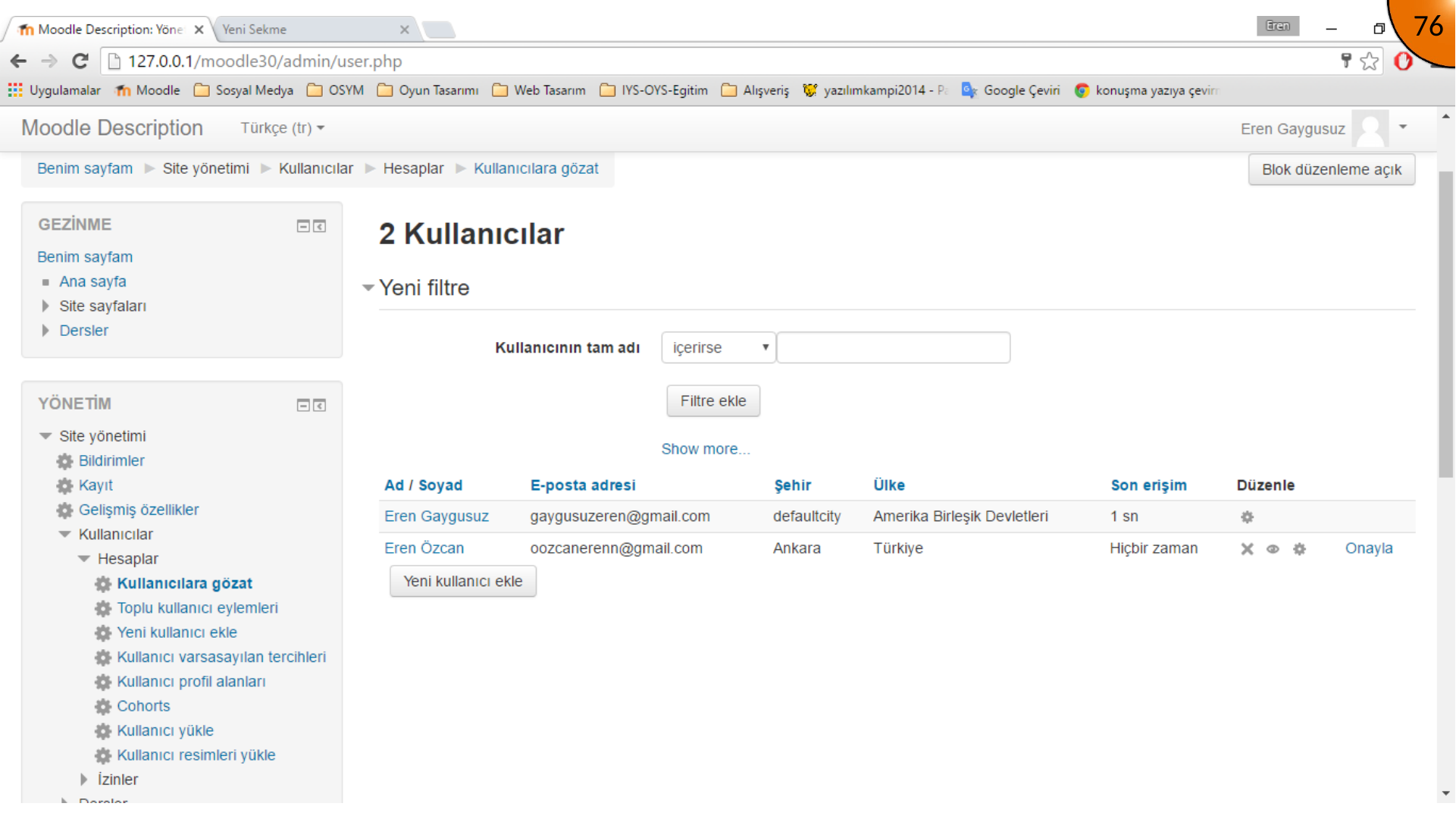
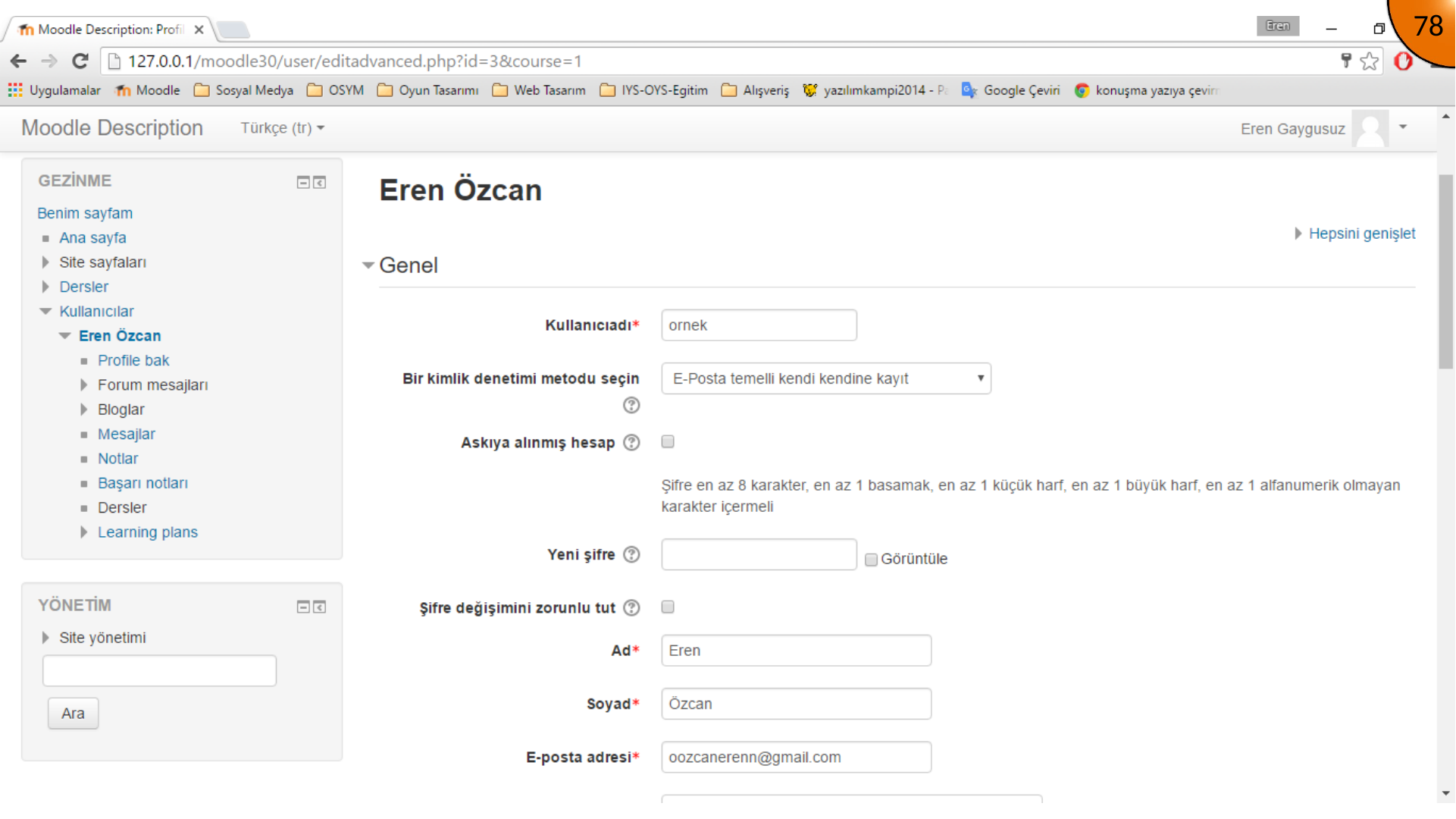
The user list offers controls for deleting, suspending, and editing accounts. Open profile editing to update user information when required.
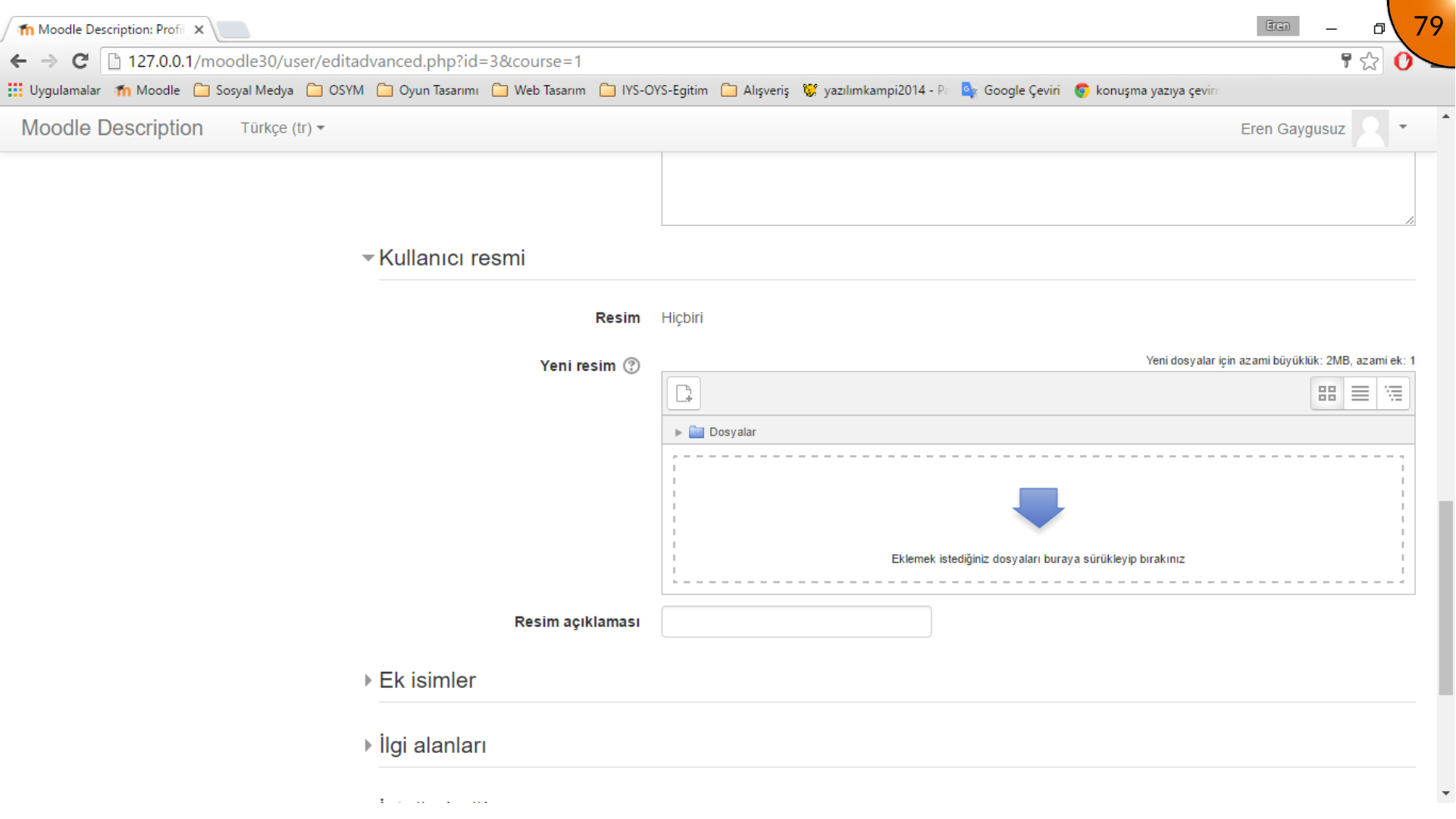
You can upload a profile image from the profile page. Keep uploads within the configured file-size limit and use an appropriate image.
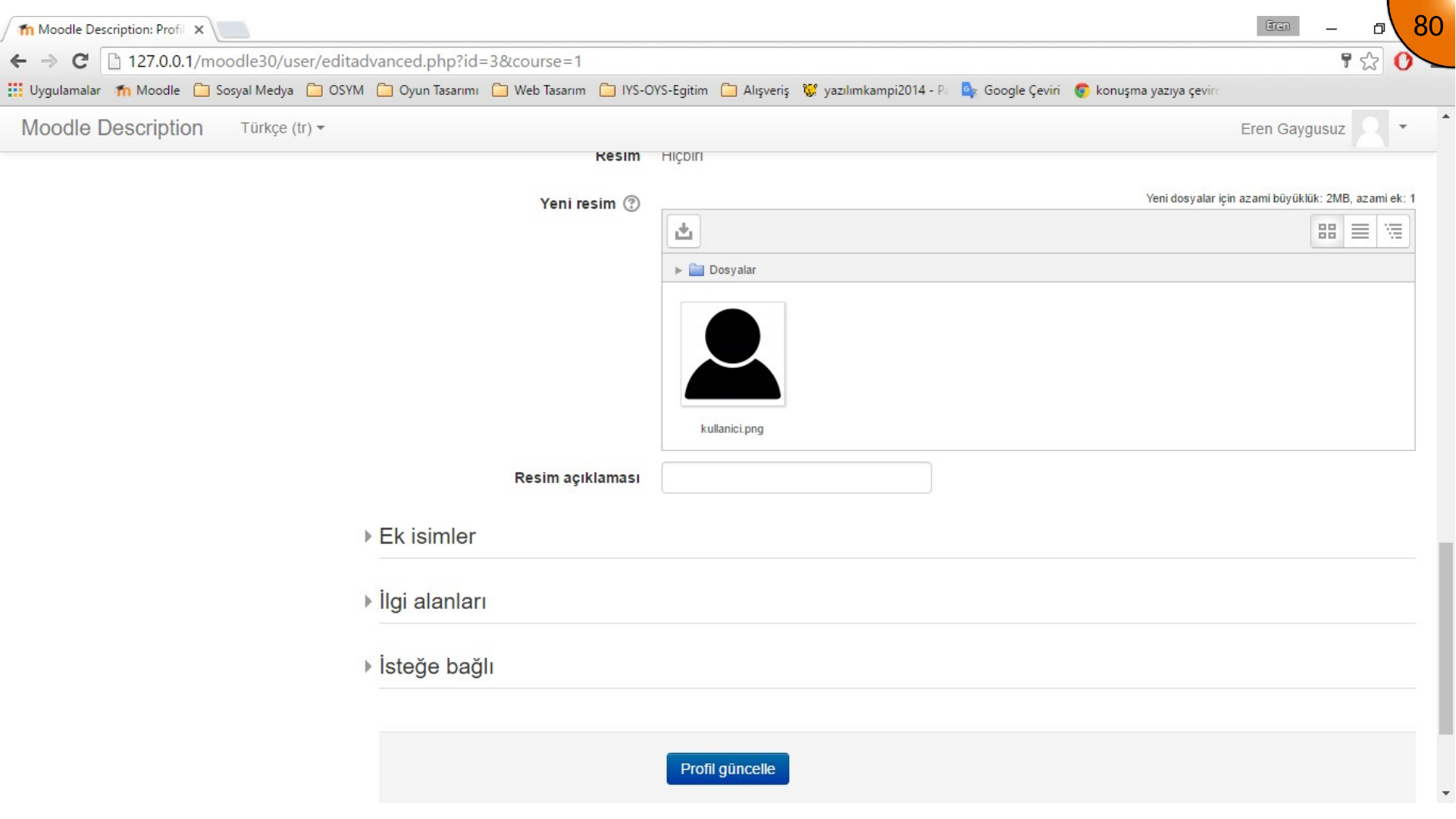
Sign in as the user, when possible, to verify that the change appears correctly.
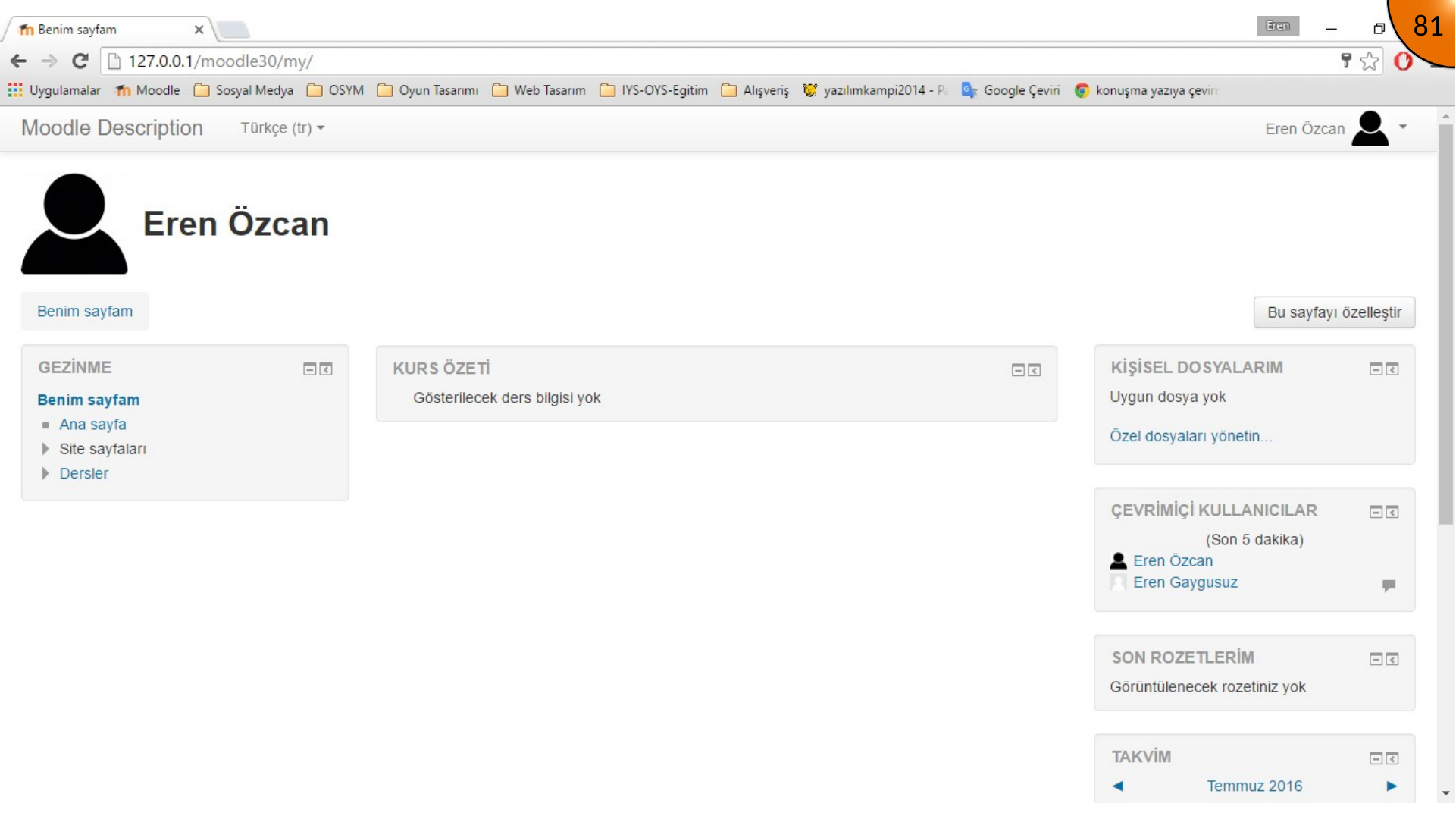
Creating Accounts Manually
Administrators can also create users directly through New user. Enter the required username, name, email address, and a secure password.
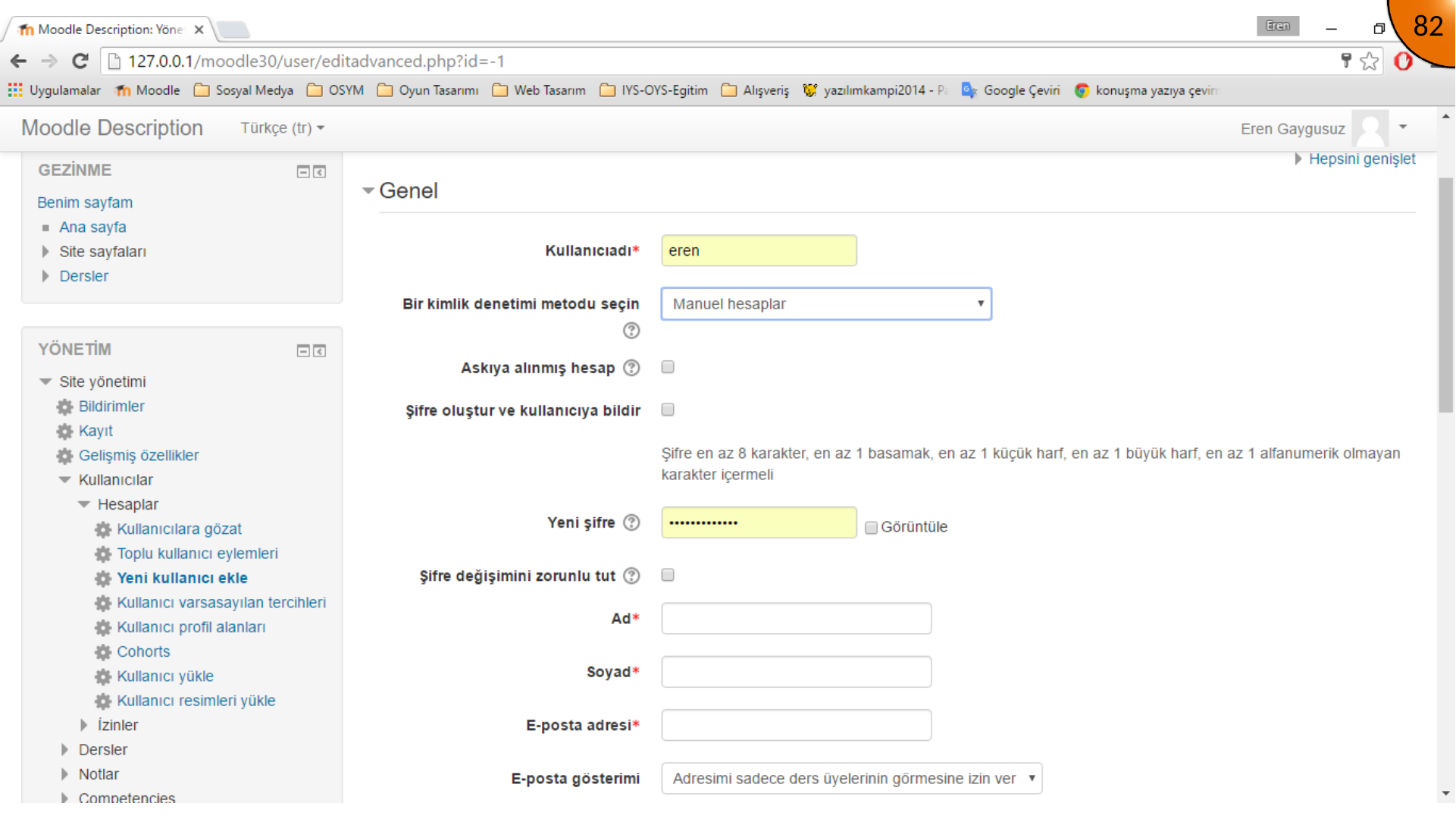
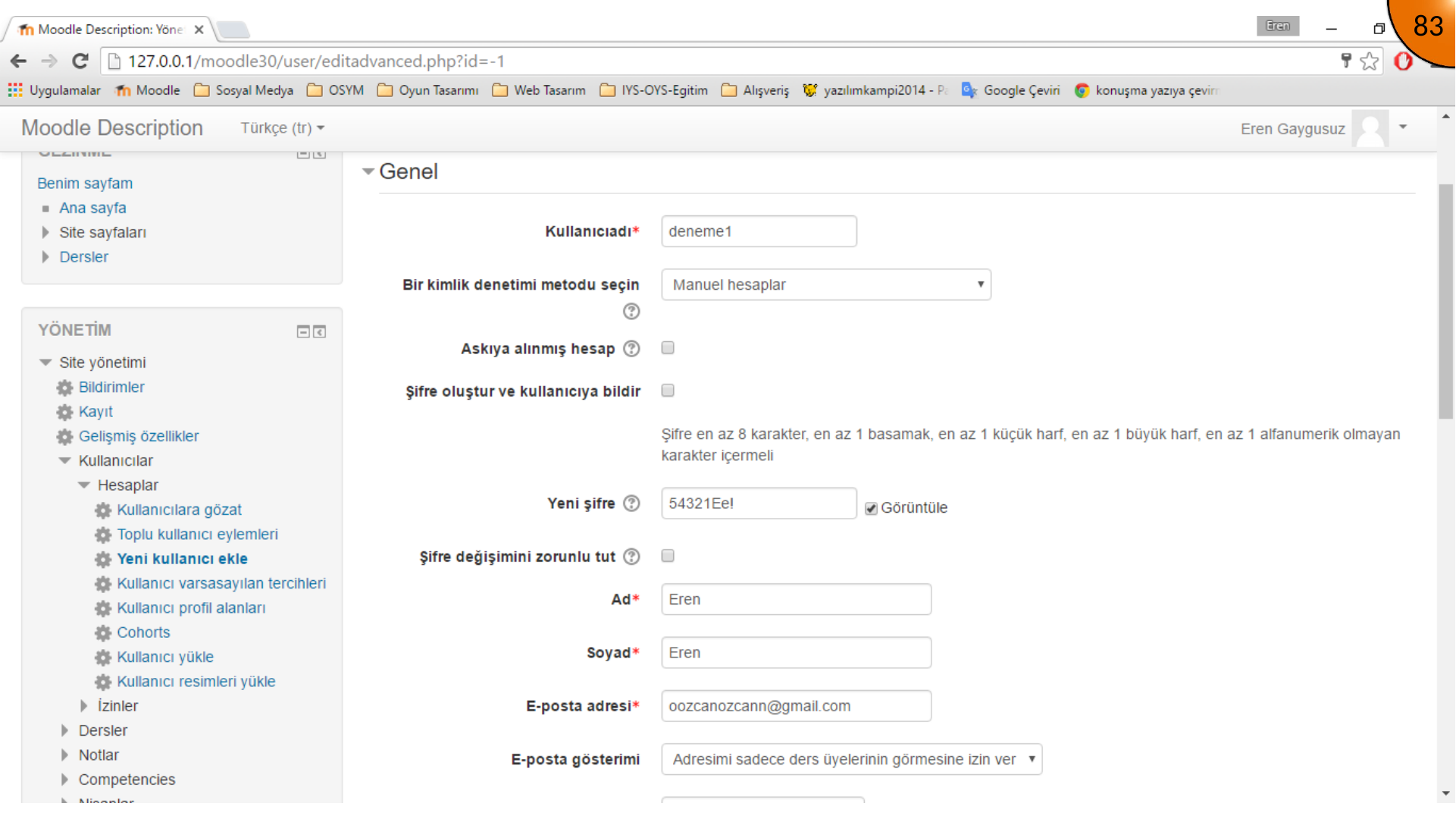
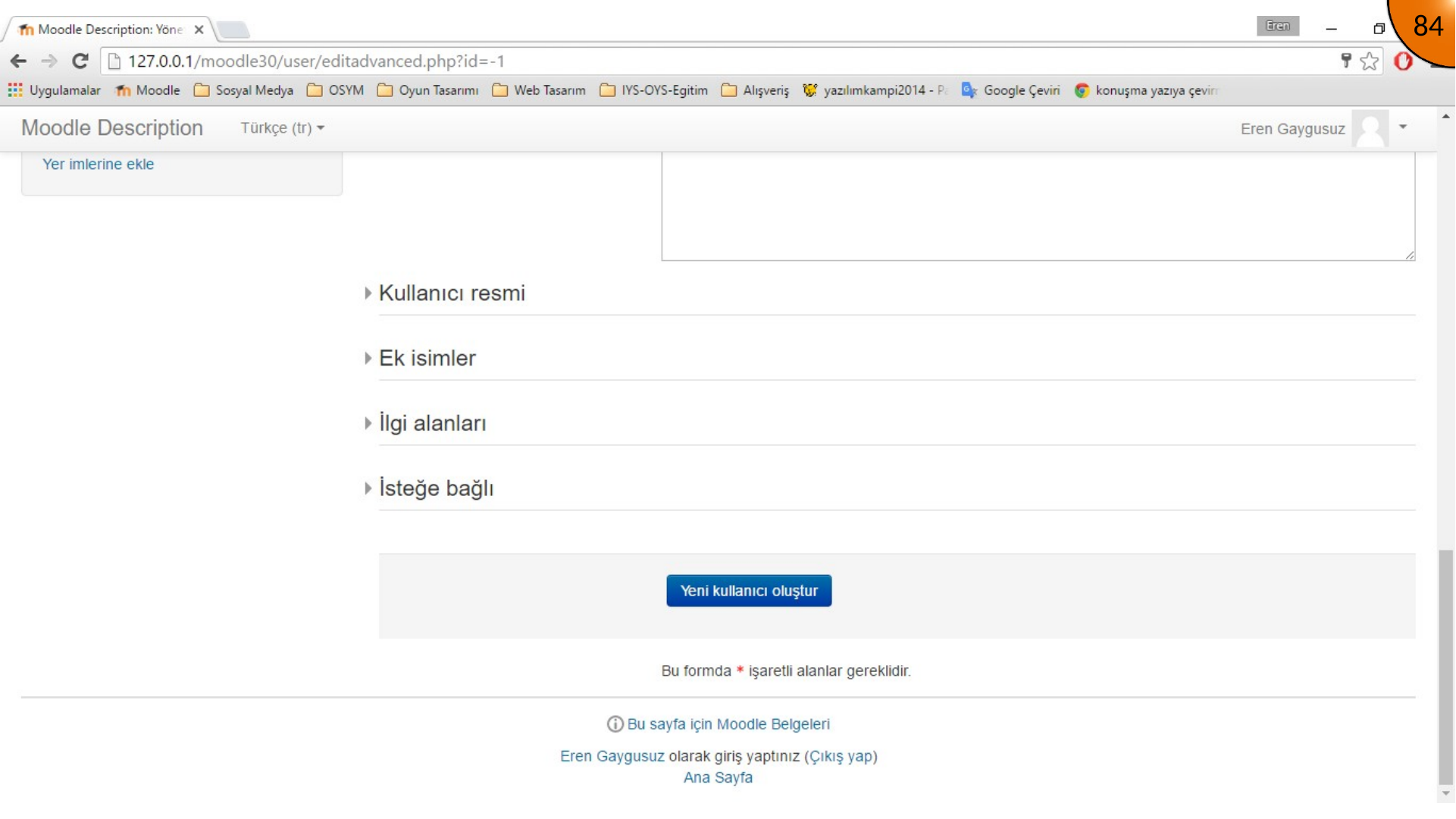
Assigning Site Administrators
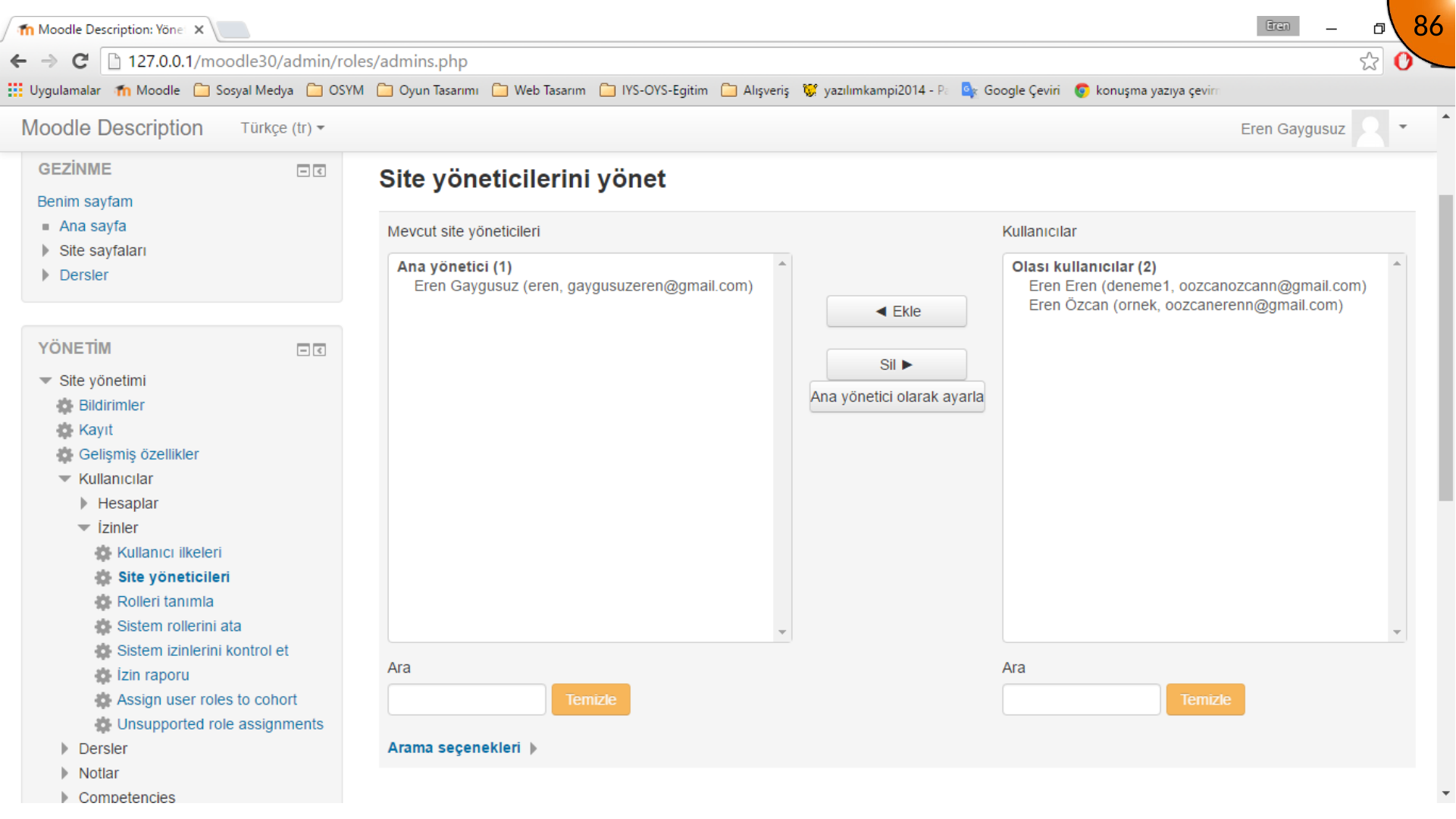
Site administrator access gives broad control over Moodle. Open the site-administrator assignment page only for trusted users who genuinely need this level of access.
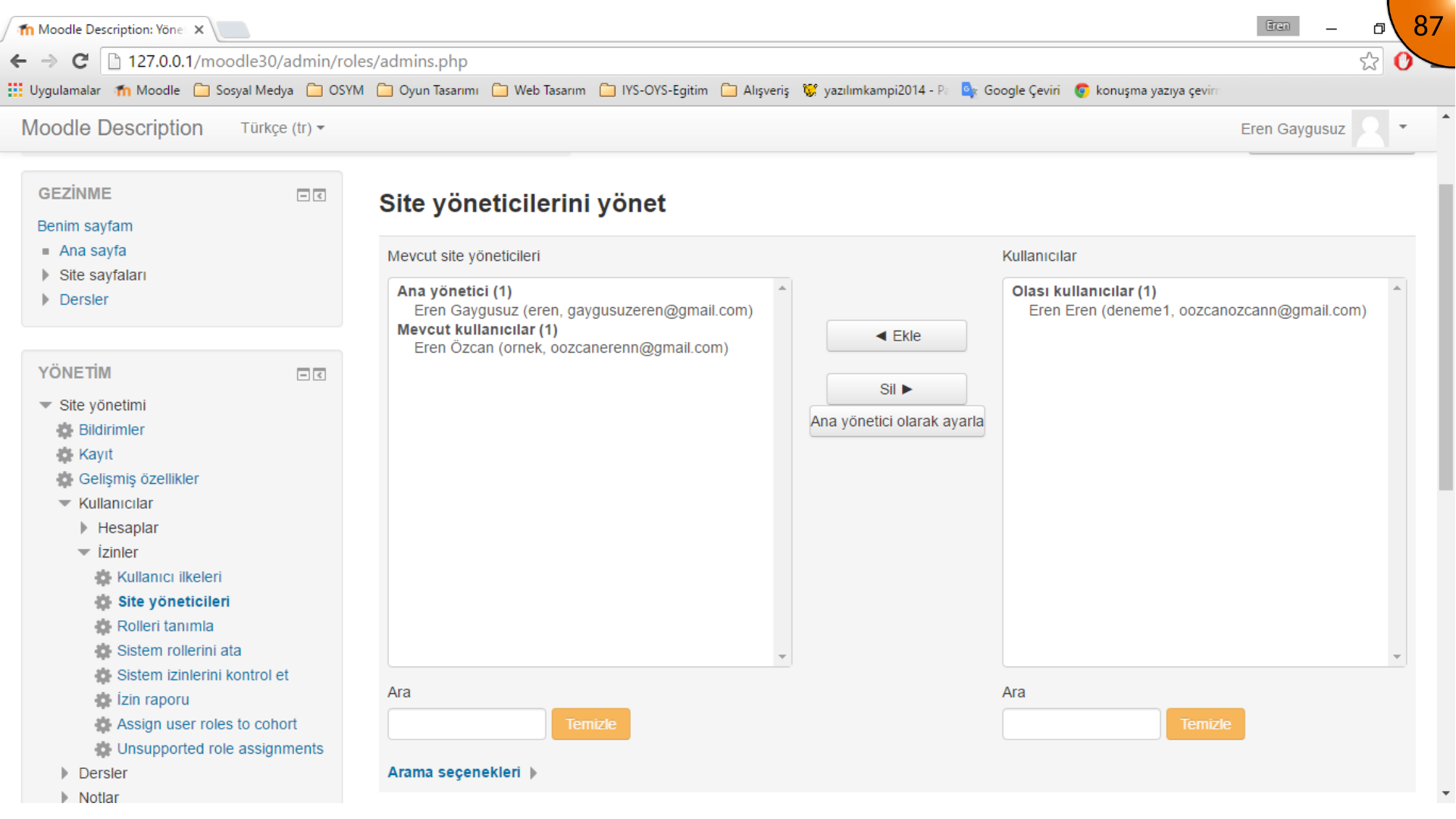
Select the user and move the account to the site-administrator list.
Use the minimum-access principle: most staff should receive a course, teacher, manager, or custom role instead of full site-administrator access.
Reviewing Password Policies
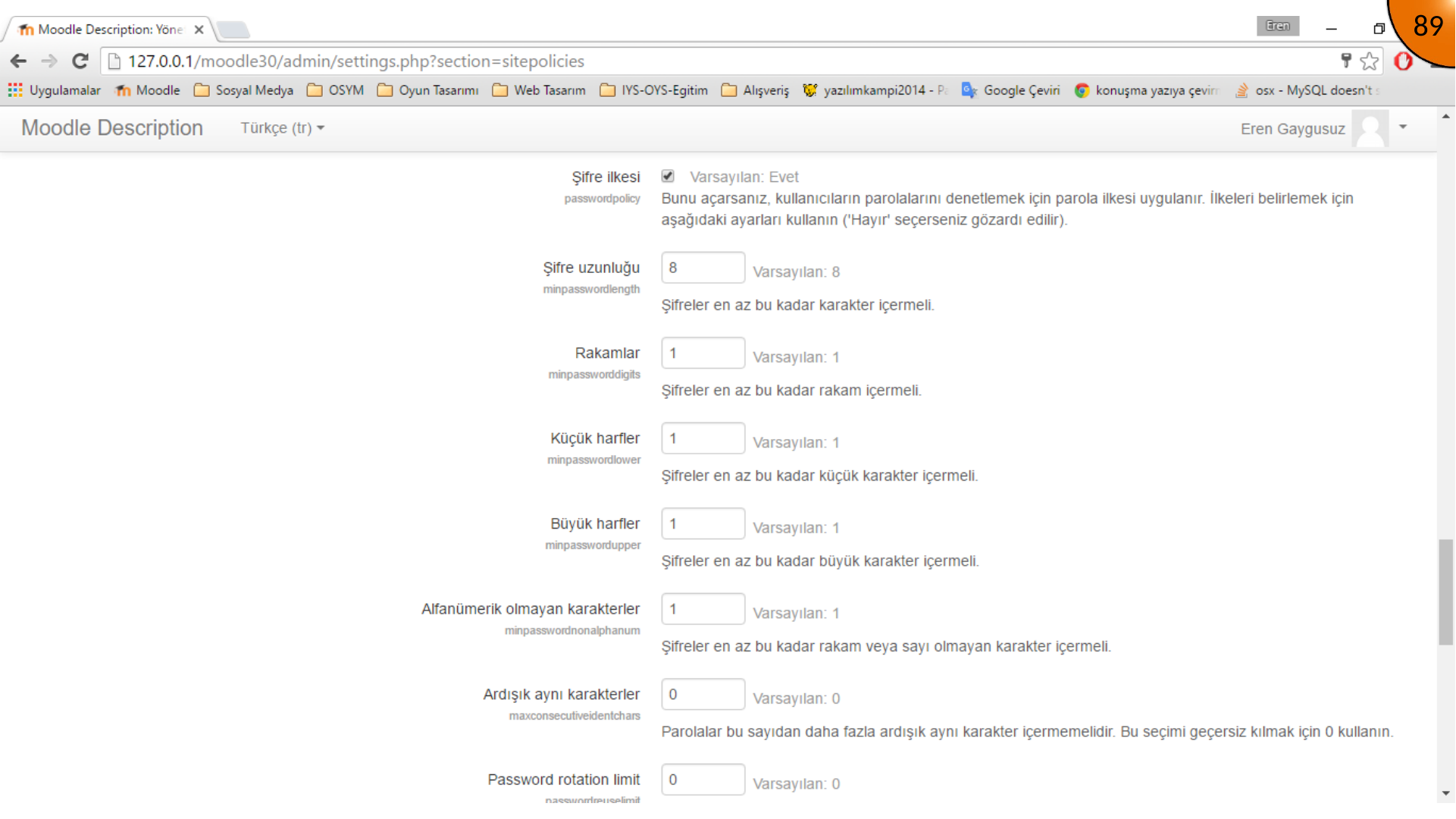
Open the site security and password-policy settings to define password length and composition requirements.
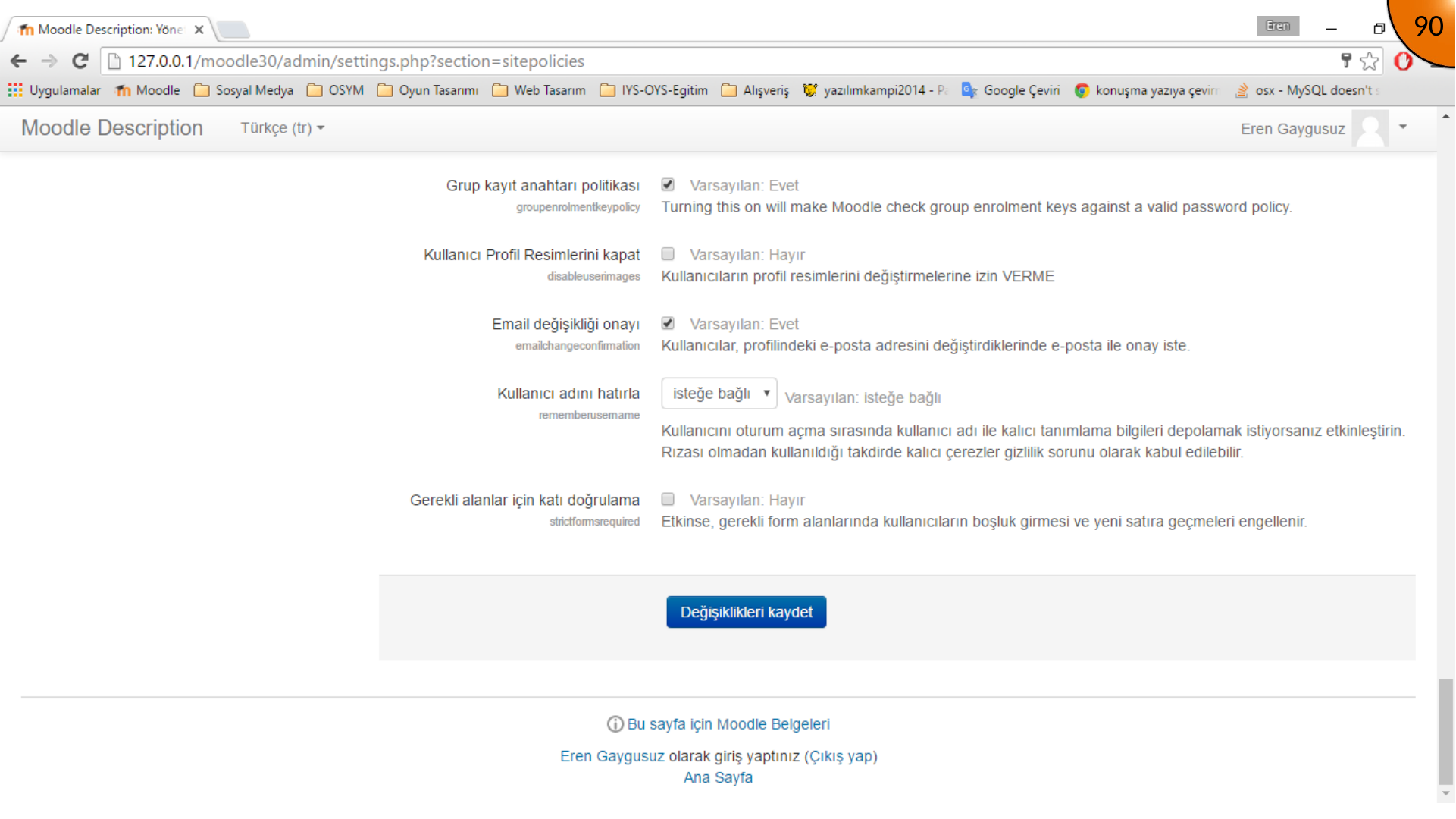
The archived material demonstrates reducing password requirements for a learning environment. Do not copy that approach to a public site. Keep a strong password policy enabled and consider multi-factor authentication where available.
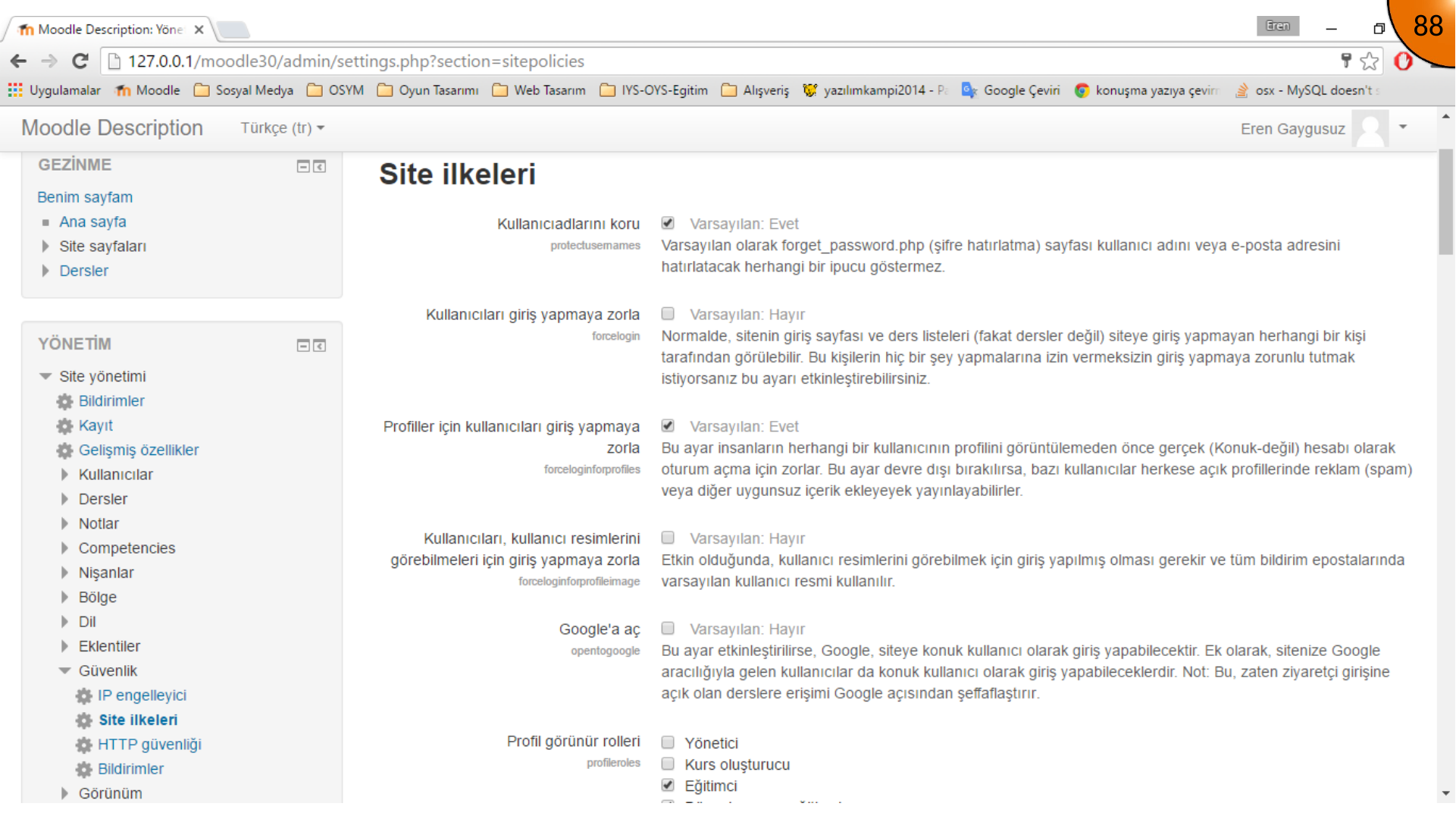
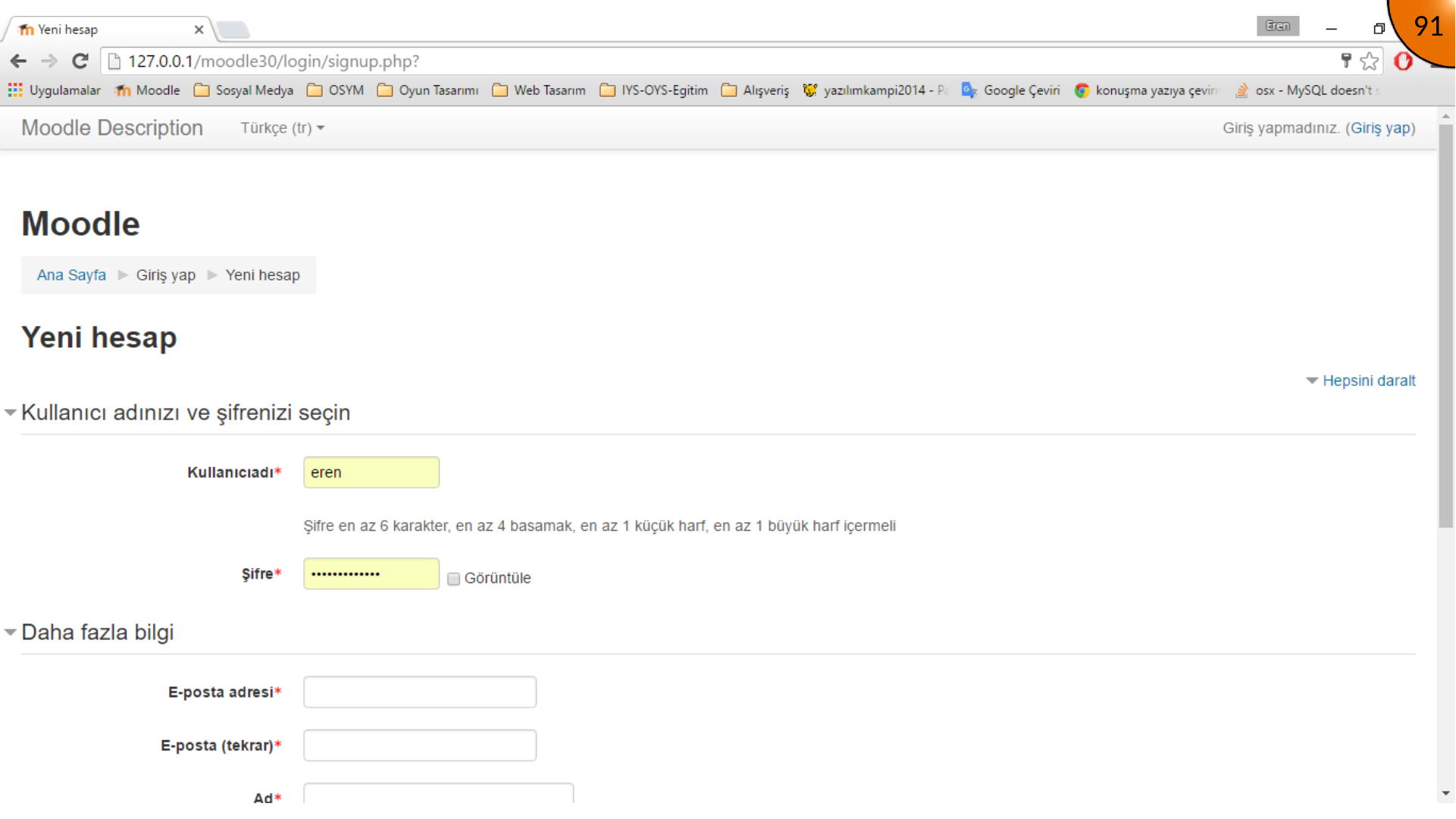
Save the settings, then test registration or password changes to make sure the new rules behave as expected.
Summary
User management includes more than creating accounts: approve registrations, maintain accurate profiles, restrict administrator assignments, and keep password rules strong. These checks make a Moodle site easier to manage and much safer to operate.
Comments