This guide shows how to browse and download AWS S3 files from WinSCP by using IAM user credentials. The original walkthrough also compares public and private S3 bucket behavior, so the setup starts with two buckets and then moves to IAM access keys and the WinSCP connection.
The important idea is simple: S3 stores the files, IAM controls who can access them, and WinSCP uses the IAM access key ID and secret access key to connect as an S3 client.
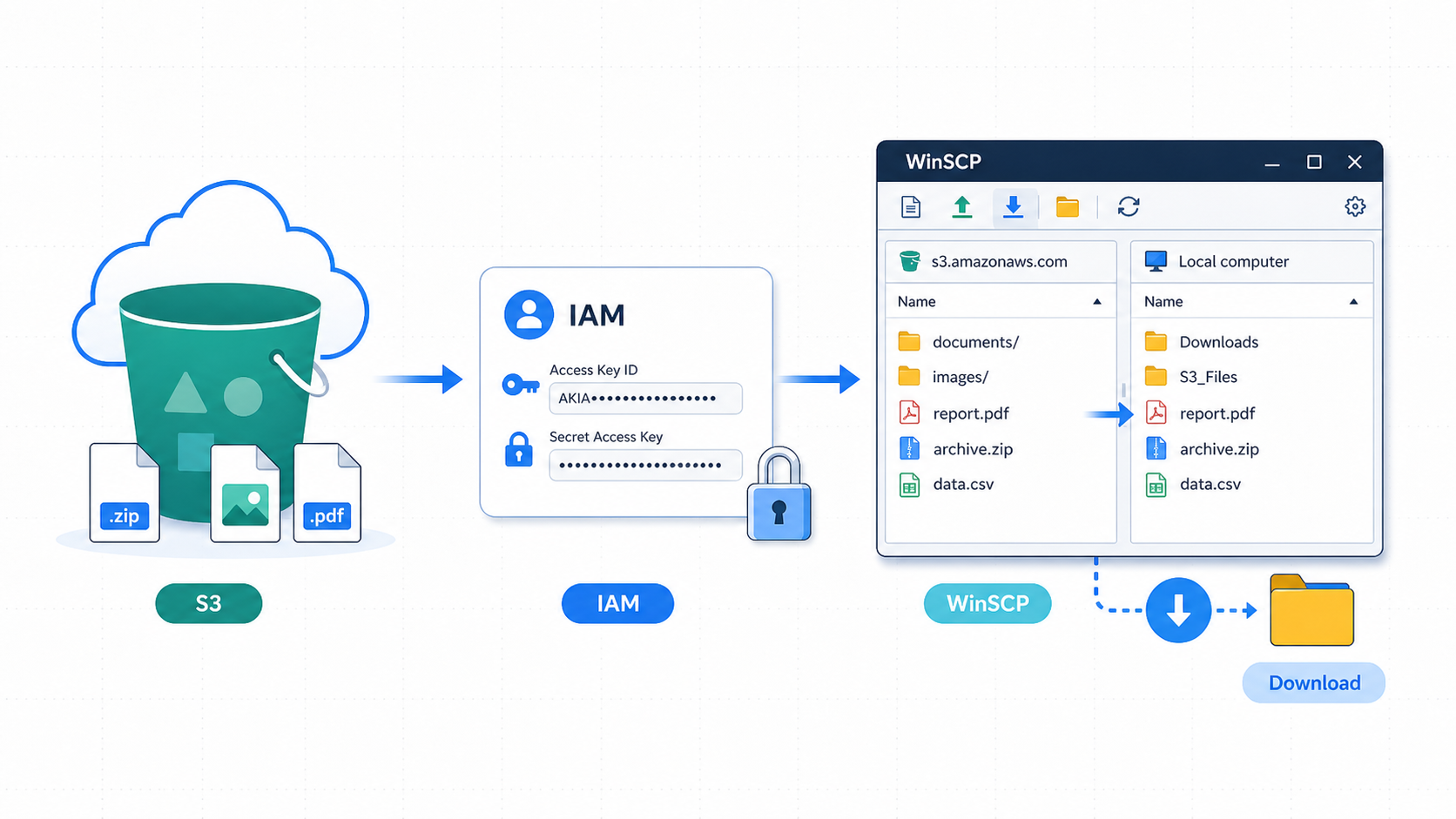
Table of contents
Open Table of contents
Creating the S3 Buckets
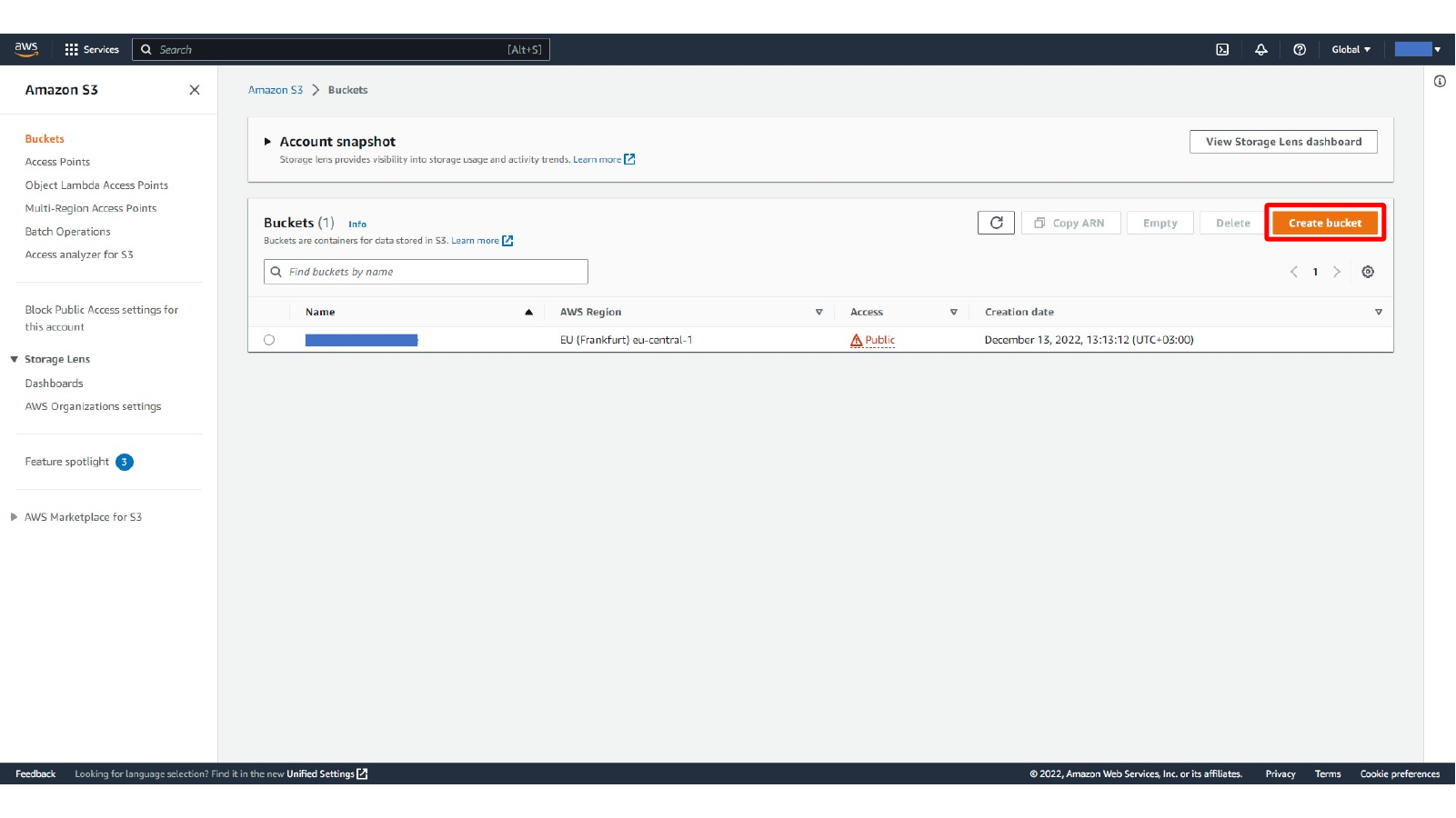
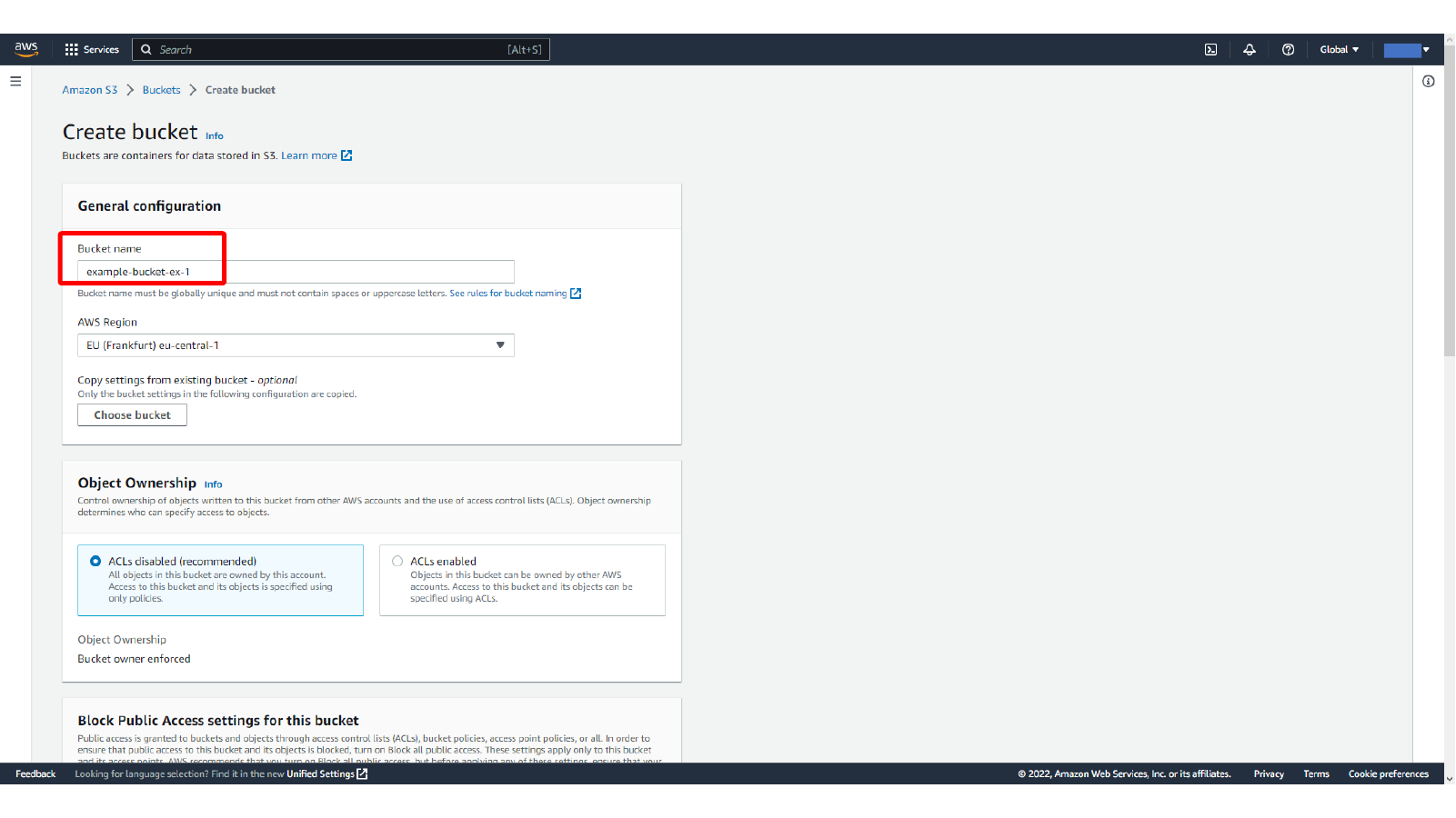
Start from the Amazon S3 Buckets page and create a bucket for the public access test. S3 bucket names must be globally unique, so use your own name instead of the sample name shown in the screenshots.
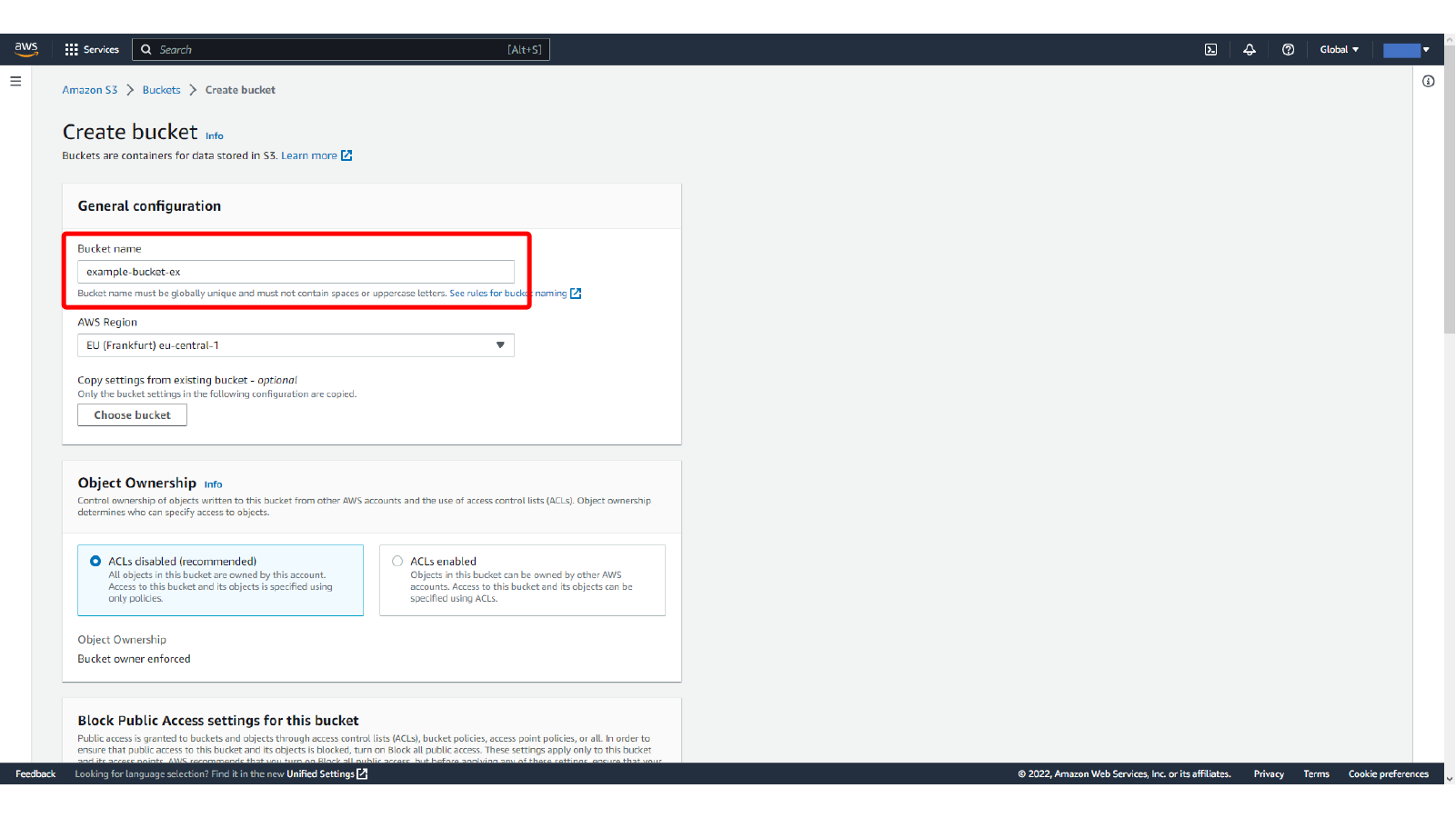
Here, we enter an S3 bucket name and selecting the AWS region.
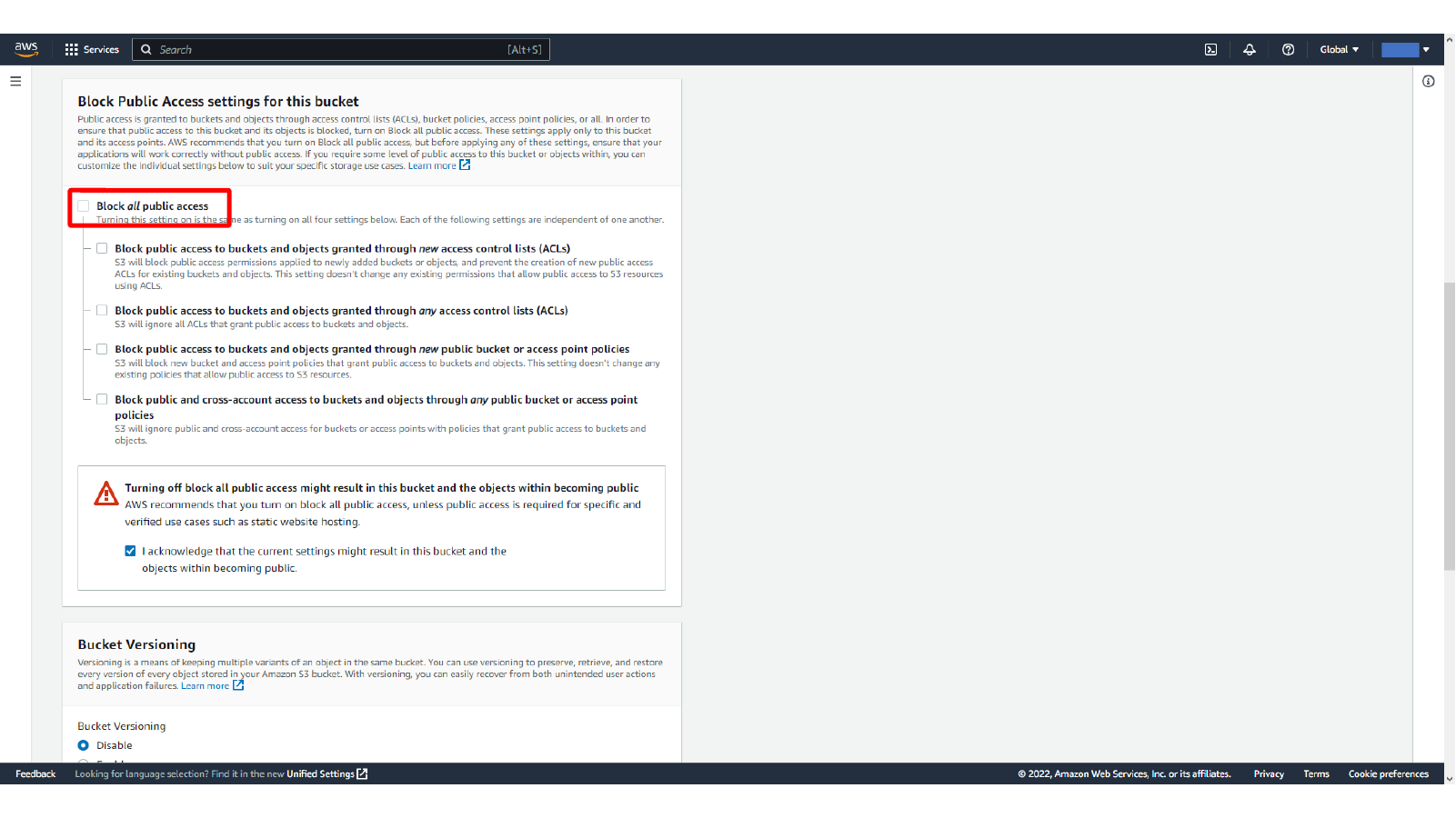
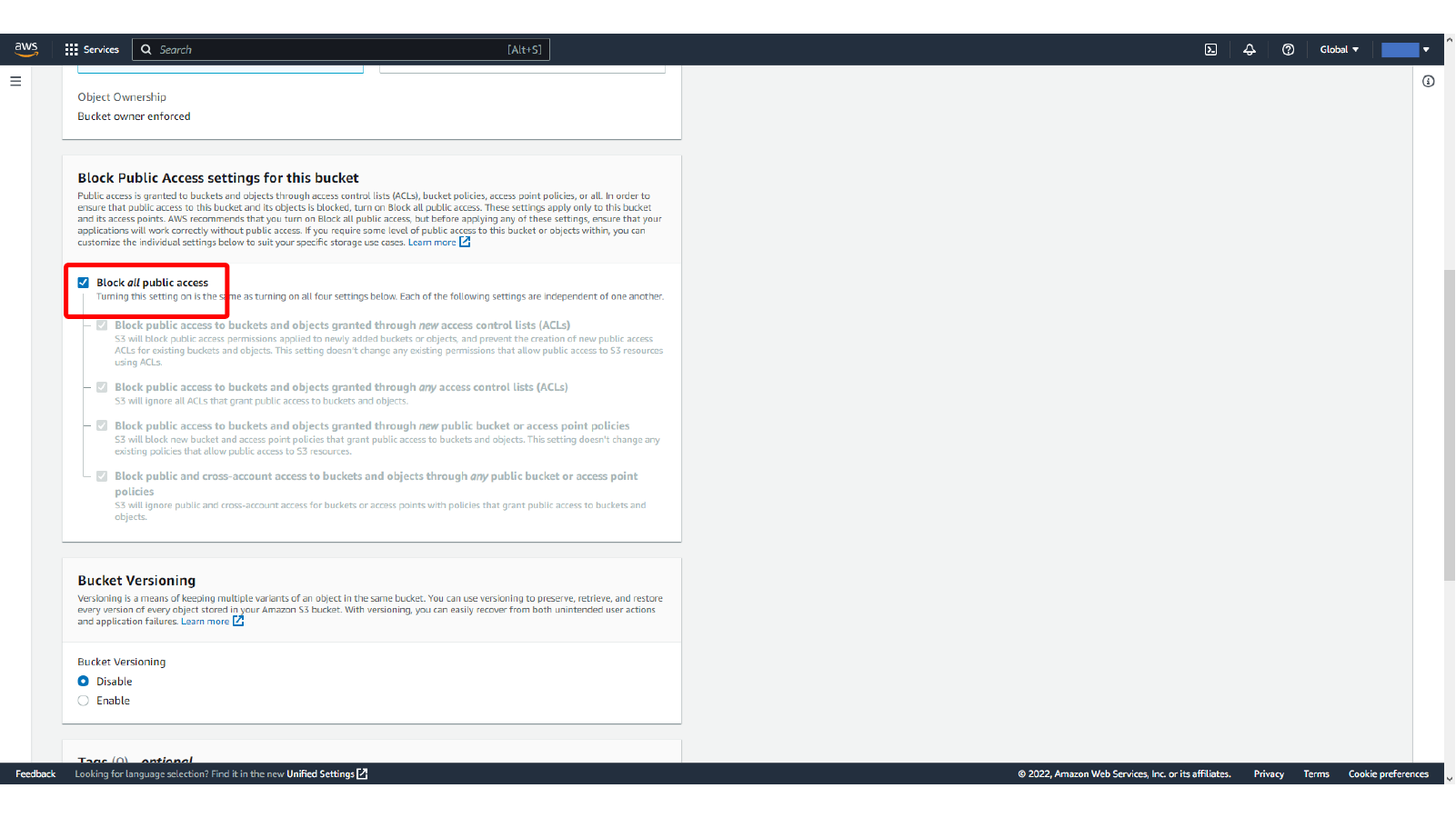
For a public bucket test, disable Block all public access and acknowledge the warning. This is only for learning how public object access works. In a real project, keep public access disabled unless the bucket is intentionally serving public assets.
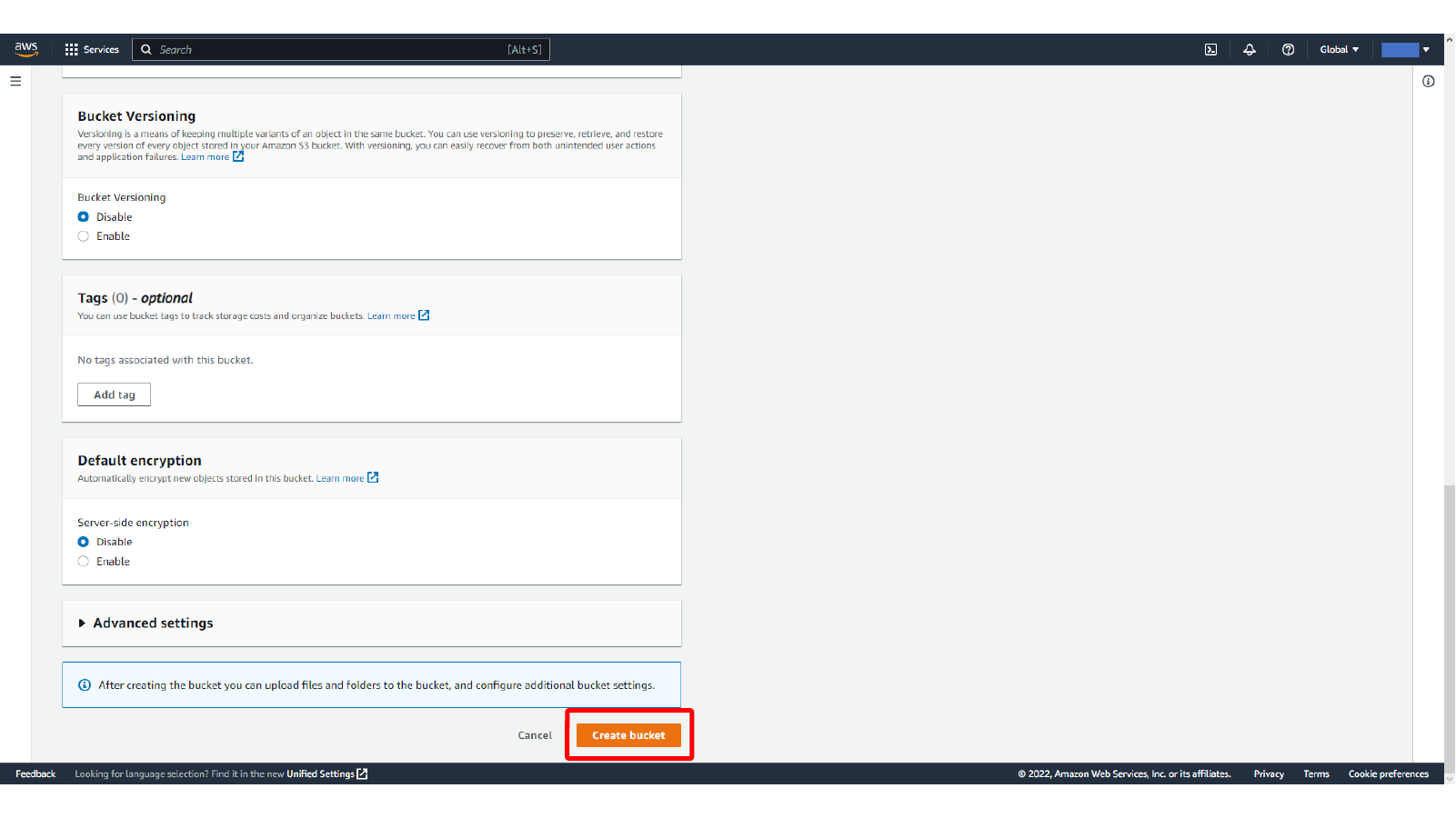
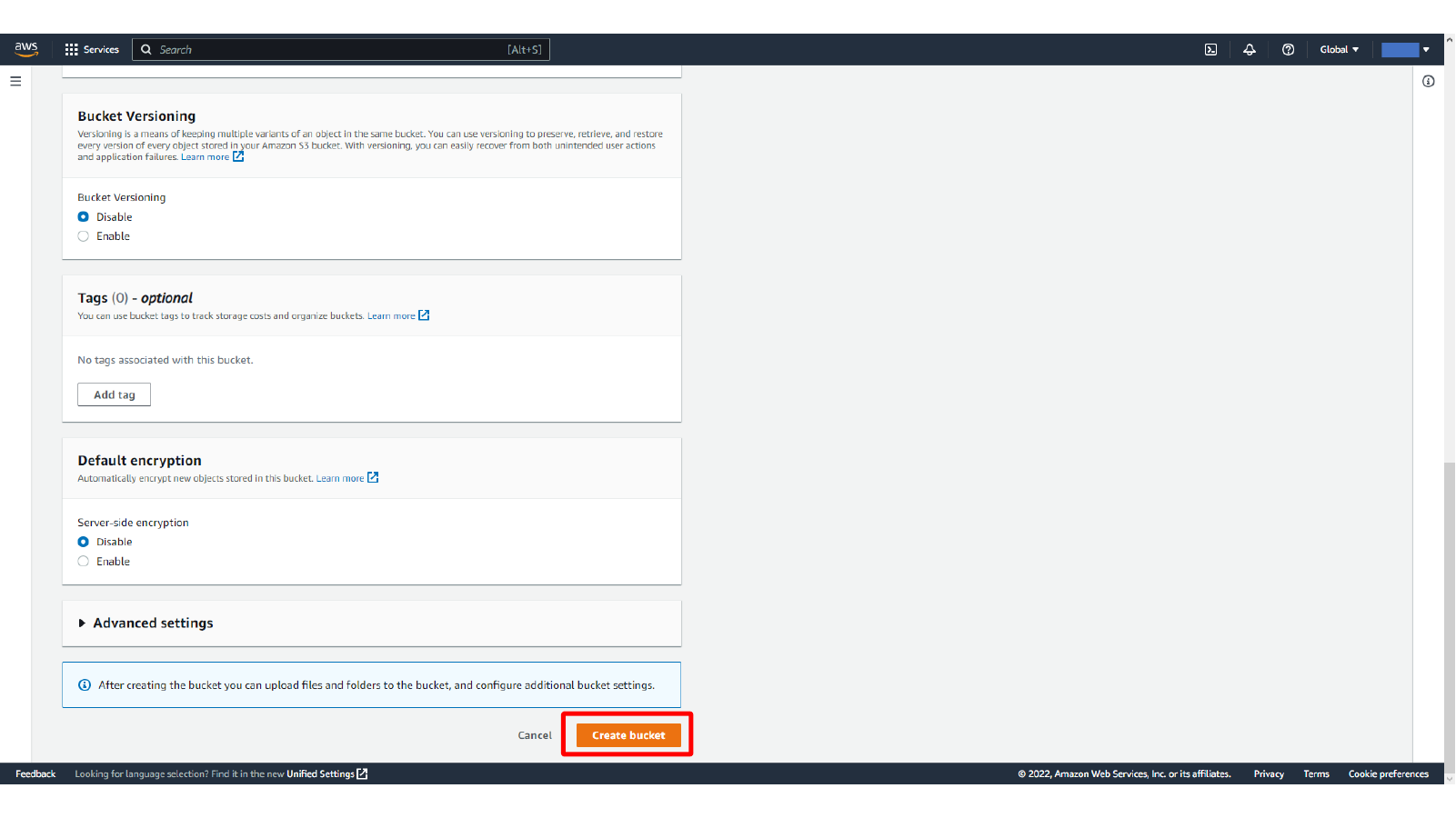
Here, we review bucket versioning, tags, encryption, and creating the S3 bucket.
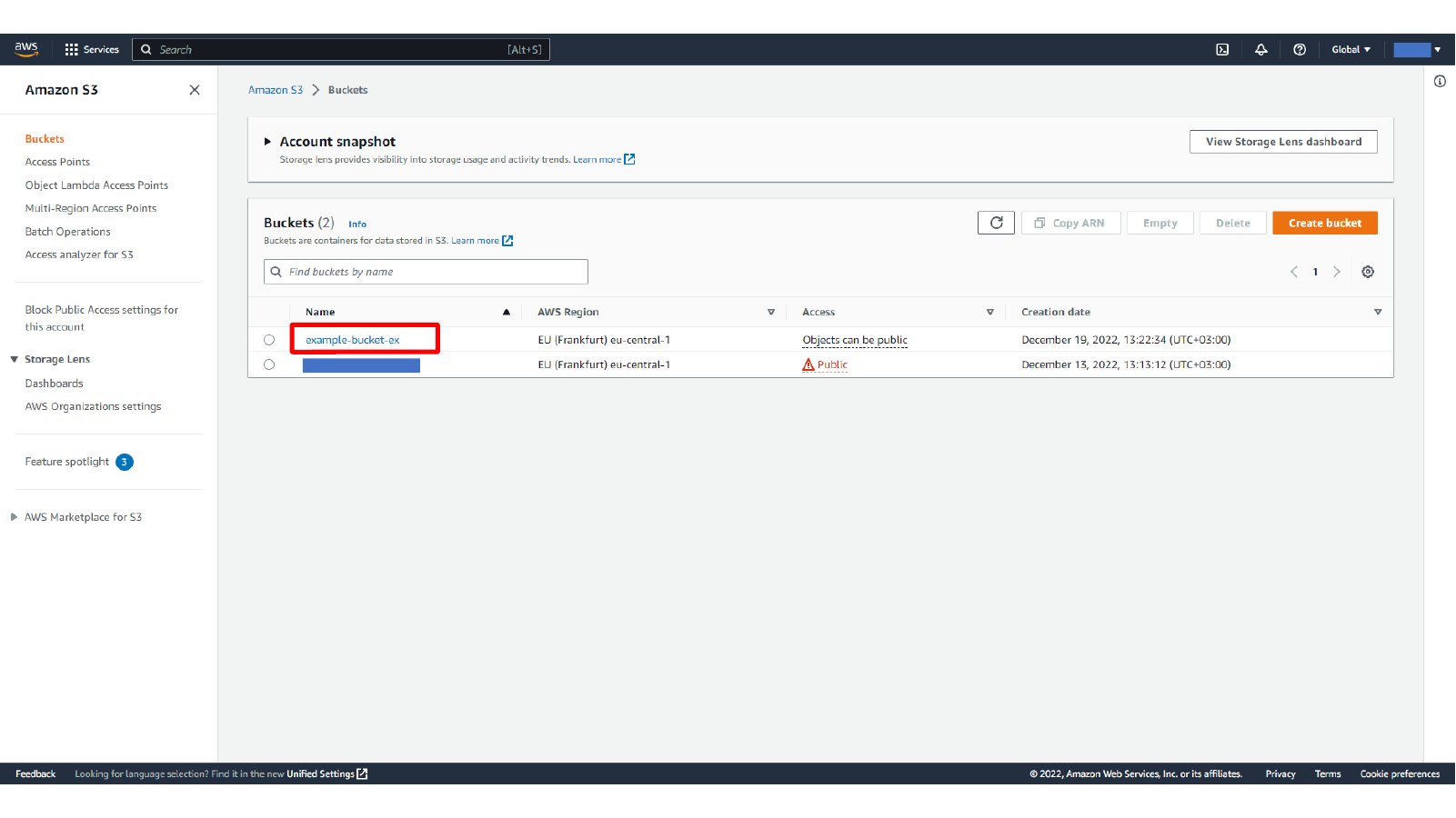
After the bucket is created, open it from the bucket list and go to the Permissions tab. The bucket can be made publicly readable by combining public access settings with a bucket policy.
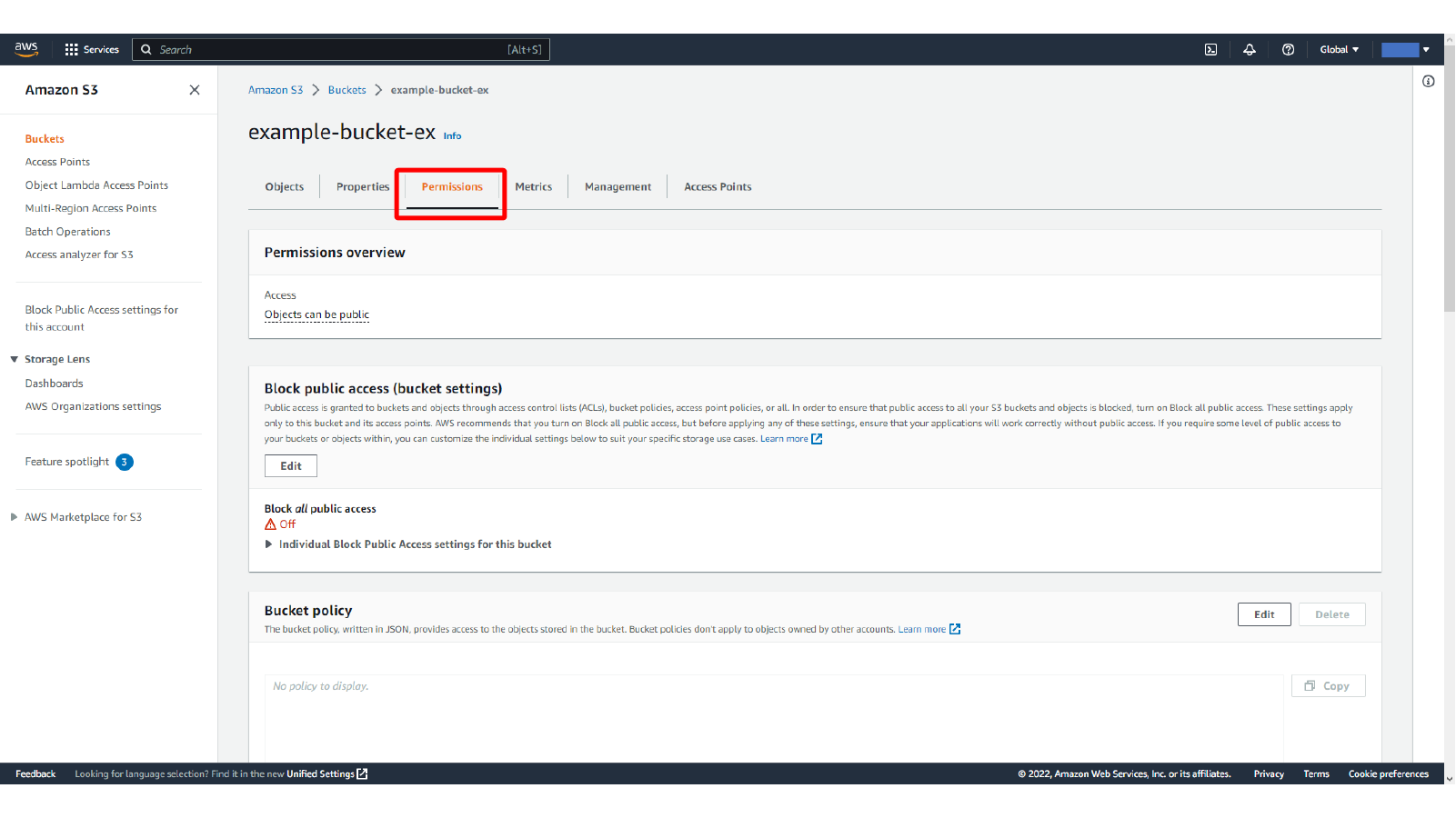
Here, we open the Permissions tab of the S3 bucket.
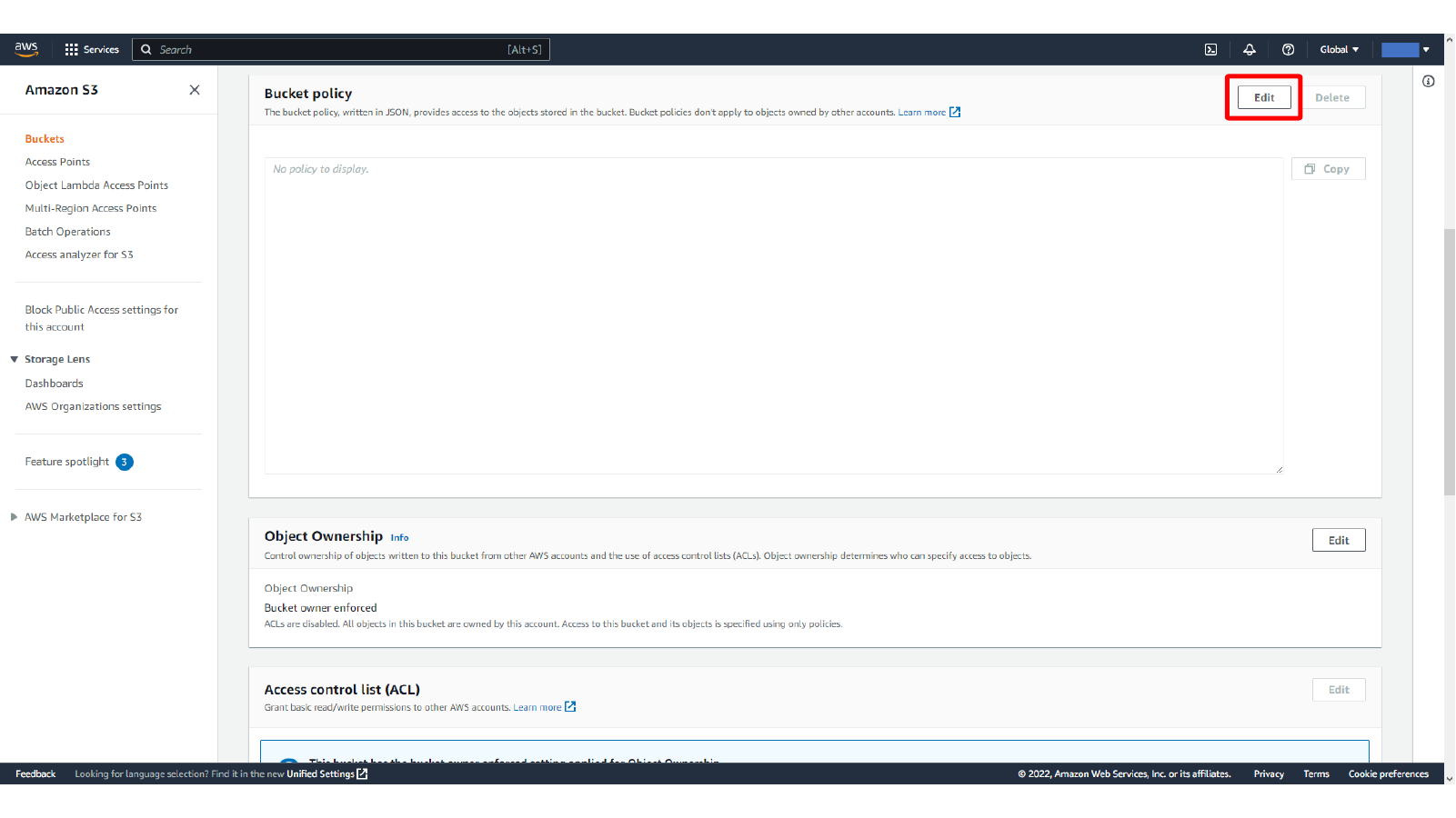
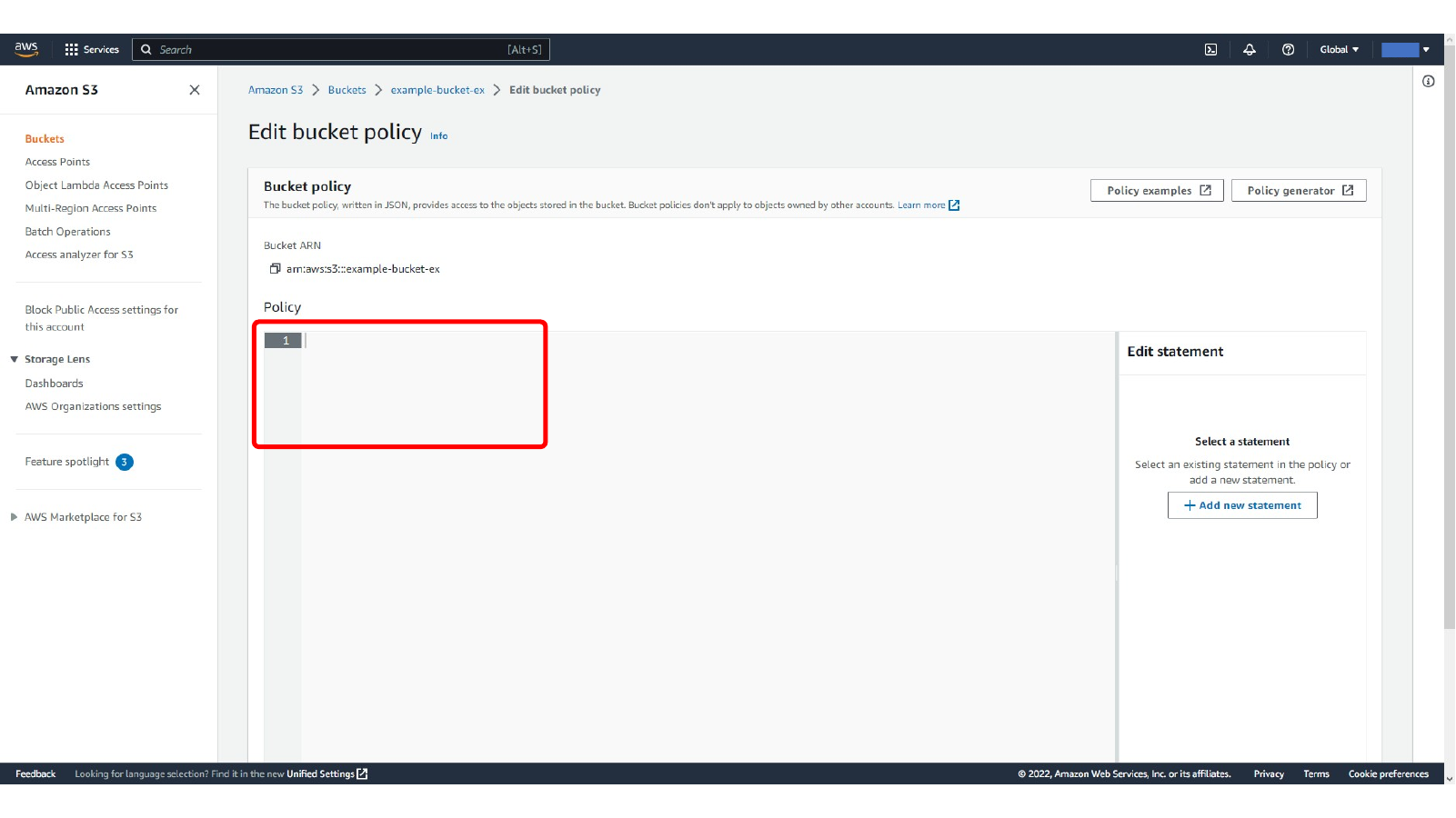
Here, we open the bucket policy editor for the public S3 bucket.
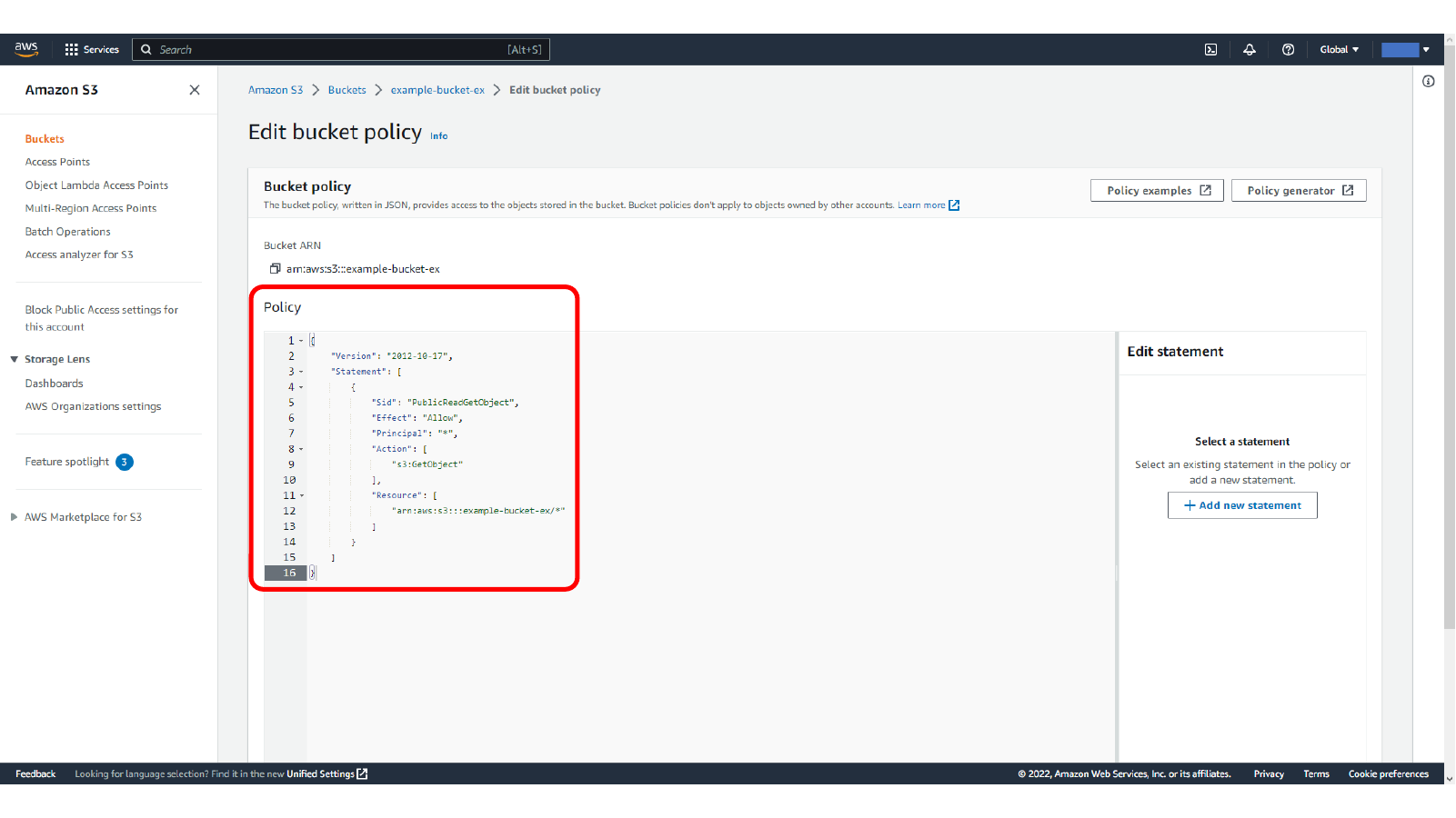
The sample policy grants public read access to all objects under the bucket. Replace example-bucket-ex with your own bucket name:
{
  "Version": "2012-10-17",
  "Statement": [
    {
      "Sid": "PublicReadGetObject",
      "Effect": "Allow",
      "Principal": "*",
      "Action": ["s3:GetObject"],
      "Resource": ["arn:aws:s3:::example-bucket-ex/*"]
    }
  ]
}
Here, we open the empty S3 bucket policy editor.
Here, we add a public read bucket policy for S3 objects.
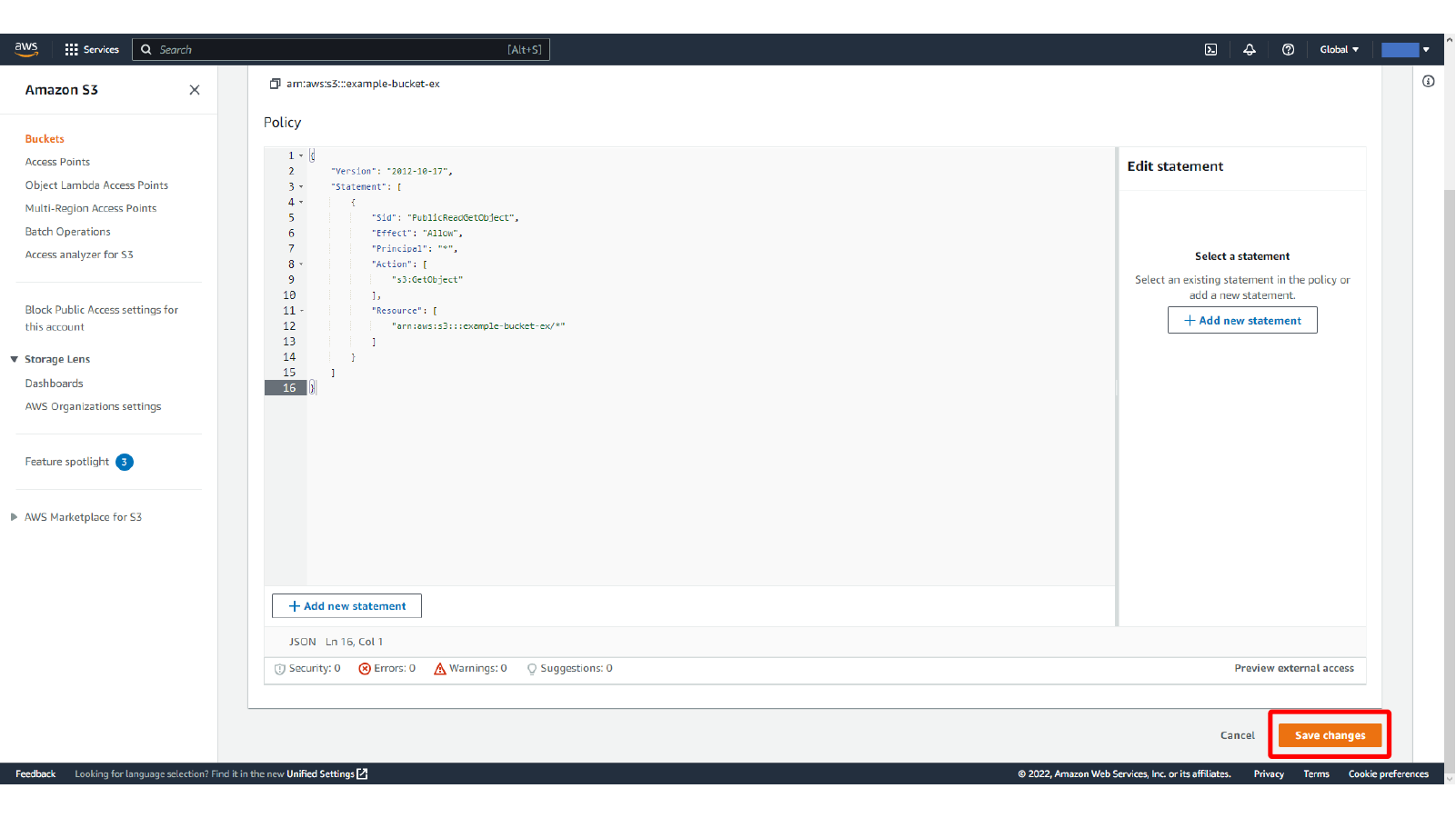
Here, we save the S3 bucket policy changes.
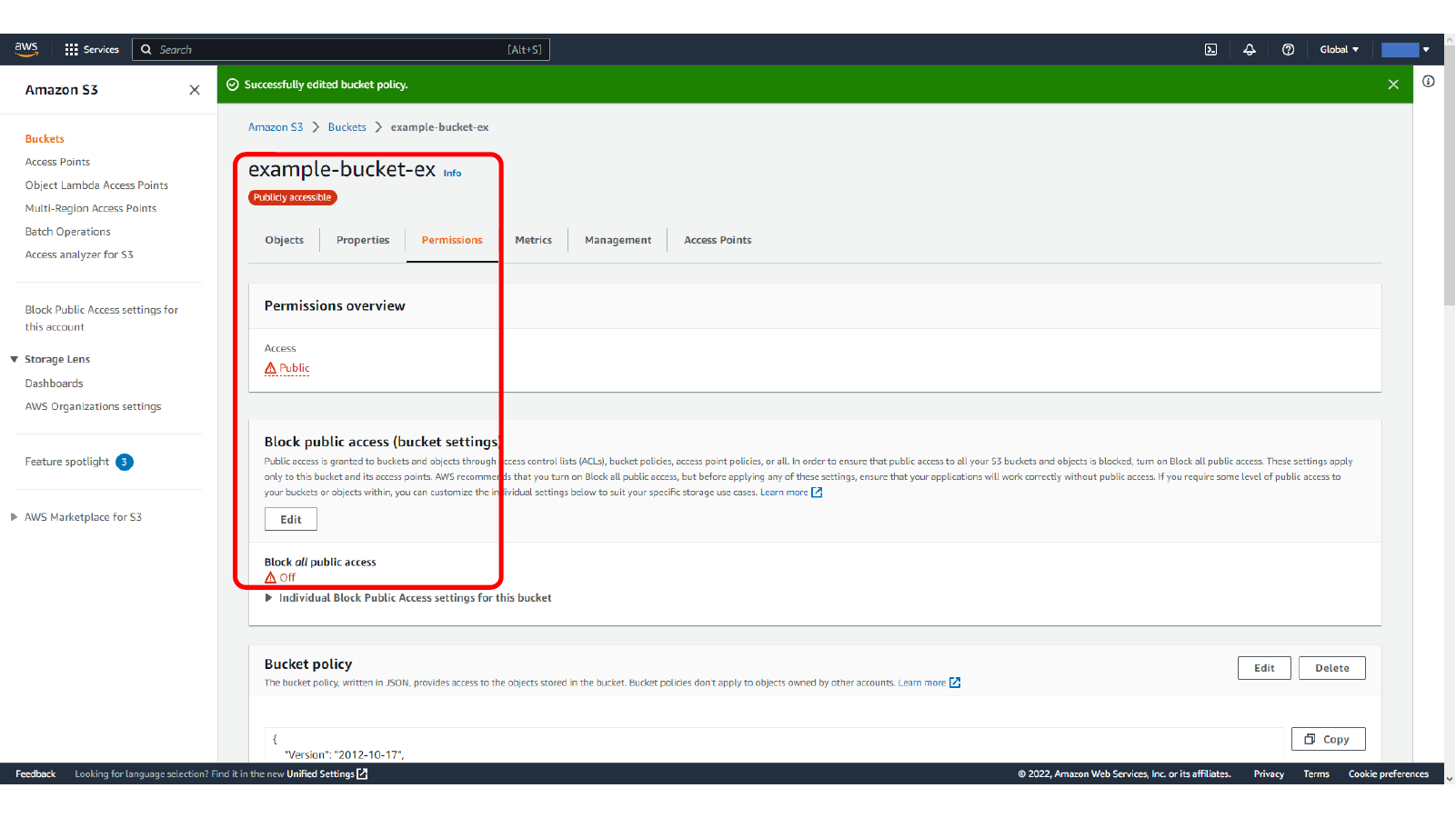
Once the policy is saved, the bucket permissions show that the bucket is publicly accessible.
Create a second bucket for the private access comparison. This time keep Block all public access enabled. This gives you one public bucket and one private bucket to compare later.
This screen shows Keeping Block all public access enabled for the private S3 bucket.
Here, we view the public and private S3 buckets in the bucket list.
Creating an IAM User for S3 Access
WinSCP needs credentials that can authenticate to S3. For this walkthrough, create an IAM user with programmatic access and attach an S3 policy.
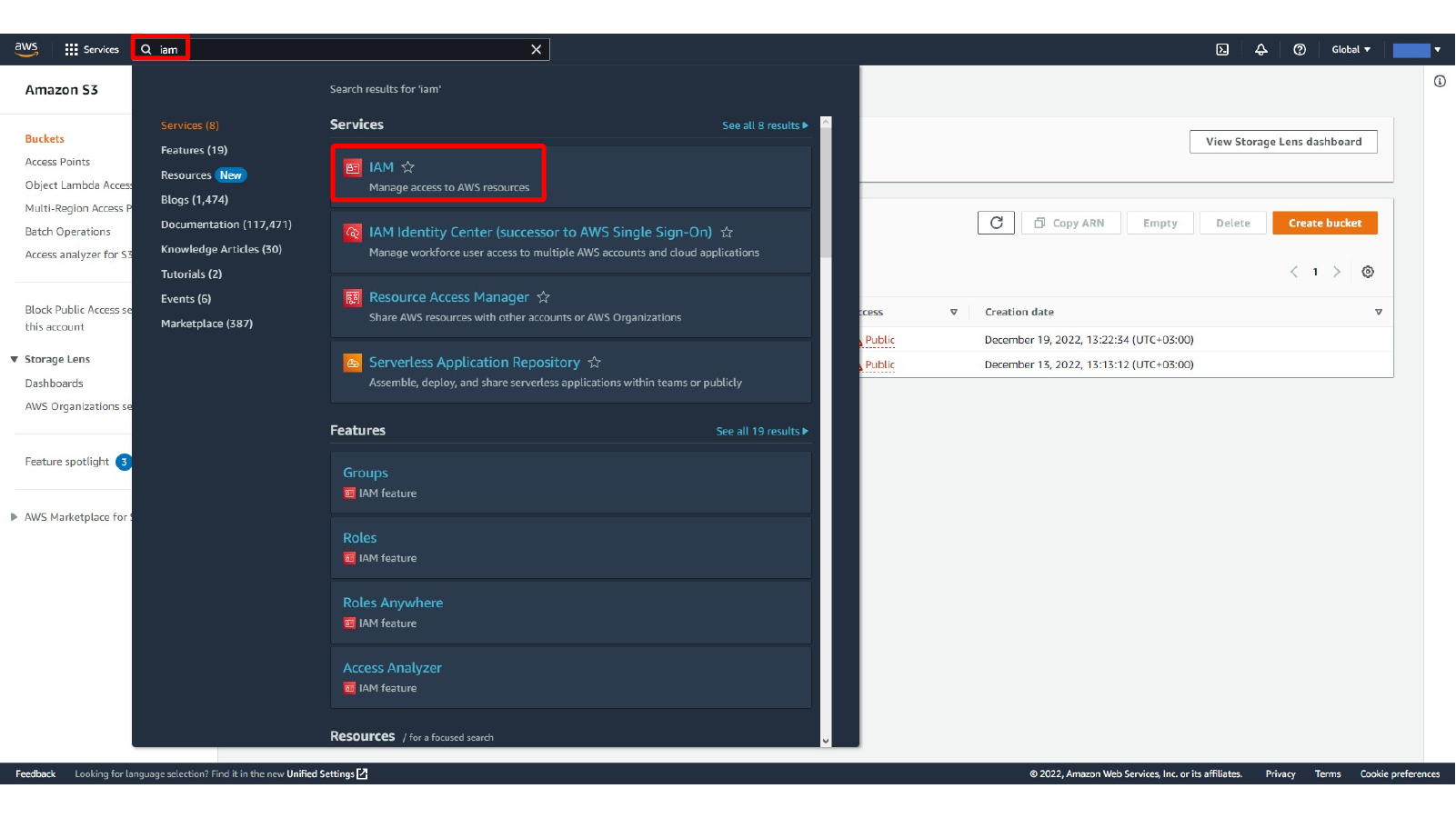
Here, we open the IAM Users page.
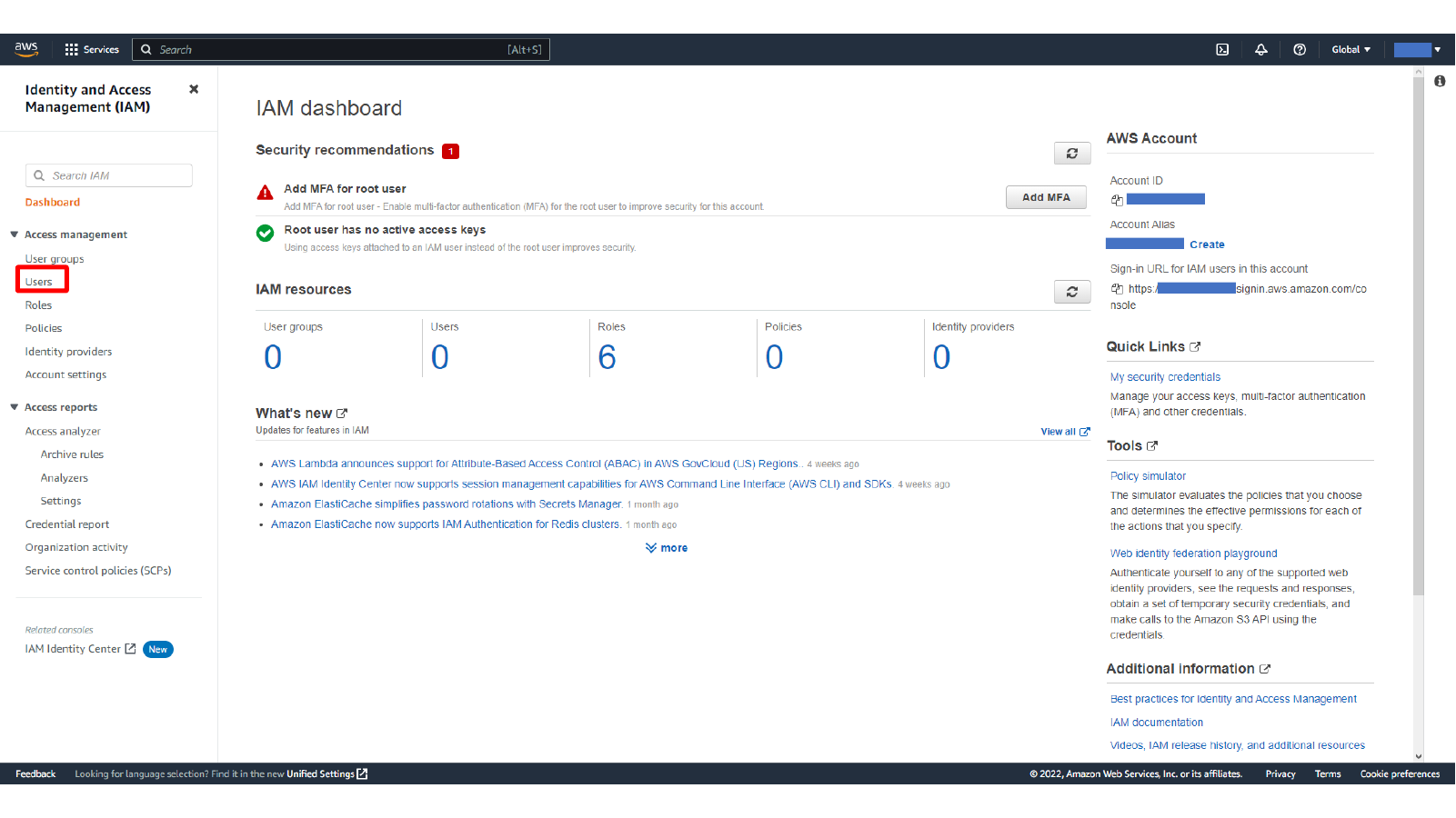
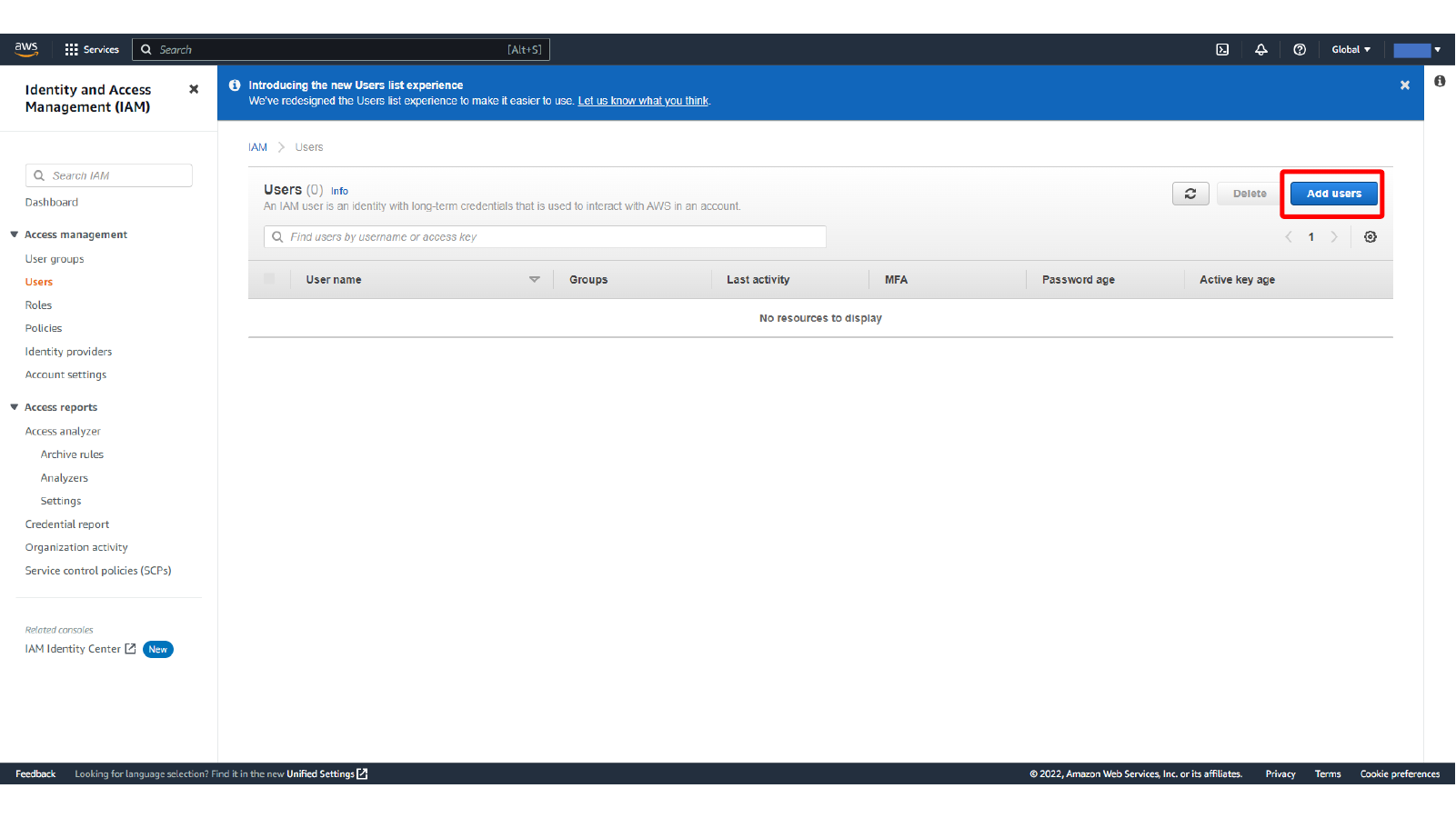
Here, we start the IAM Add users flow.
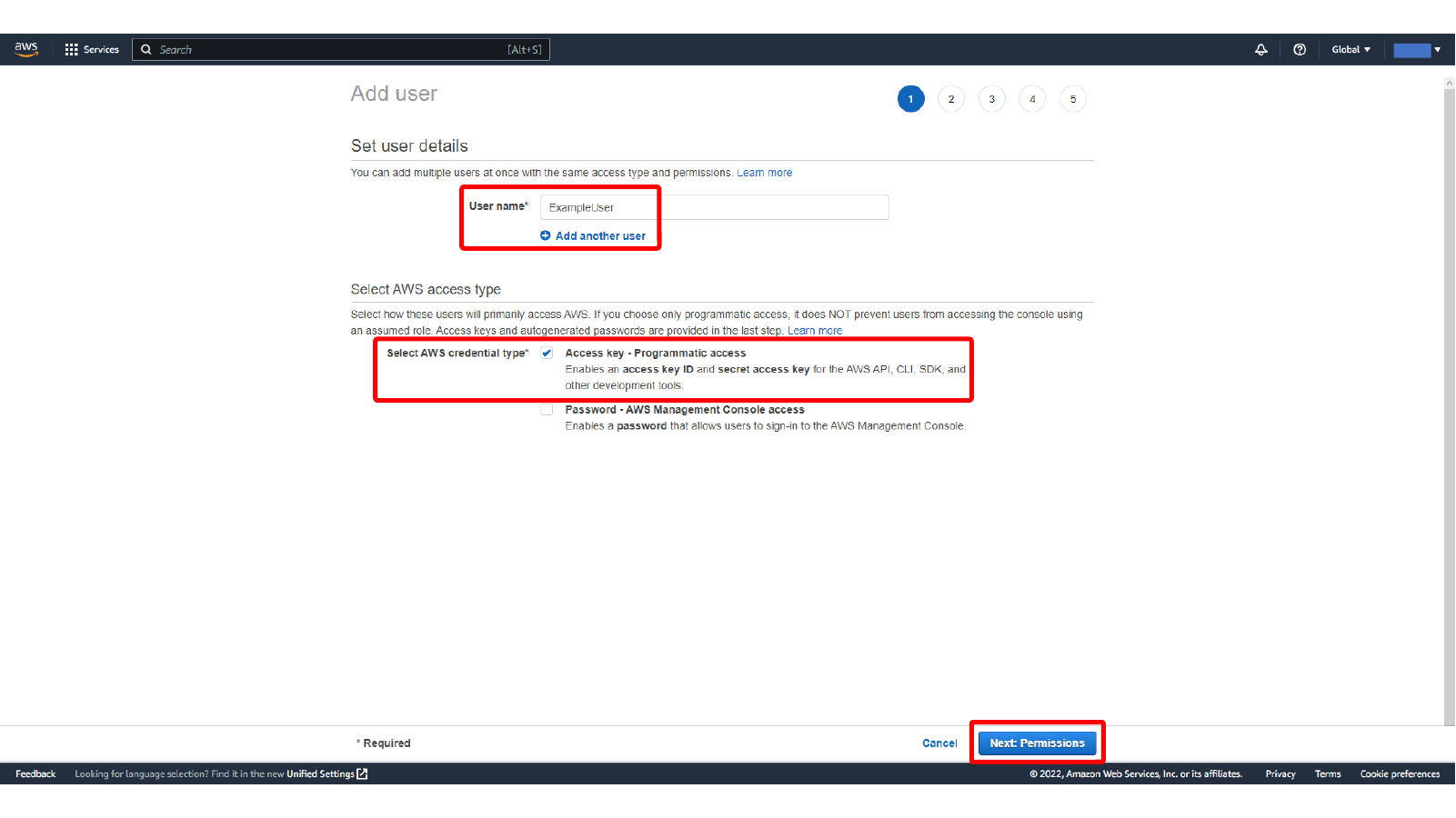
Enter a user name and choose access key based programmatic access. The access key ID and secret access key generated at the end will be used in WinSCP.
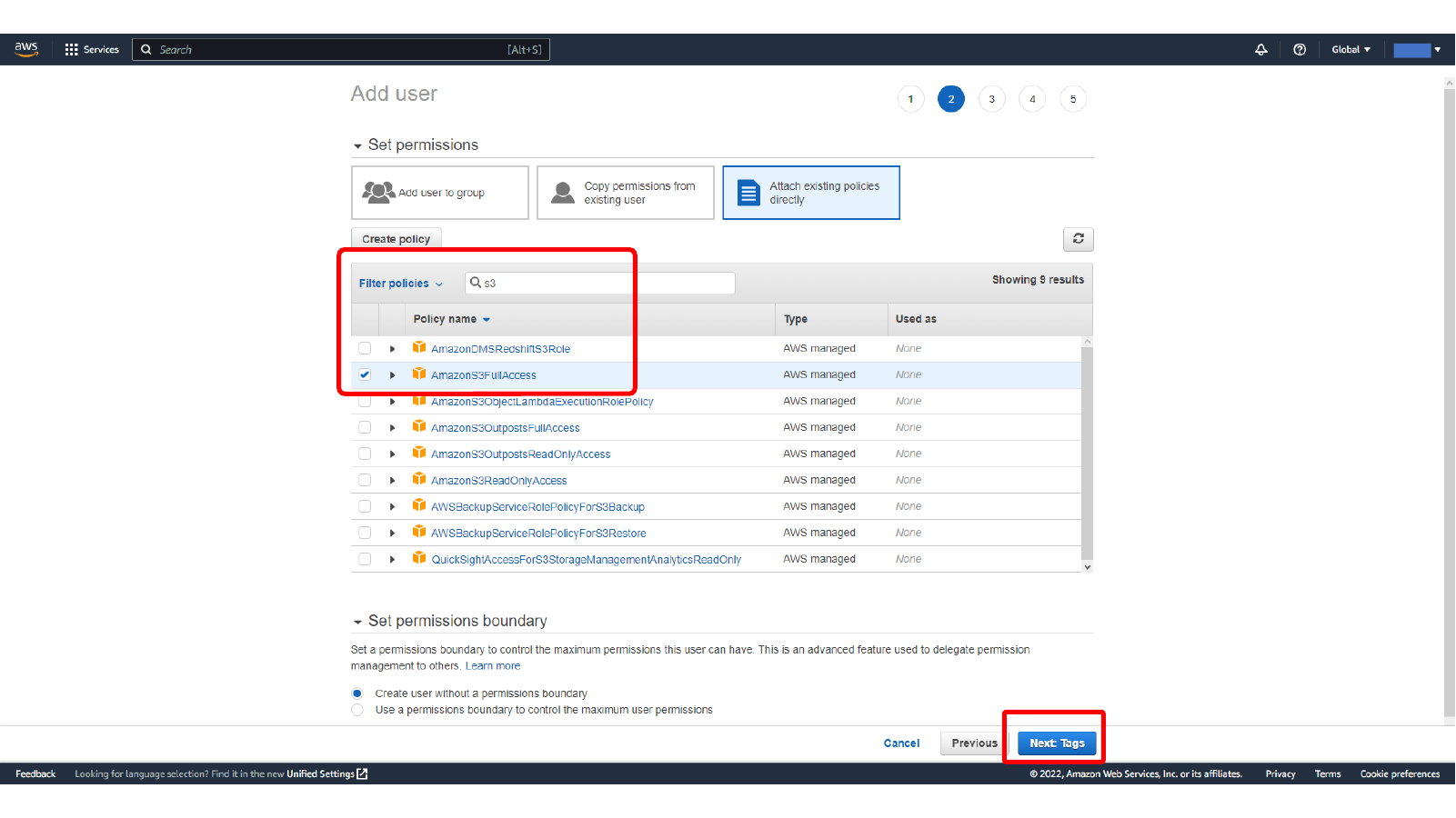
Attach the required S3 permissions. The original example uses AmazonS3FullAccess, which is convenient for a demo but broad. For a real project, prefer a narrower policy limited to the buckets and actions that WinSCP actually needs.
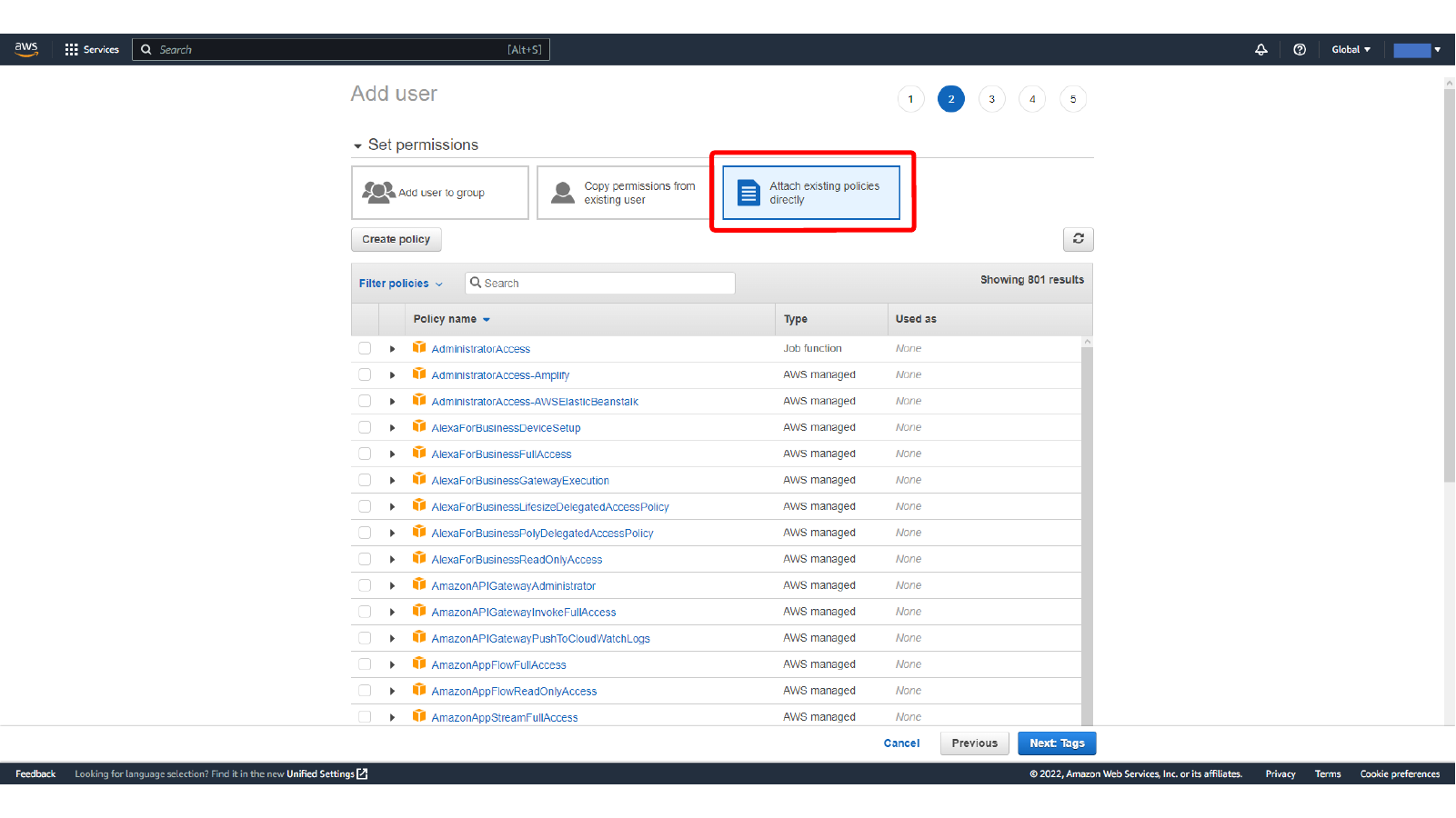
Here, we select the AmazonS3FullAccess IAM policy for the demo user.
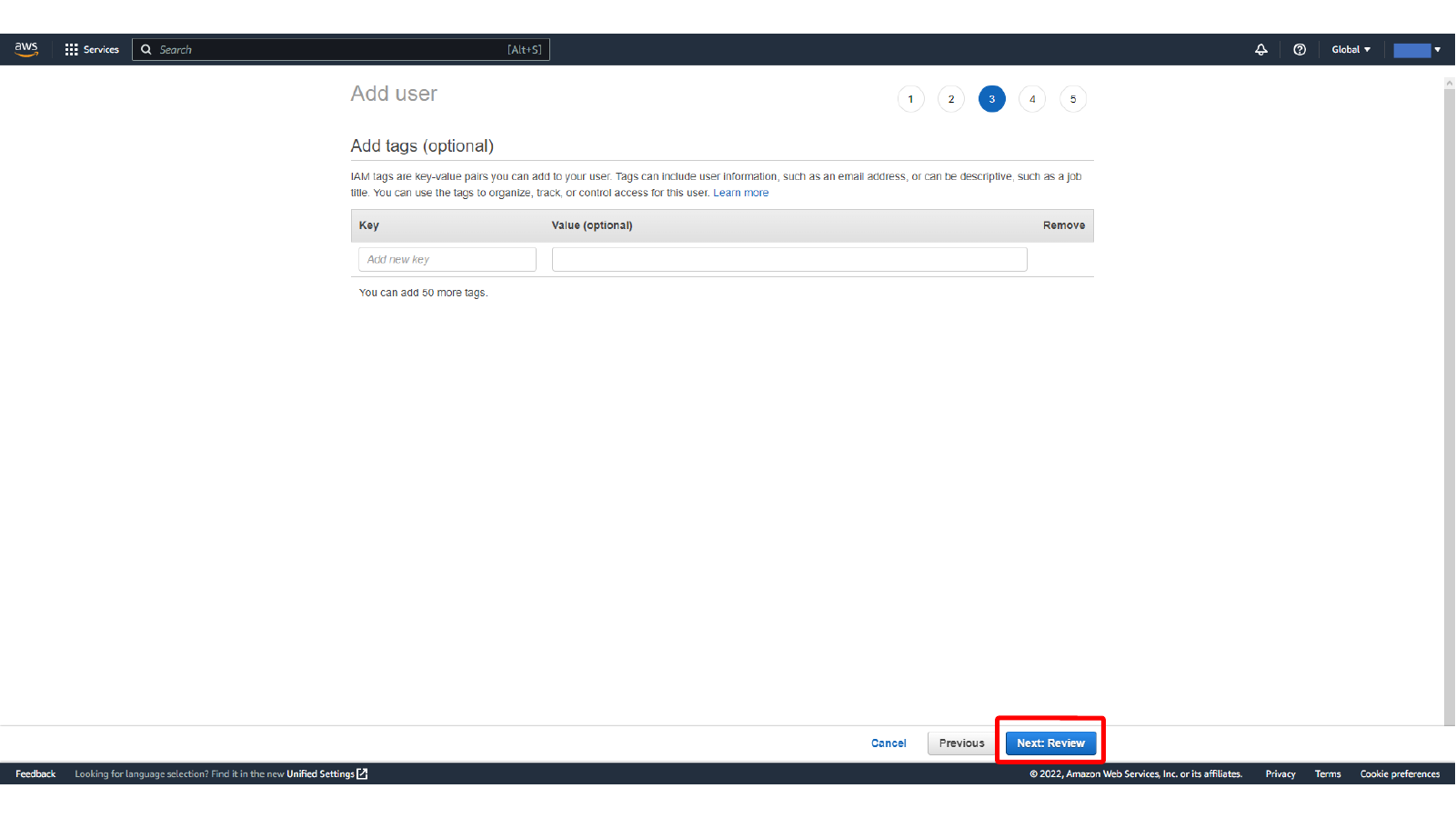
Here, we skip optional IAM user tags.
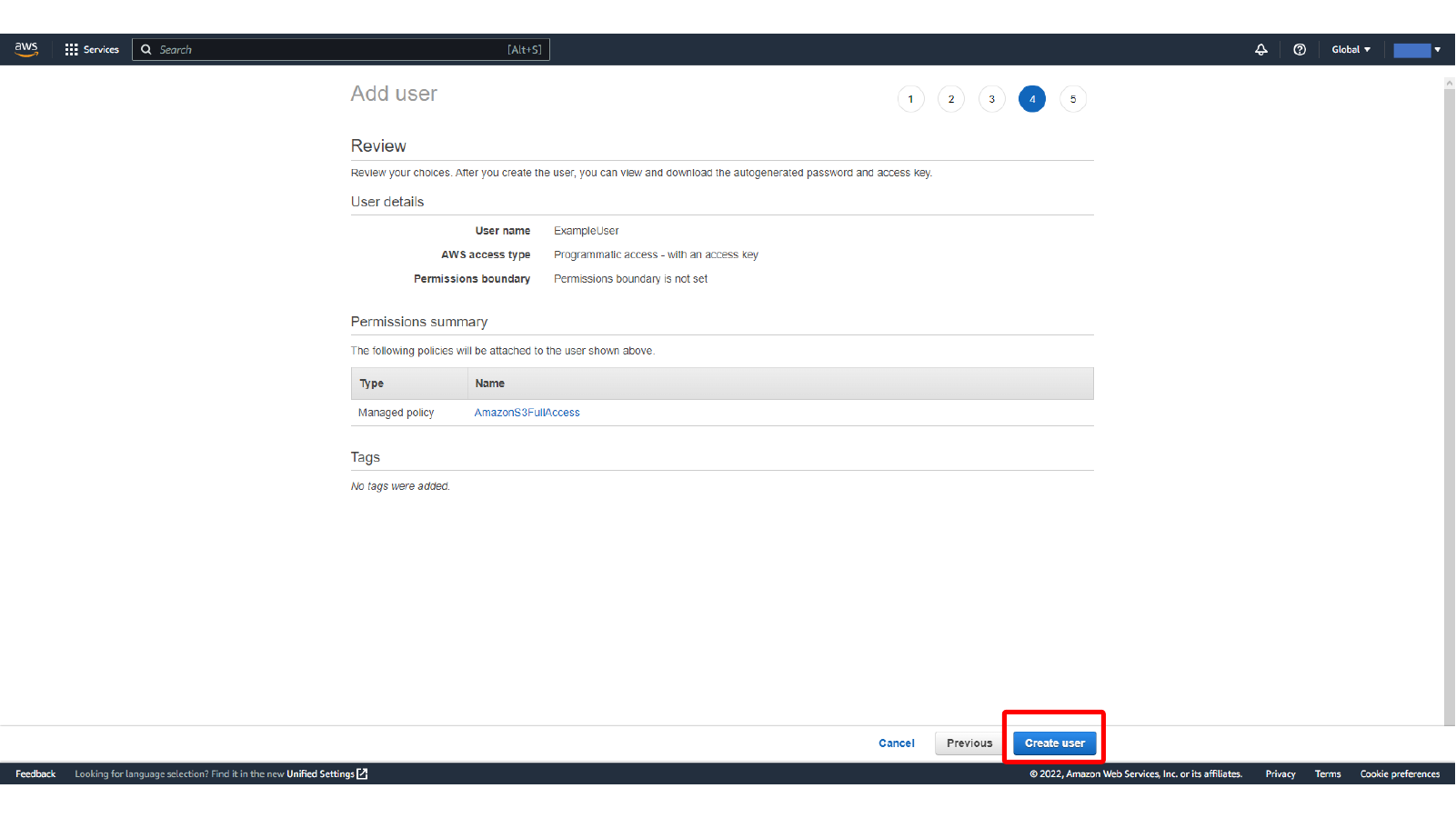
Review the IAM user and create it. After creation, download or copy the credentials immediately. The secret access key is sensitive and should not be committed to source control, shared in screenshots, or stored in plain text unless it is protected.
Here, we download the generated IAM user credentials.
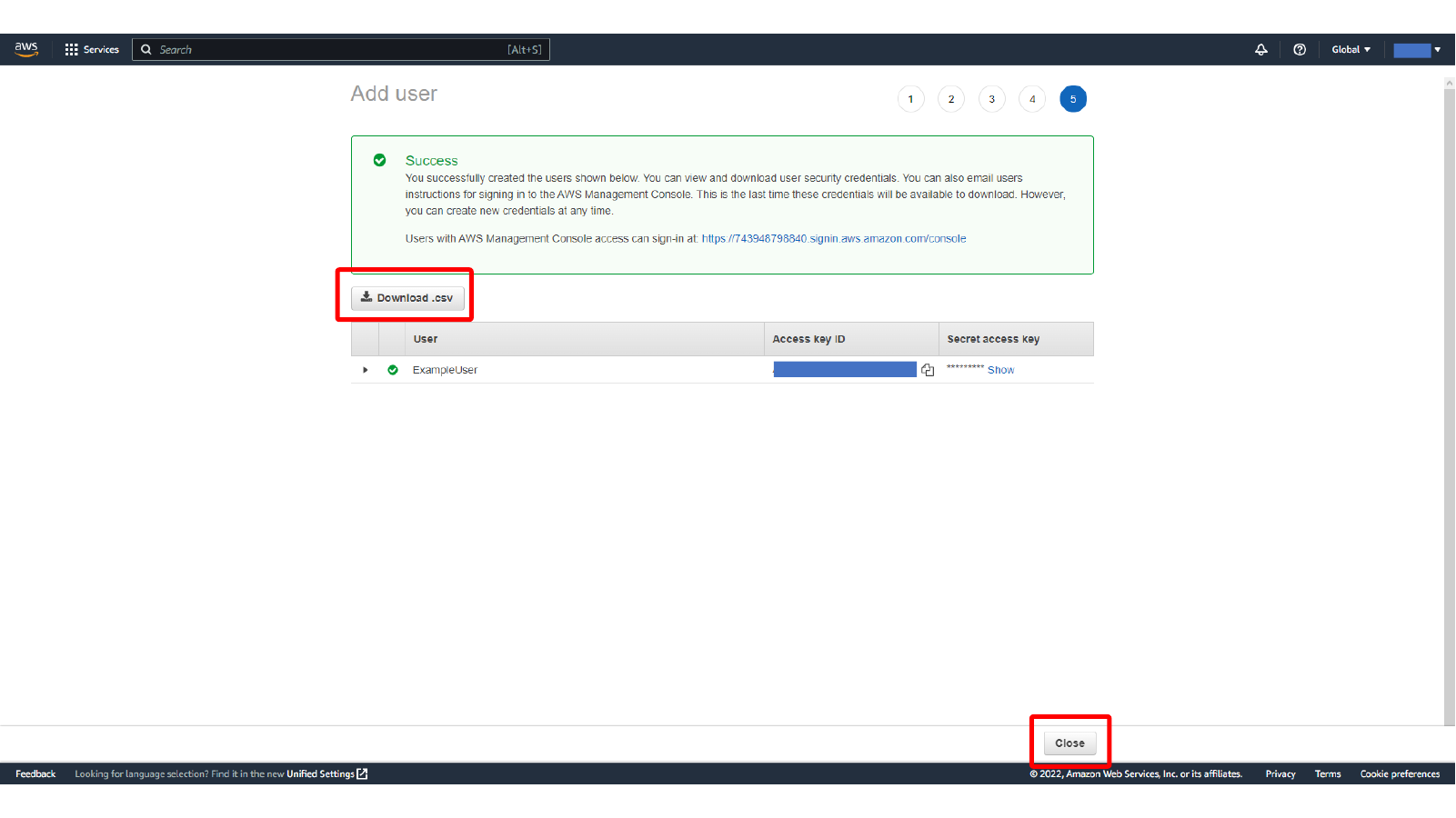
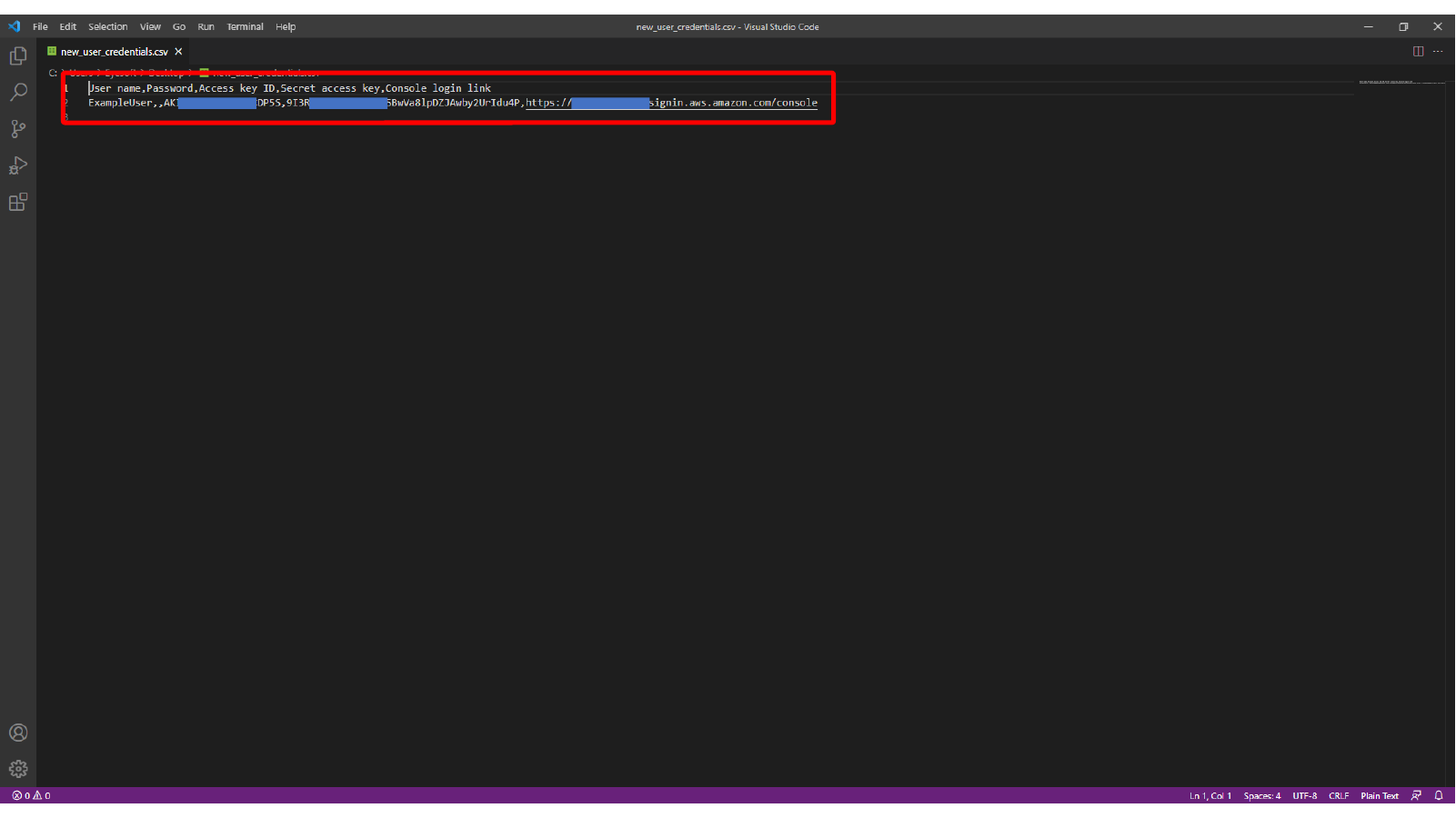
Here, we view the IAM access key CSV file with sensitive values hidden.
Uploading and Testing an S3 Object
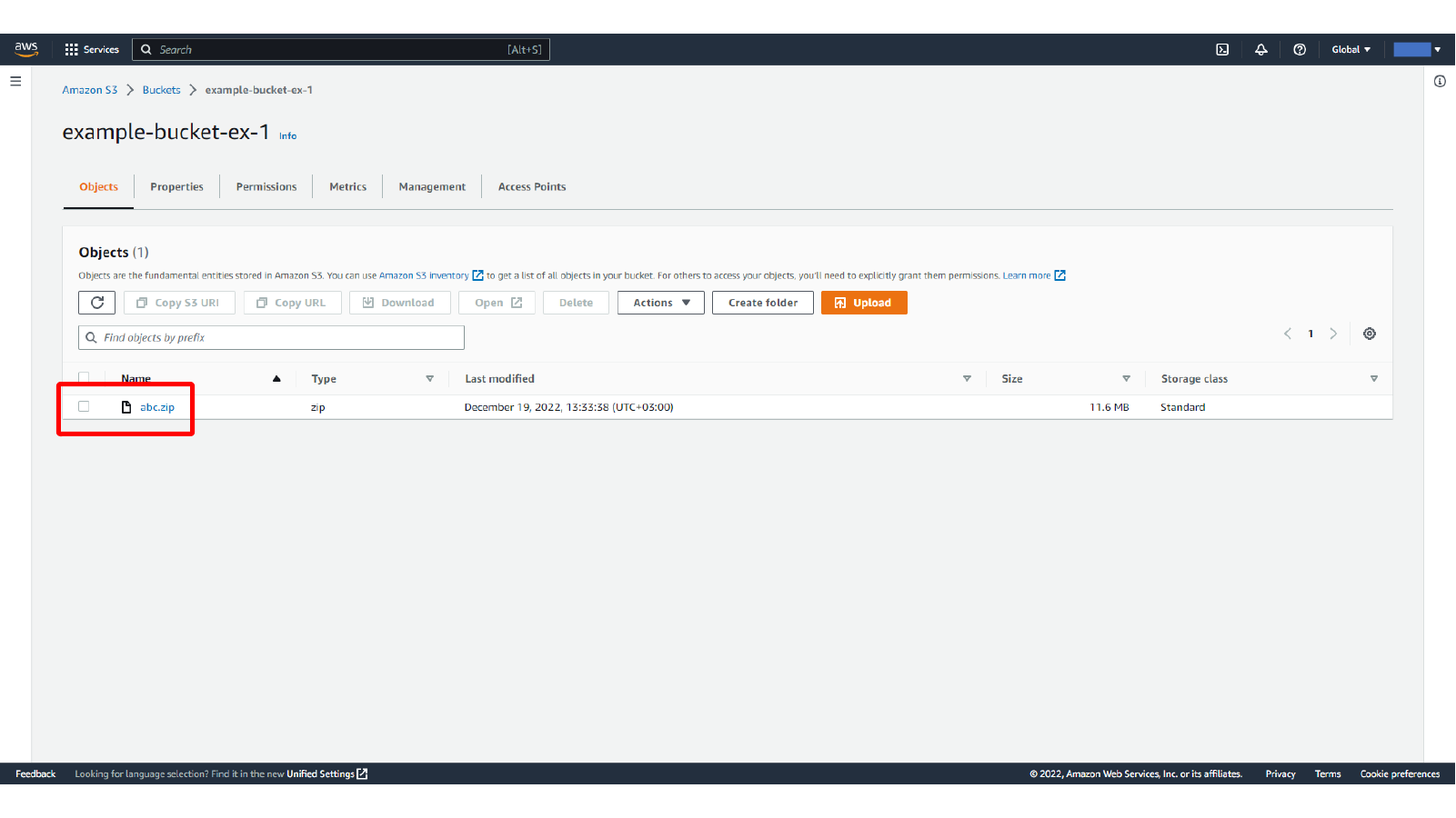
Upload a small test file to the buckets. The screenshots use abc.zip, but any small file is enough for checking S3 object access and WinSCP download behavior.
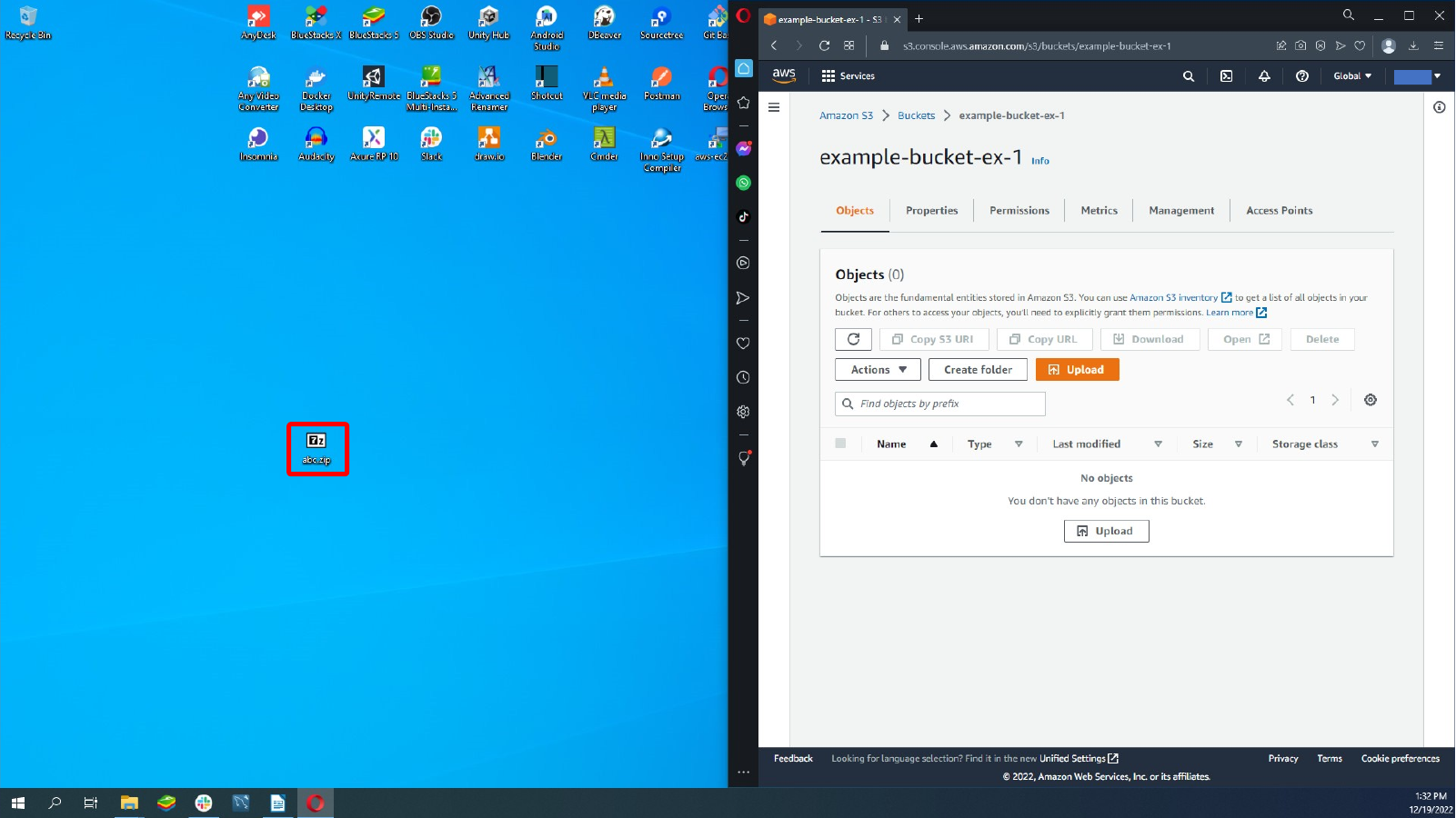
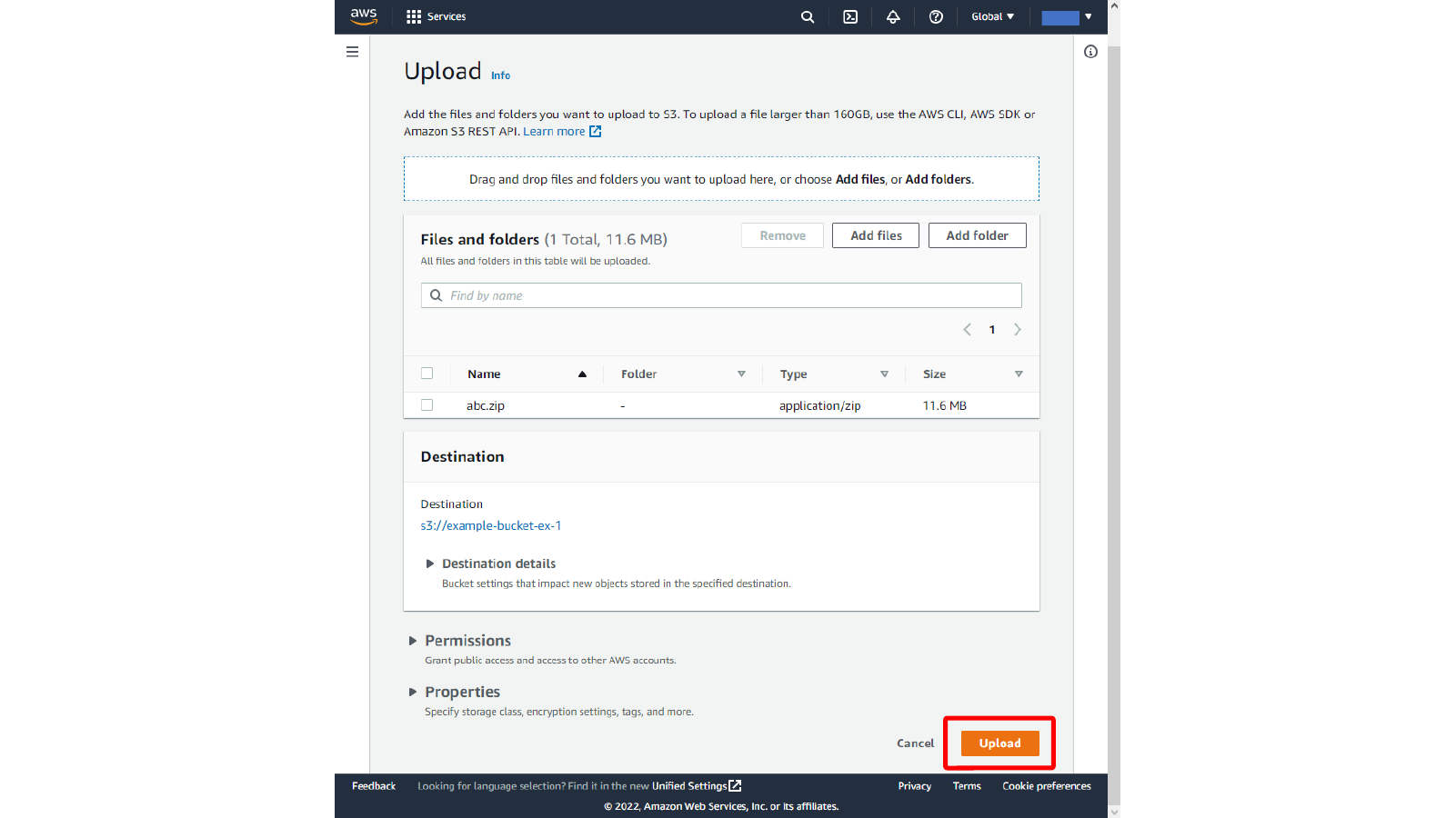
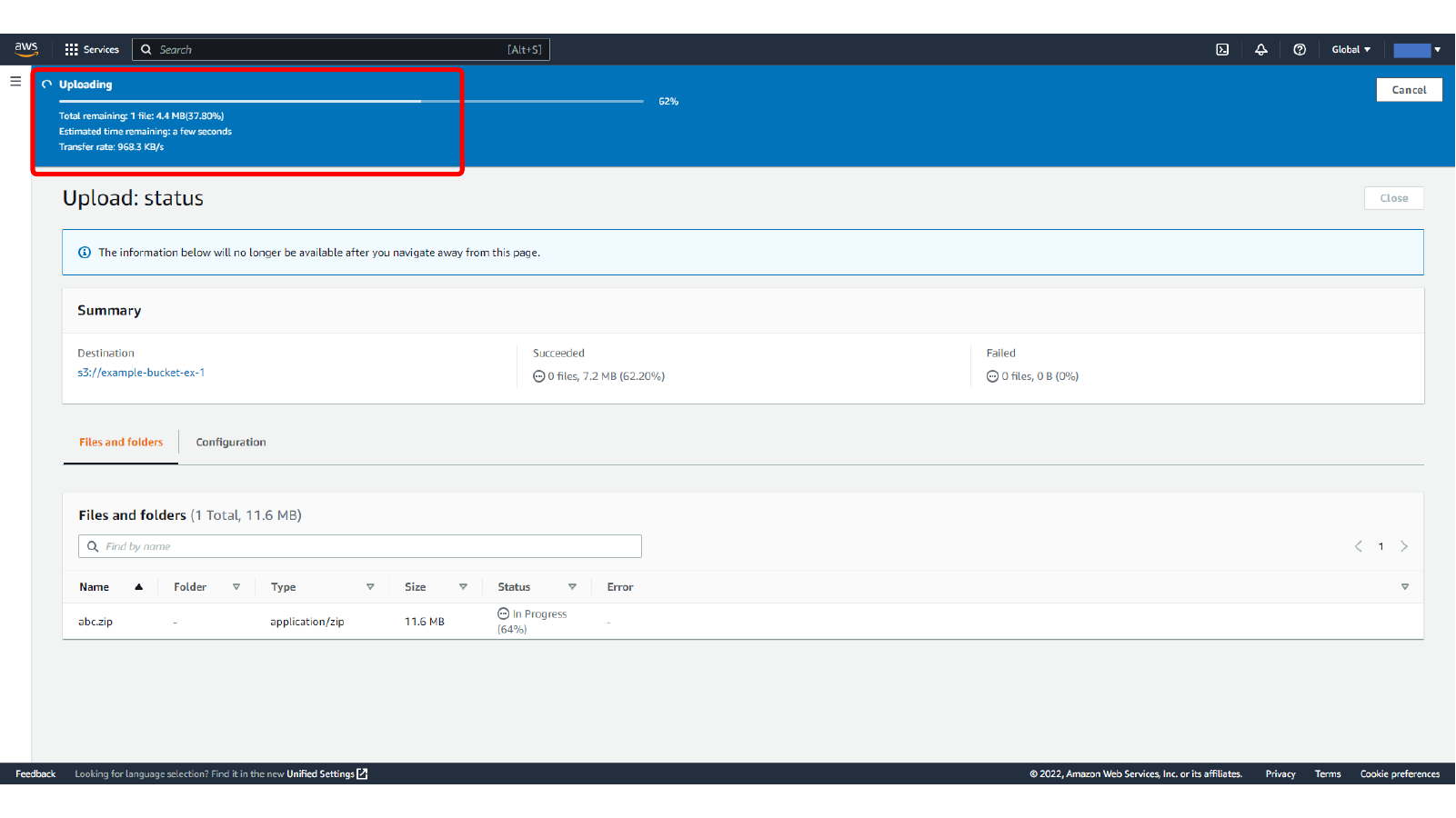
Here, we upload a zip file to the S3 bucket.
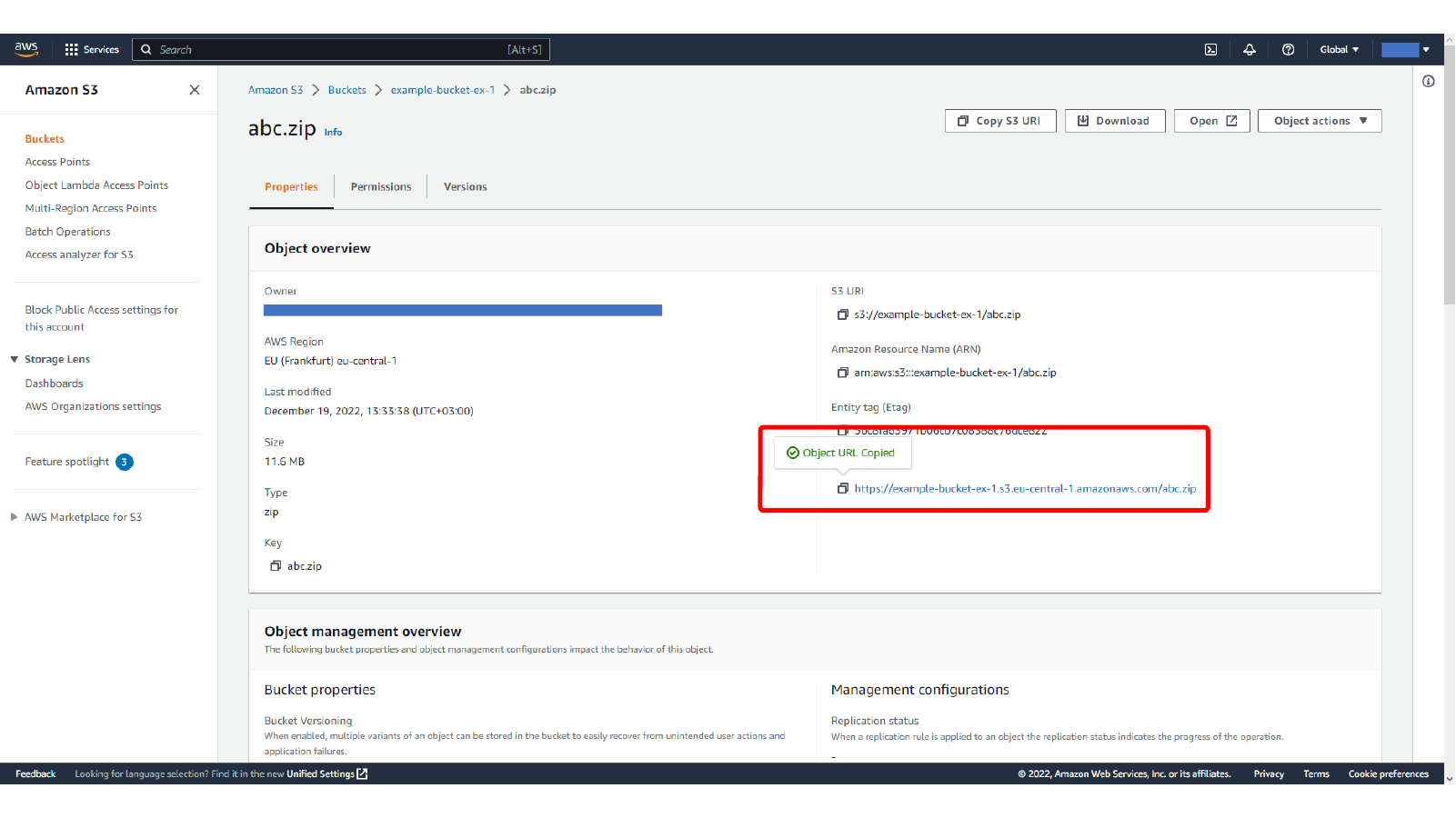
After upload, open the object details. For the public bucket, the Object URL can be opened directly in a browser because the bucket policy allows s3:GetObject.
Here, we open the uploaded S3 object details.
Here, we copy or opening the public S3 object URL.
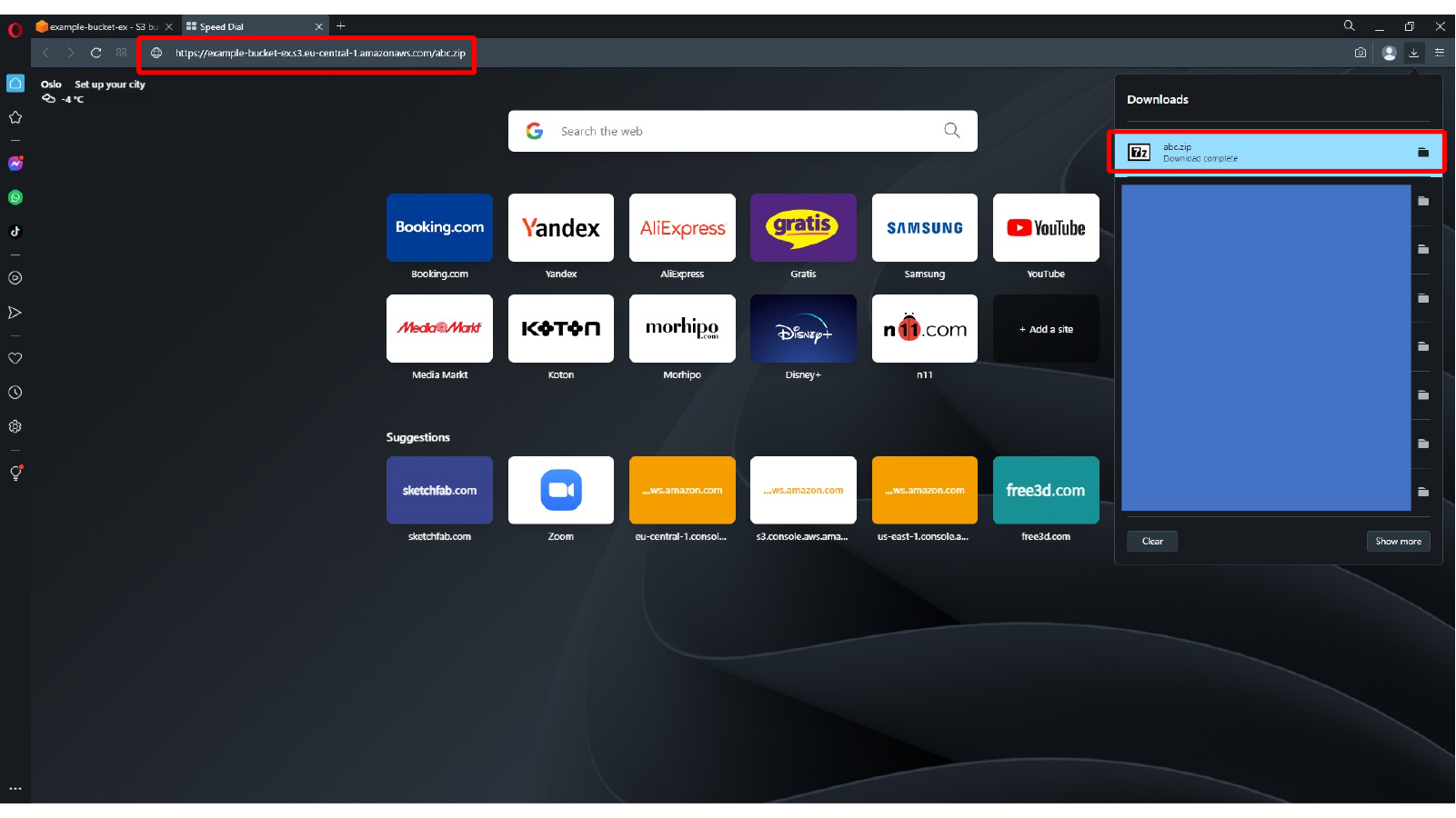
Here, we test the public S3 object URL from the browser.
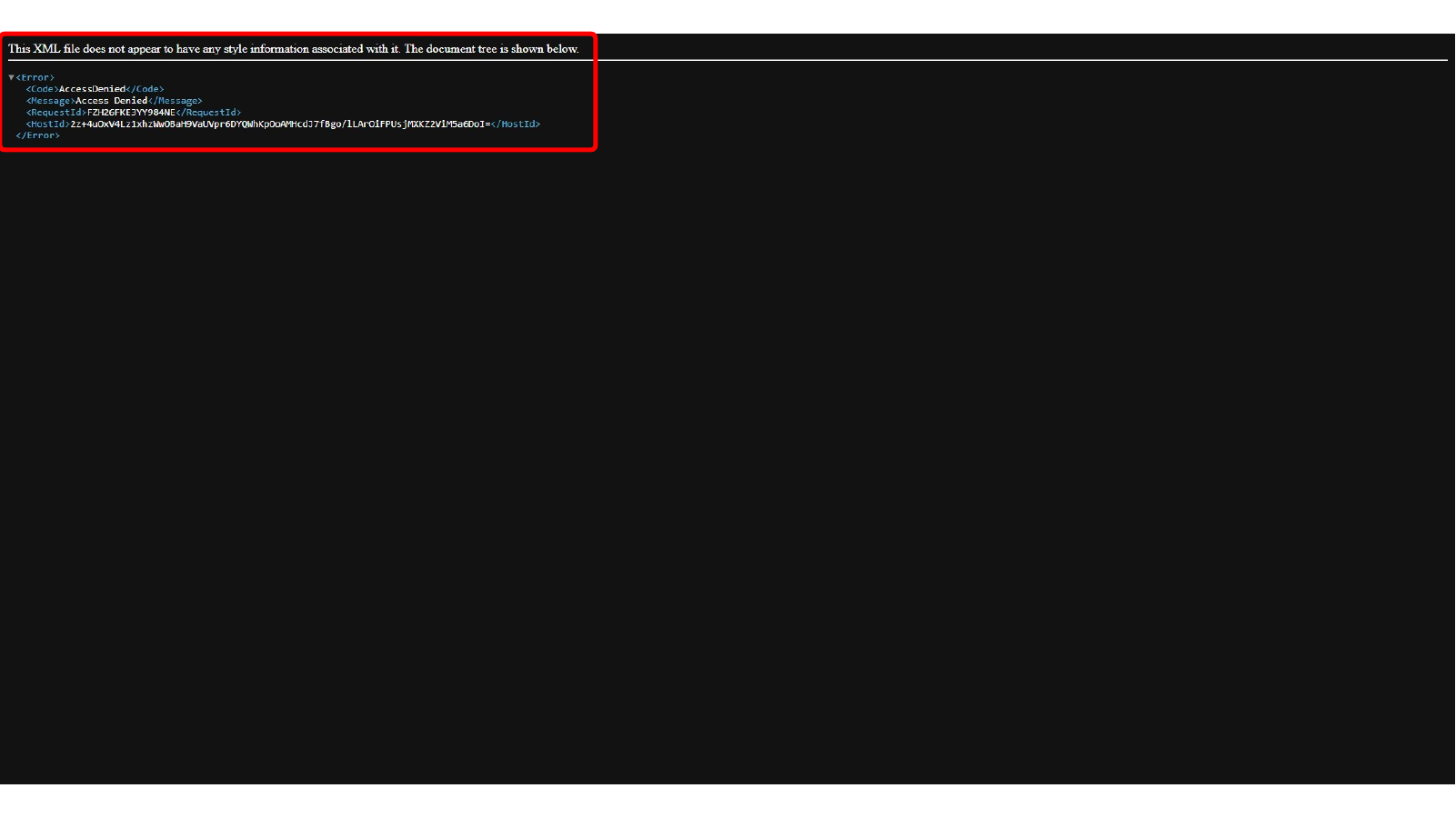
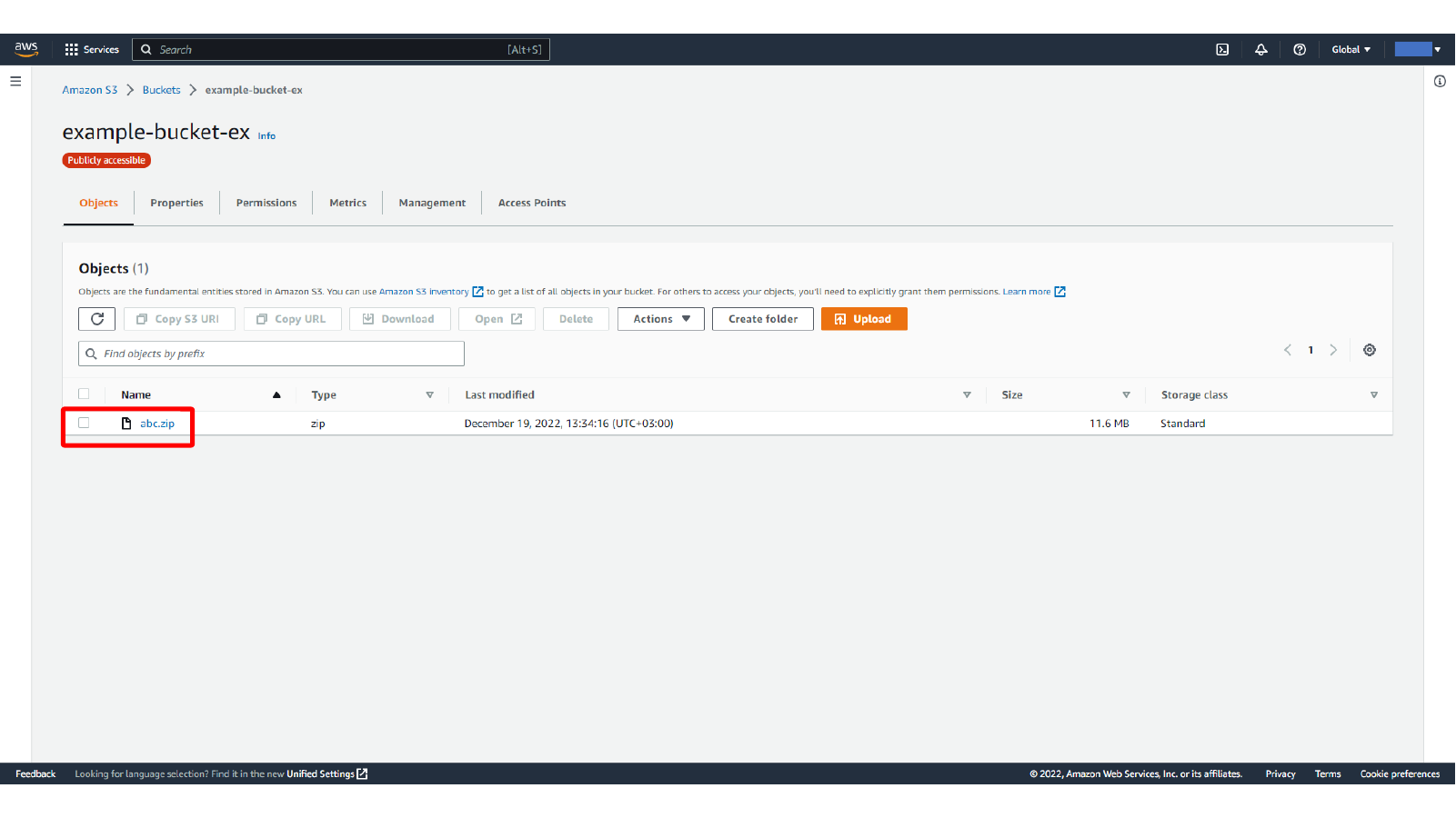
Repeat the same upload or access test for the private bucket. The private bucket should not expose the object through a public URL, but the IAM user can still access it through an authenticated S3 client such as WinSCP.
Here, we check the object URL for the uploaded S3 file.
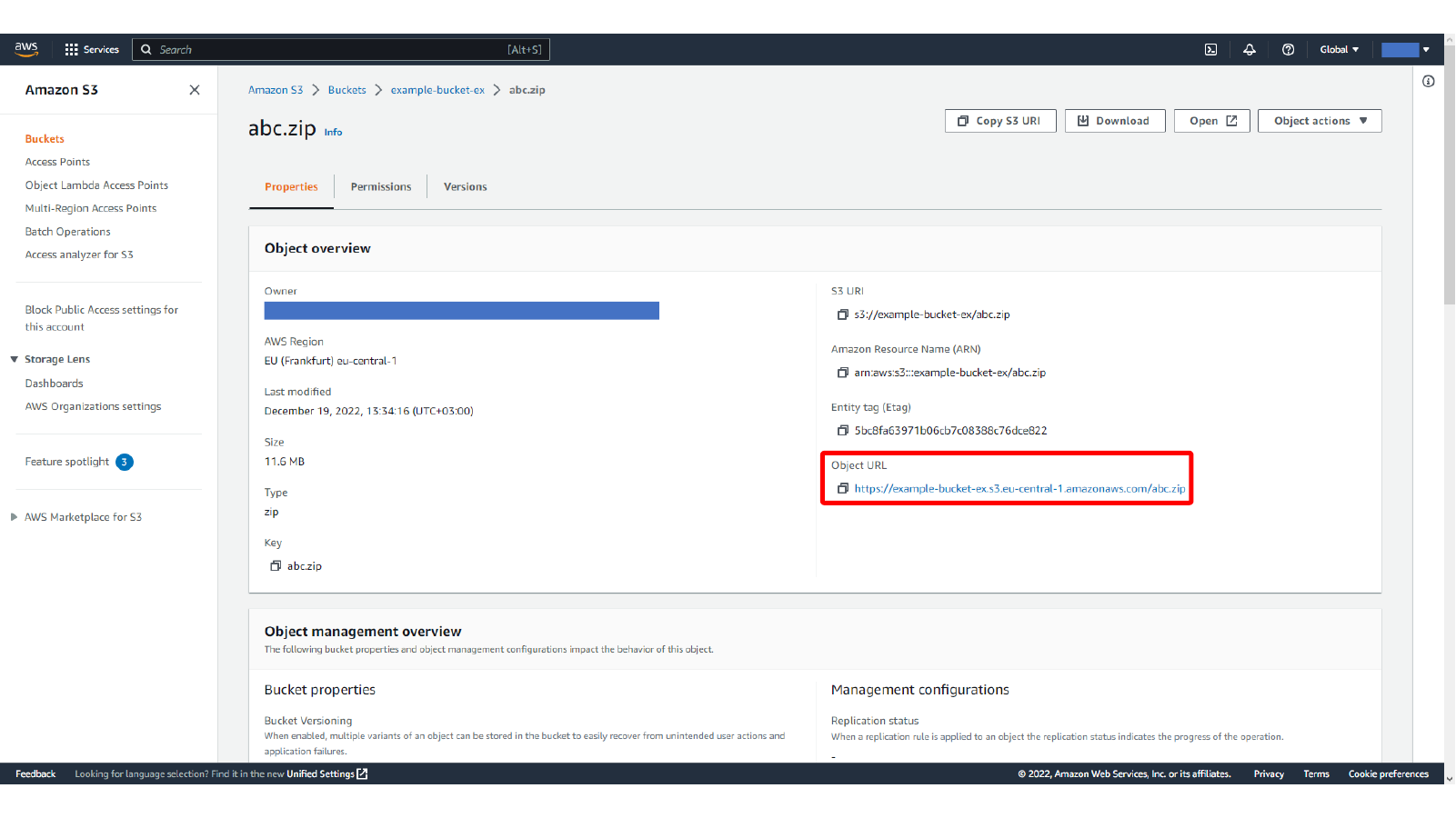
Here, we test S3 object access behavior in the browser.
Connecting to S3 from WinSCP
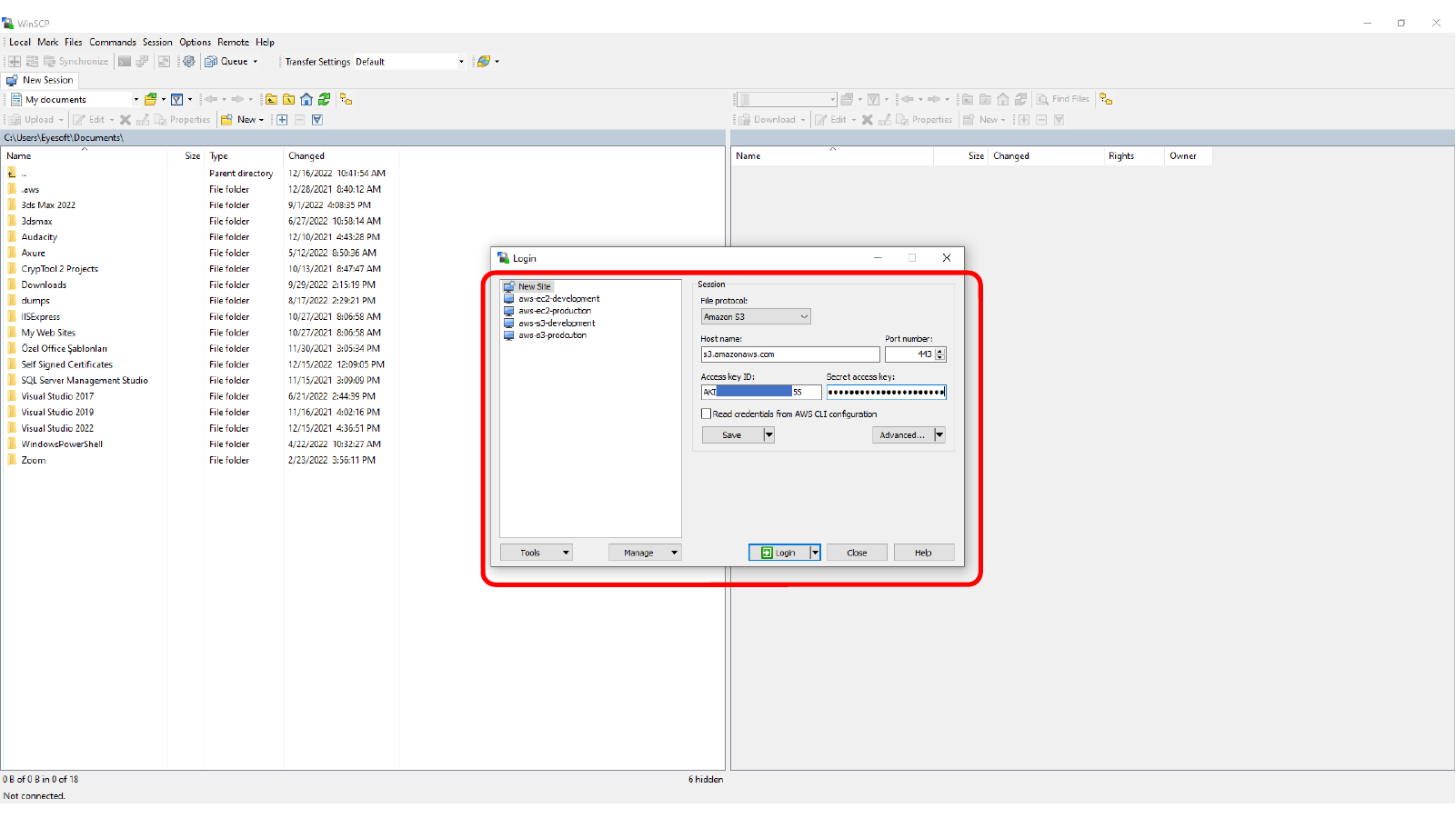
Open WinSCP and create a new site. Choose Amazon S3 as the file protocol, then enter the IAM access key values from the CSV file.
Use these connection values:
- File protocol:
Amazon S3 - Host name:
s3.amazonaws.com - Port number:
443 - Access key ID: your IAM access key ID
- Secret access key: your IAM secret access key
This screen shows Configuring an Amazon S3 connection in WinSCP with IAM credentials.
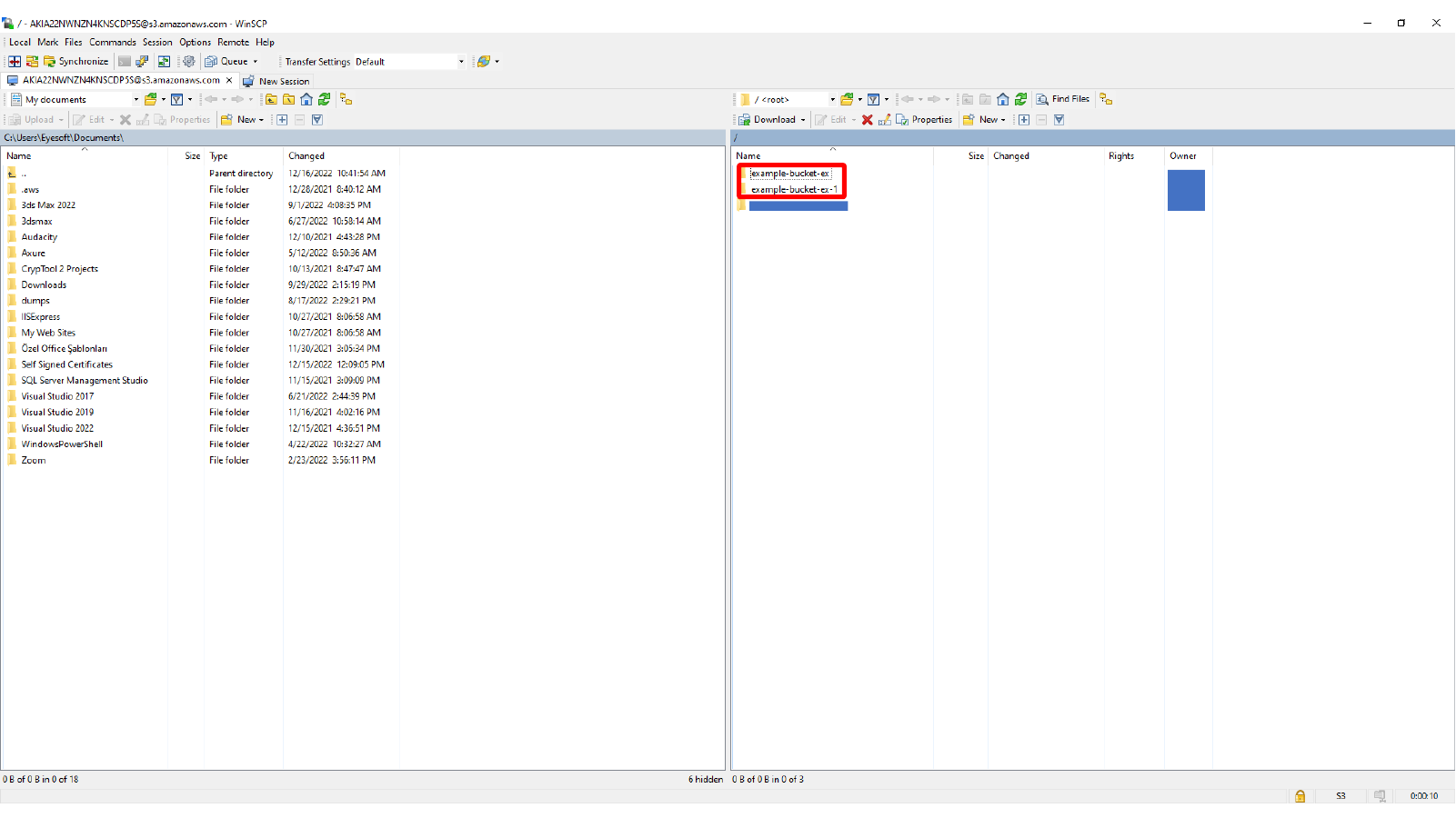
After login, WinSCP lists the S3 buckets that the IAM user can access. From here, browse a bucket, select the object, and download it to the local file system.
Summary
With an IAM access key and the right S3 permissions, WinSCP can work as a desktop client for browsing and downloading S3 objects. Public bucket access depends on bucket public access settings and bucket policy, while private buckets remain accessible through authenticated IAM credentials.
Comments