This final archived 2016 note addresses a local MySQL service that fails to start and a simple shutdown habit for local development services. It is not a general recovery procedure: identify the cause from the database logs and make a backup before changing configuration.
innodb_force_recovery is an emergency recovery setting. Do not leave it enabled, do not use it for normal operation, and do not perform destructive writes while it is active. If the data matters, stop and make a copy of the data directory before proceeding.
Table of contents
Open Table of contents
Locating the MySQL Configuration
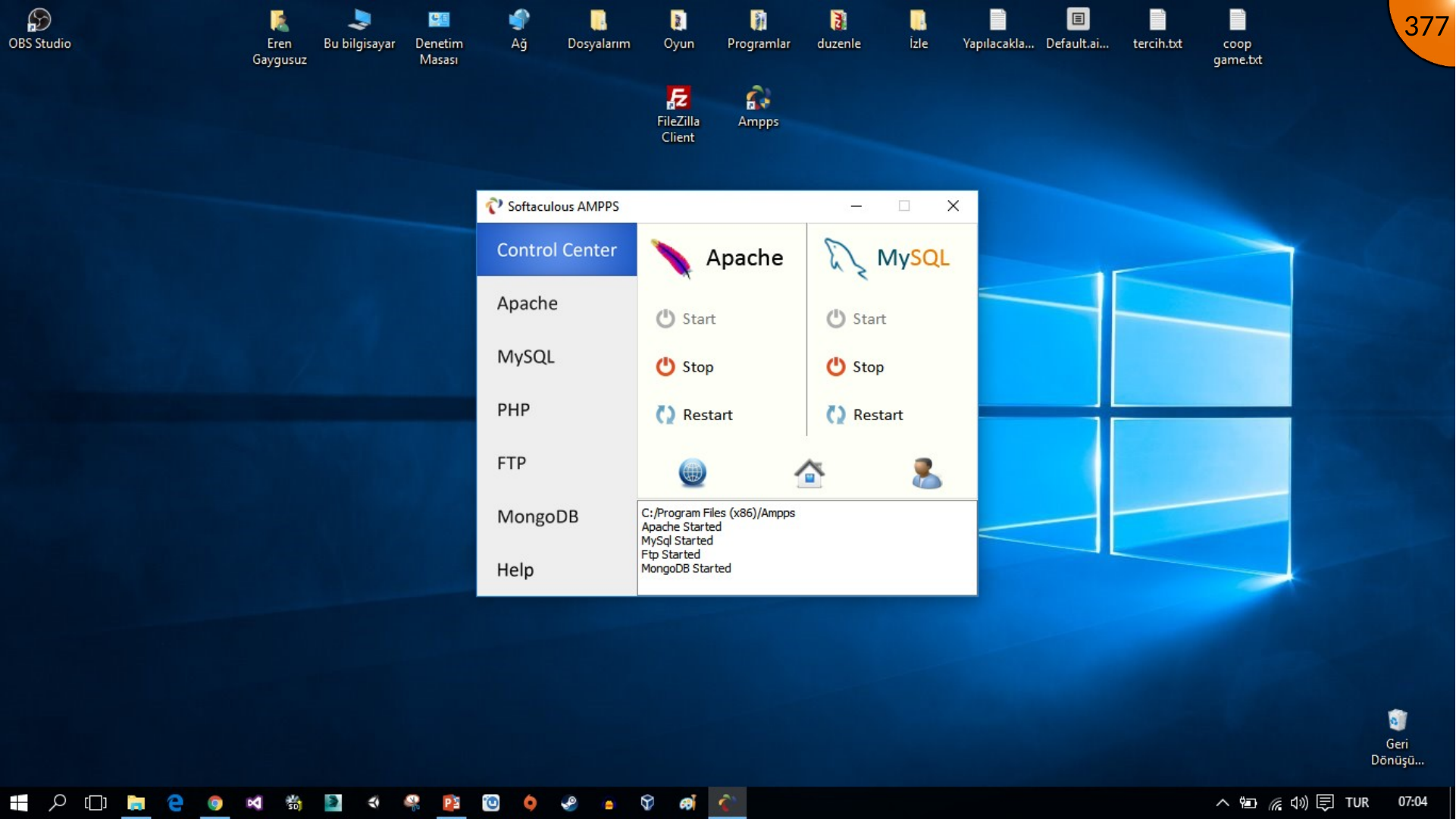
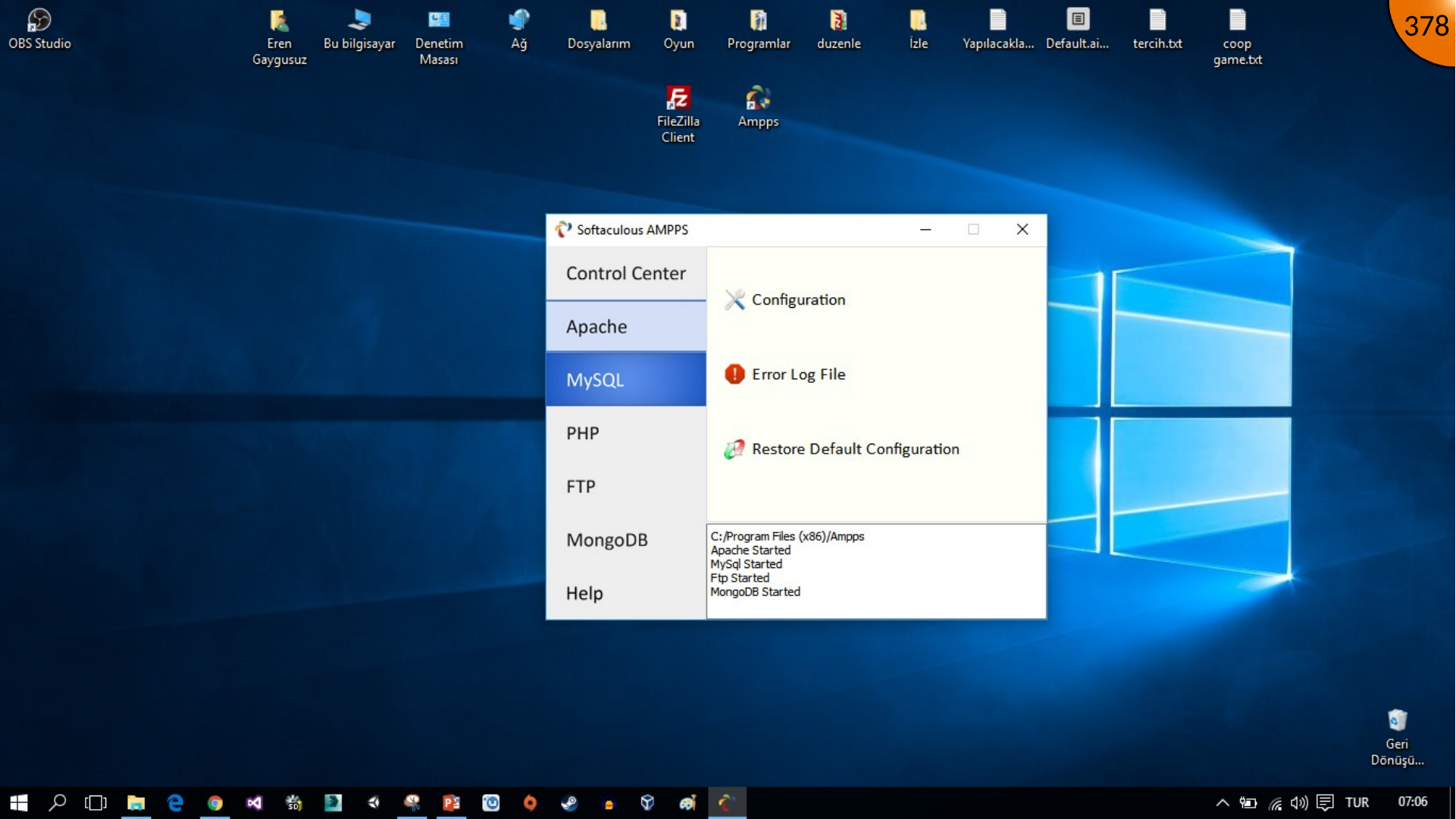
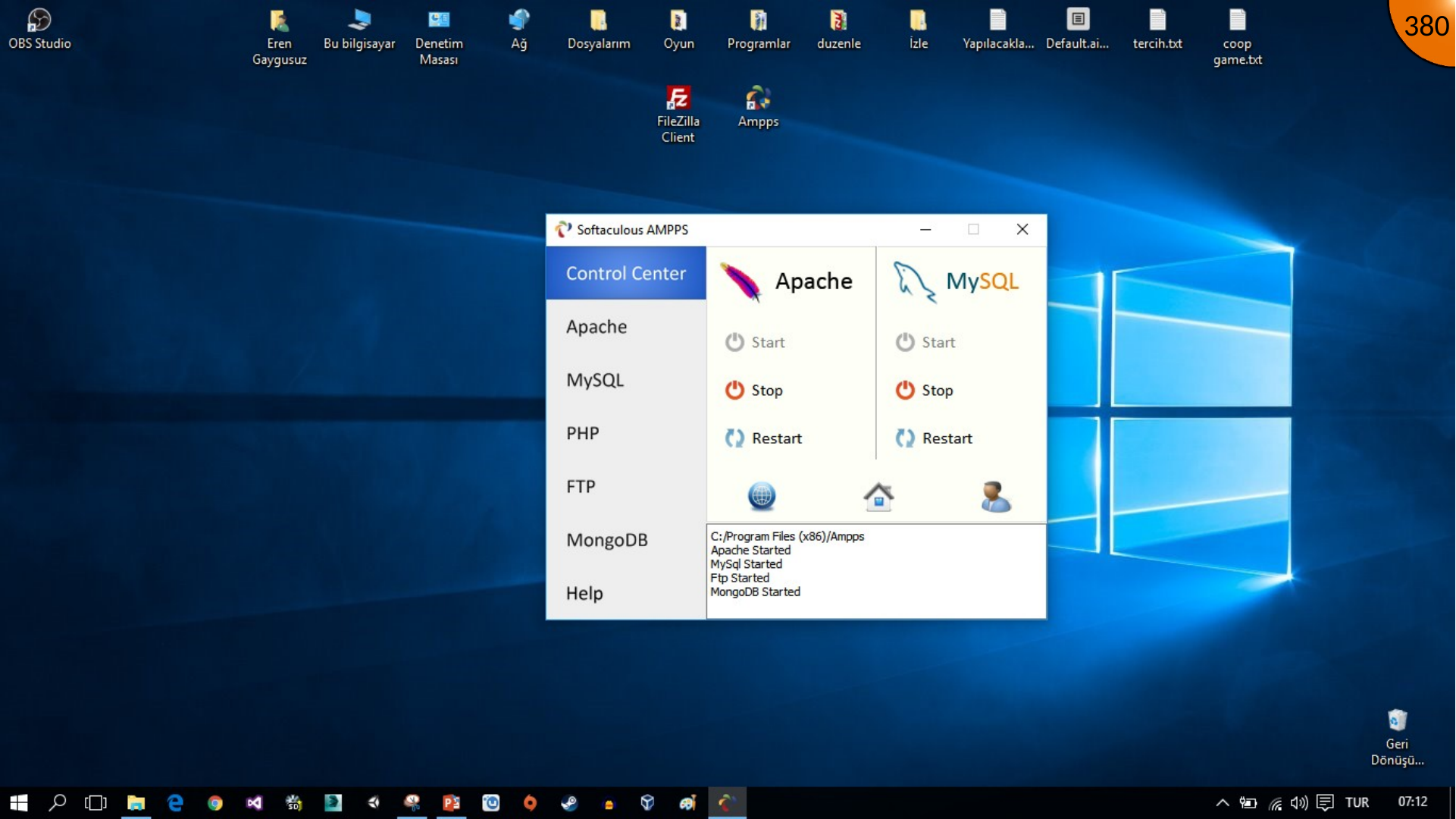
When the local MySQL service does not start, open the MySQL area in the local-server application and choose its configuration option.
The Archived Recovery Setting
The source adds the following line below the [mysql] section of the configuration file:
innodb_force_recovery = 1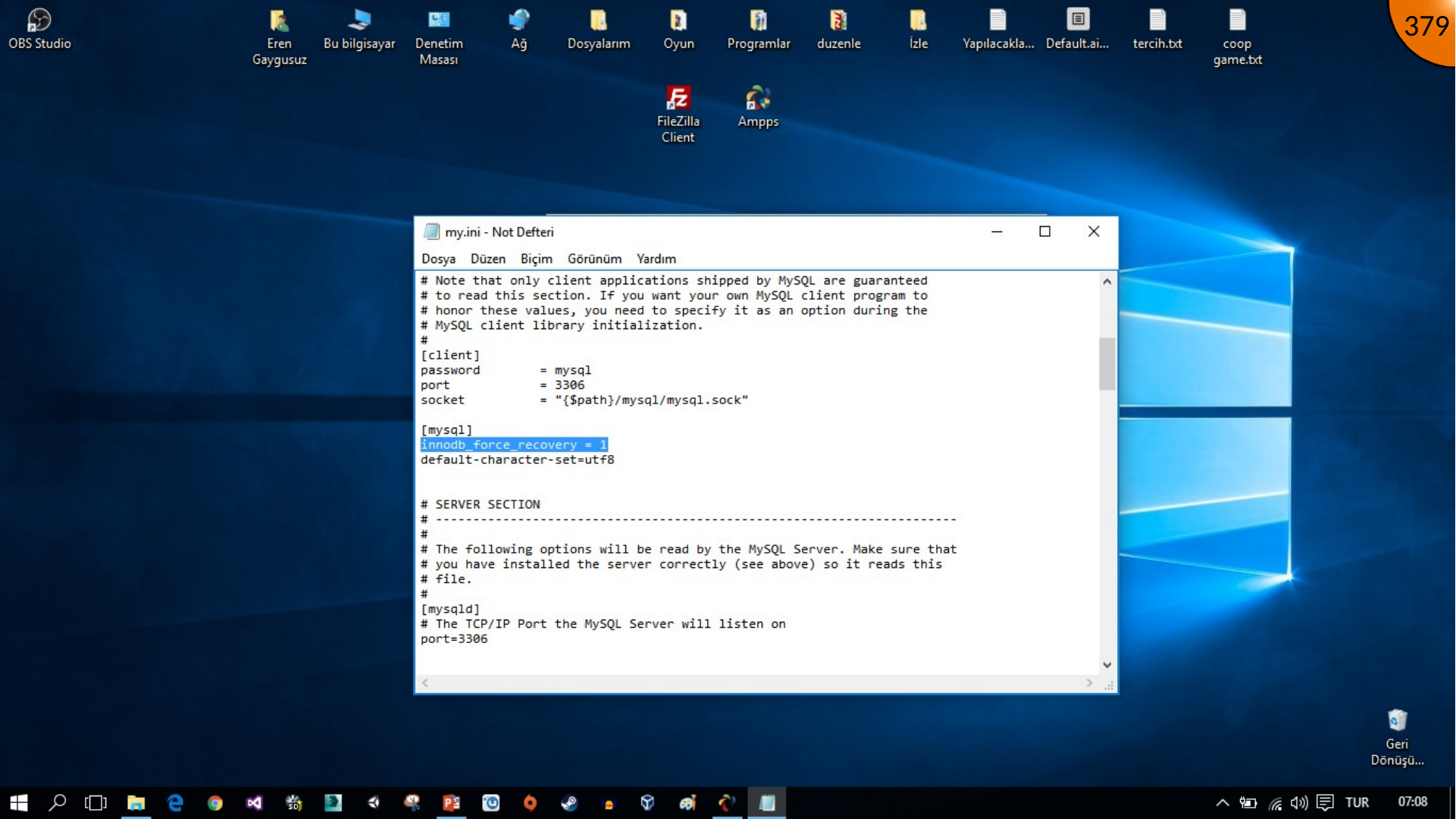
This setting is intended only to help access damaged InnoDB data long enough to diagnose or export it. After the recovery task, remove the line, restore normal configuration, and investigate the underlying failure using the MySQL error log.
Shutting Down Services Cleanly
When local work is complete, stop the running services from the local-server application before closing it. The source calls out MySQL, Apache, FTP, and MongoDB; stop only services you actually use, and wait for each to finish.
Summary
Treat recovery configuration as a temporary, last-resort diagnostic measure. Clean shutdowns and regular backups are the safer routine for a local Moodle environment.
Comments