Moodle pages are built from reusable regions: navigation, the main content area, and blocks that provide supporting information such as calendars, menus, or course summaries. Understanding those regions makes the administration screens easier to navigate and customize.
This is an archived 2016 interface walkthrough. Current Moodle themes use different menus and layouts, but the underlying concepts—page regions, blocks, permissions, visibility, and positioning—remain relevant.
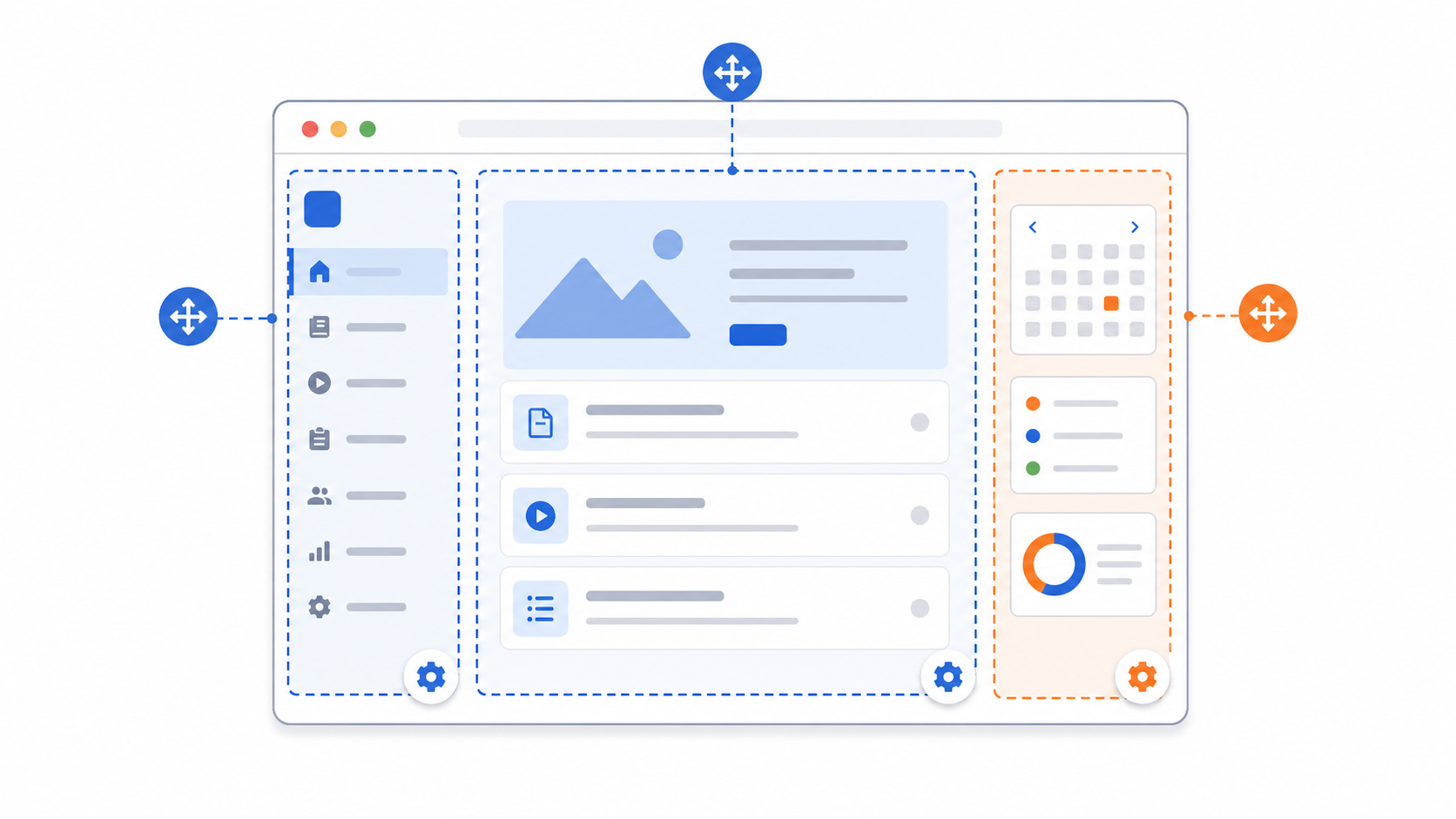
Table of contents
Open Table of contents
Recognizing the Main Page Regions
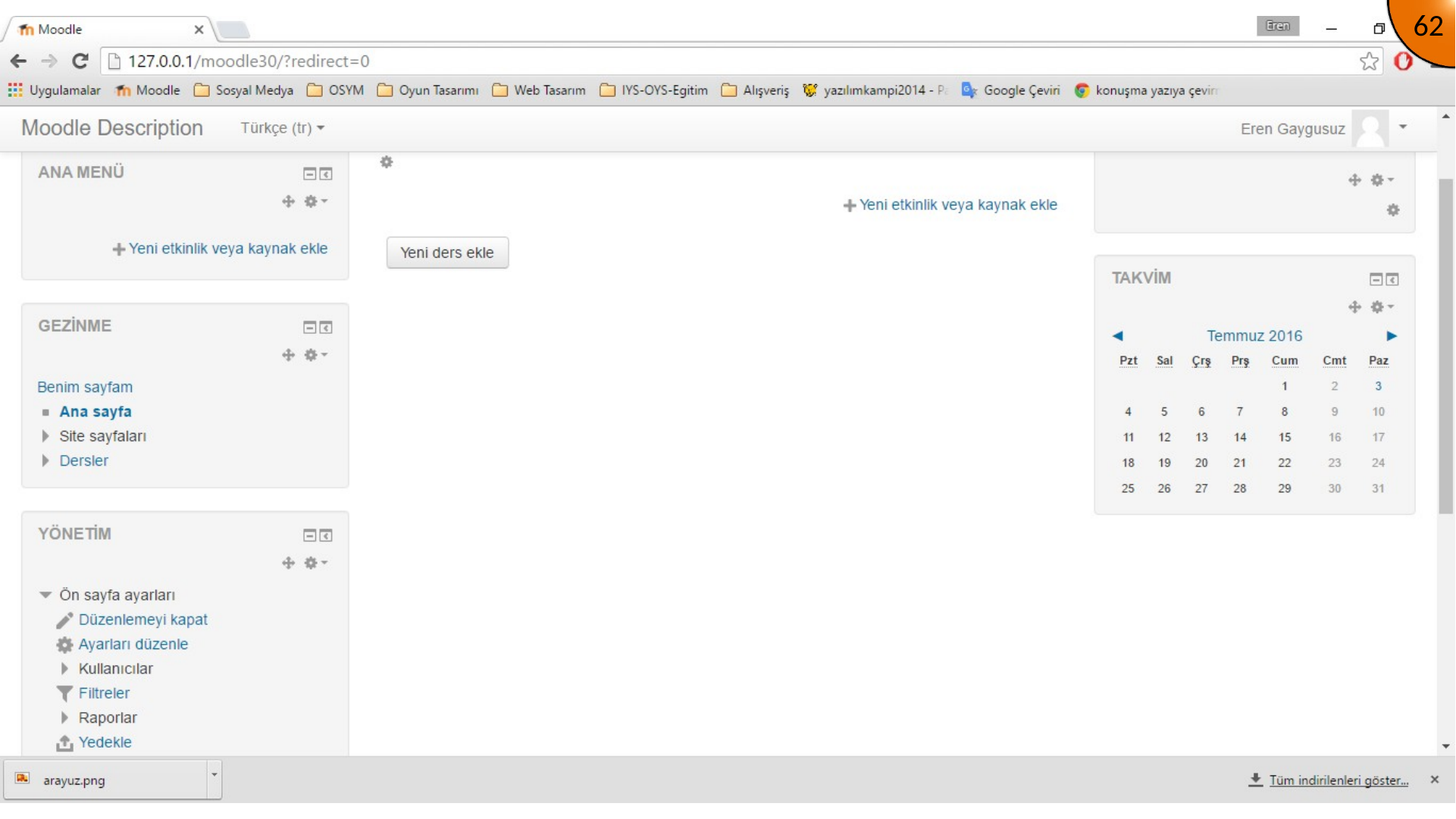
The interface shown in this version is divided into three columns. The left side contains navigation and administration controls, the center holds the primary page content, and the right side contains supporting blocks.
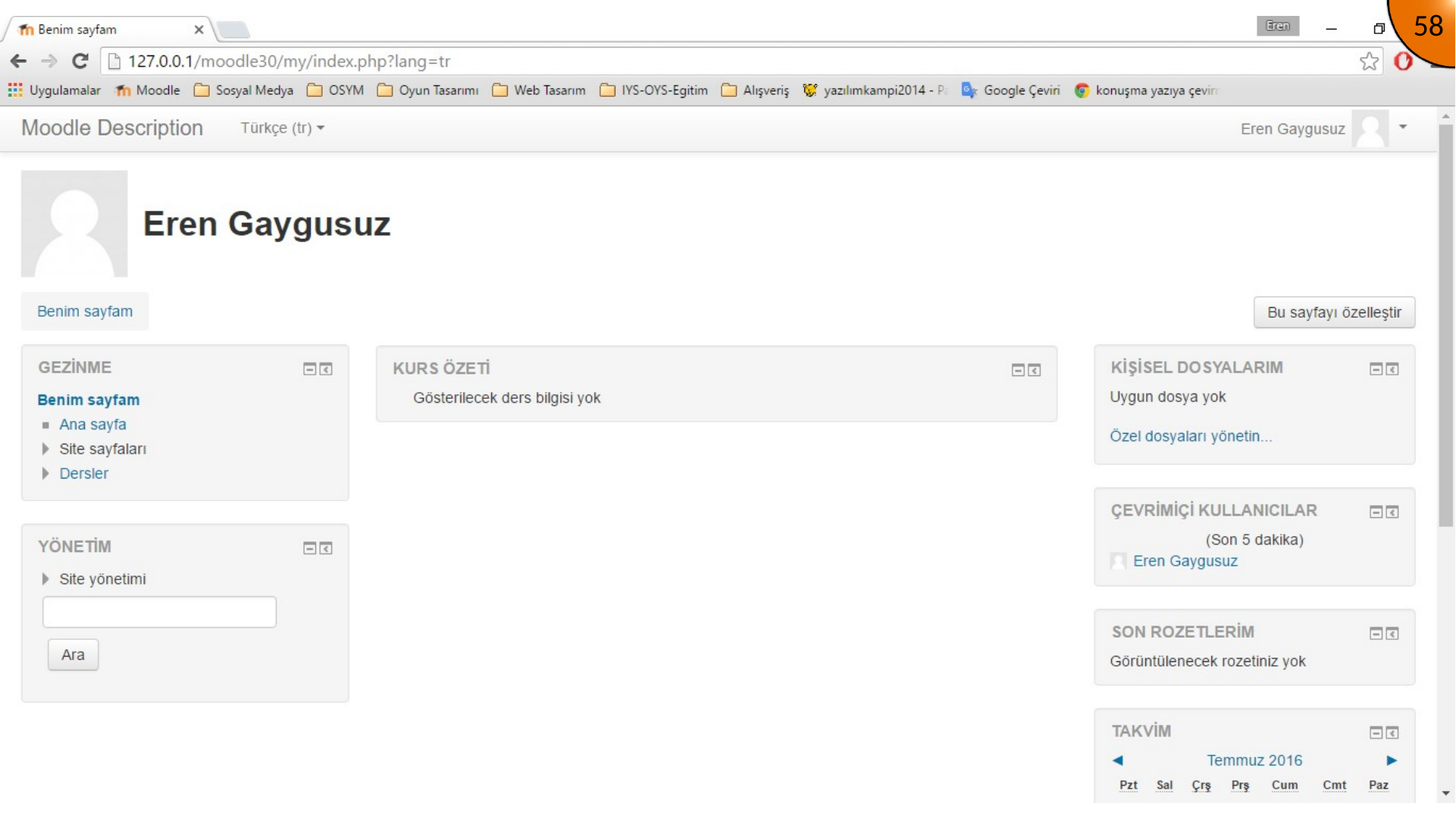
The middle of the home page lists available courses when courses have been created. The side regions can contain the calendar, navigation tree, site pages, menus, and other blocks.
Navigating the Home Page
Select Home from the navigation area to return to the site landing page. In the original interface, expanding Site pages exposes links such as participants, site blogs, badges, notes, tags, and the calendar.
Enabling Editing Mode
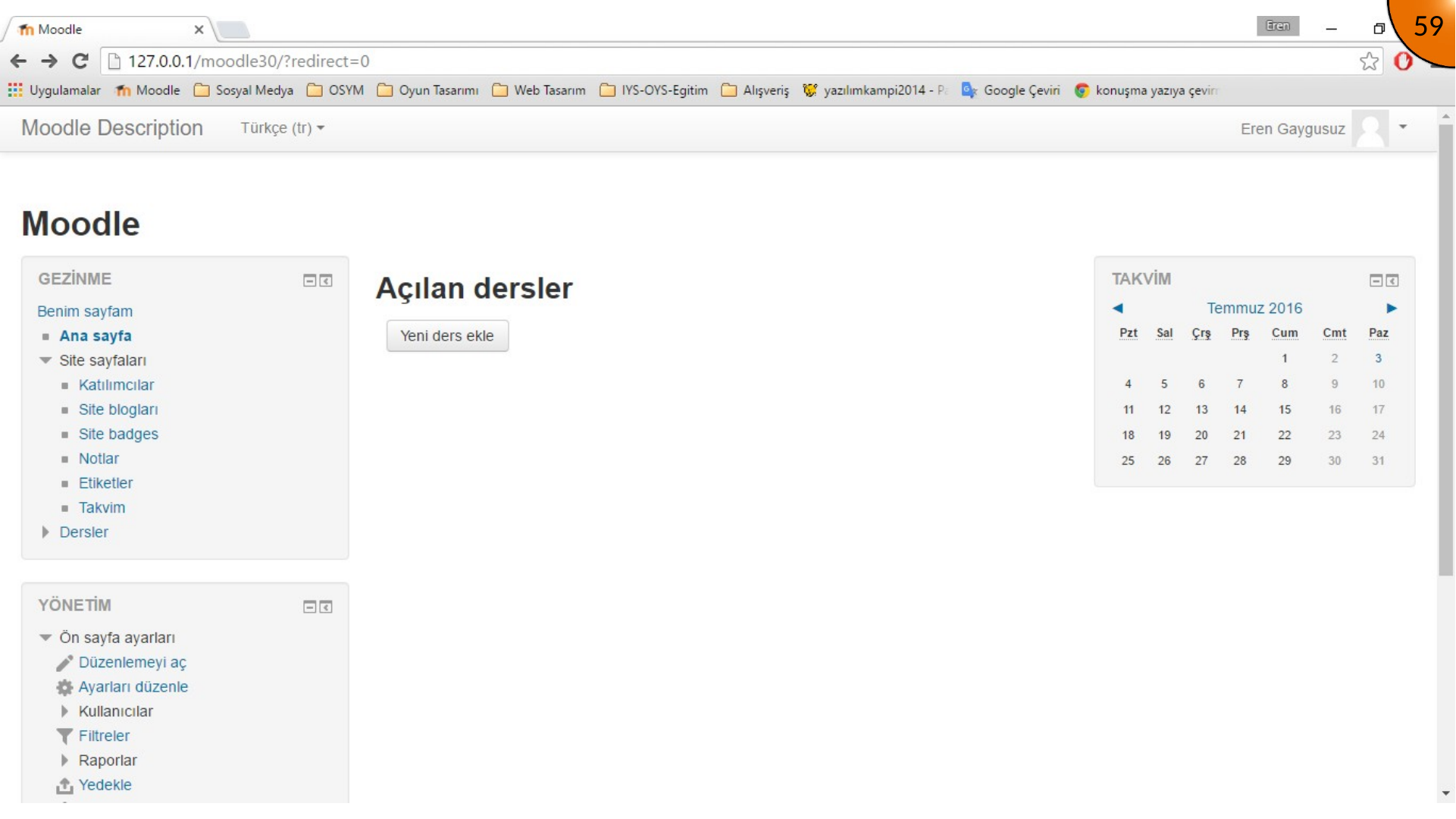
Administrators and users with the appropriate permissions can turn editing on. In this mode, Moodle shows configuration controls for blocks and editable page elements.
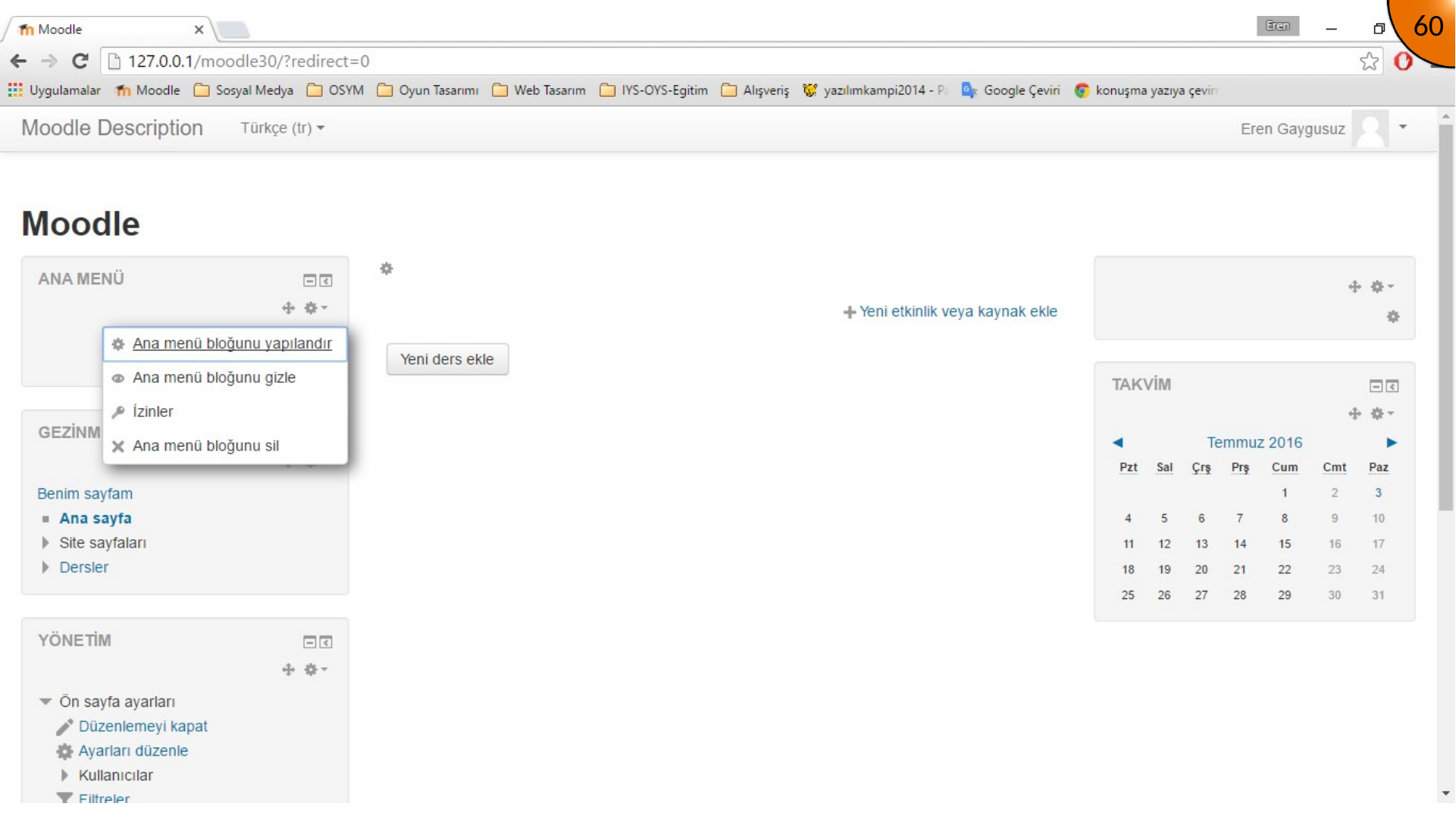
The block settings menu can be used to configure a block, hide it, delete it, or change its permissions. Be careful with deletion: it can remove a block from the page rather than merely hide it.
Moving and Showing Blocks
Editing mode also exposes controls for moving, hiding, showing, and docking blocks. Use these controls to adjust the page layout without changing the underlying courses or content.
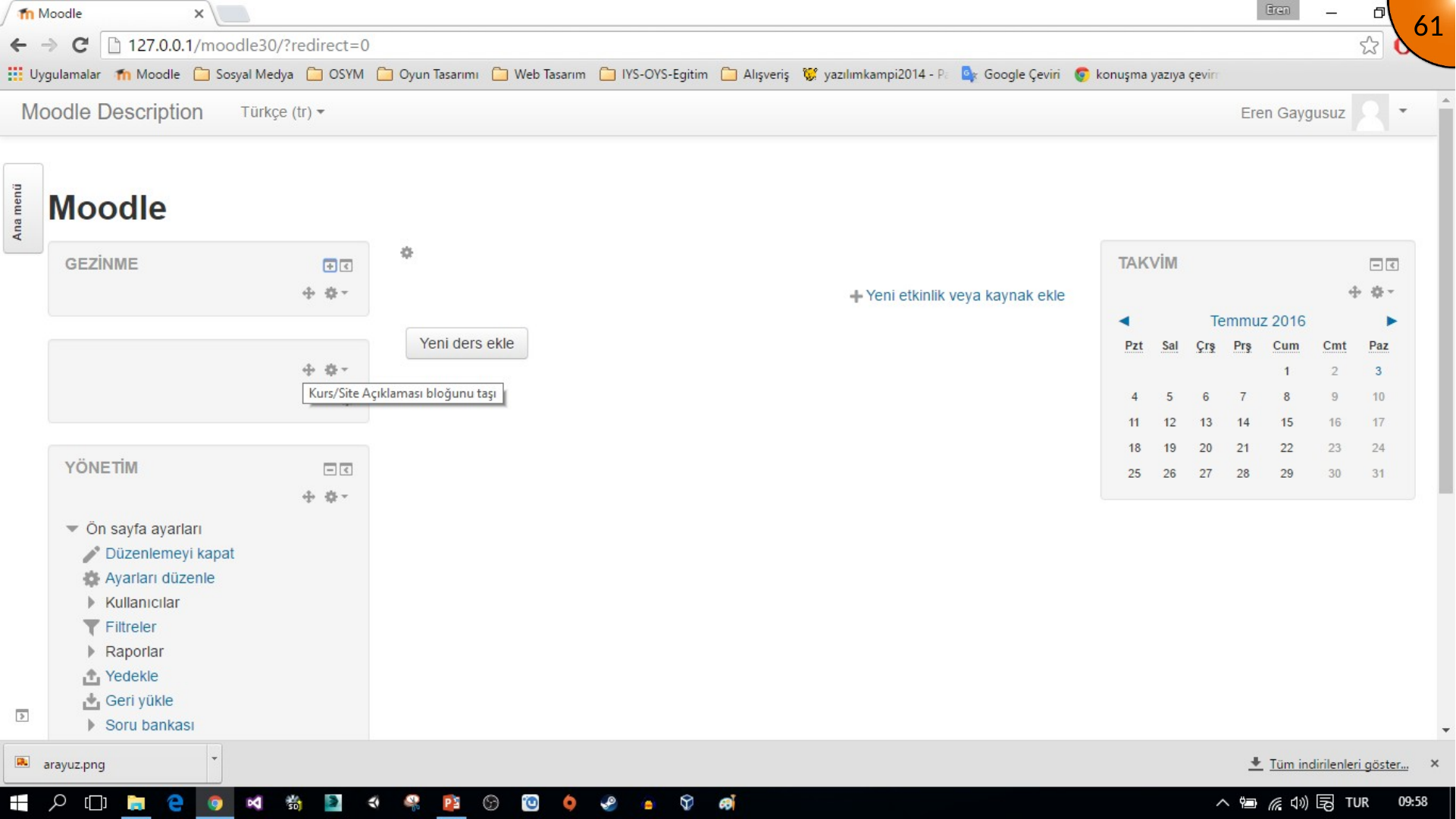
After rearranging the example blocks, turn editing off to return the page to normal viewing mode.
Summary
Moodle’s page layout combines navigation, primary content, and configurable blocks. Editing mode gives authorized users the controls needed to manage those blocks, including their visibility, placement, and settings.
On modern Moodle versions, look for equivalent controls in the current theme and administration navigation. Test layout changes with a non-administrator account when the blocks affect learner navigation.
Comments