Moodle can install additional language packs from the administration area. In this archived 2016 walkthrough, the site is initially installed in English, then the Turkish language pack is downloaded and selected as the default language.
Menu labels and the language-pack workflow can vary by Moodle version. The main idea remains the same: install the language pack, set the site default, and set an individual user language when a profile needs an override.
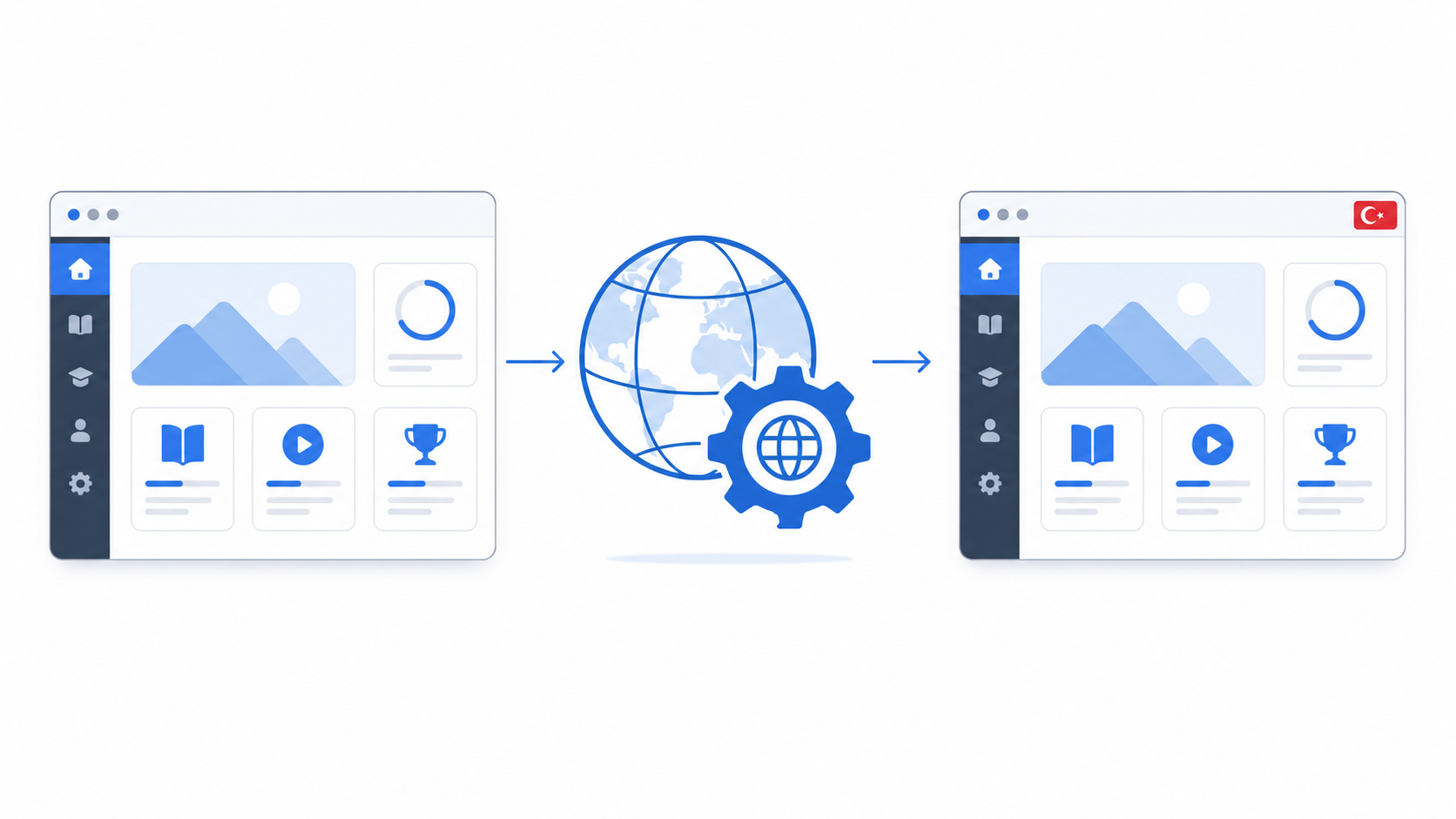
Table of contents
Open Table of contents
Opening Language Pack Management
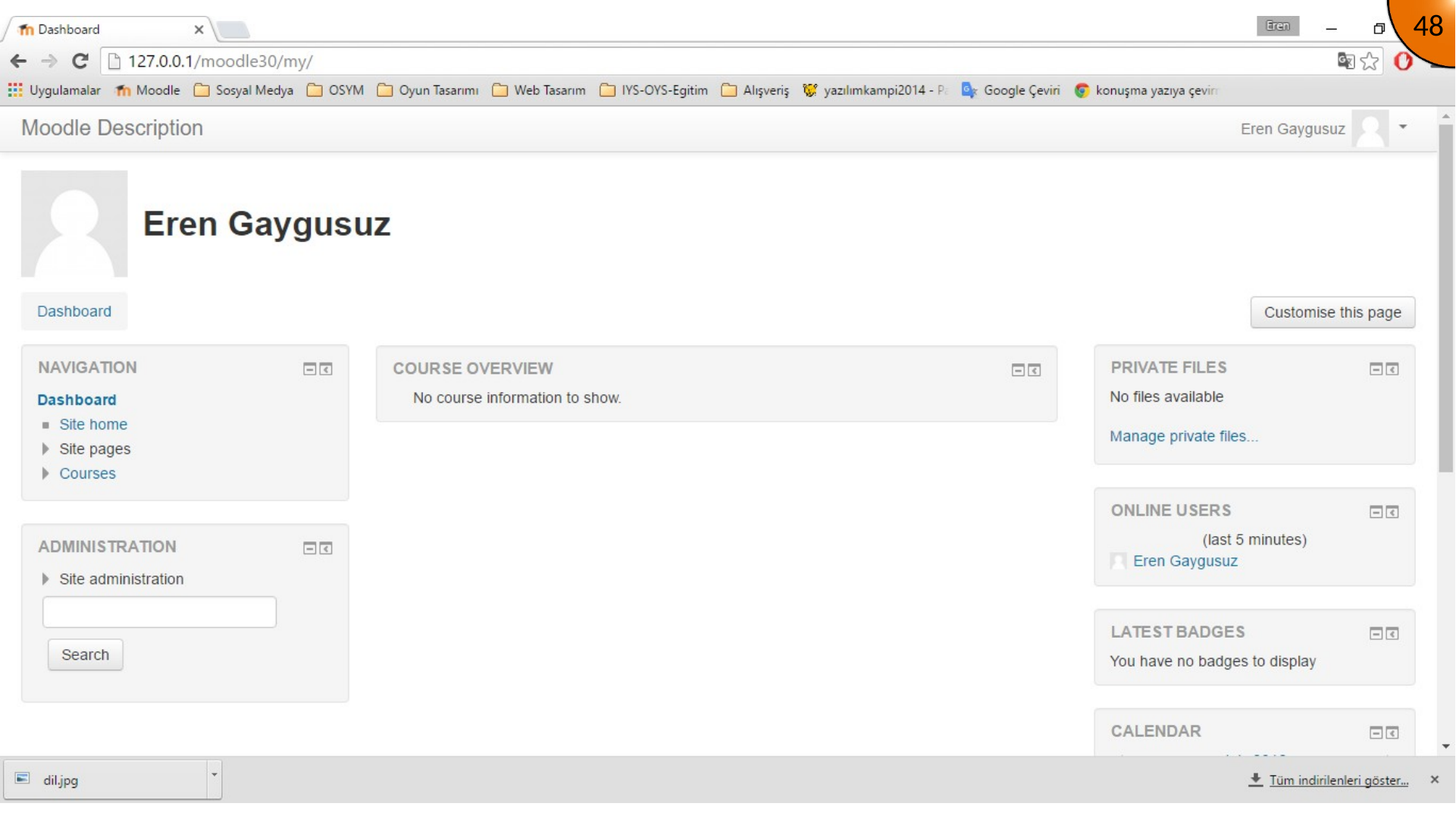
Sign in as a site administrator. In the original Moodle interface, open Site administration, expand Language, and select Language packs.
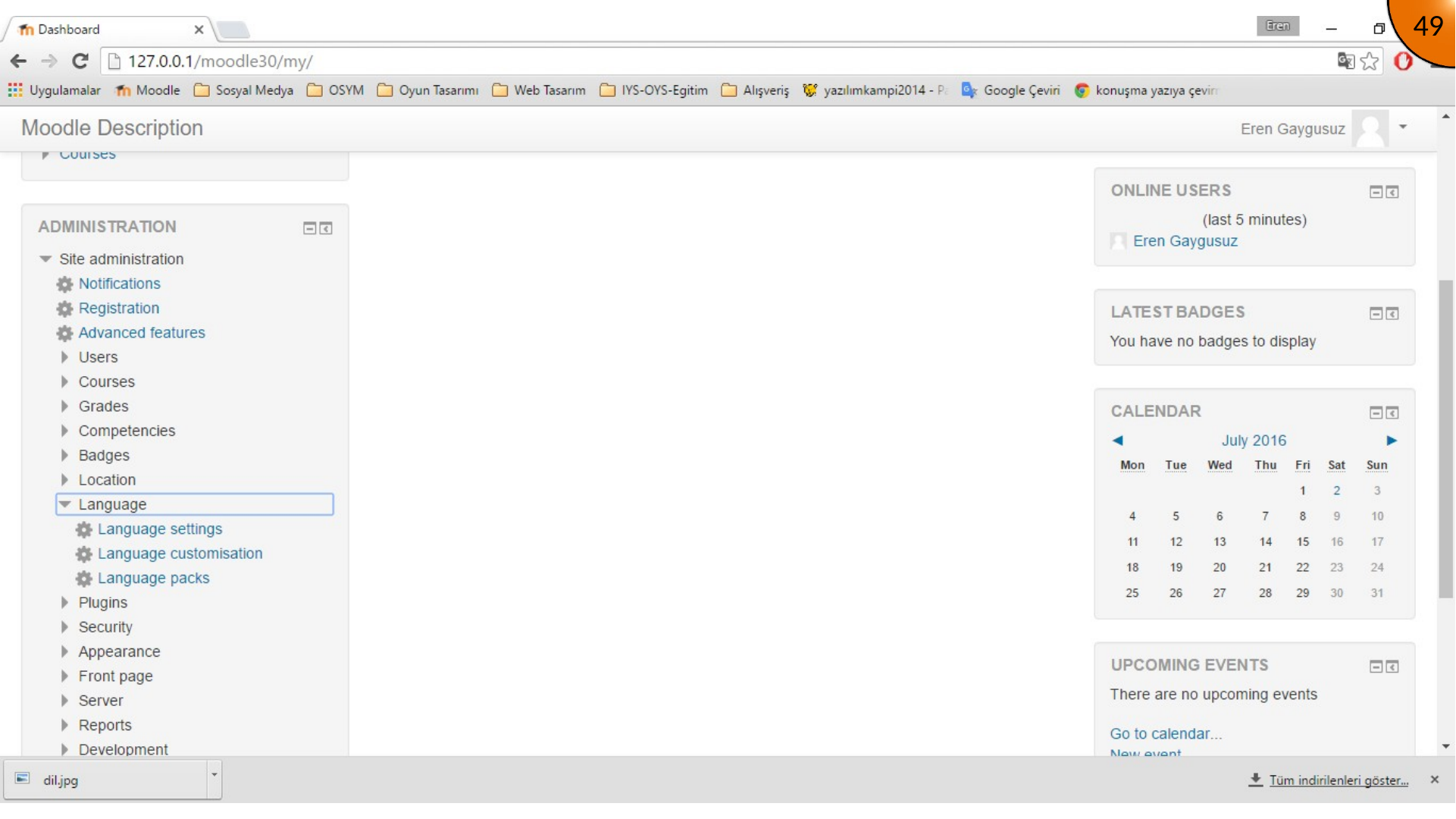
The page separates languages already installed on the site from language packs that can be added.
Installing Turkish
Find Turkish (tr) in the available language packs, select it, and start the installation.
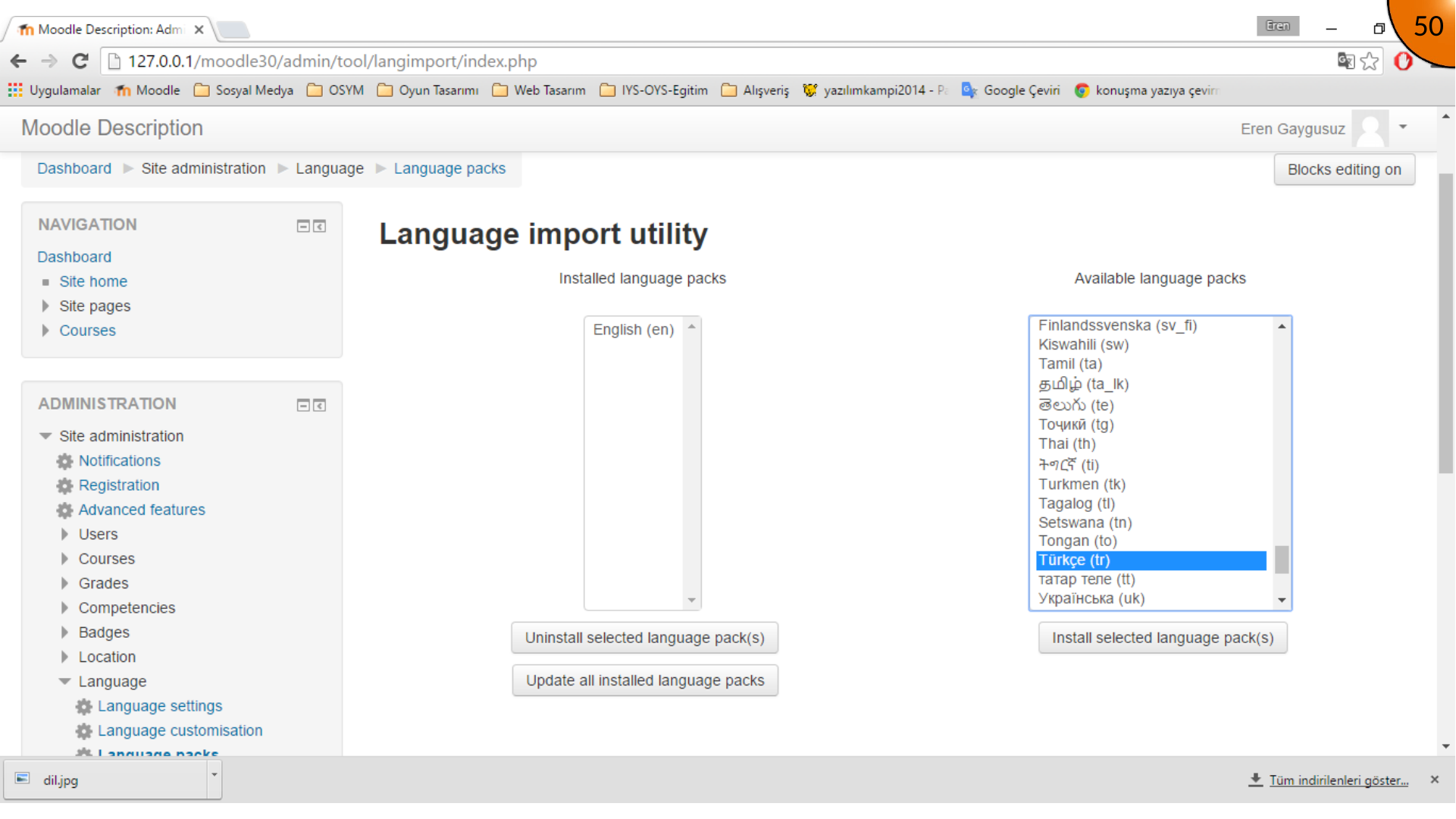
After the download completes, Moodle lists Turkish with the installed language packs.
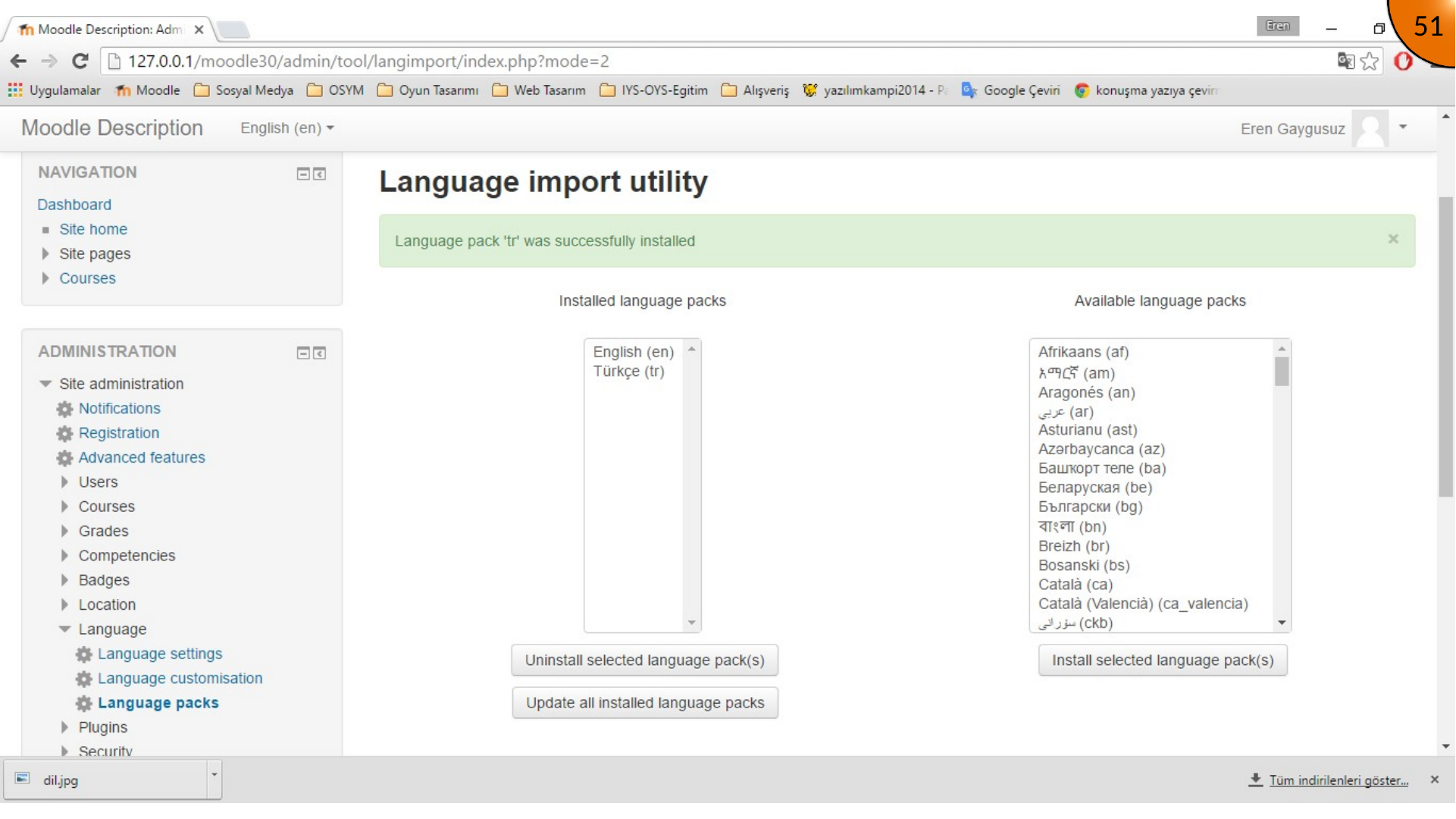
Making Turkish the Default Site Language
Open Language settings after installing the pack.
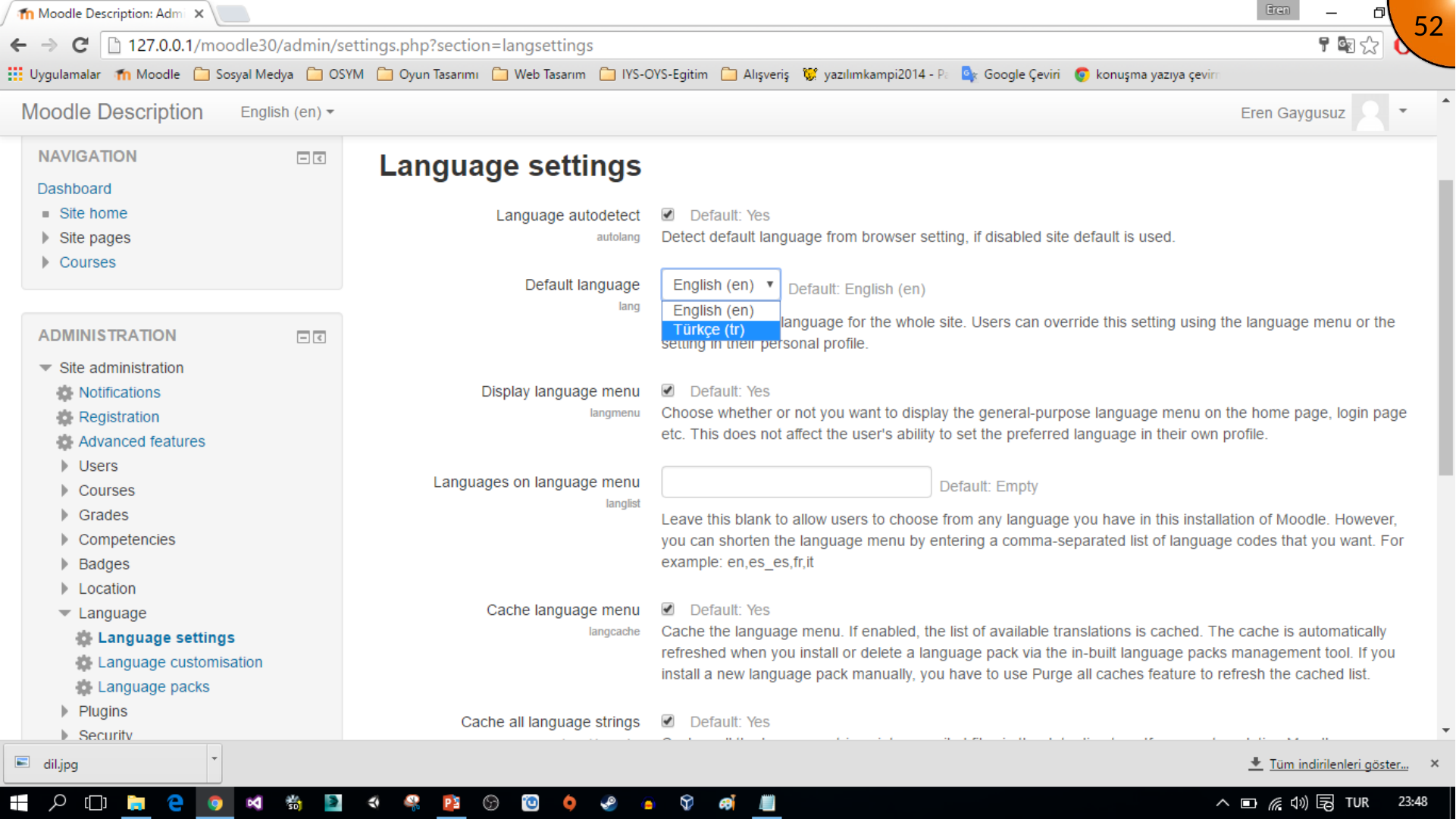
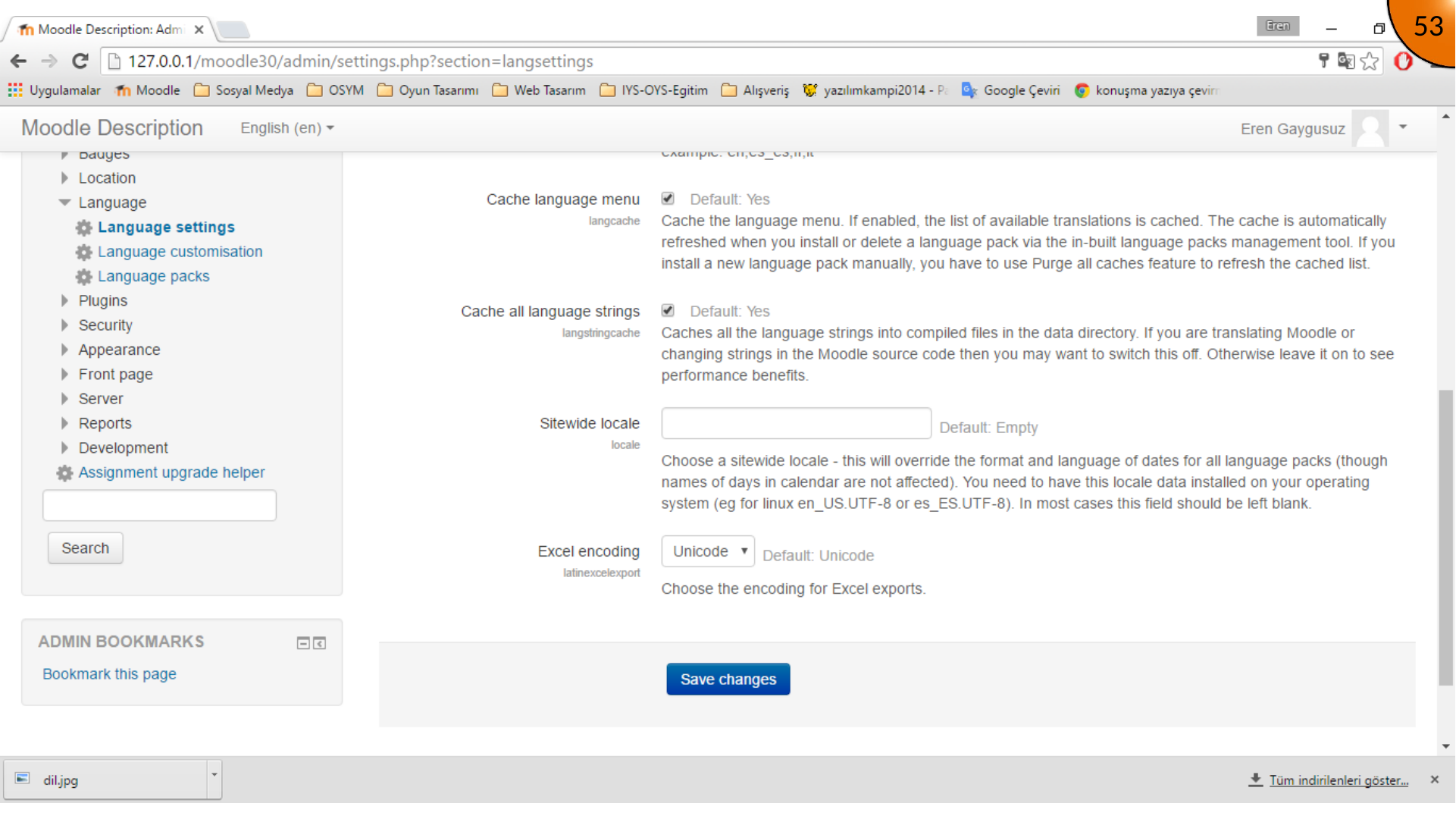
Select Turkish (tr) as the default language, then save the changes at the bottom of the page.
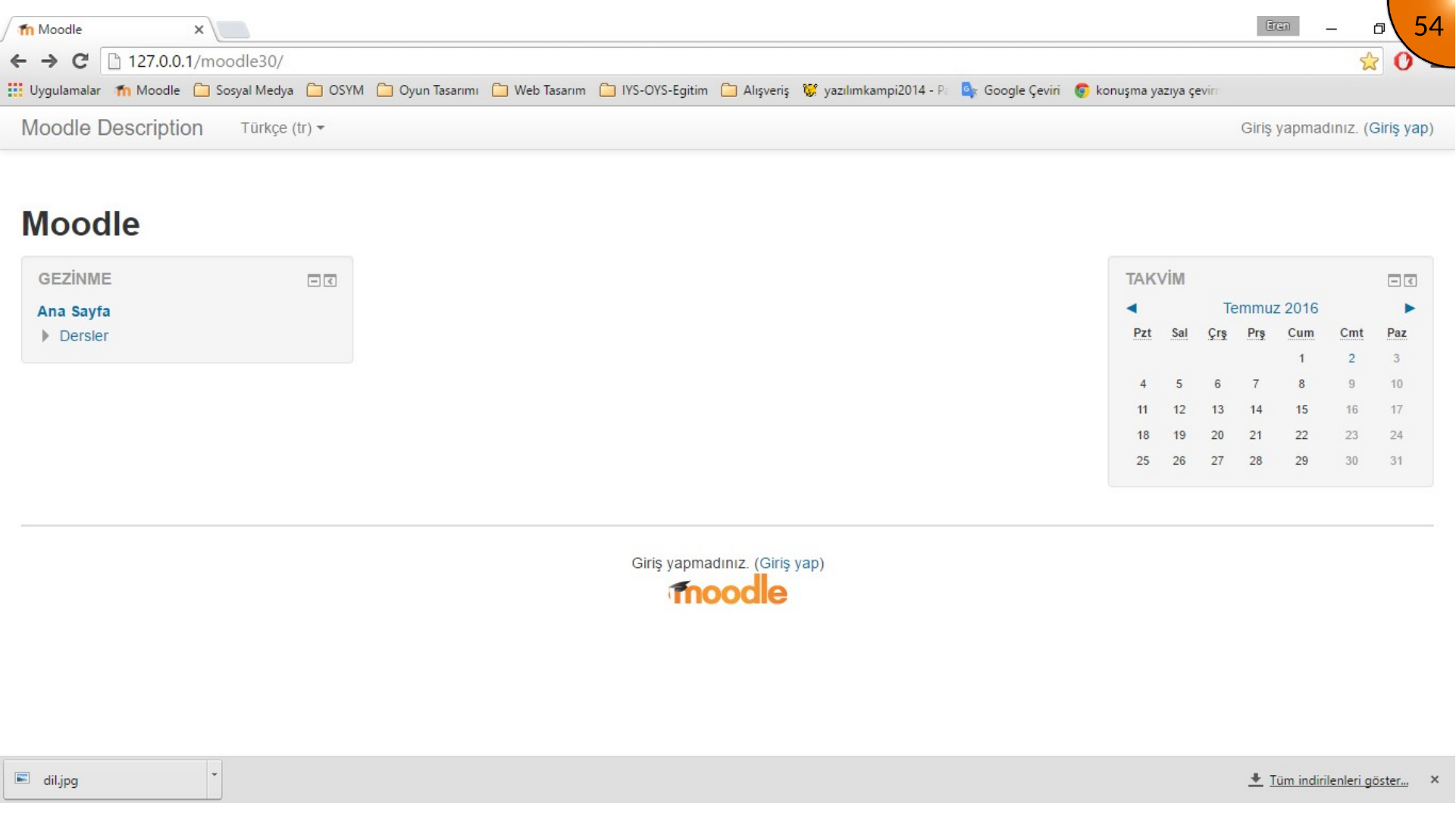
After signing out, the site uses Turkish as its default interface language.
Setting the Administrator’s Preferred Language
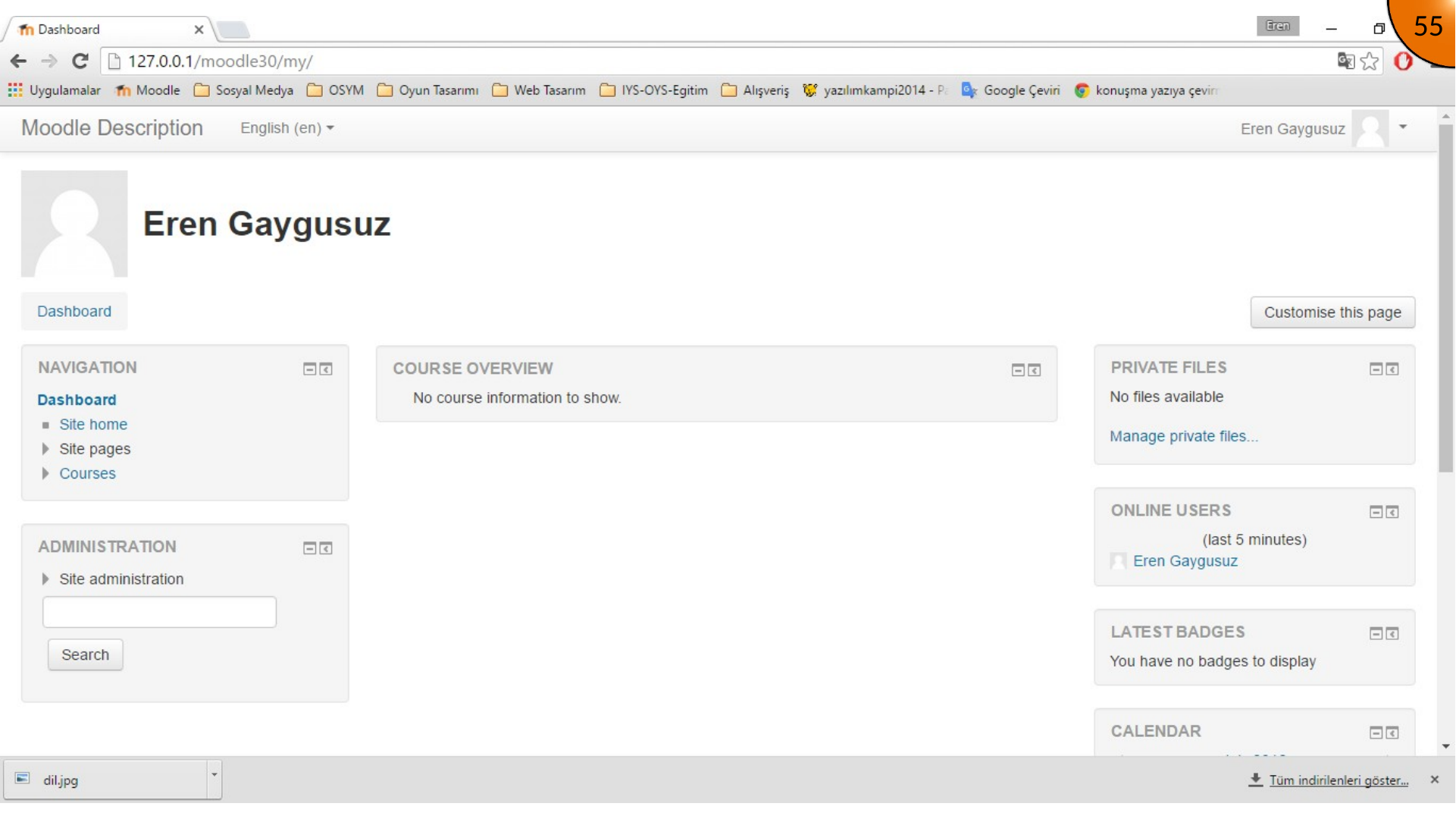
In the original version shown here, the administrator account could continue to show English after signing in even when the site default was Turkish. If that happens, use the language menu in the user interface or set the preferred language in the administrator profile.
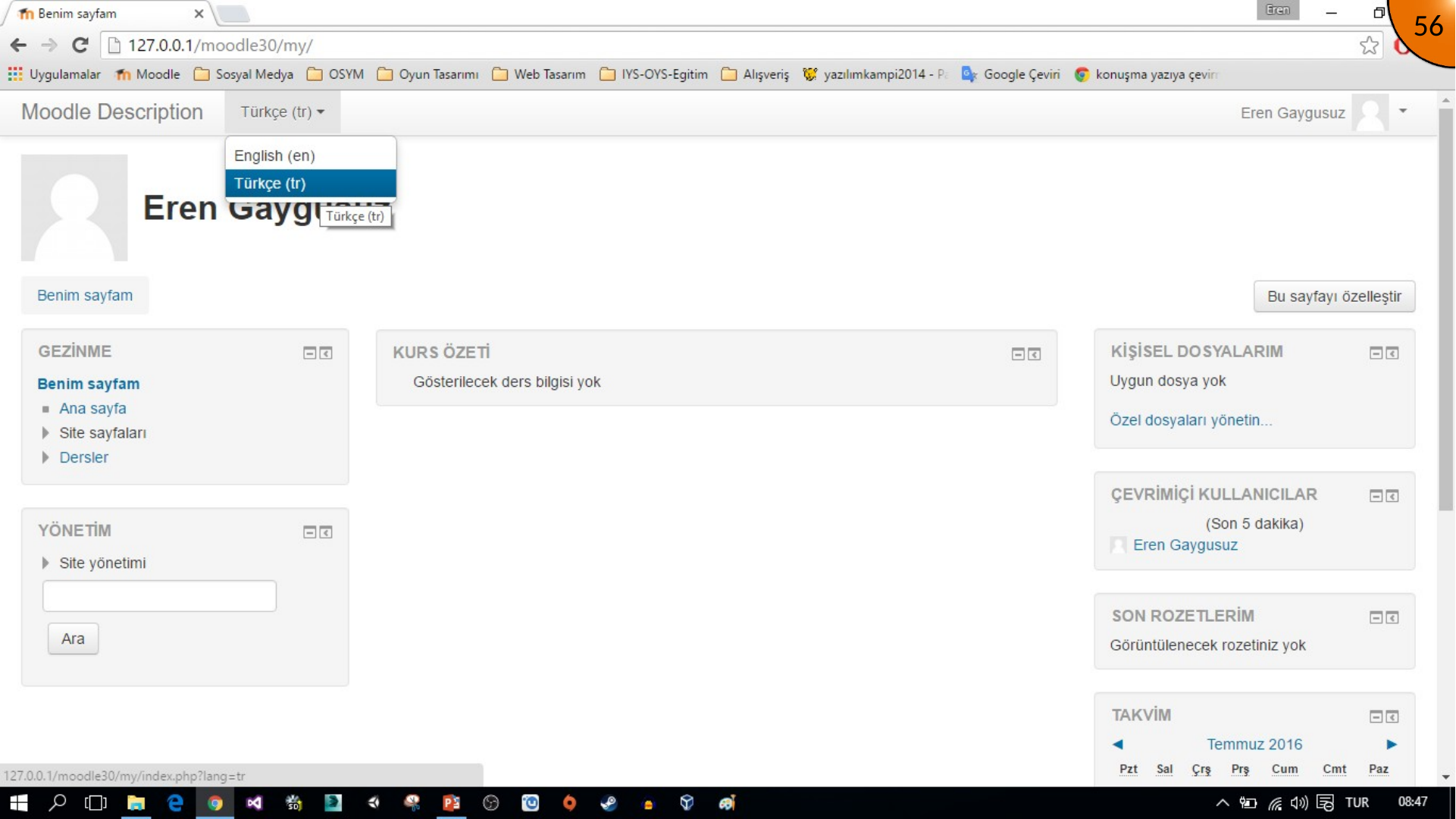
This behavior is version-dependent. Do not assume it is a current Moodle issue; first check the user profile’s language preference and the site language settings.
Summary
Installing a language pack makes Moodle available in another language, while the default-language setting controls the first language shown to visitors. Individual profile preferences can still override that site default.
Keep Moodle language packs updated along with the main application, and test important pages such as login, administration, courses, and email messages after changing the default language.
Comments