Moodle’s question bank lets you create and reuse questions across quizzes. This archived walkthrough uses the 2016 interface and demonstrates four core types: multiple choice, true/false, matching, and short answer.
Write questions that test the intended learning outcome, give each question a clear name, and preview it before using it in a live quiz.
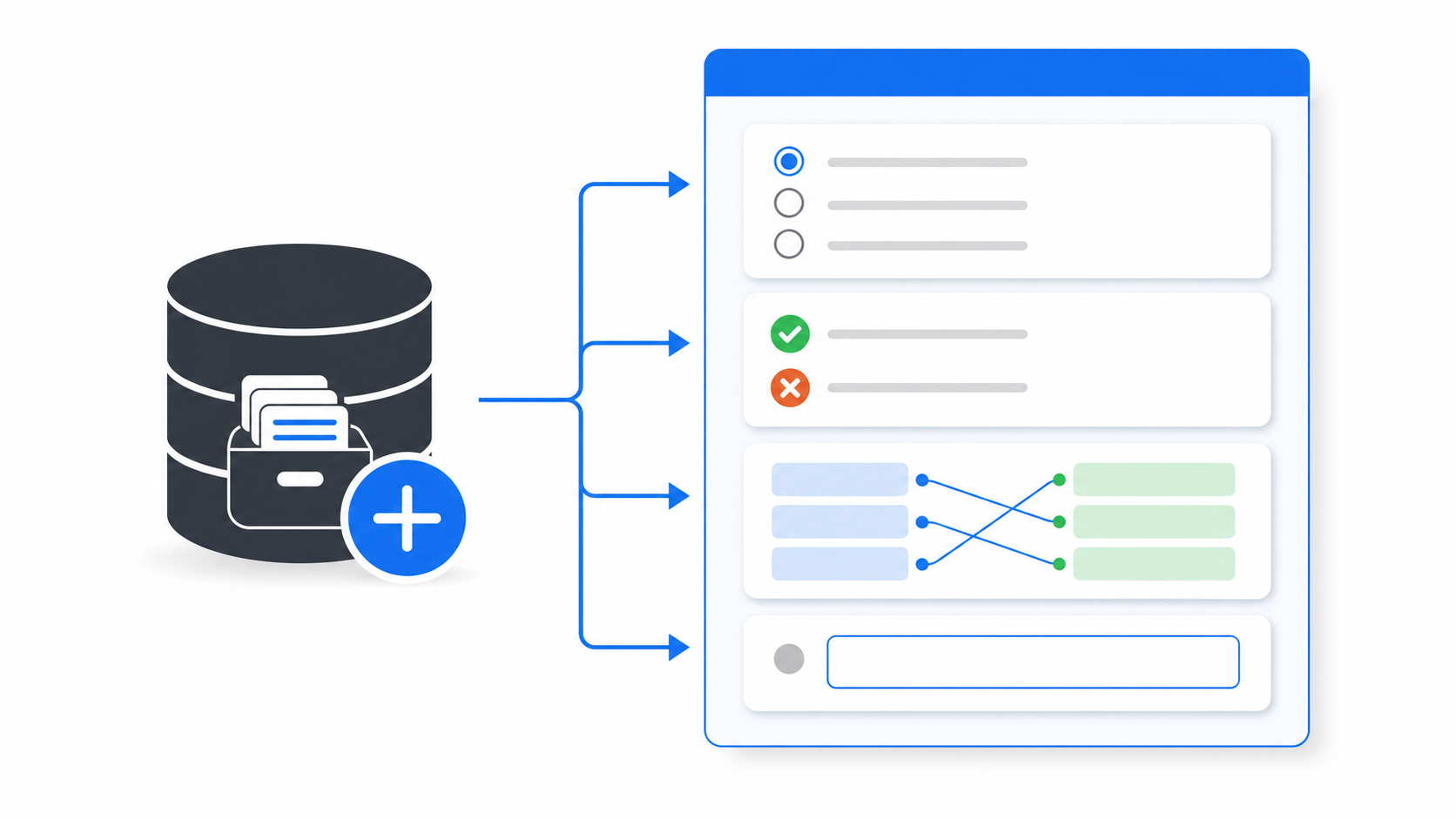
Table of contents
Open Table of contents
Opening the Question Bank
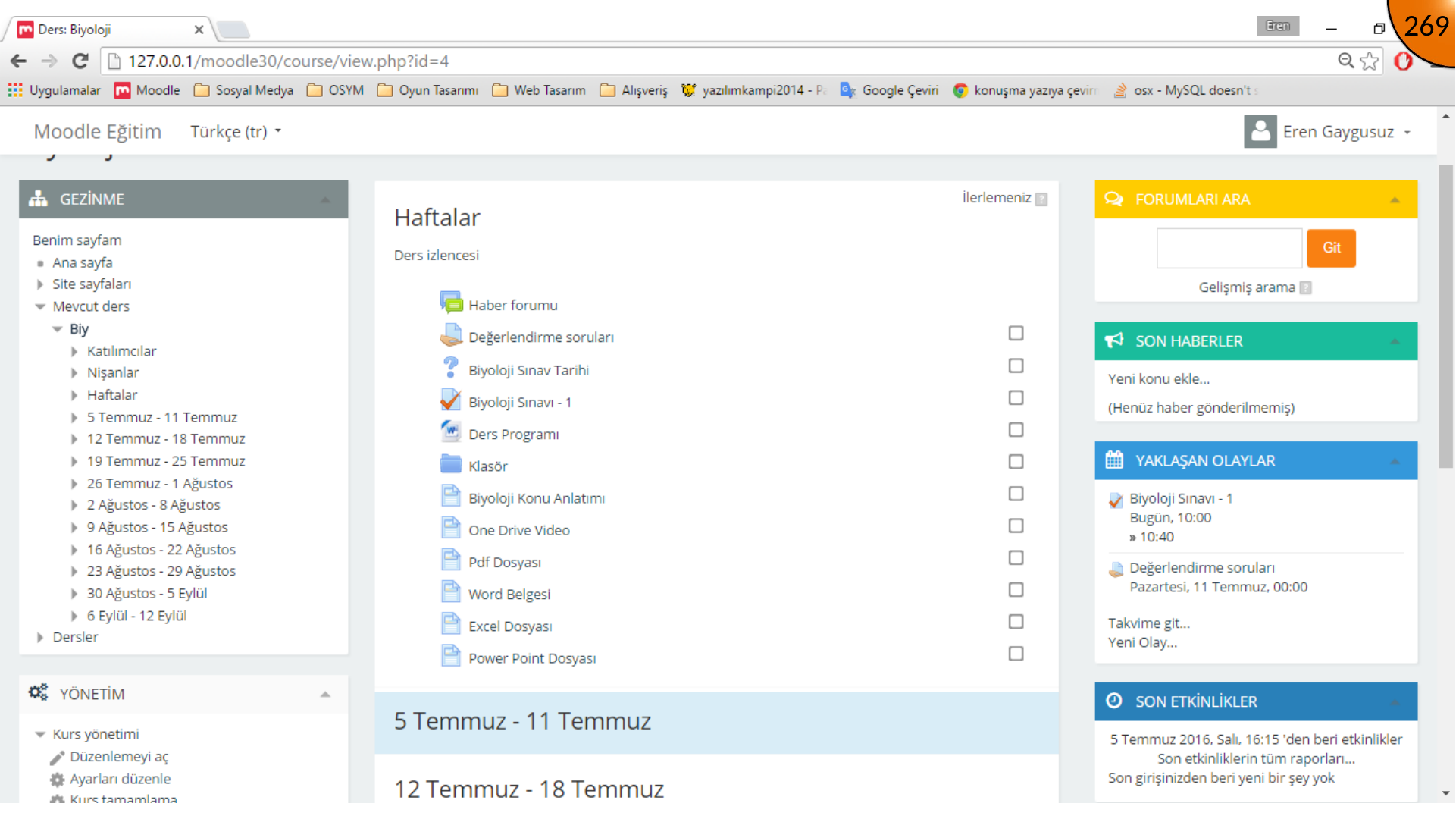
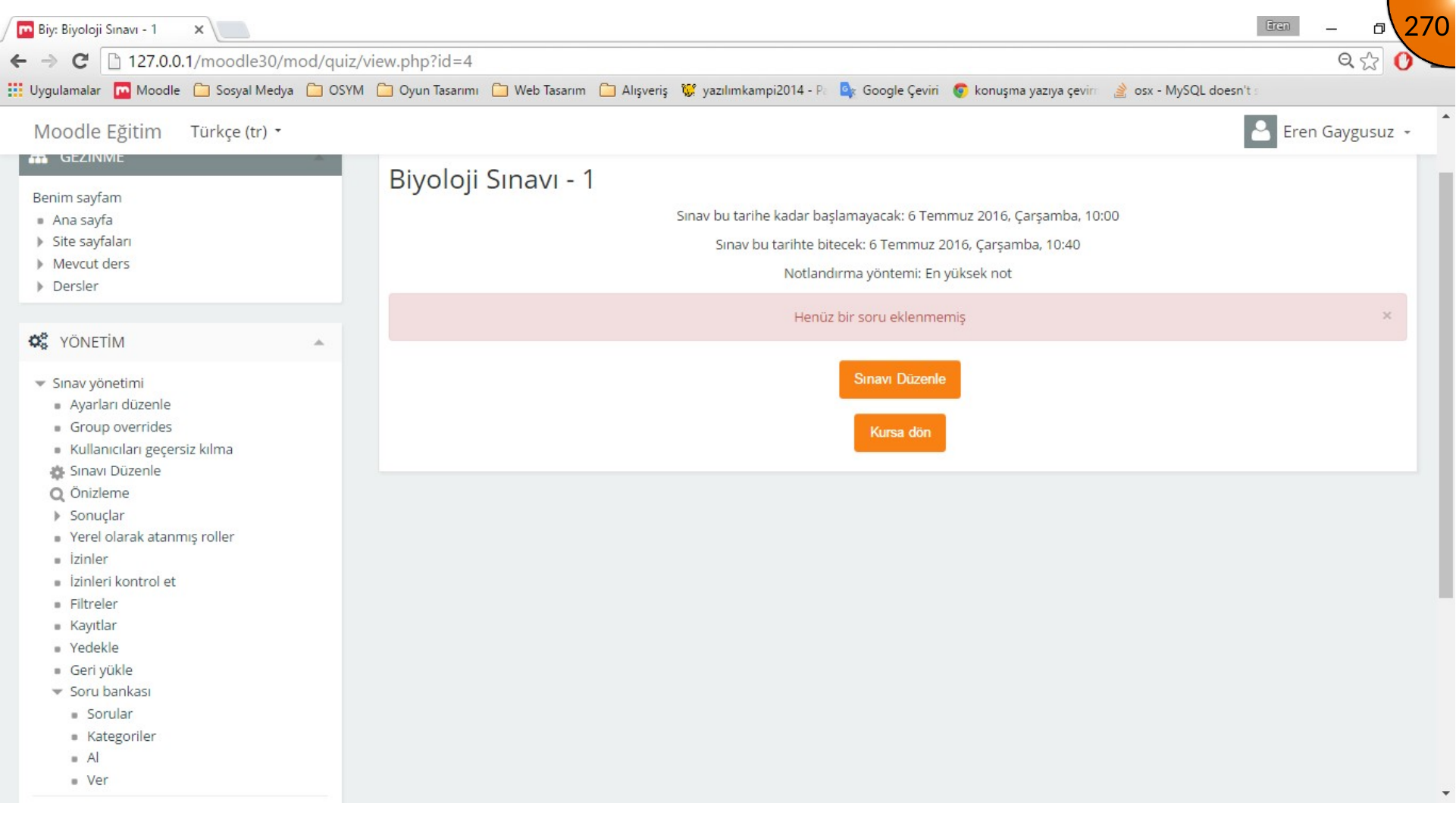
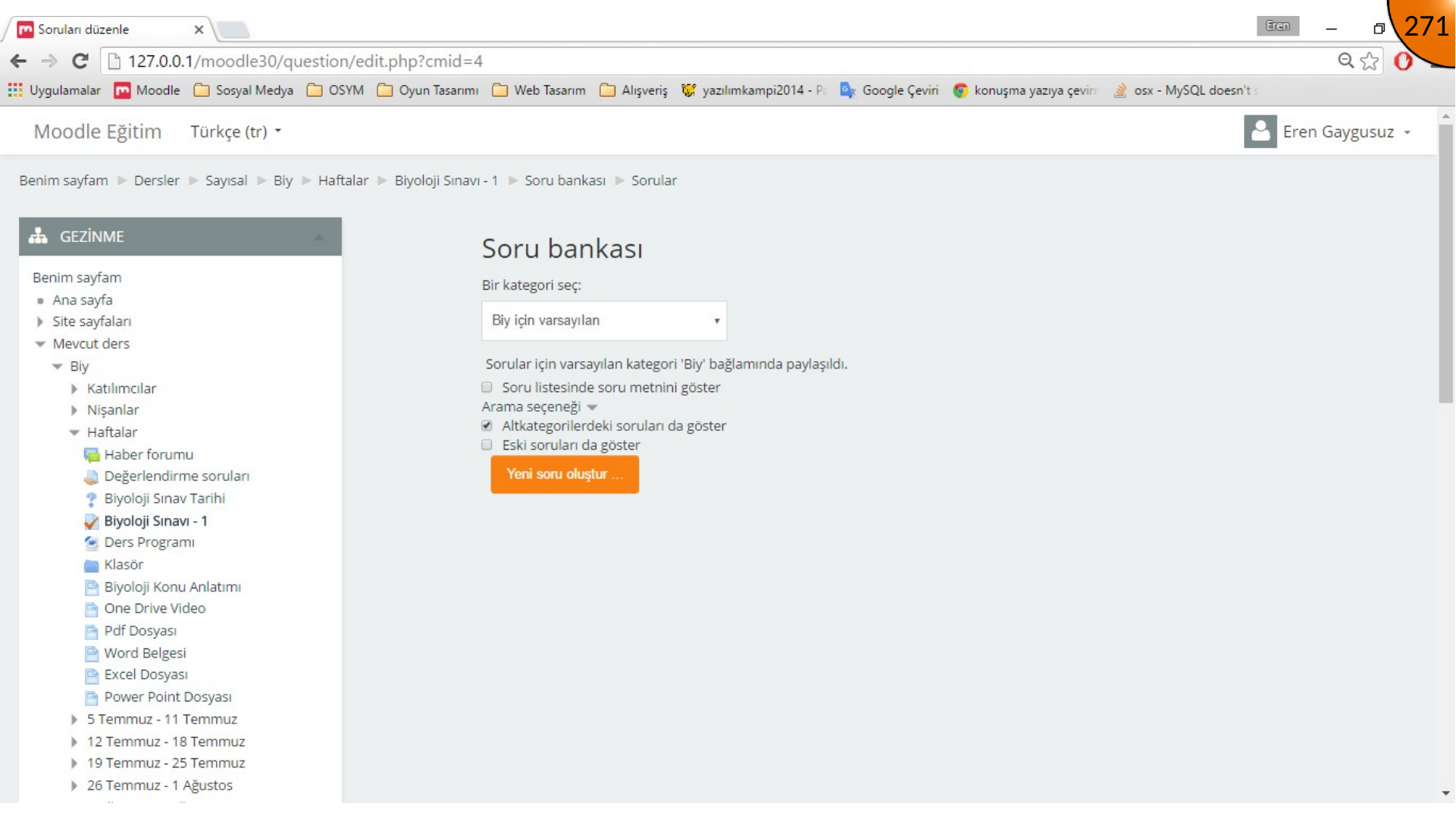
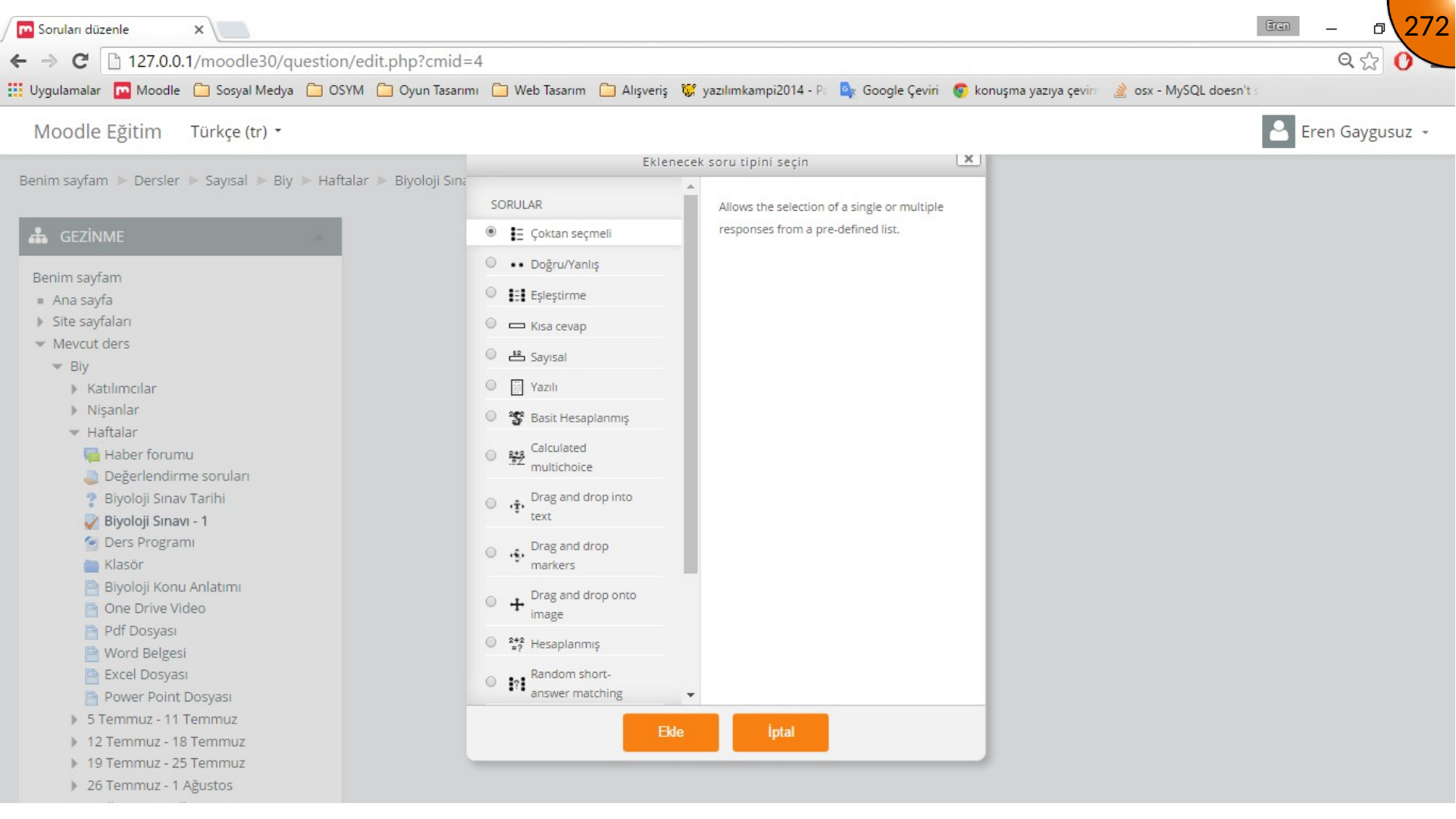
Open the existing quiz. When it has no questions, use the administration block and follow the quiz administration/question-bank path to Questions, then select Create a new question.
Multiple-Choice Question
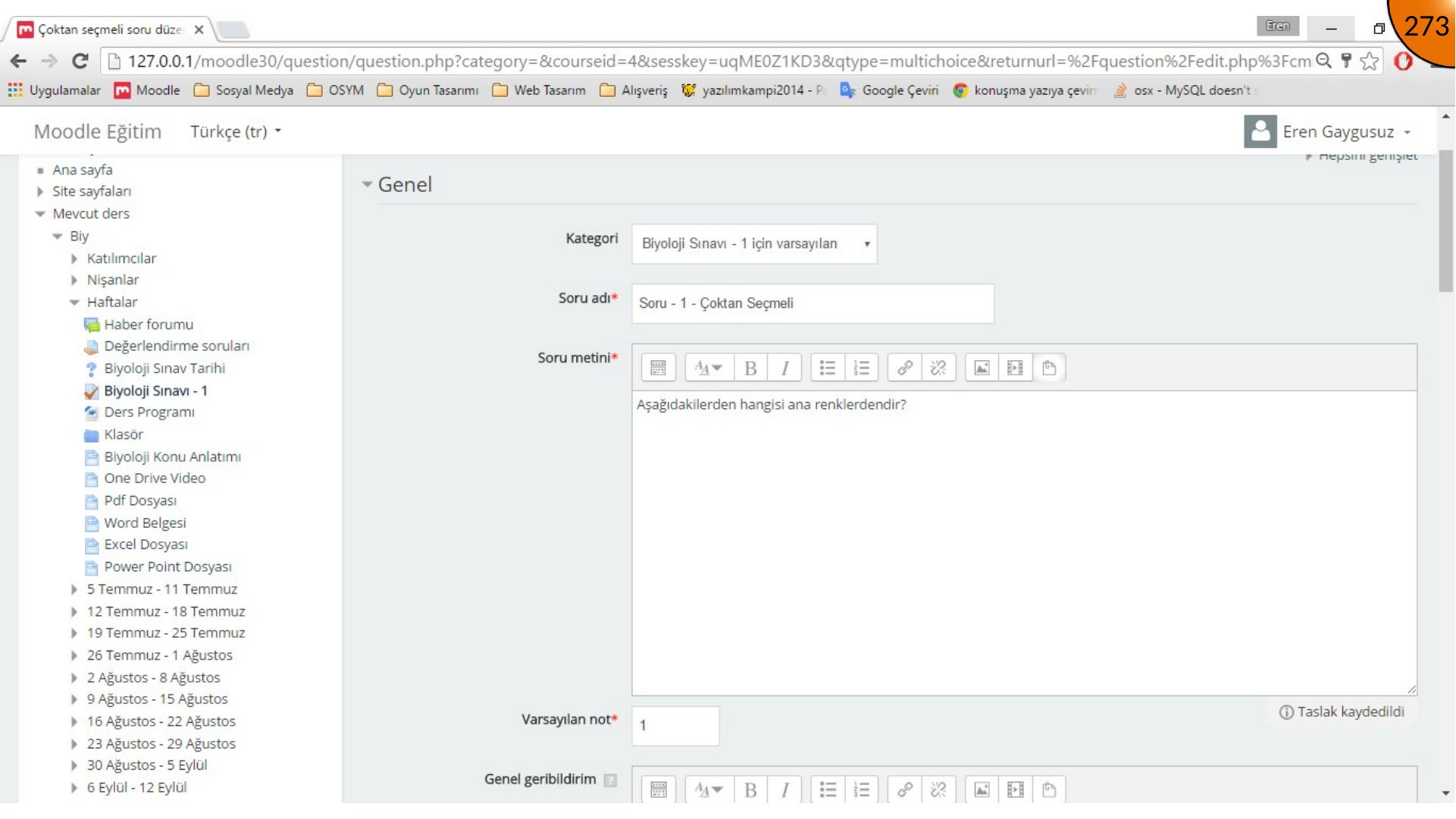
Choose Multiple choice and click Add. In the general area, select a category, enter the question name and text, and set the default mark.
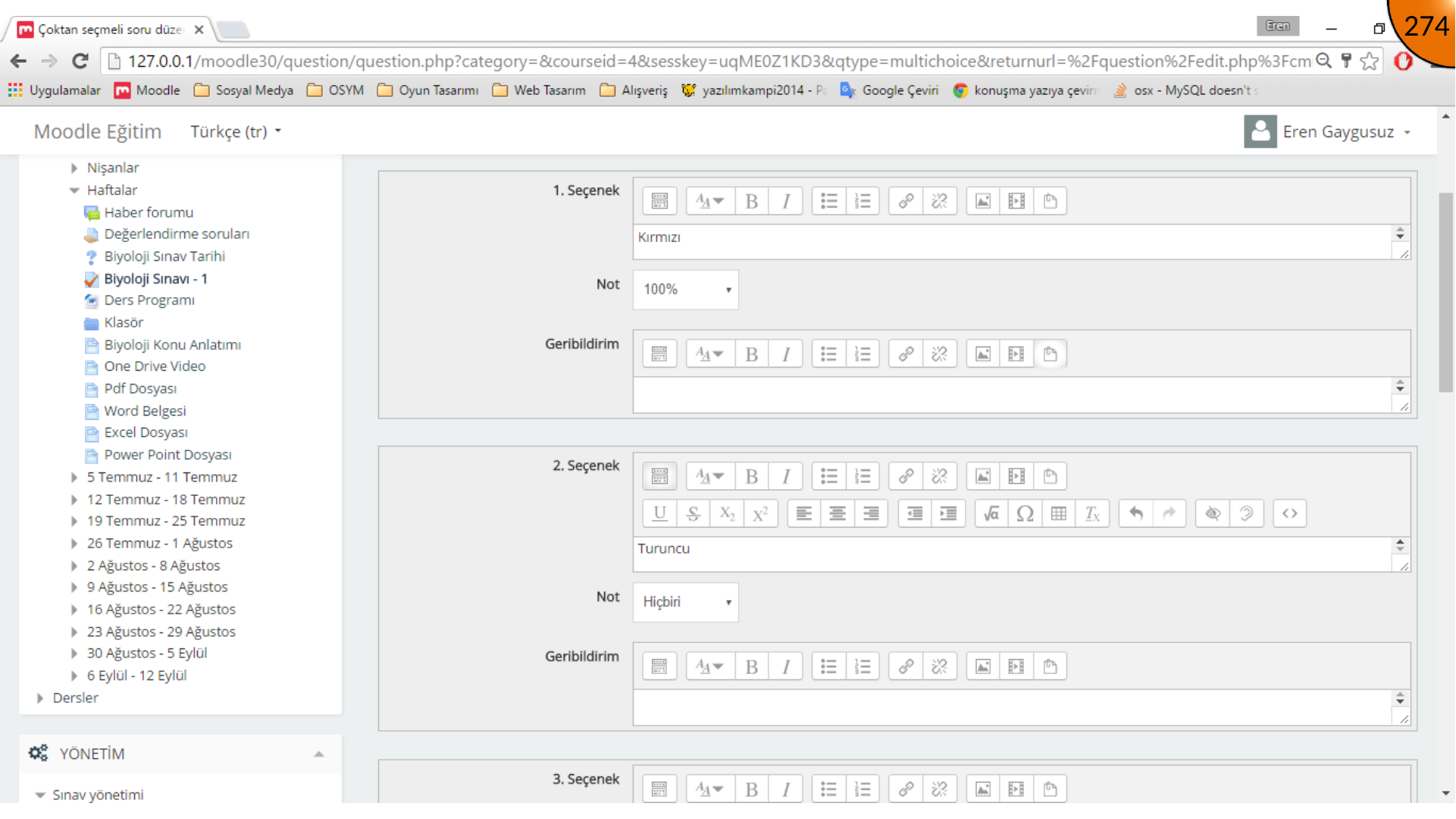
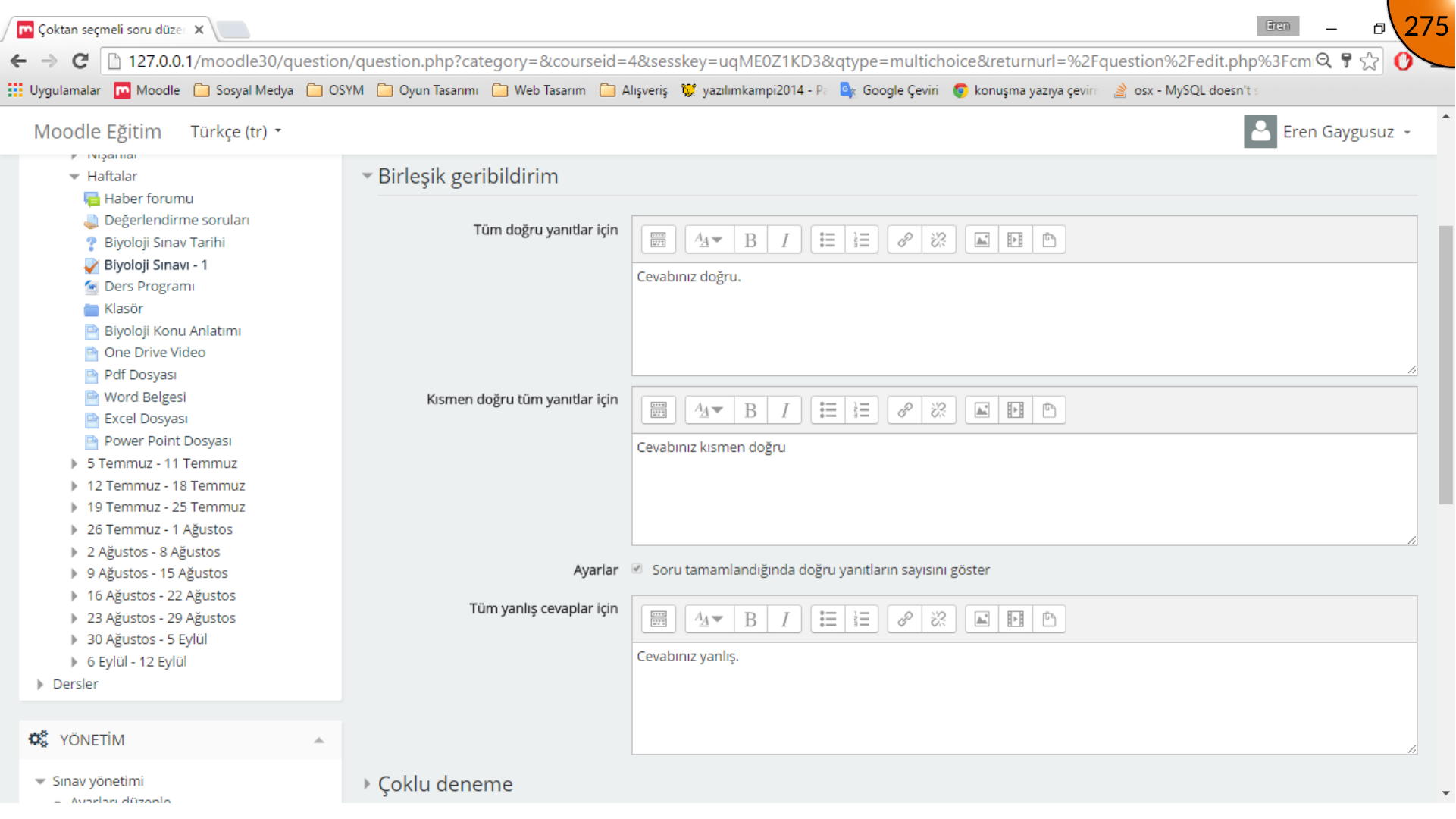
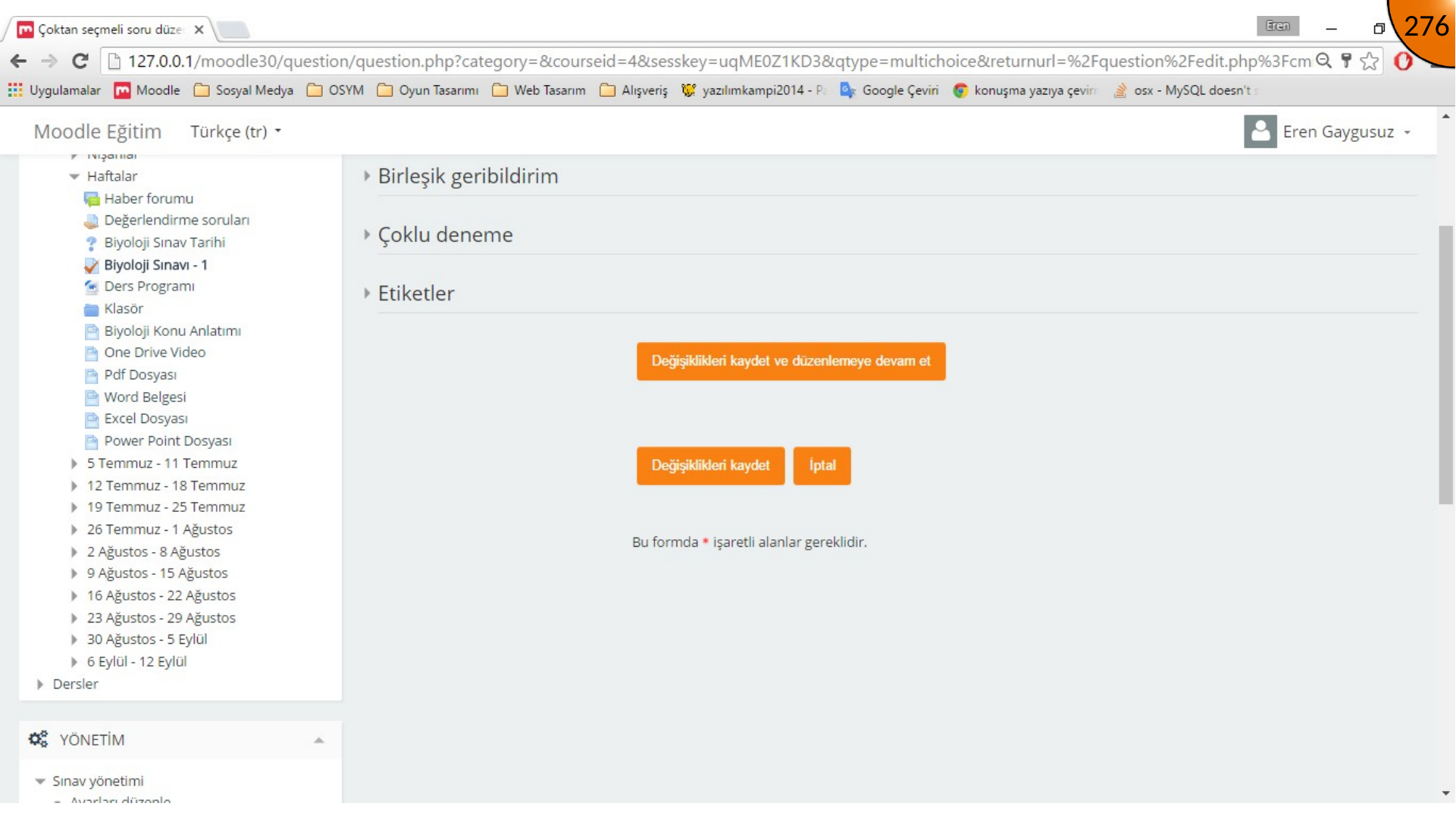
Add the answer options. For a single-correct-answer question, set the correct option’s grade to 100% and leave the incorrect options at None. Options can also include images, video, or HTML content when needed.
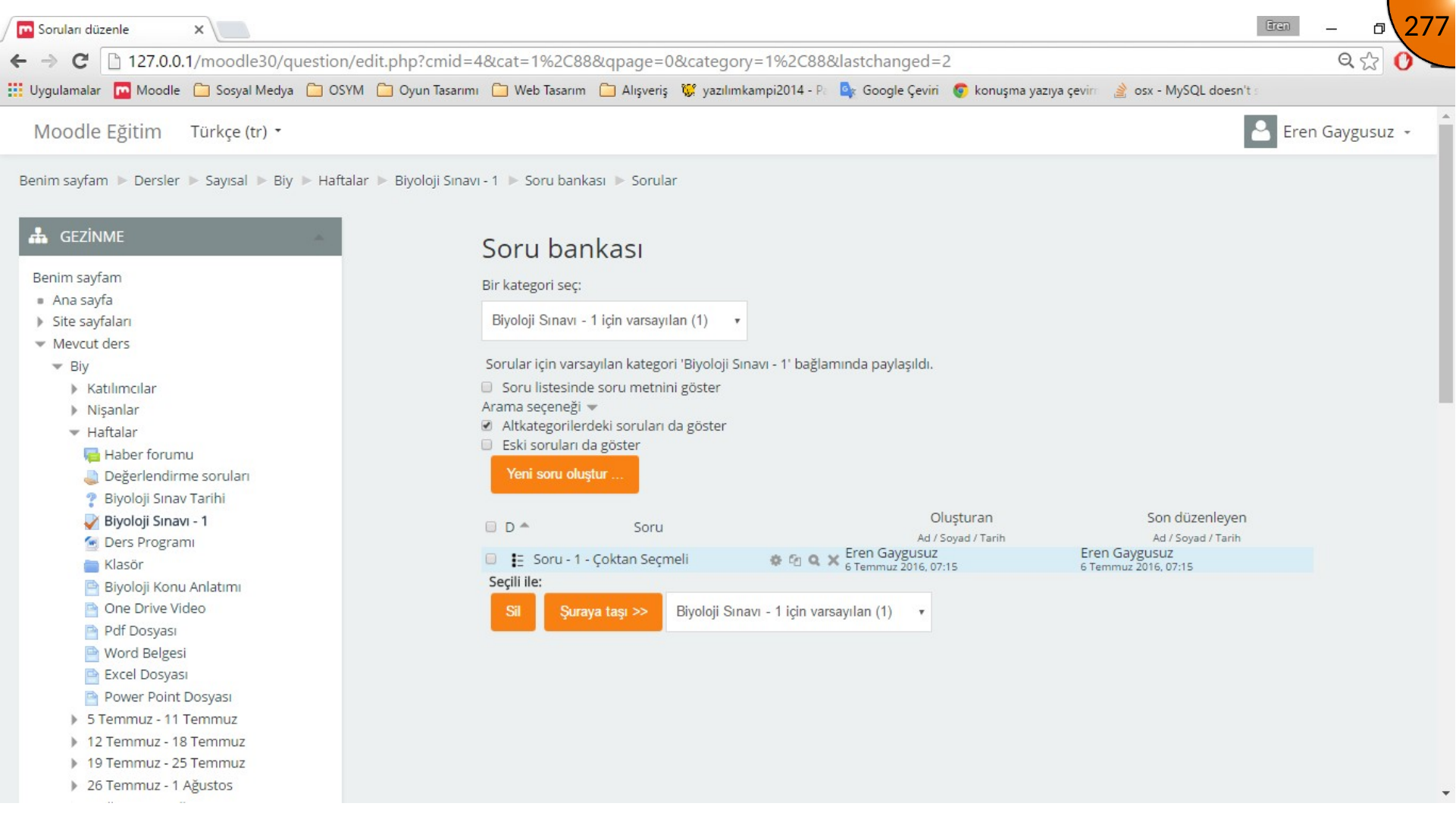
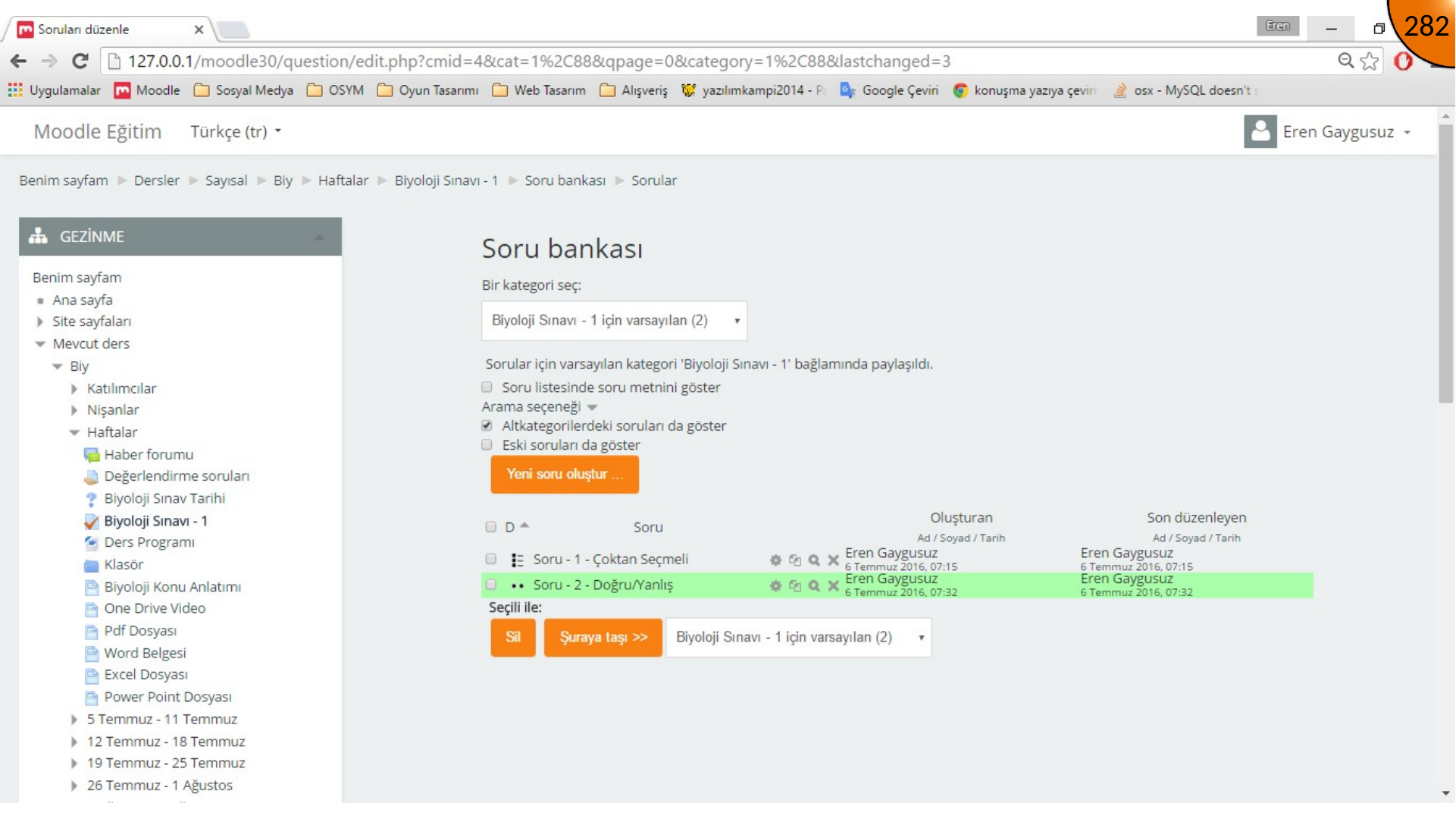
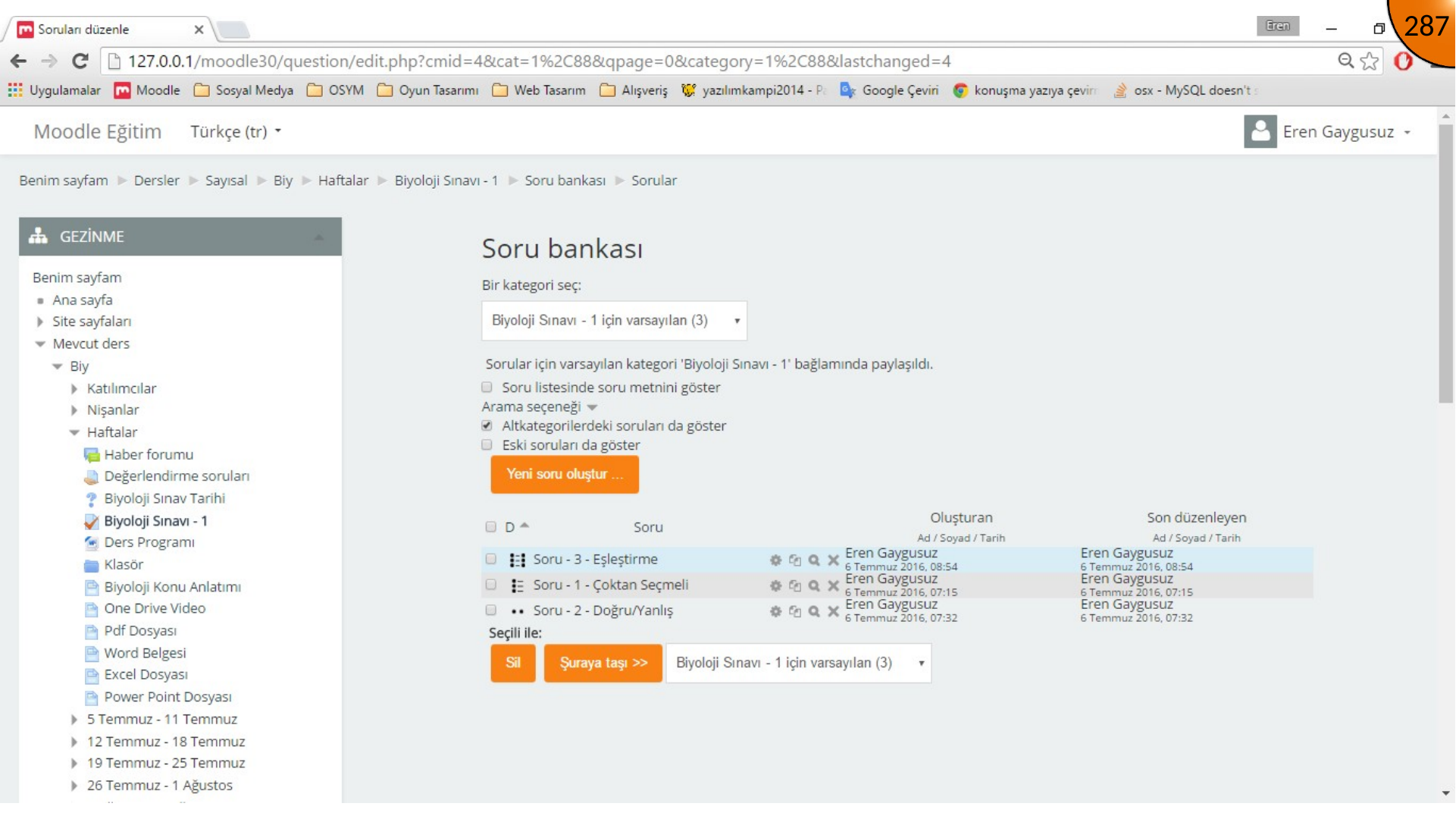
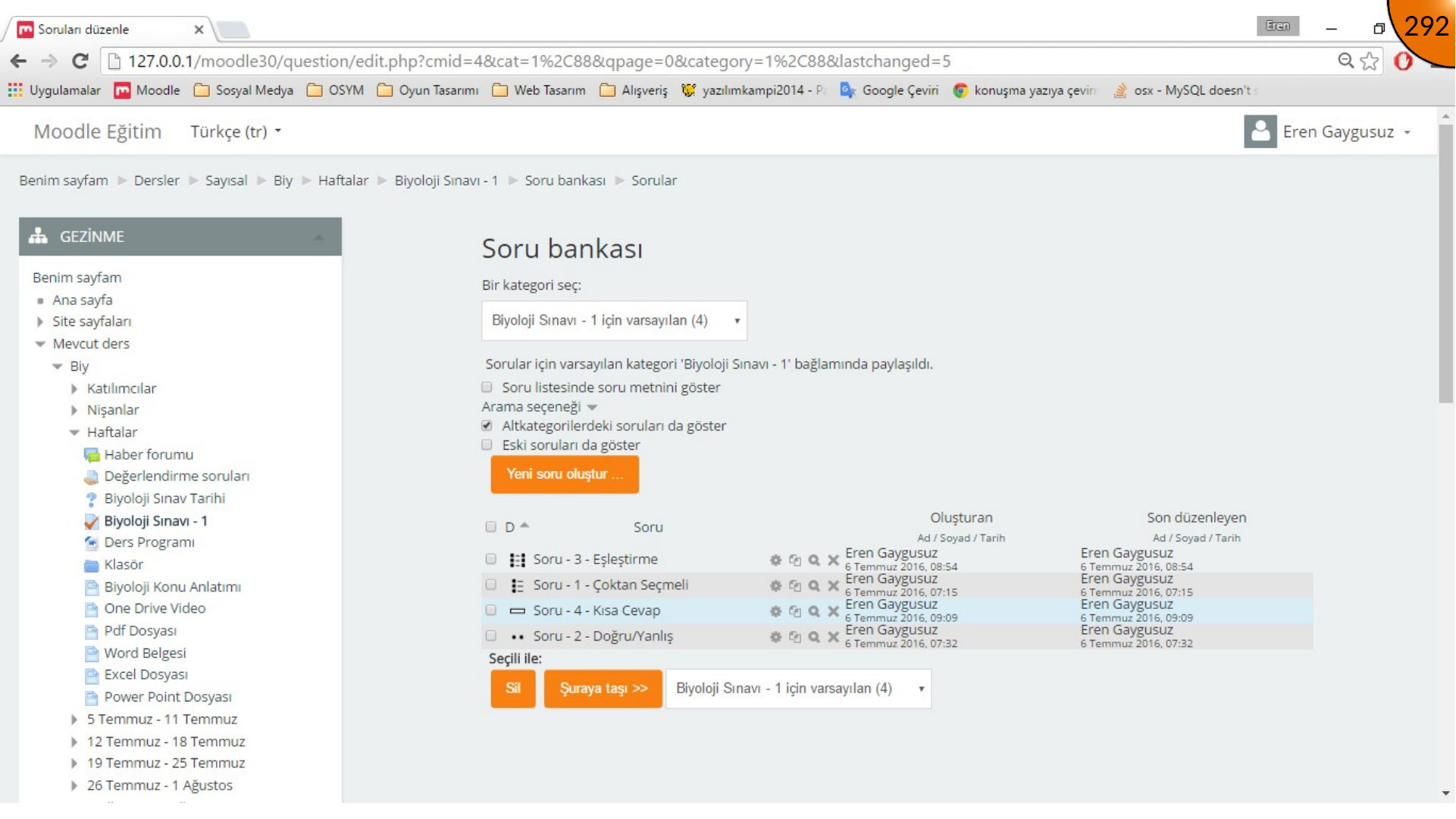
The question bank lists the new question with controls to edit, duplicate, preview, or delete it.
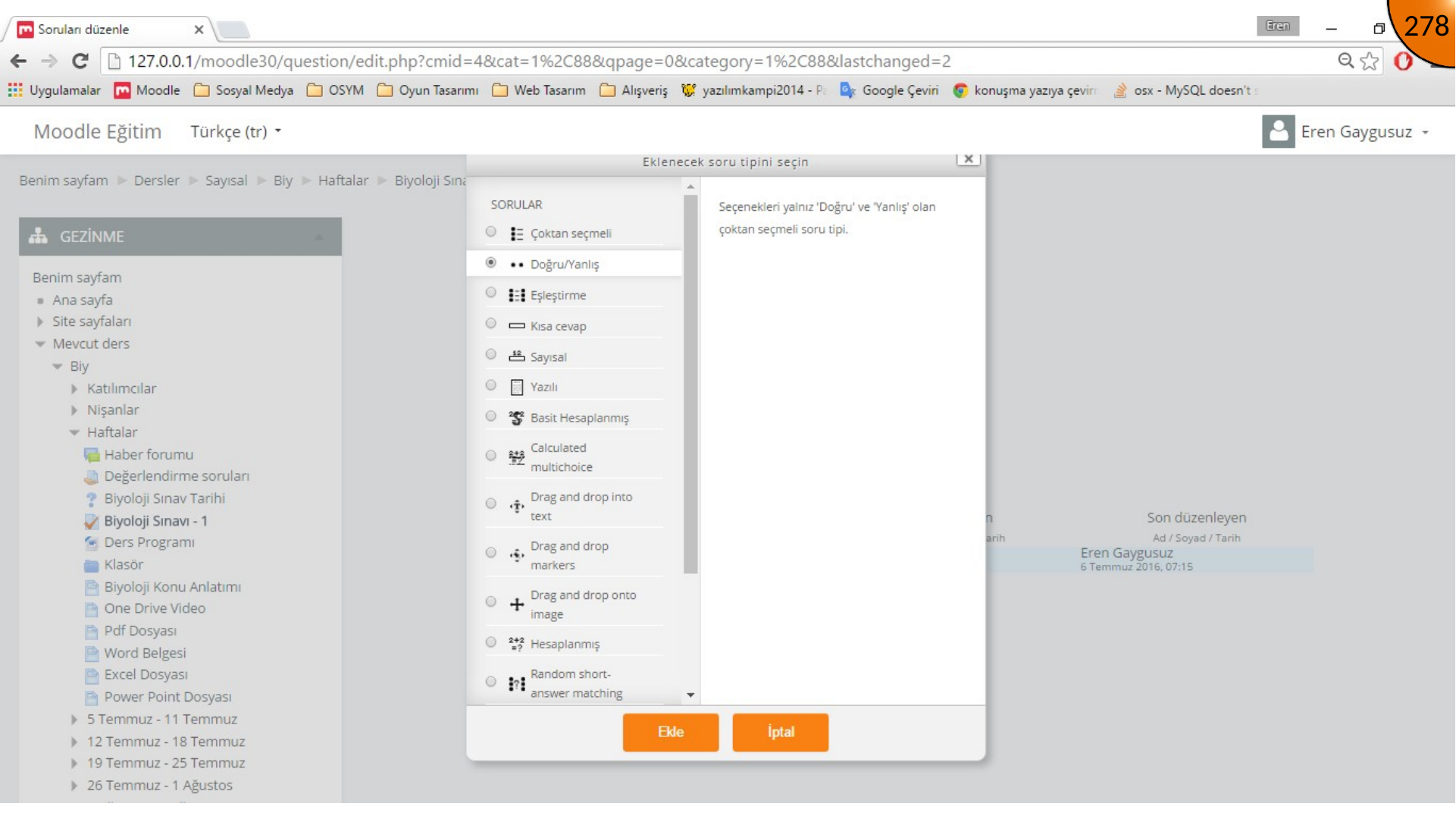
True/False Question
Create another question, choose True/False, and enter its category, name, text, and default mark.
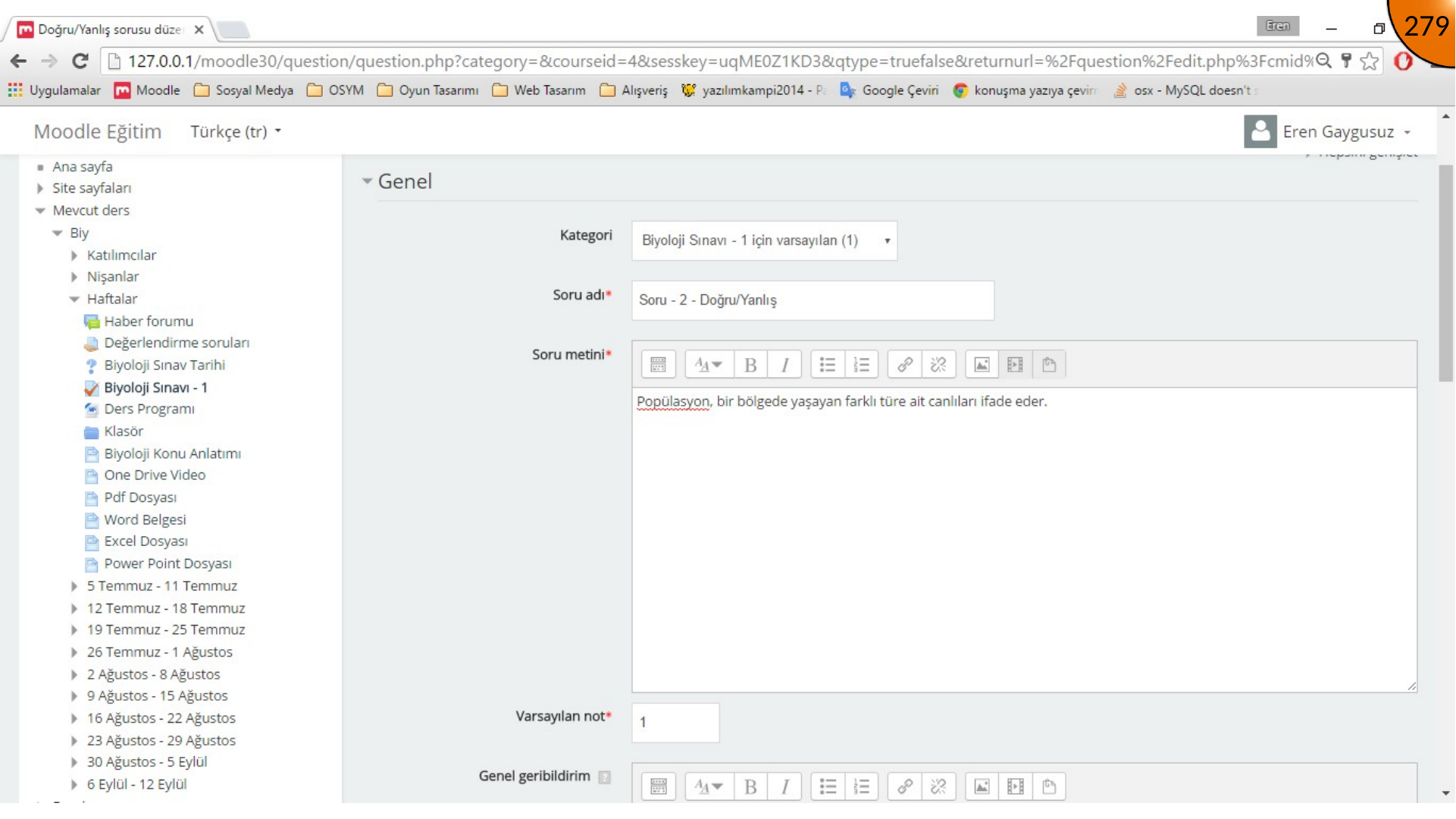
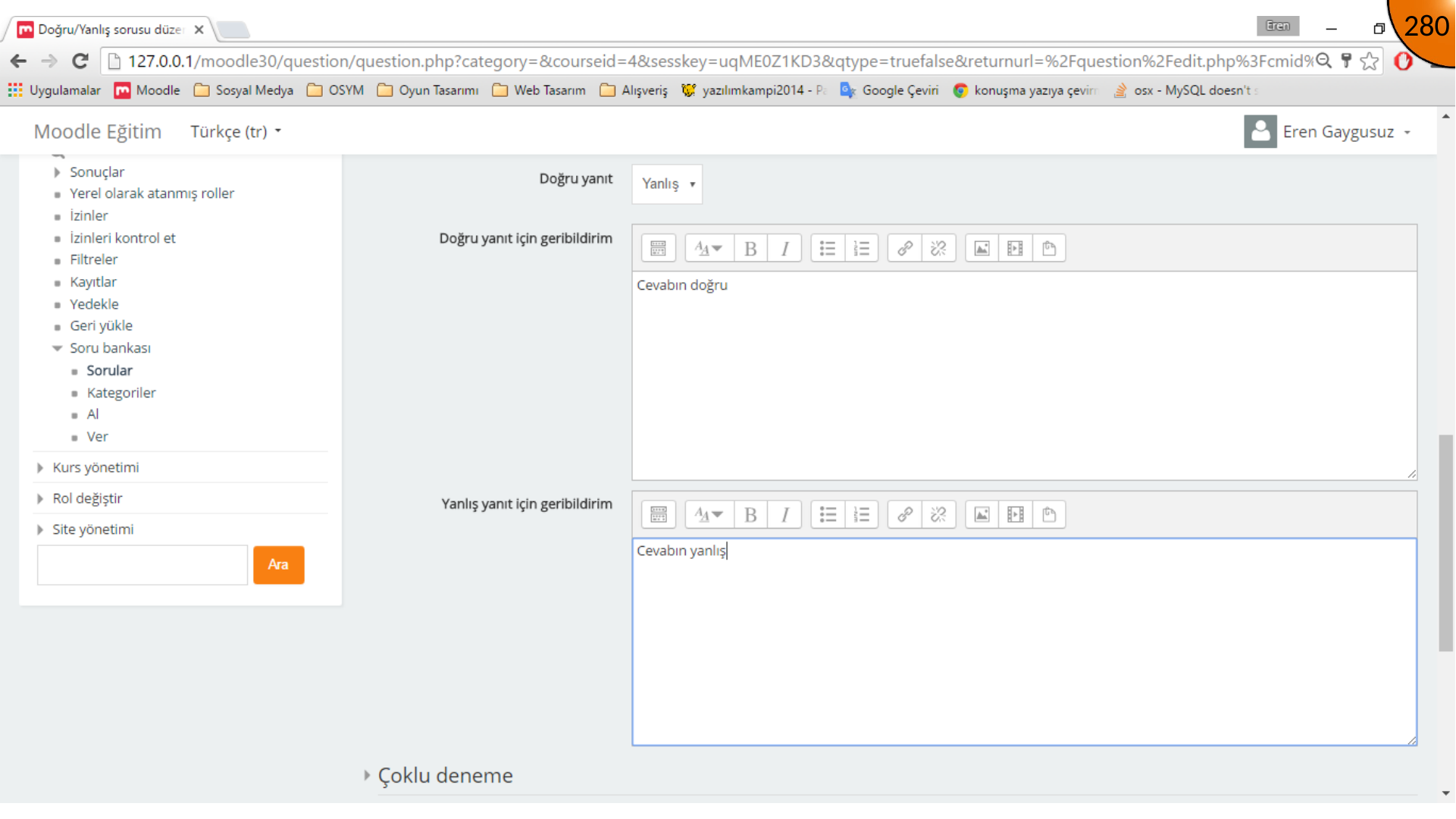
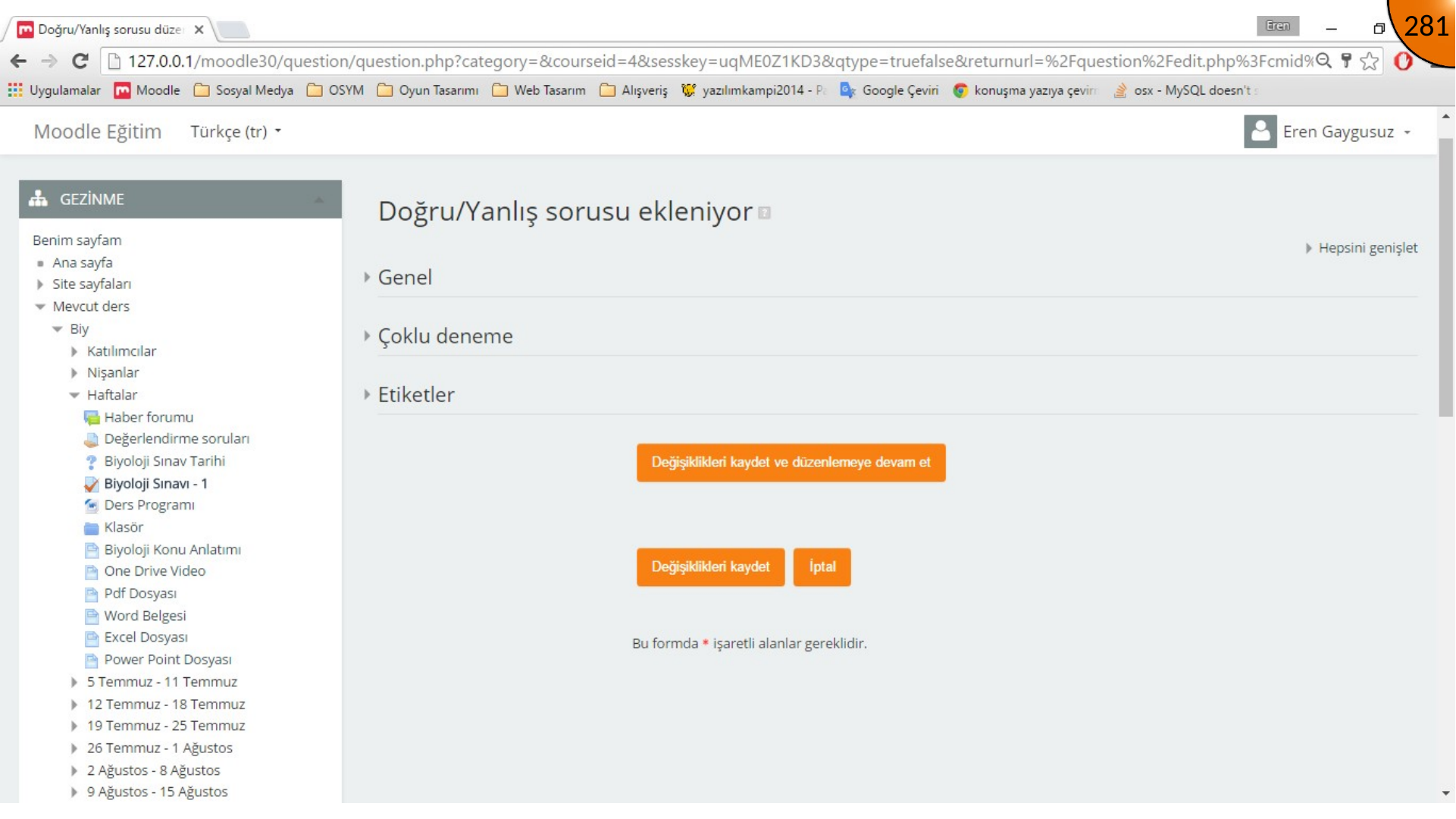
Choose whether the correct answer is true or false, write appropriate feedback, then save the question.
Matching Question
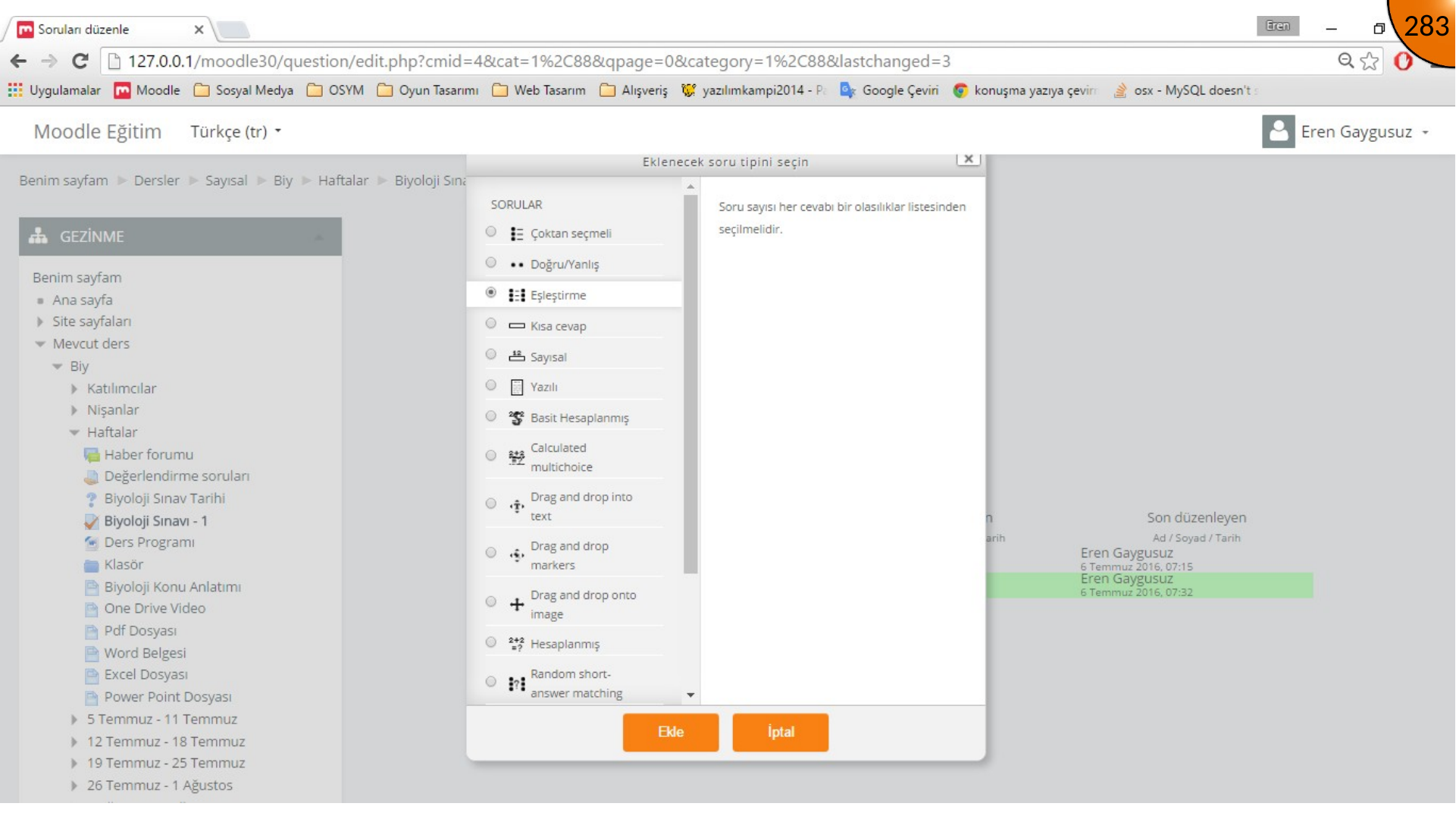
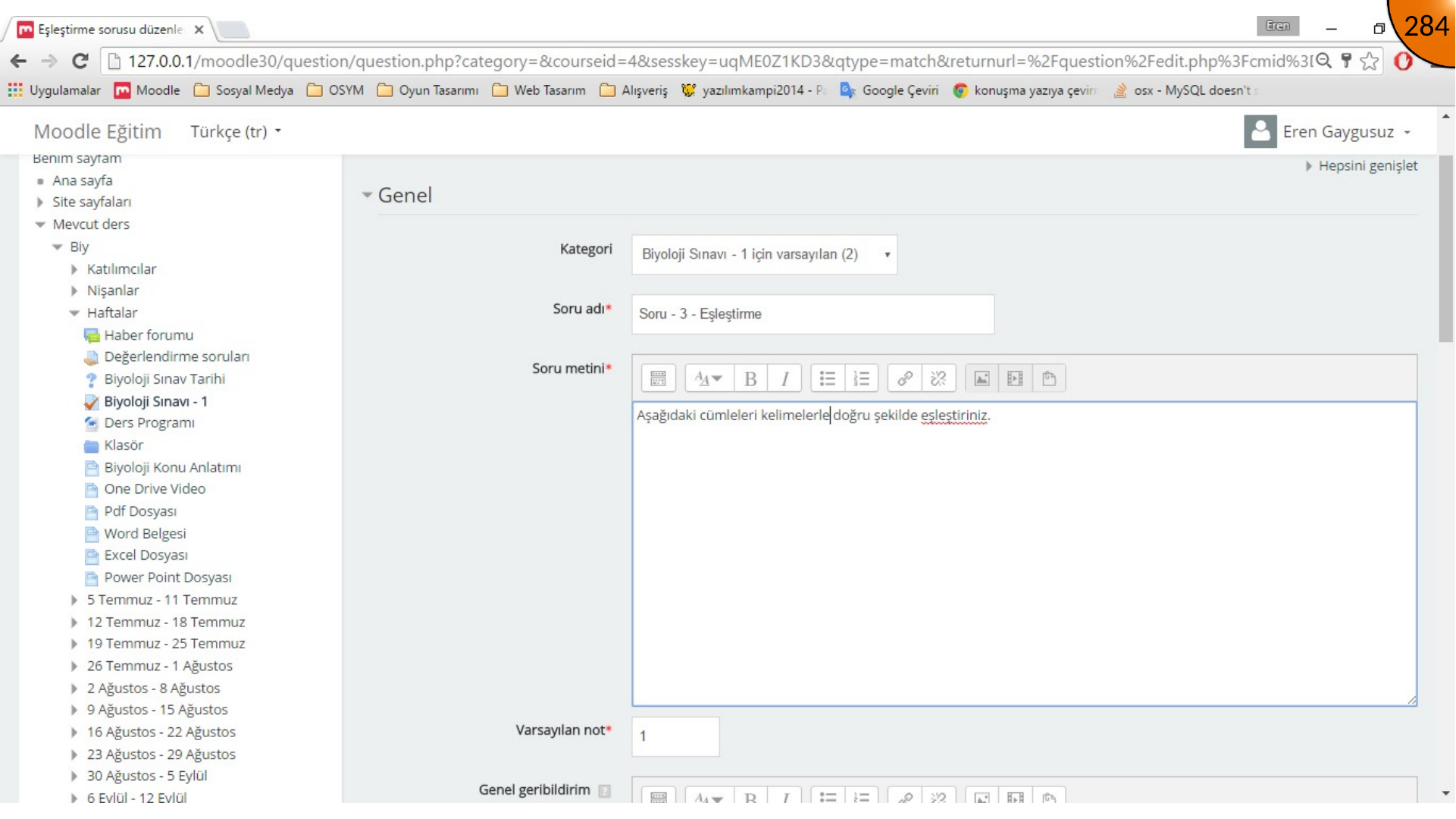
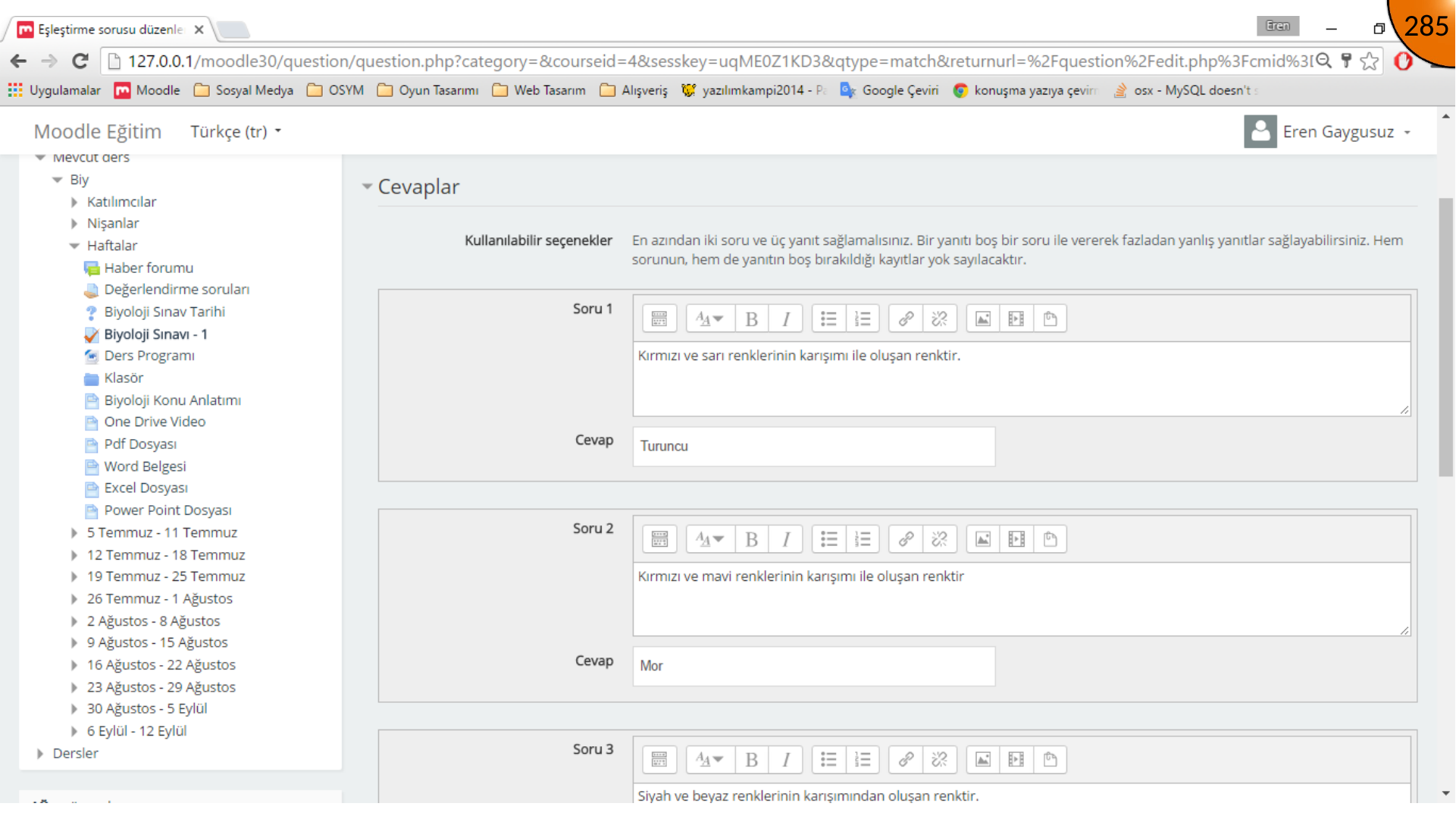
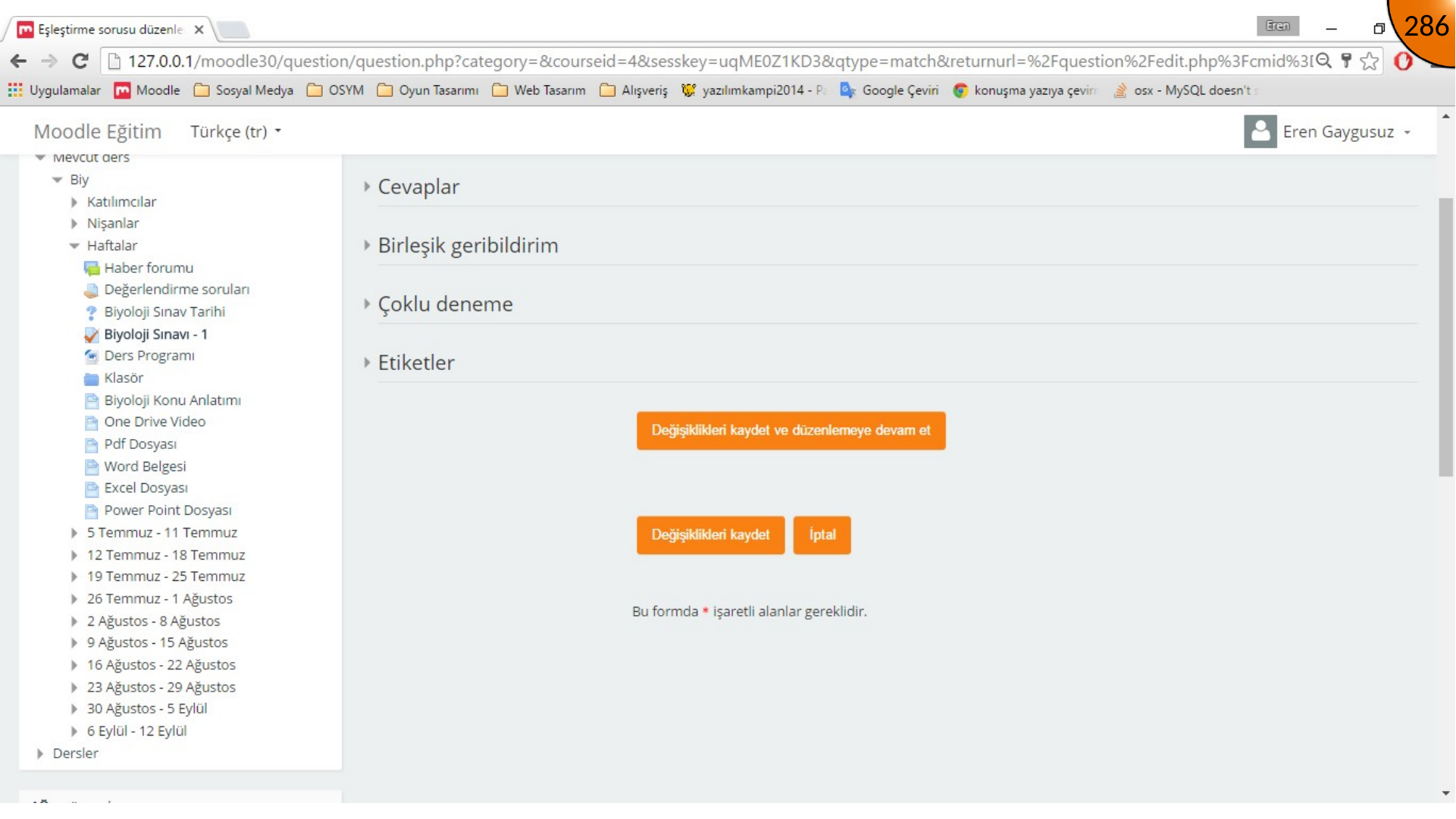
Create a new Matching question. Set the category, name, text, and mark, then enter each prompt together with its matching answer. The source example uses three written prompts and three written answers.
Short-Answer Question
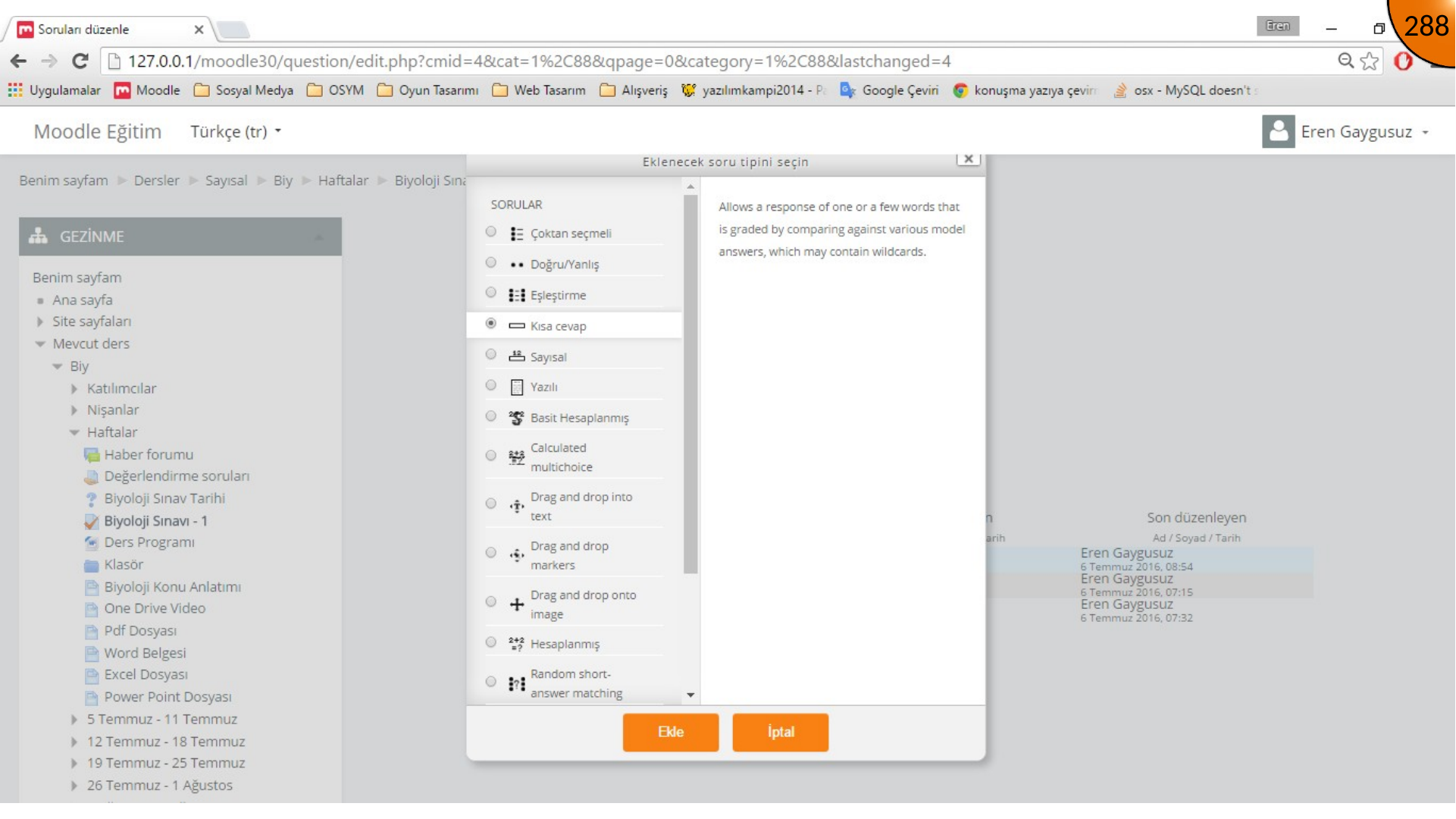
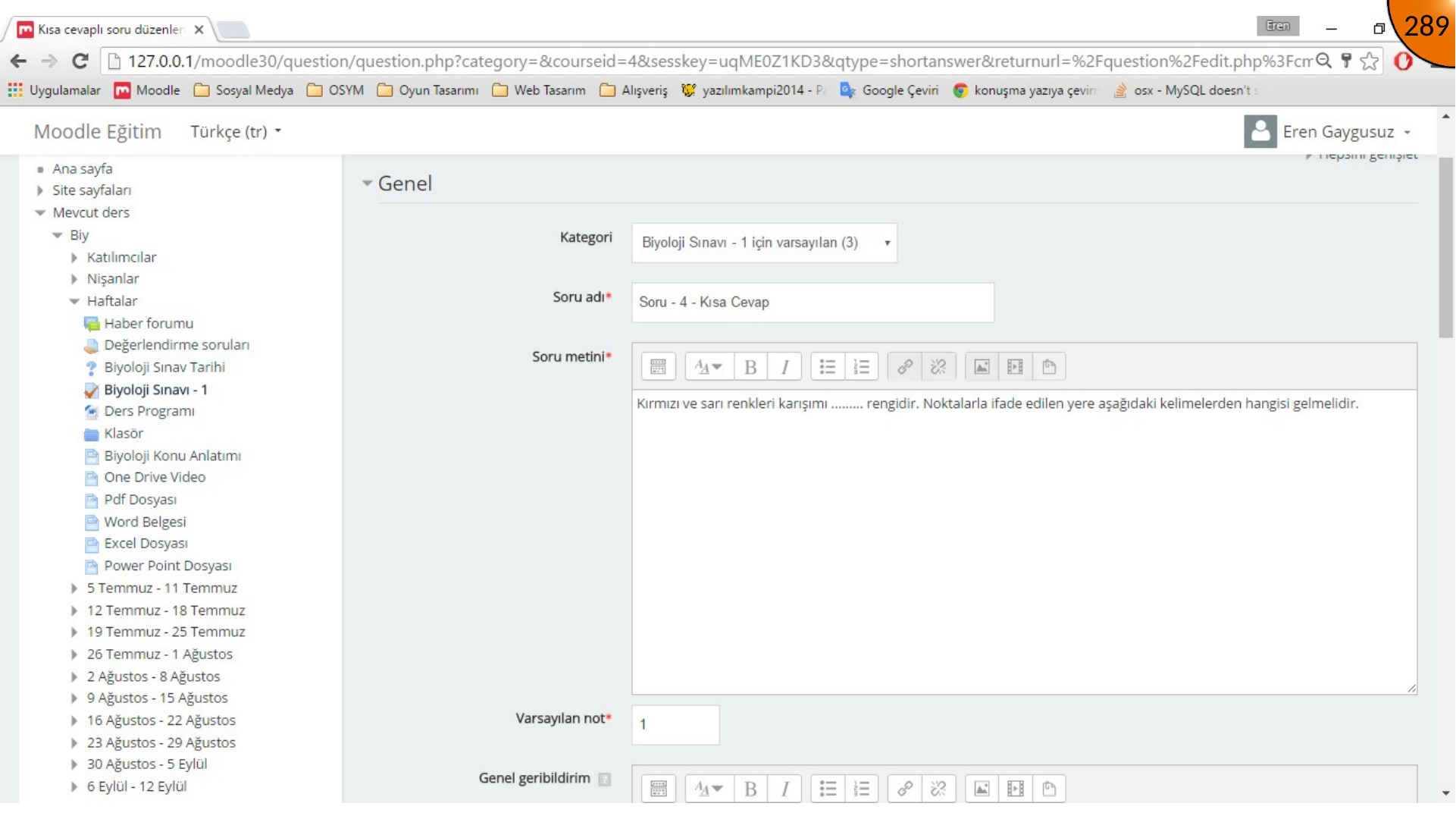
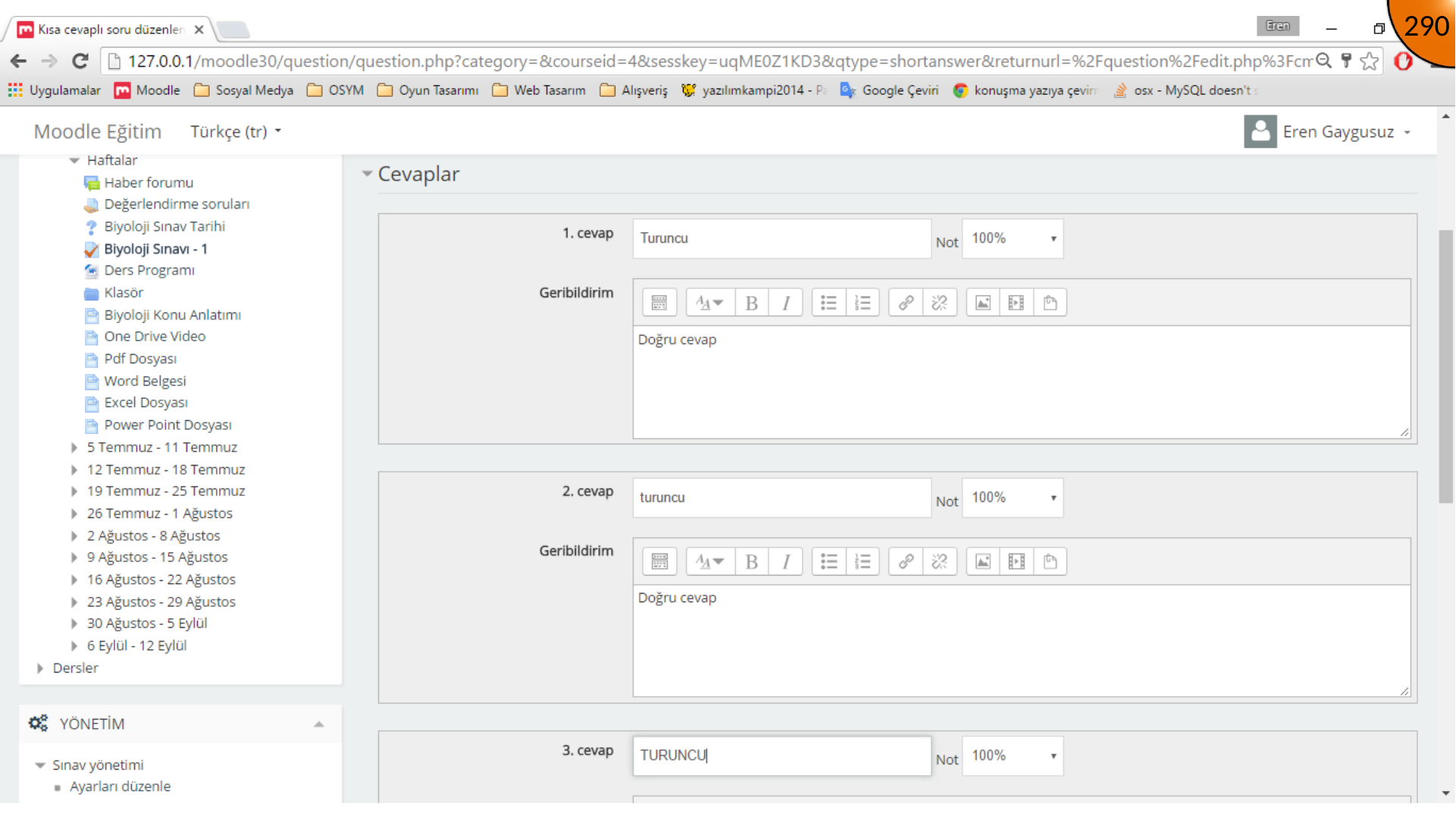
Create a Short answer question and complete its general settings. Add every accepted spelling or valid wording as an answer and assign each accepted answer a grade of 100%.
Summary
The question bank now contains reusable question types. In the next step, select these questions from the bank and add them to the quiz in the desired order.
Comments