A PDF stored in OneDrive can be displayed directly inside a Moodle Page resource. This archived walkthrough uses the 2016 OneDrive and Moodle interfaces; current menu labels may differ.
Before publishing, check the file’s sharing permission with a learner account. An embed only works when the viewer is allowed to open the original file.
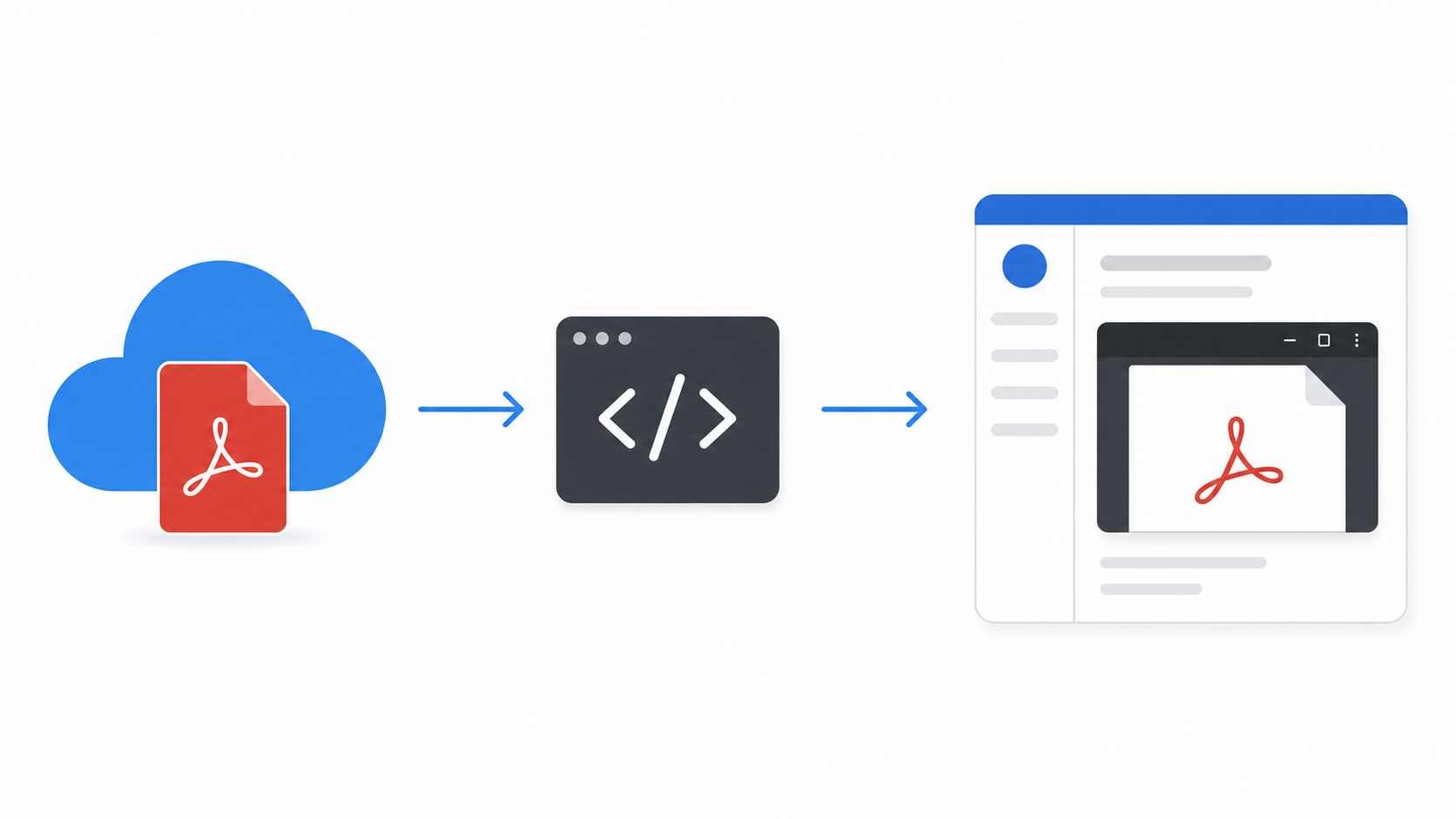
Table of contents
Open Table of contents
Creating a Moodle Page
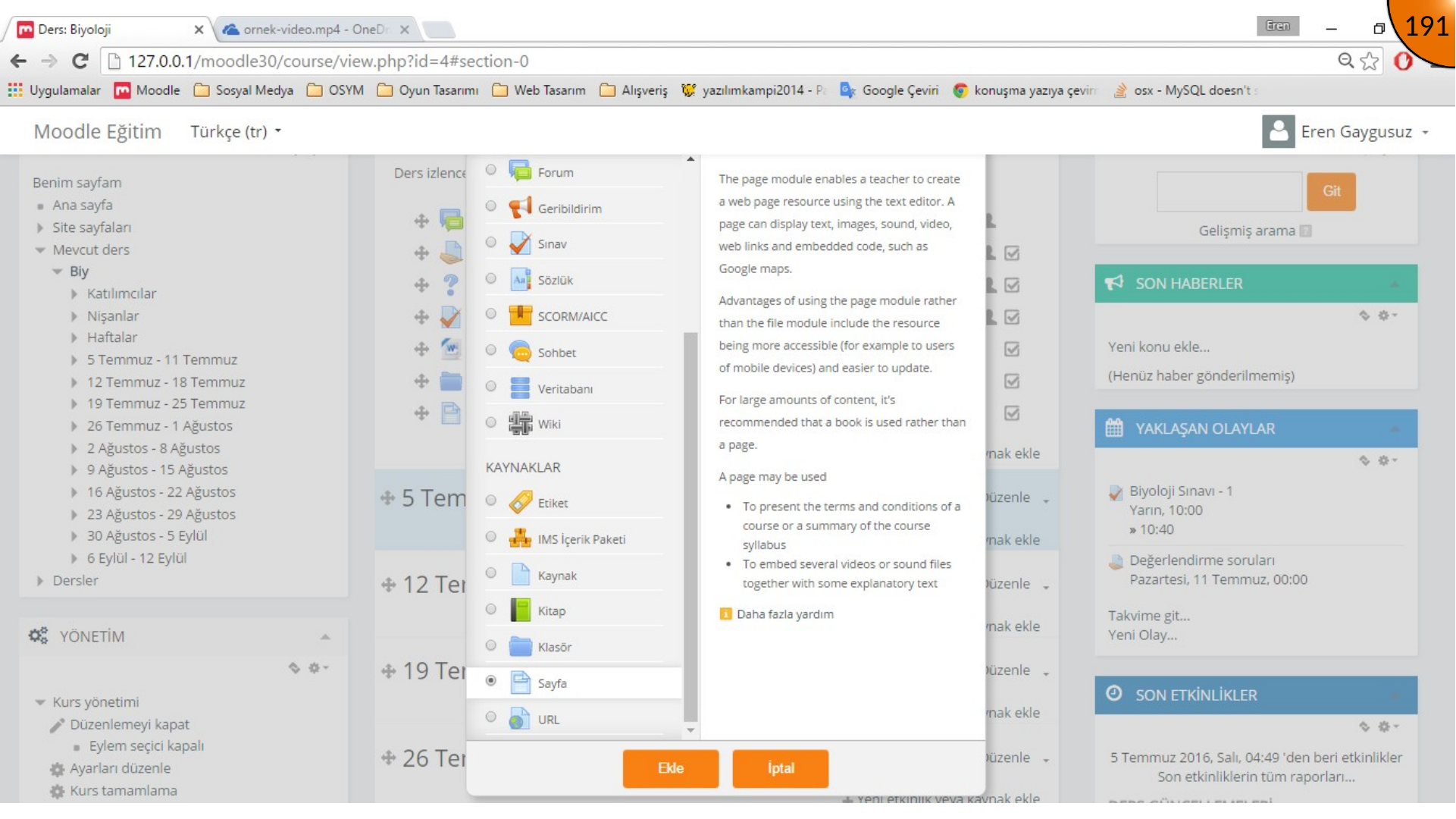
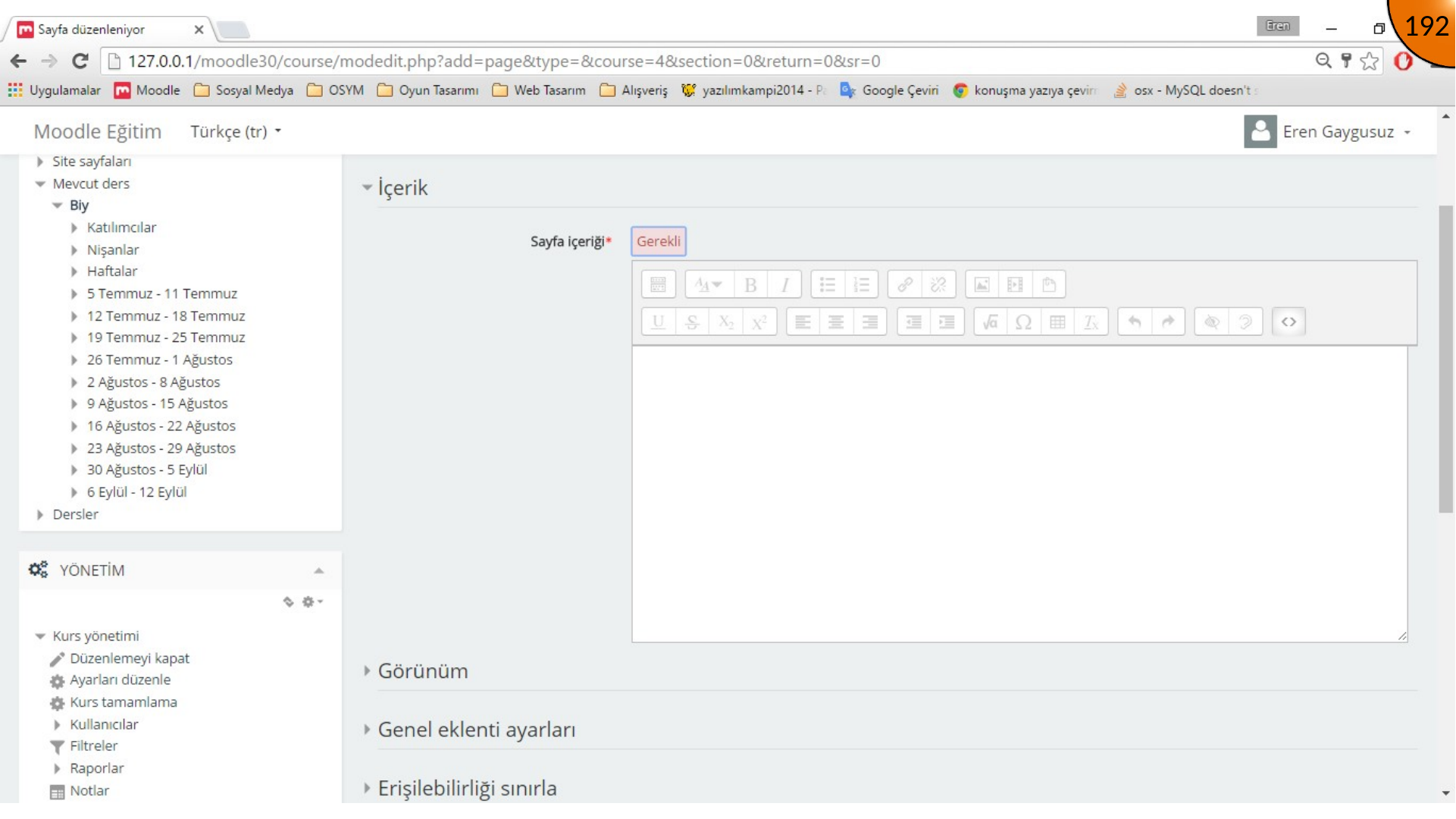
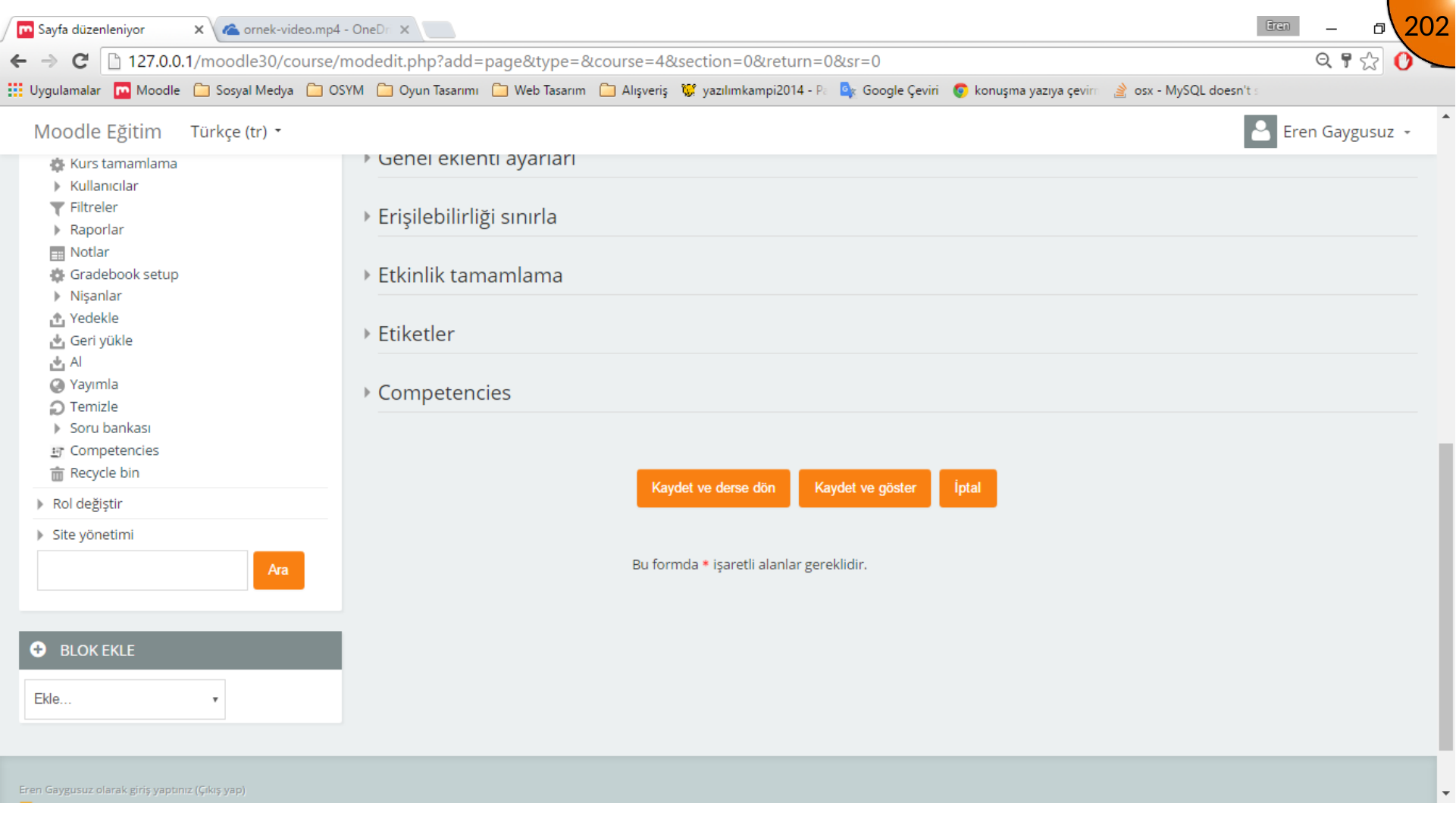
In the course, choose Add an activity or resource, select the Page resource, and click Add. Give the page a name, then switch its content editor to HTML mode.
Uploading the PDF to OneDrive
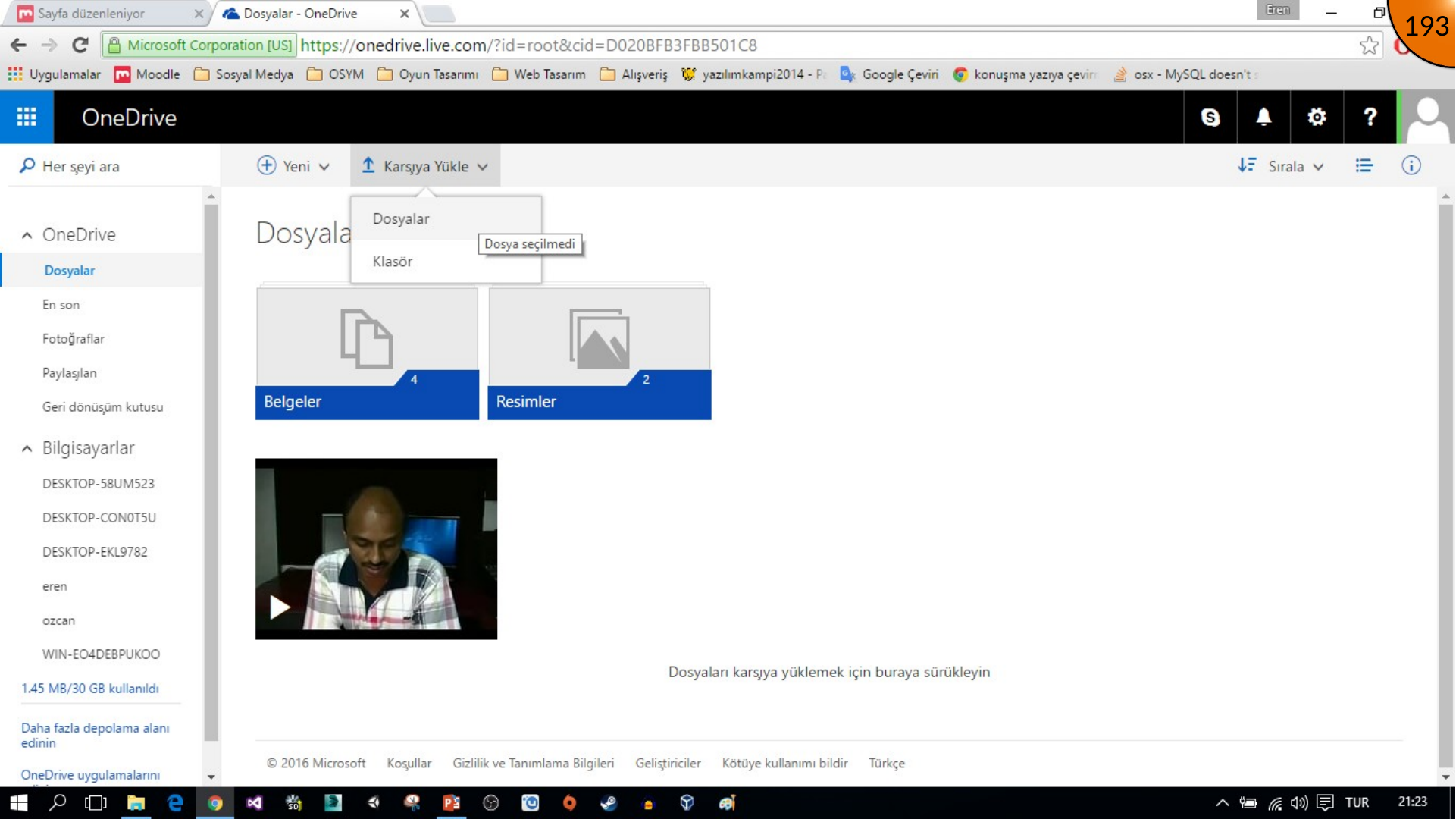
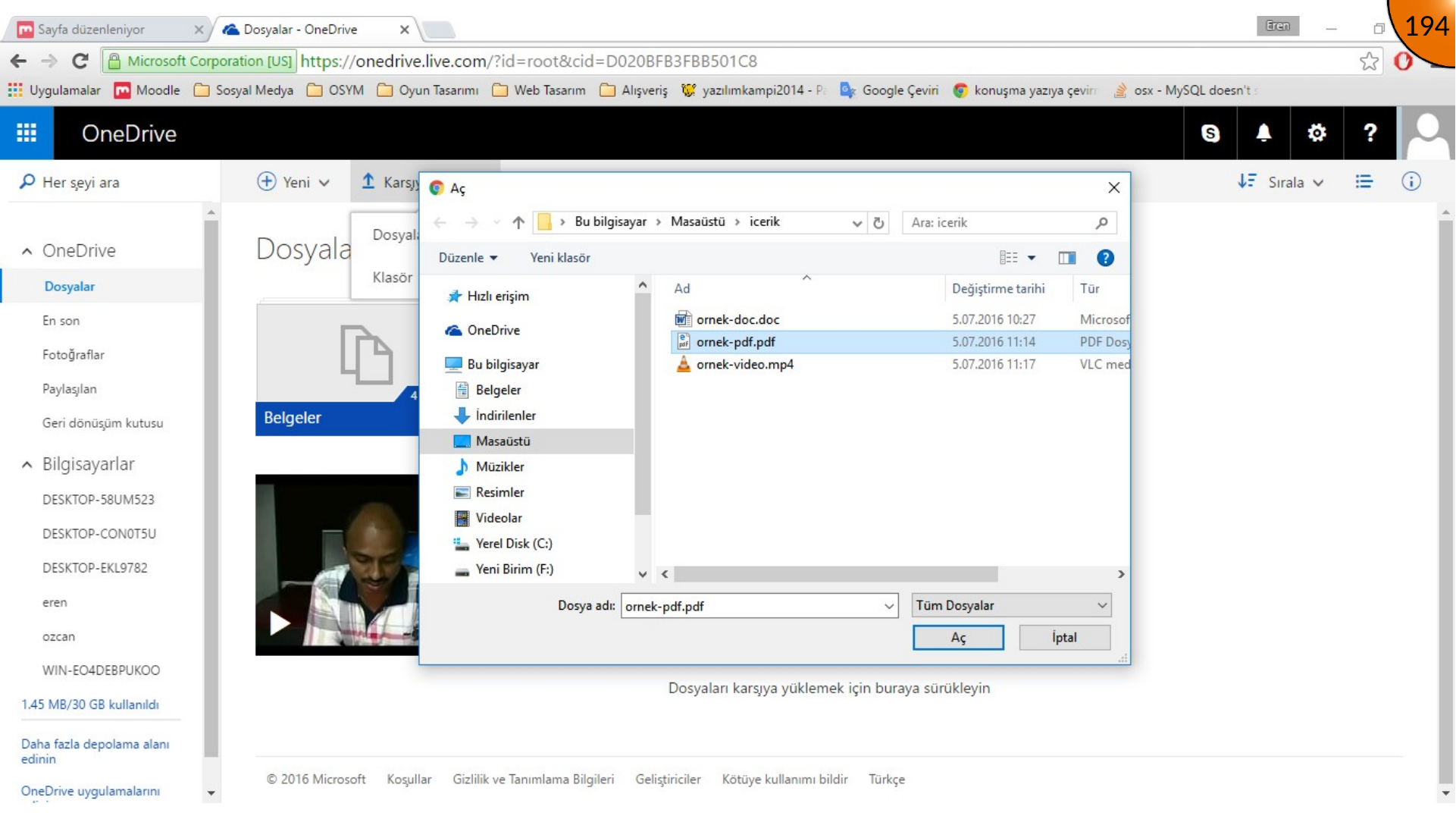
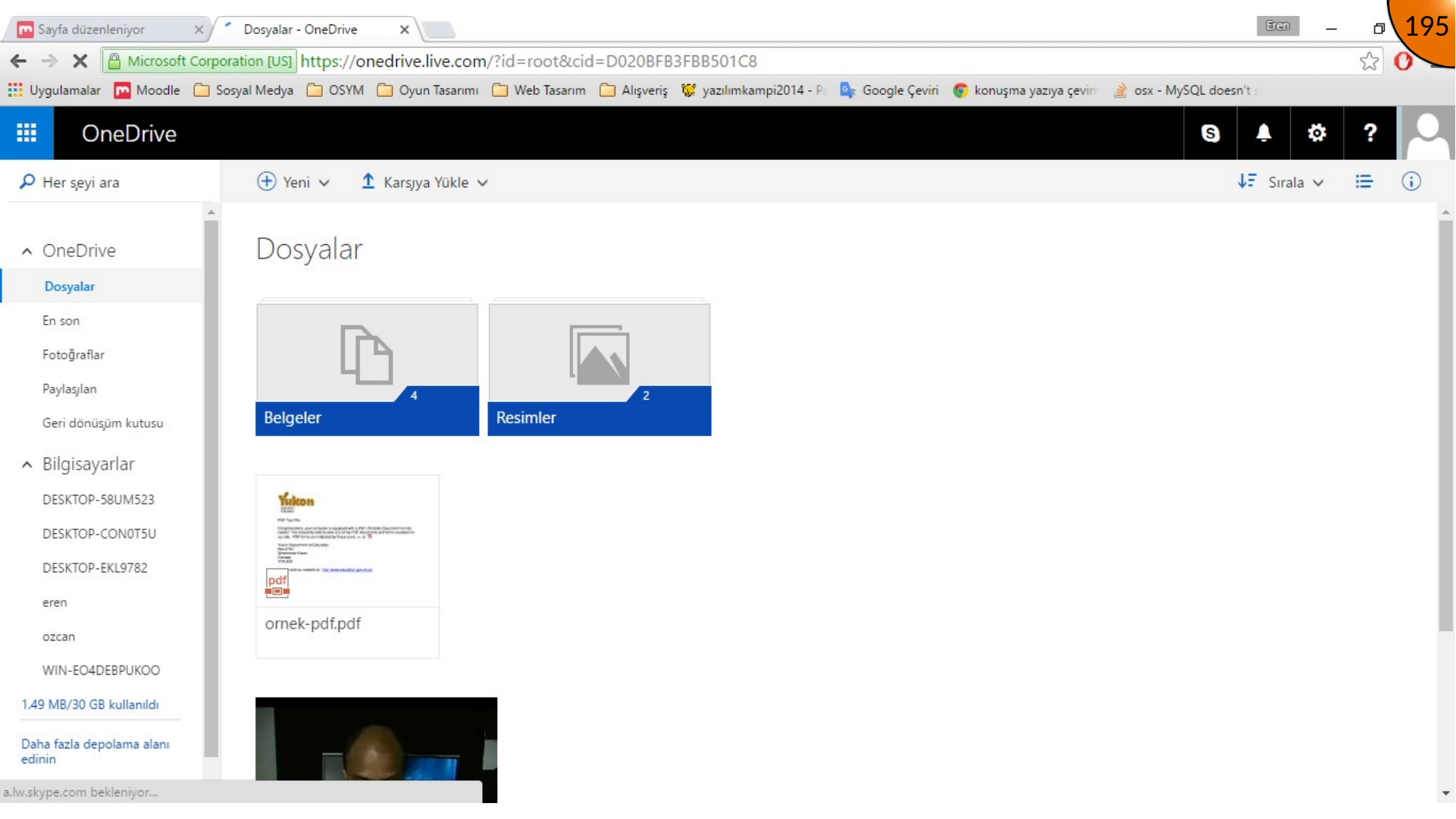
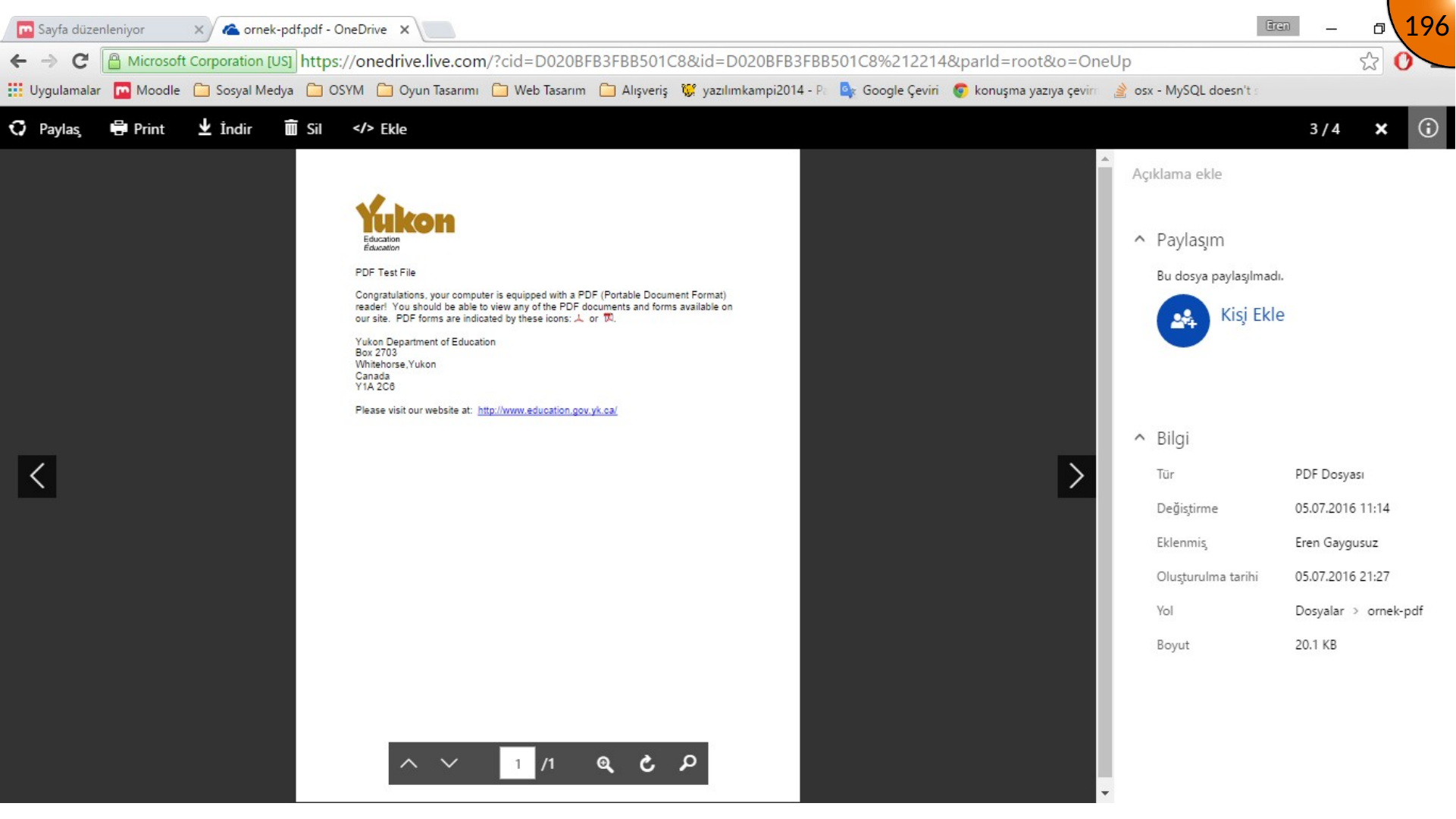
In OneDrive, choose Upload > Files, select the PDF, and open it when the upload has finished.
Generating and Adding the Embed Code
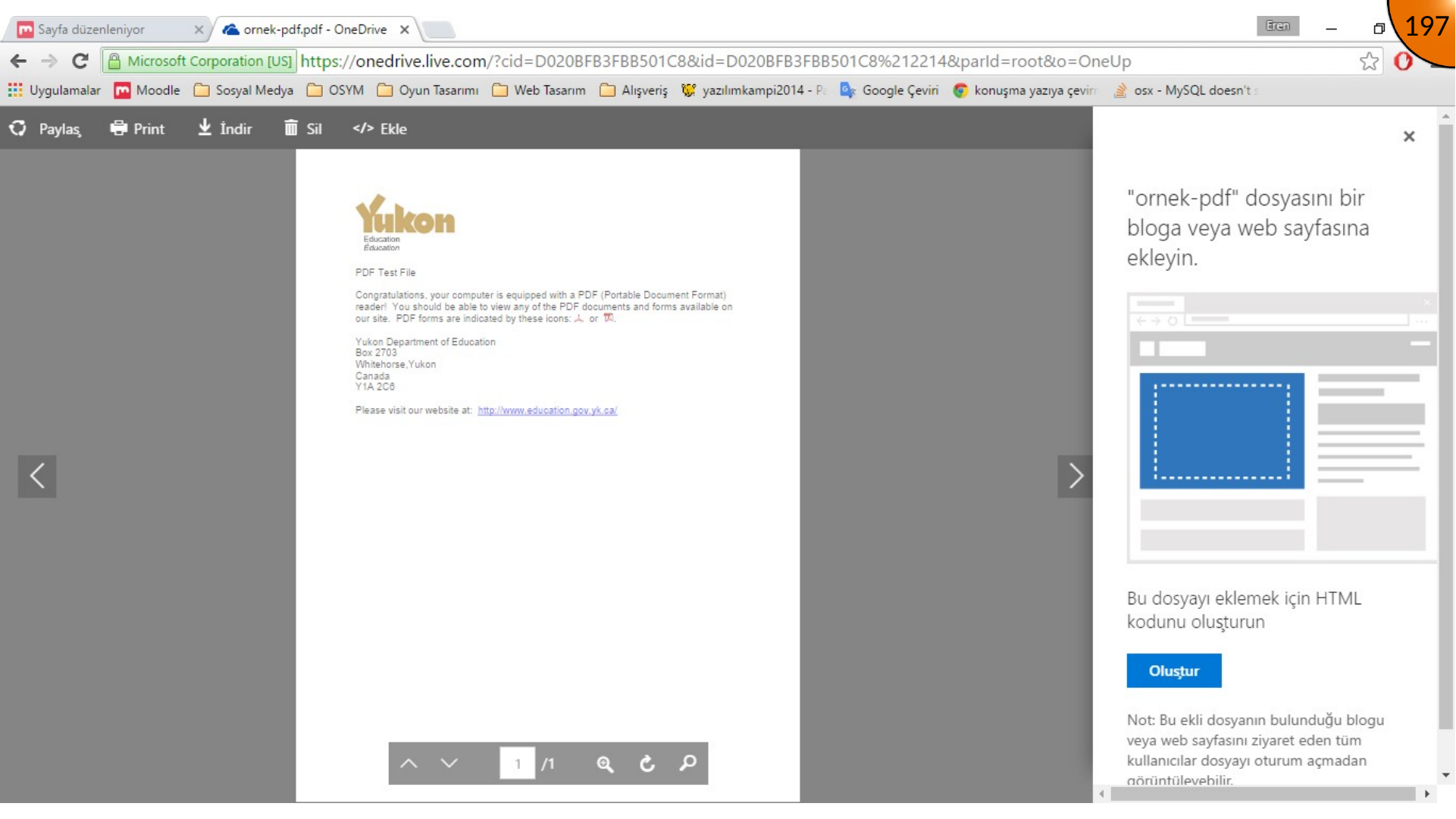
Choose OneDrive’s Embed option, create the code, copy it, and paste it into Moodle’s HTML editor.
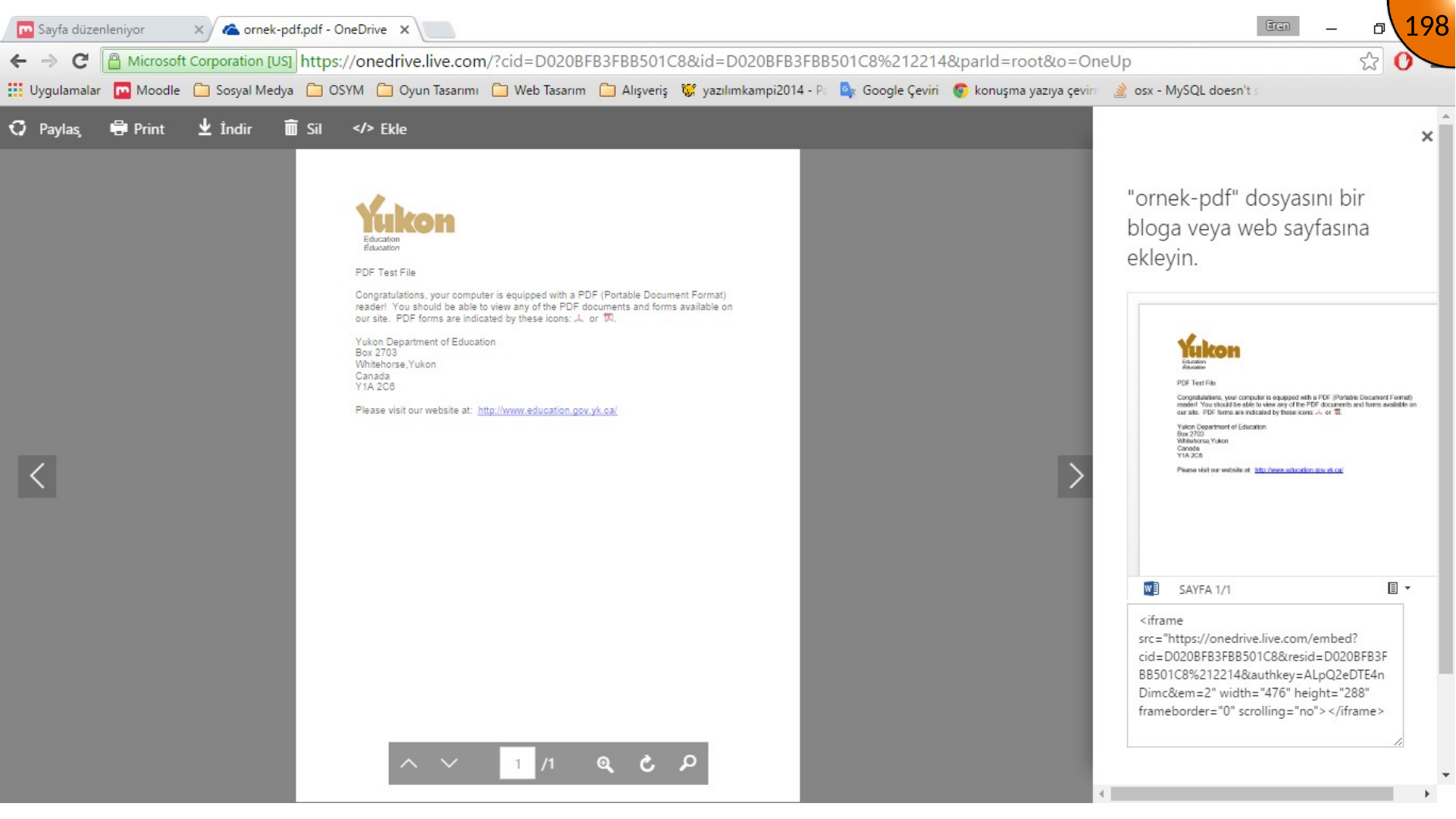
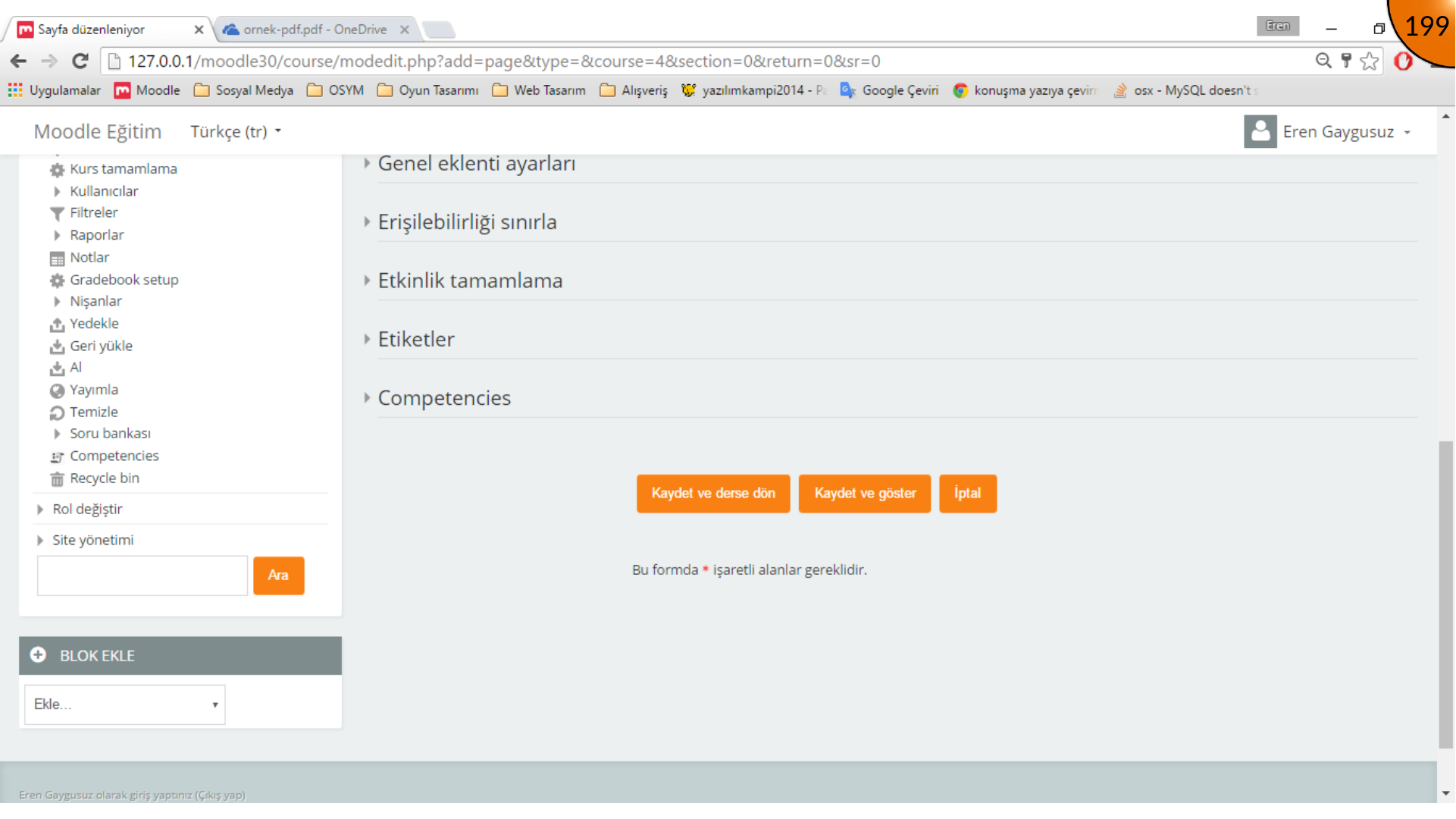
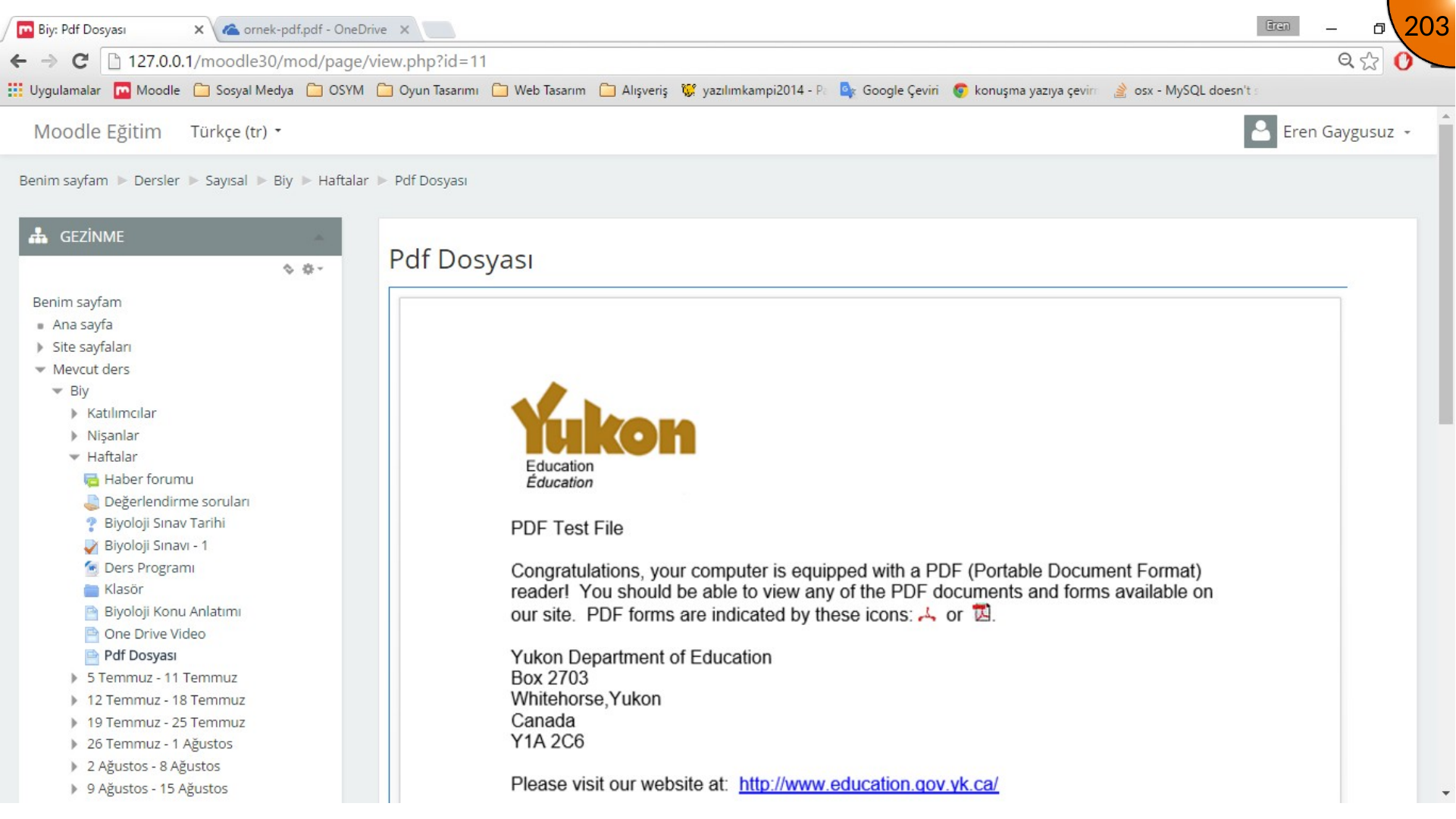
Save and display the resource once to check how the viewer fits in the page.
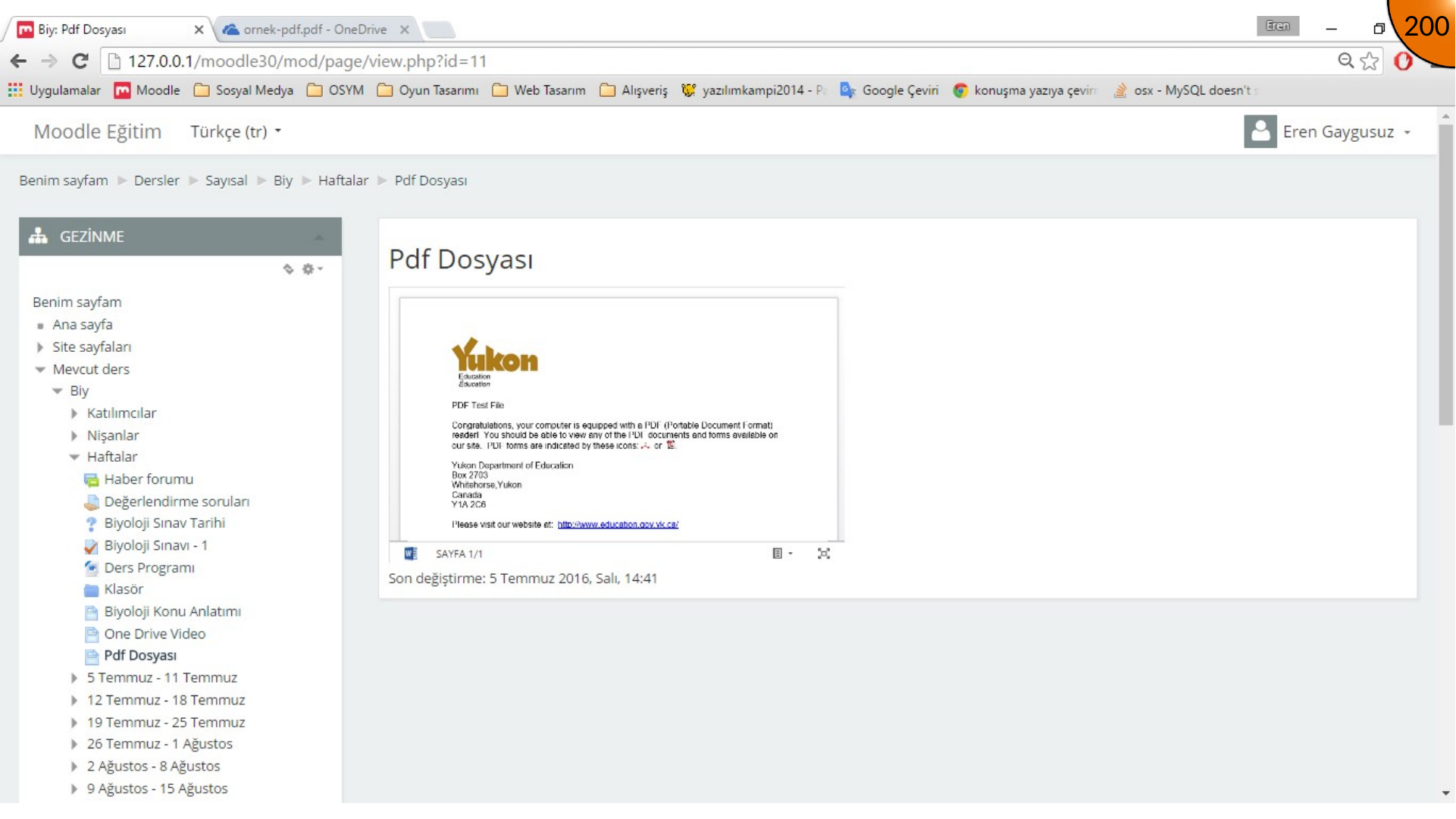
Adjusting Viewer Dimensions
If the first display is too small, return to HTML mode and edit the width and height attributes in the copied embed markup. The source example uses width="1000" and height="1210".
<iframe src="..." width="1000" height="1210"></iframe>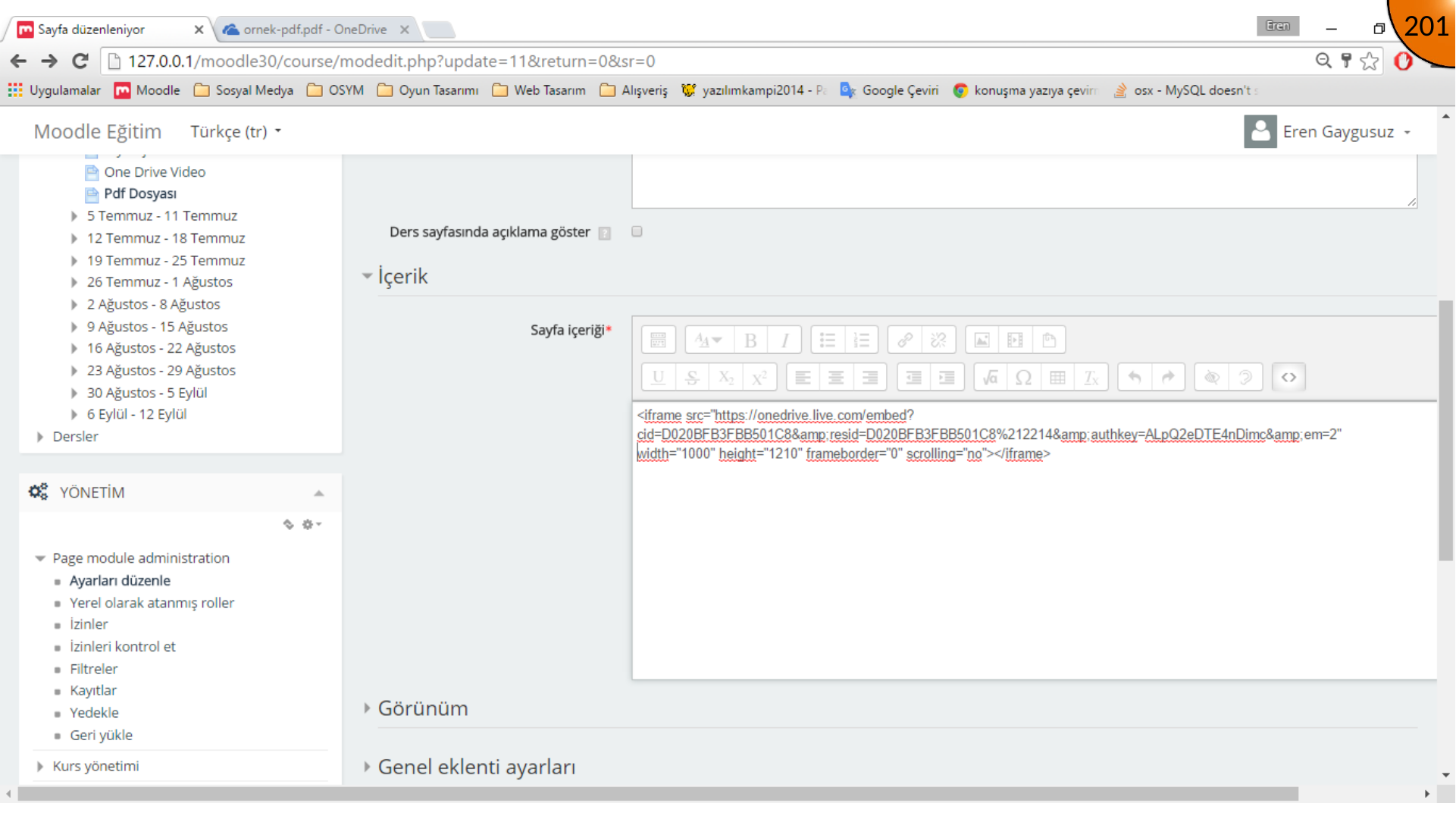
Summary
OneDrive’s embed code lets Moodle show a PDF without a second upload. Keep the source file accessible, set dimensions suitable for the course layout, and test the page as a learner.
Comments