OneDrive can host a video and provide embed markup that can be pasted into a Moodle Page resource. This archived walkthrough demonstrates the flow using the 2016 OneDrive and Moodle interfaces.
Before embedding content, confirm that learners have permission to view it. For current OneDrive, use the sharing and embed options available to your organization, and test from an account without elevated access.
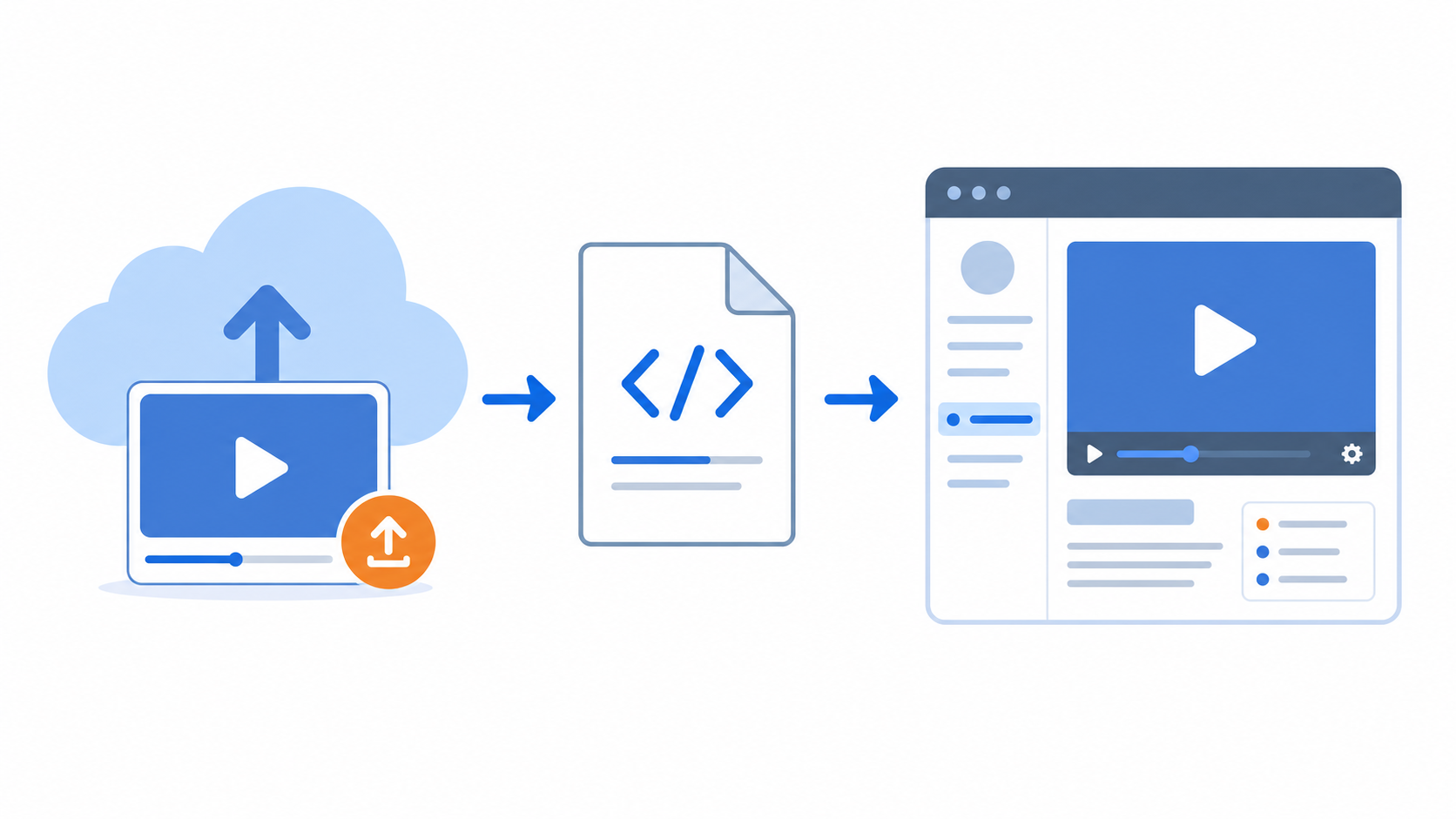
Table of contents
Open Table of contents
Uploading a Video to OneDrive
Open OneDrive and sign in with the account that will own the learning resource.
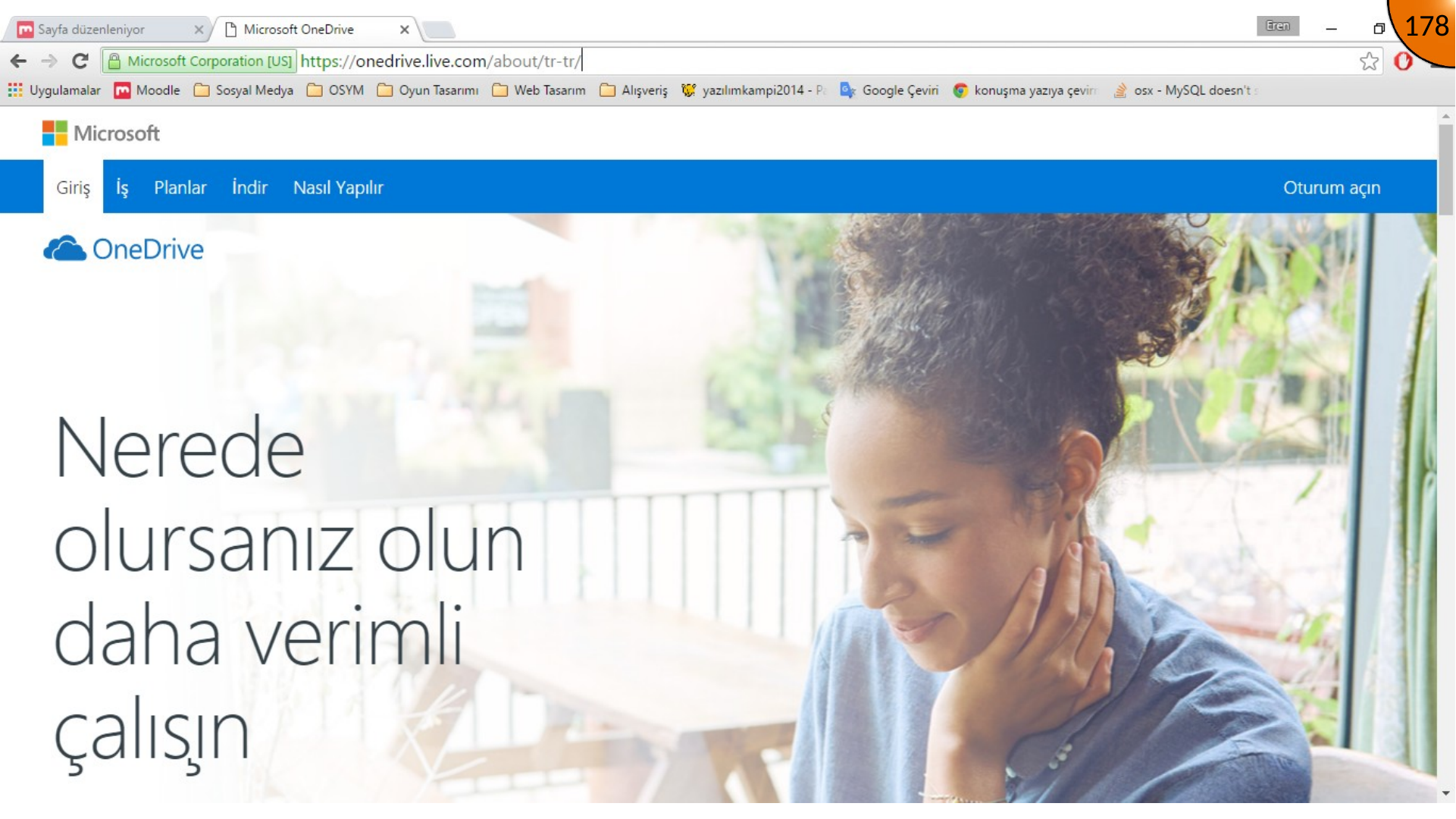
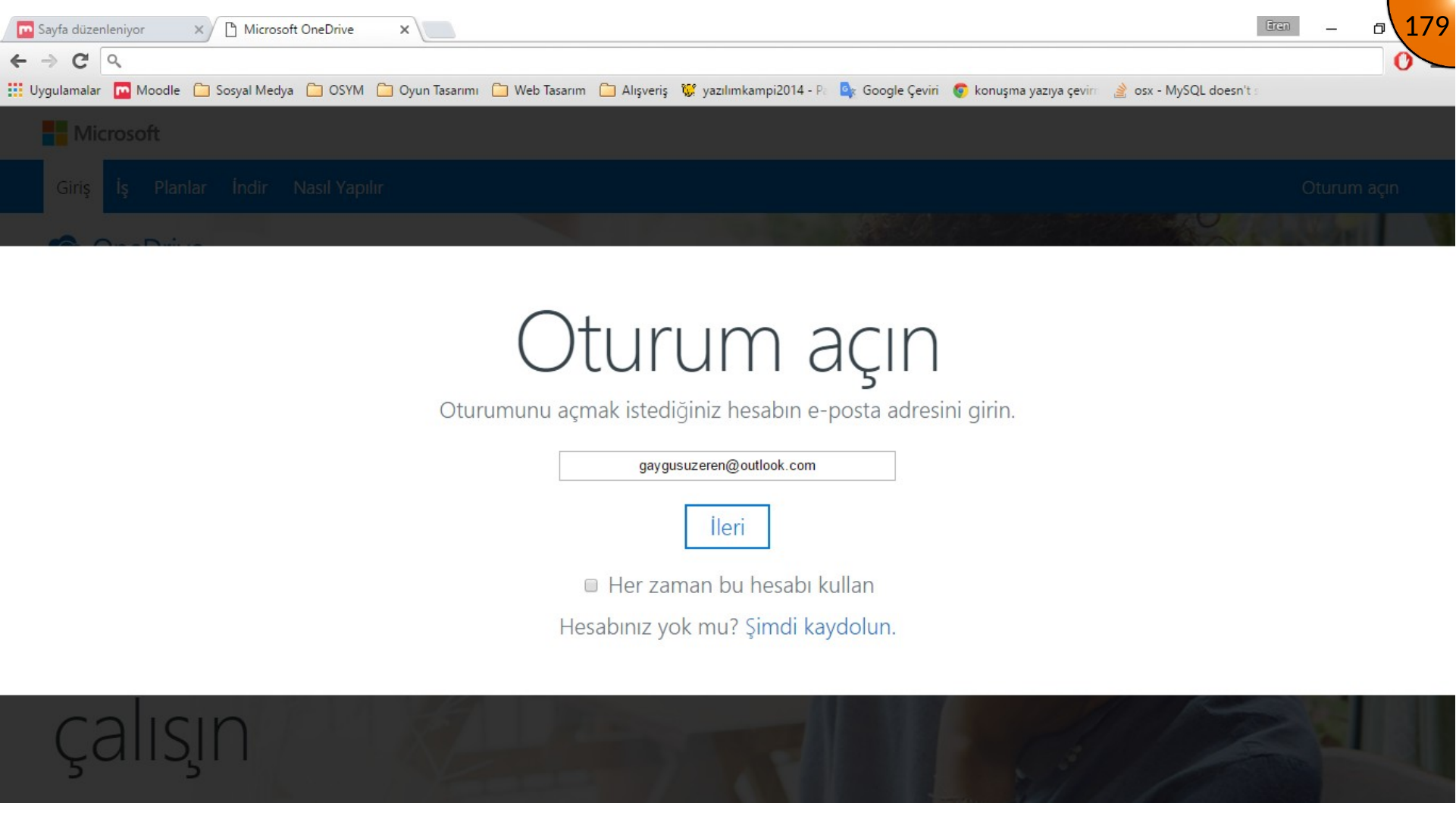
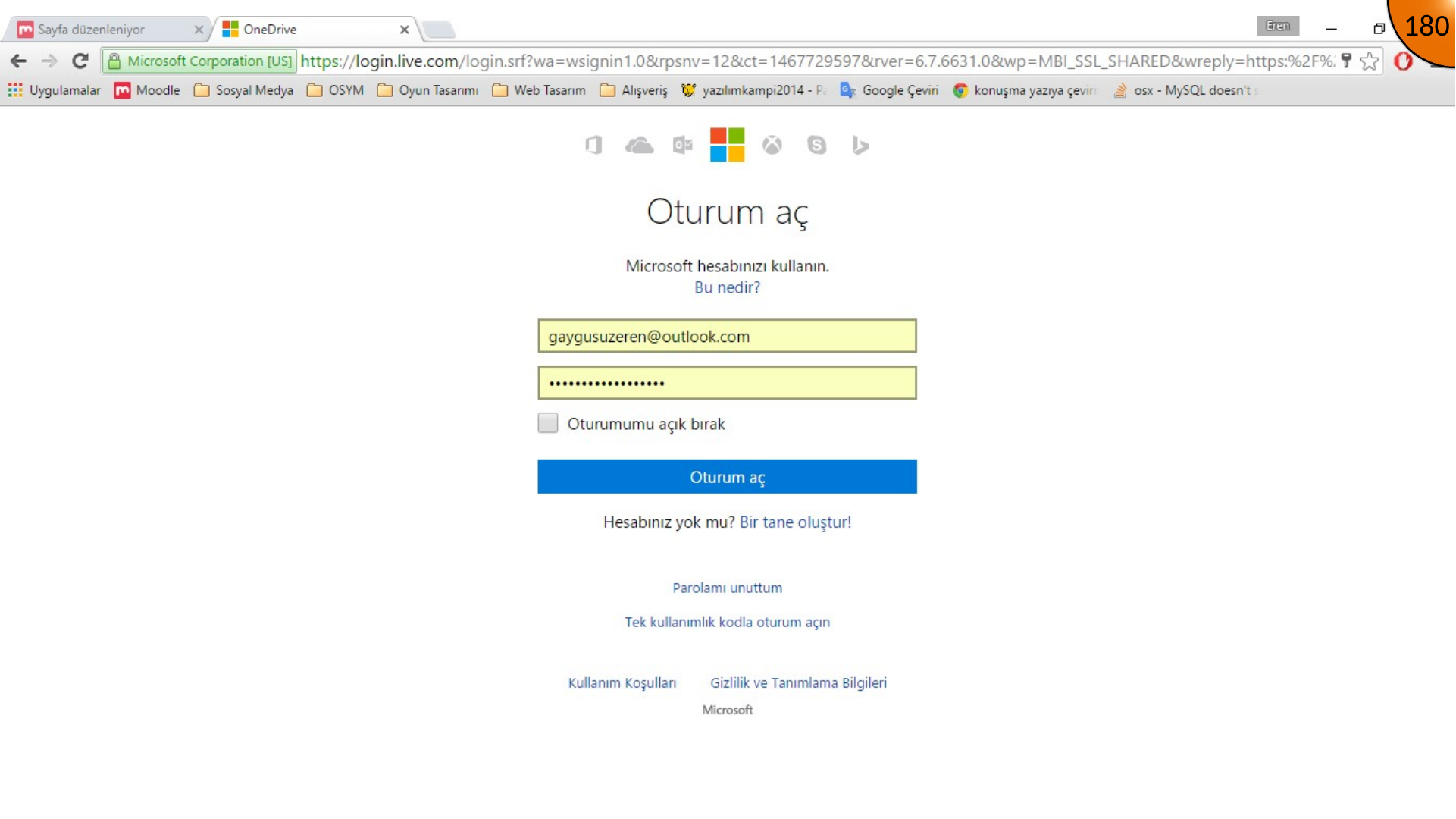
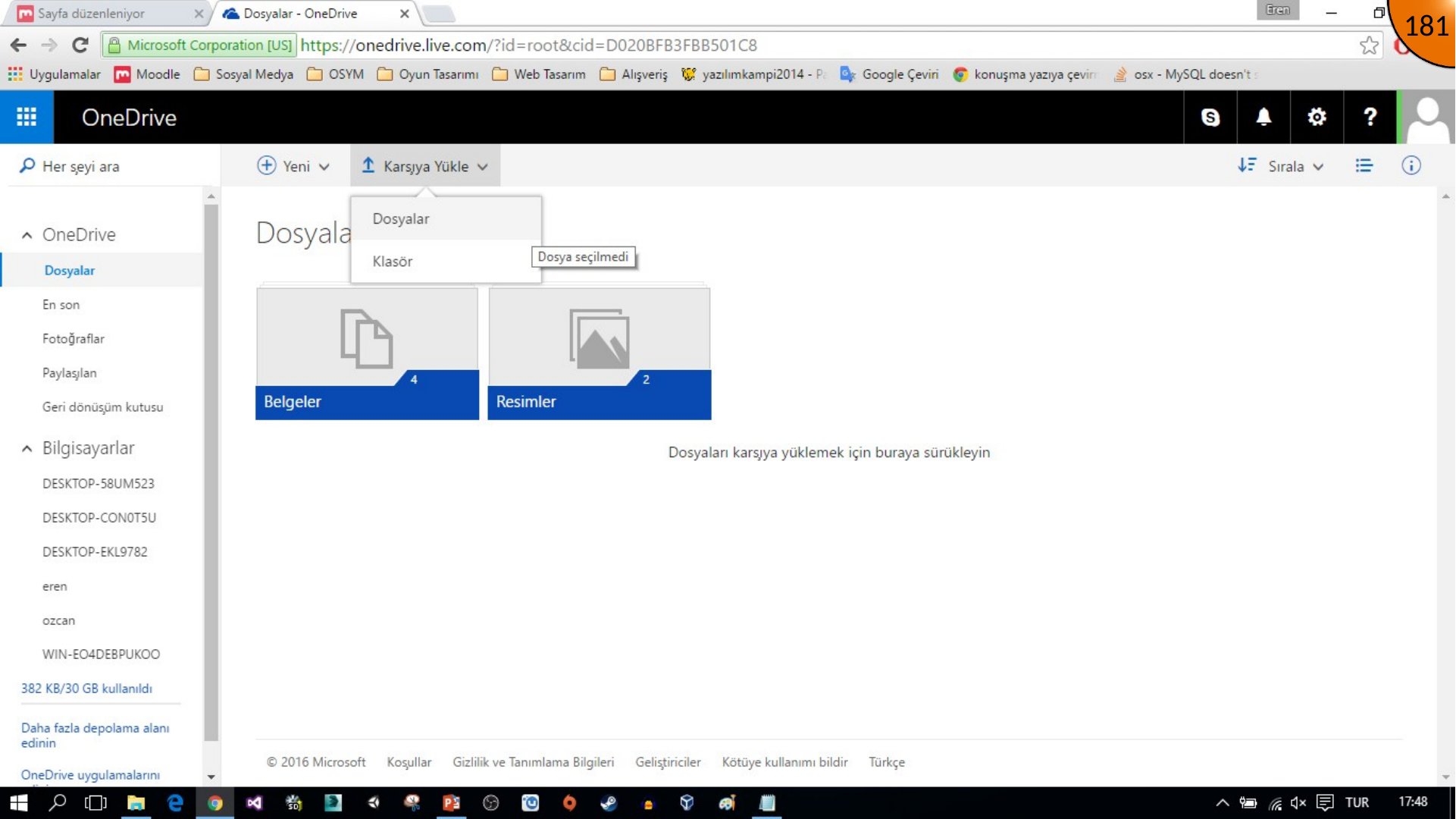
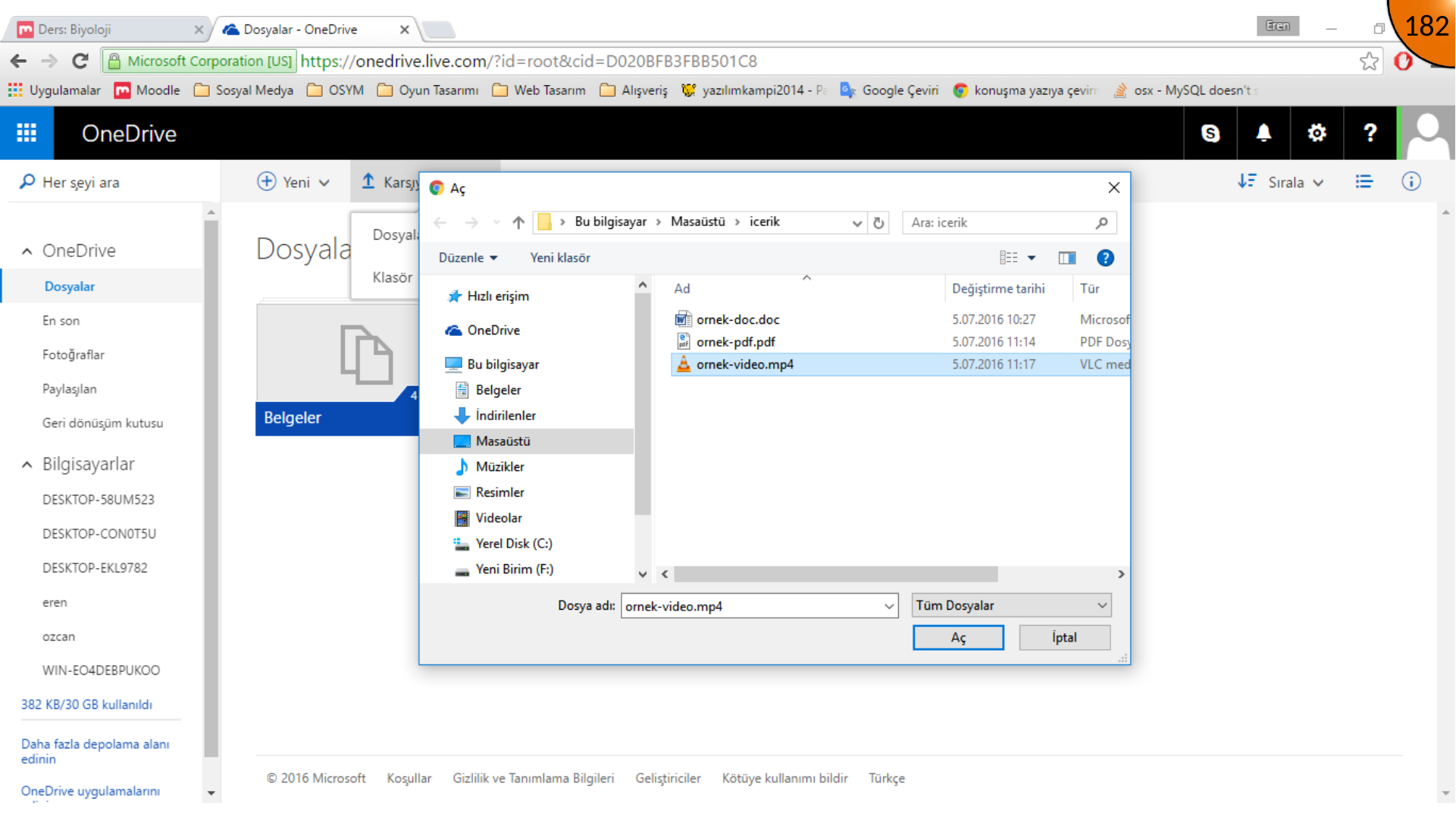
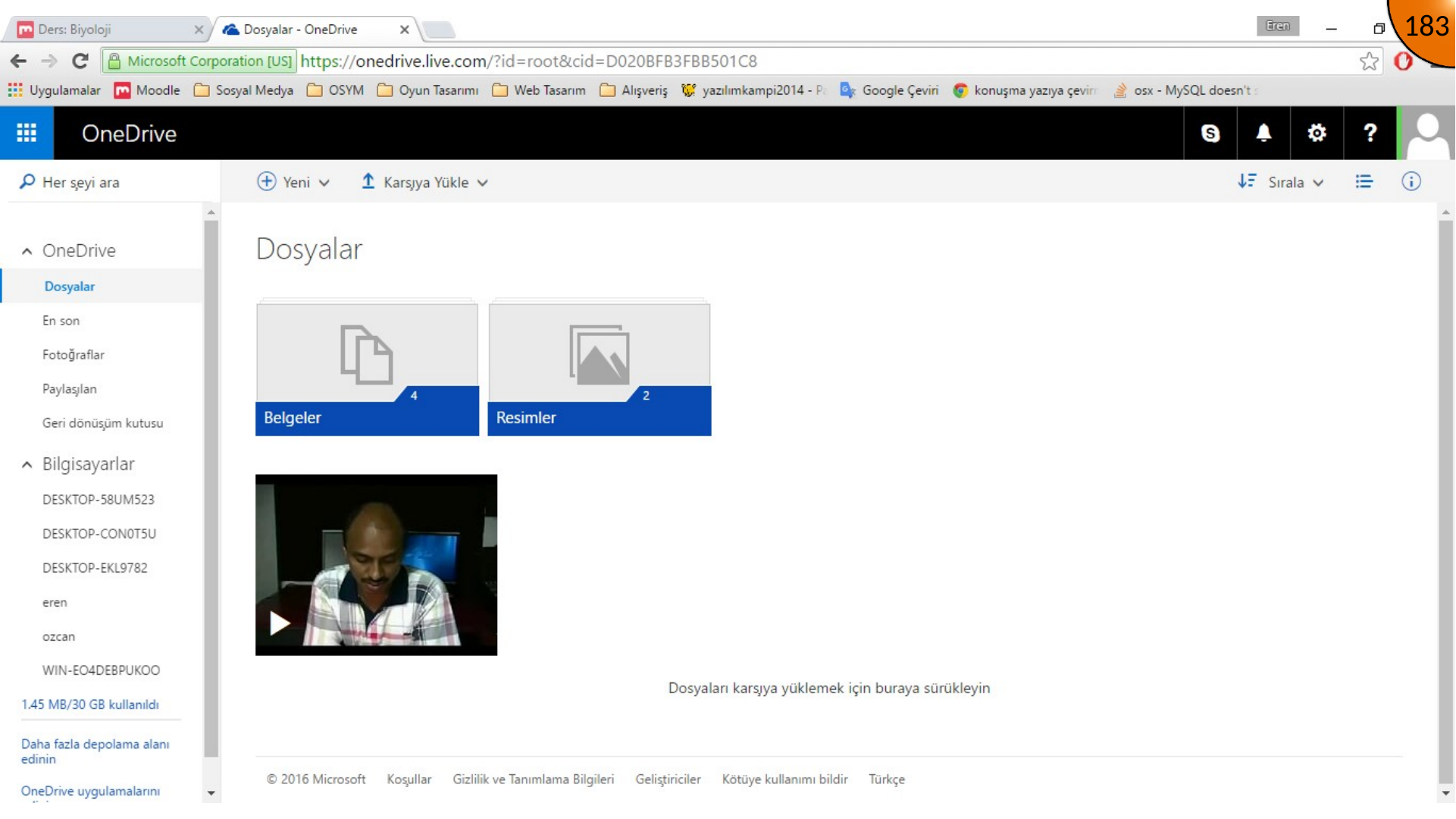
Choose Upload > Files, select the video, and wait until the upload completes.
Creating the Embed Code
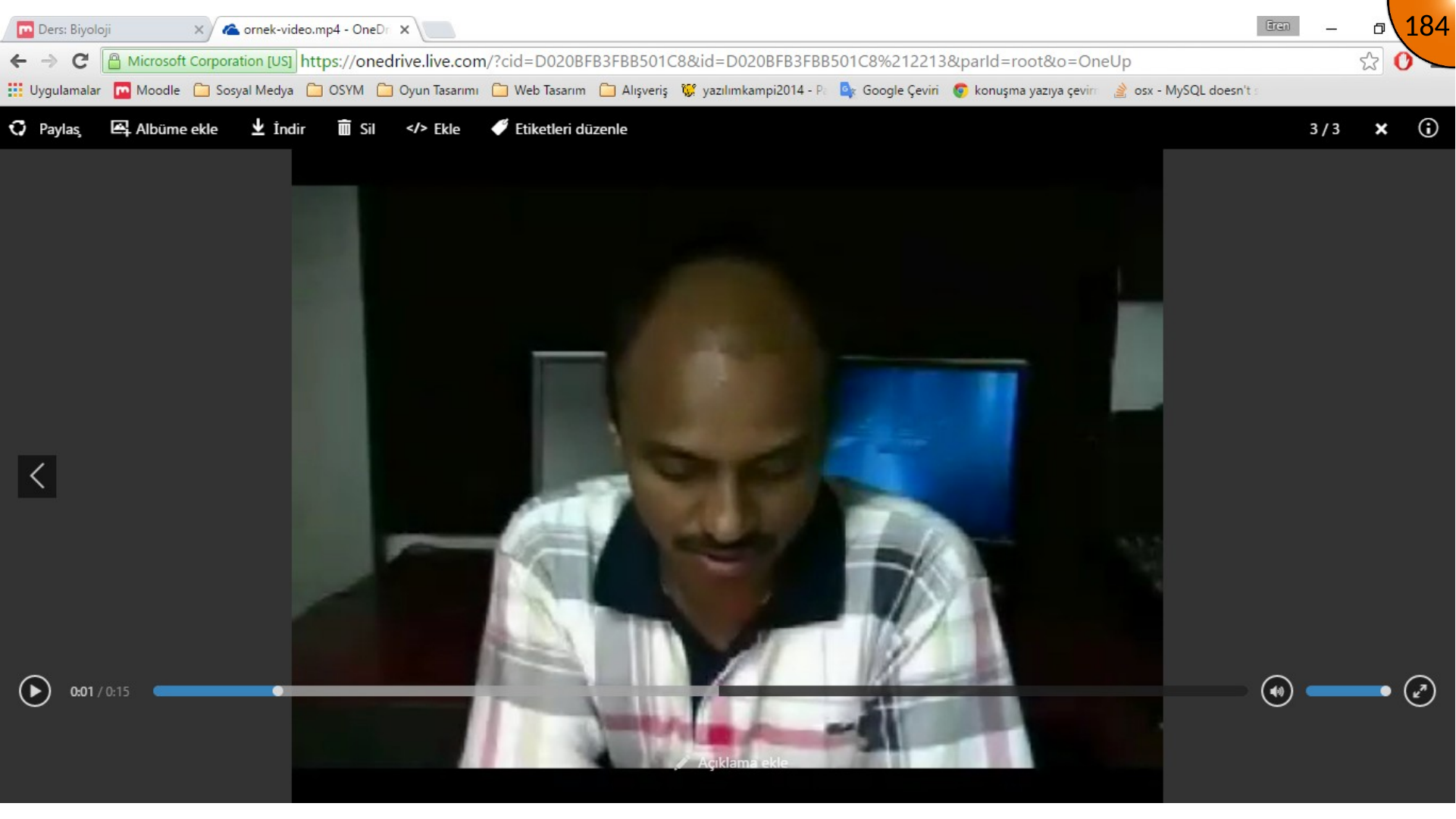
Open the video and use OneDrive’s embed option to generate code. Copy the resulting markup.
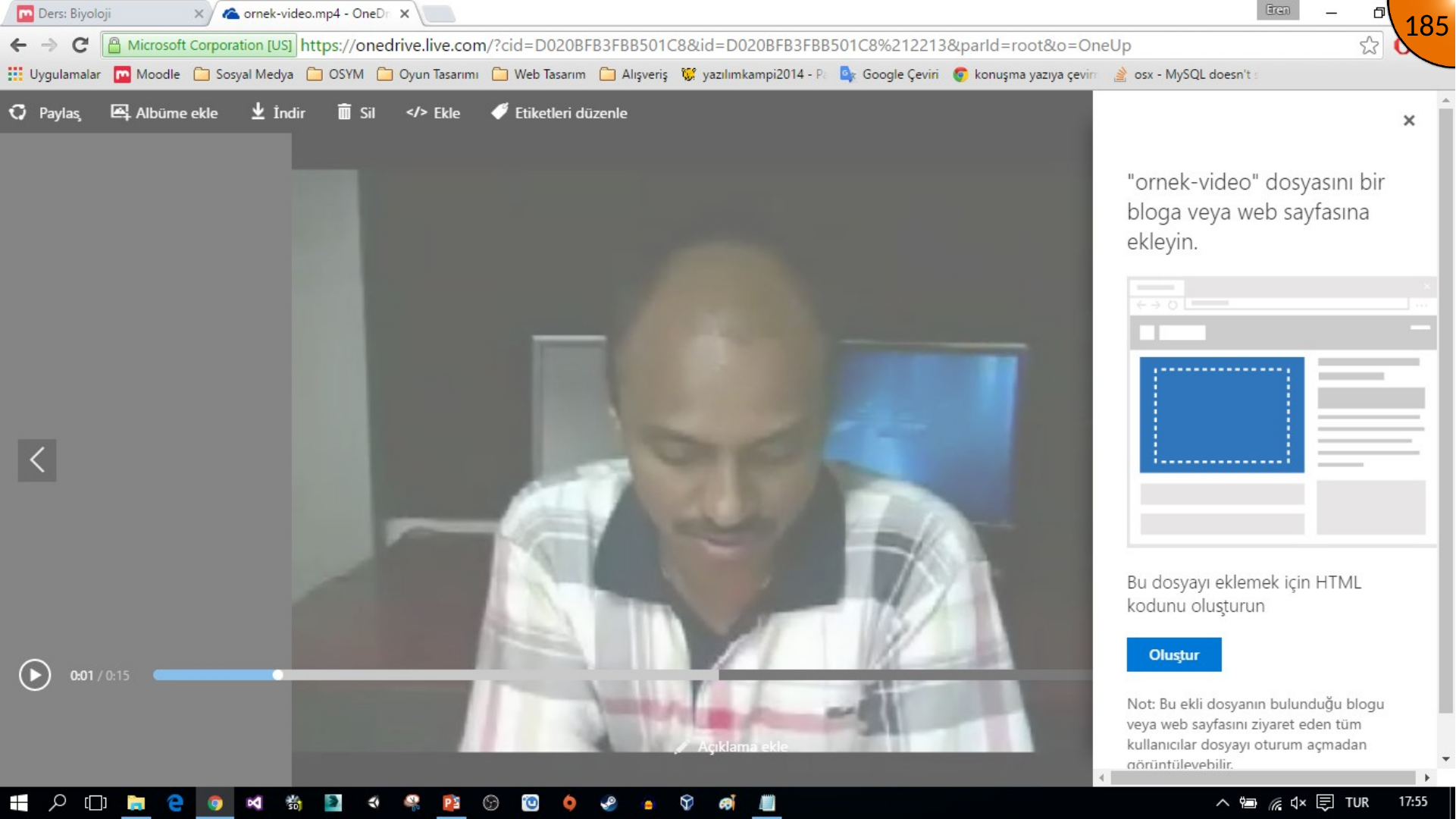
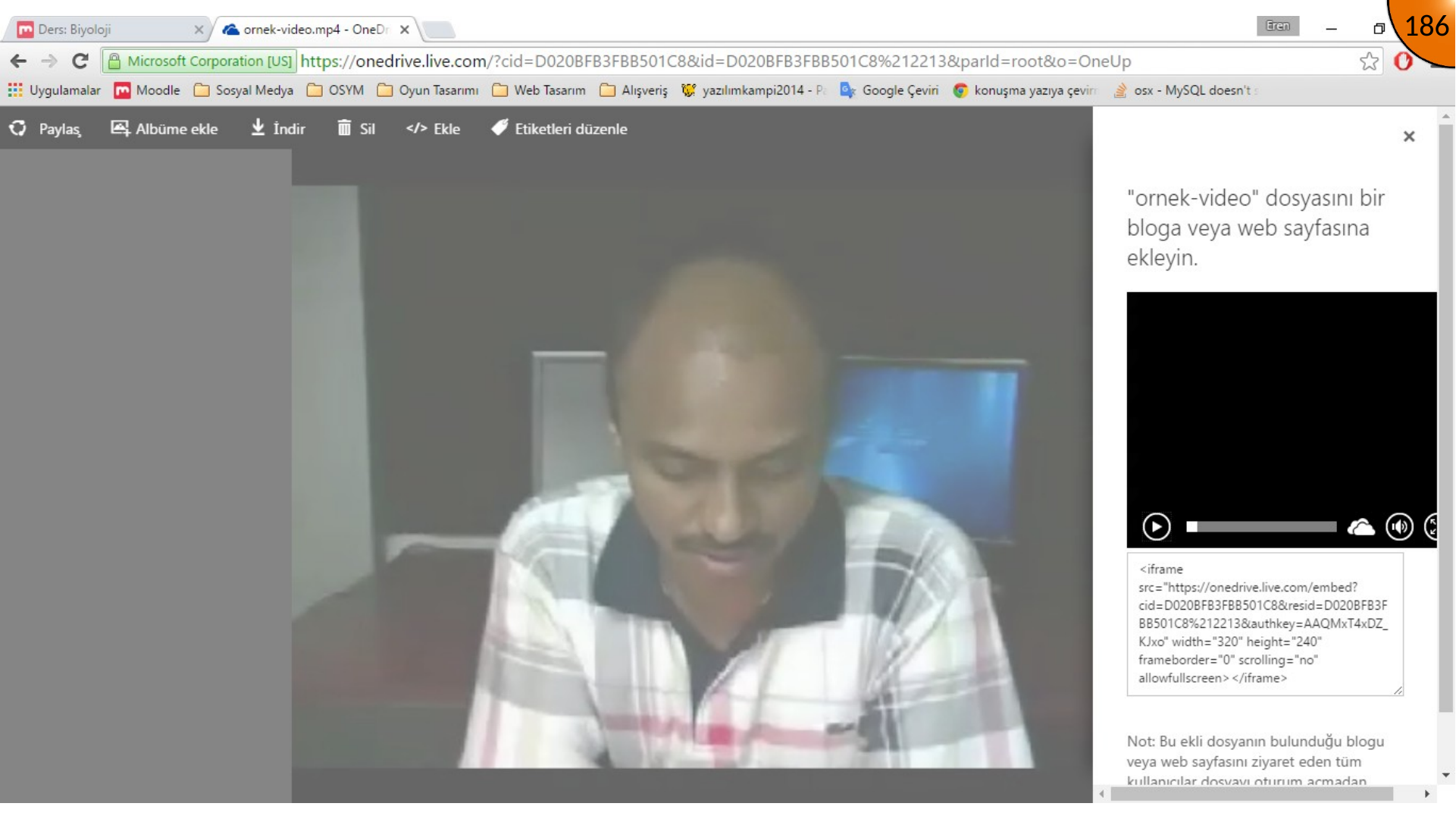
Adding the Video to Moodle
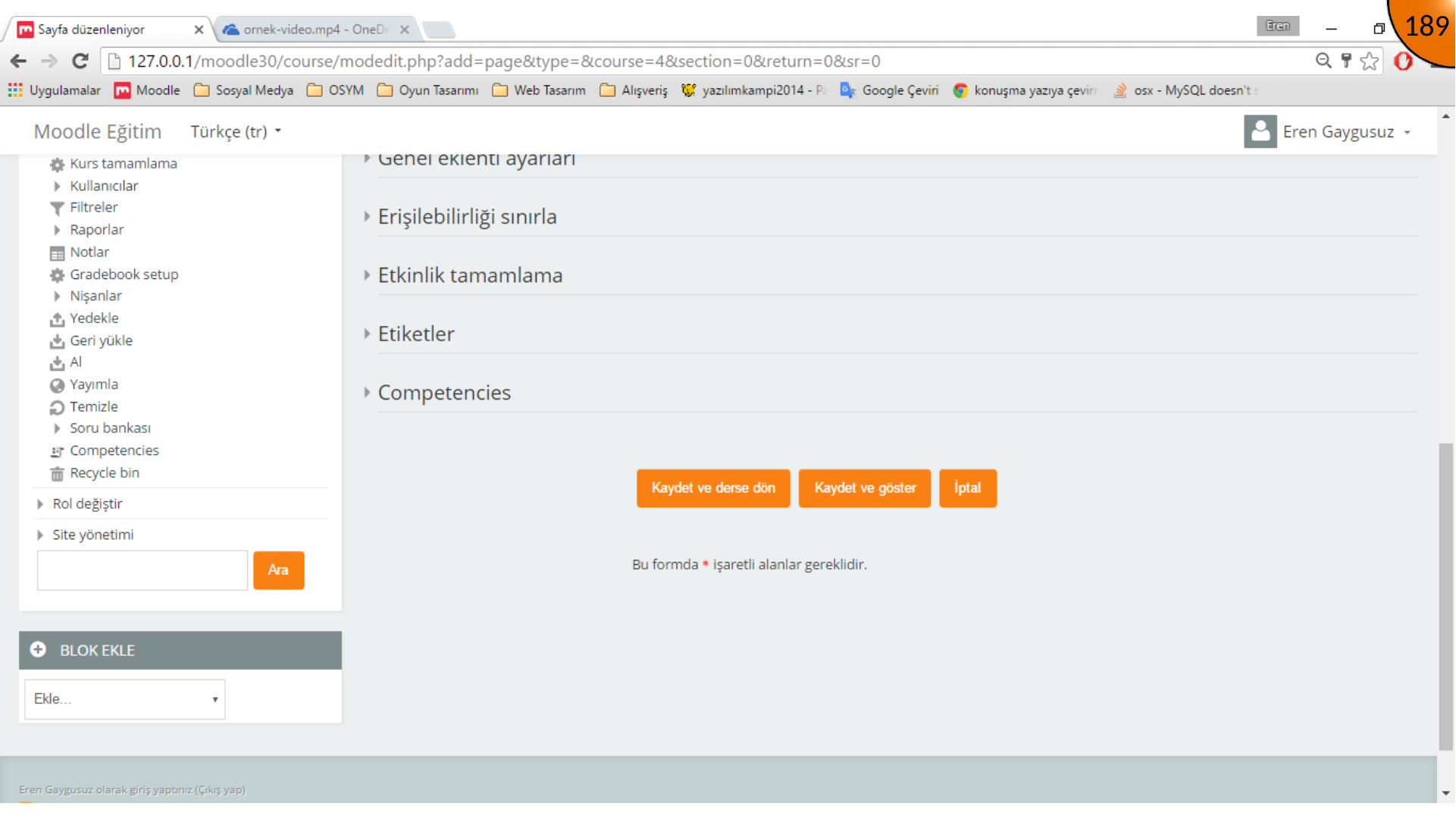
Create a new Moodle Page resource, enter a name, switch the content editor to HTML mode, and paste the embed code.
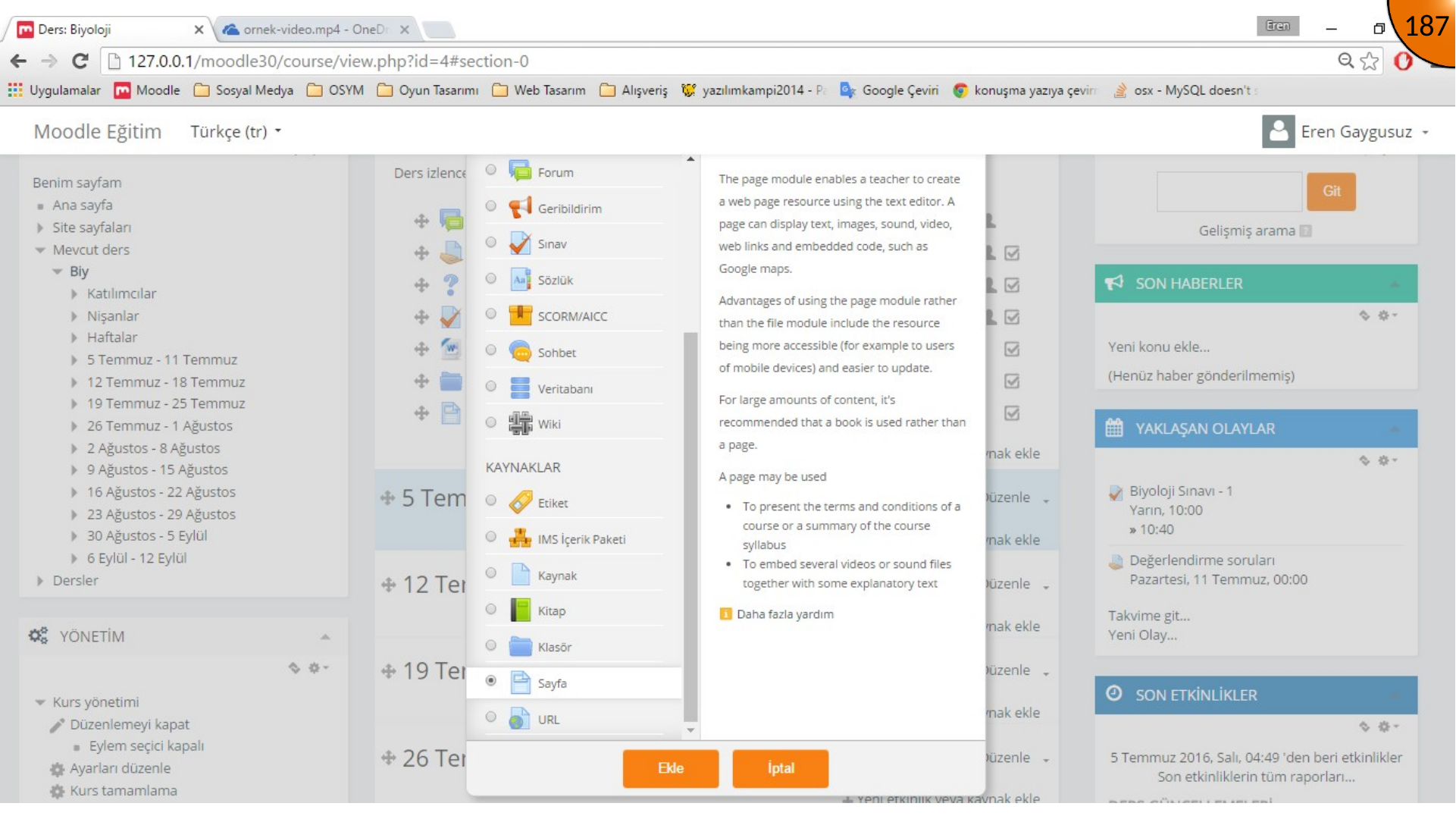
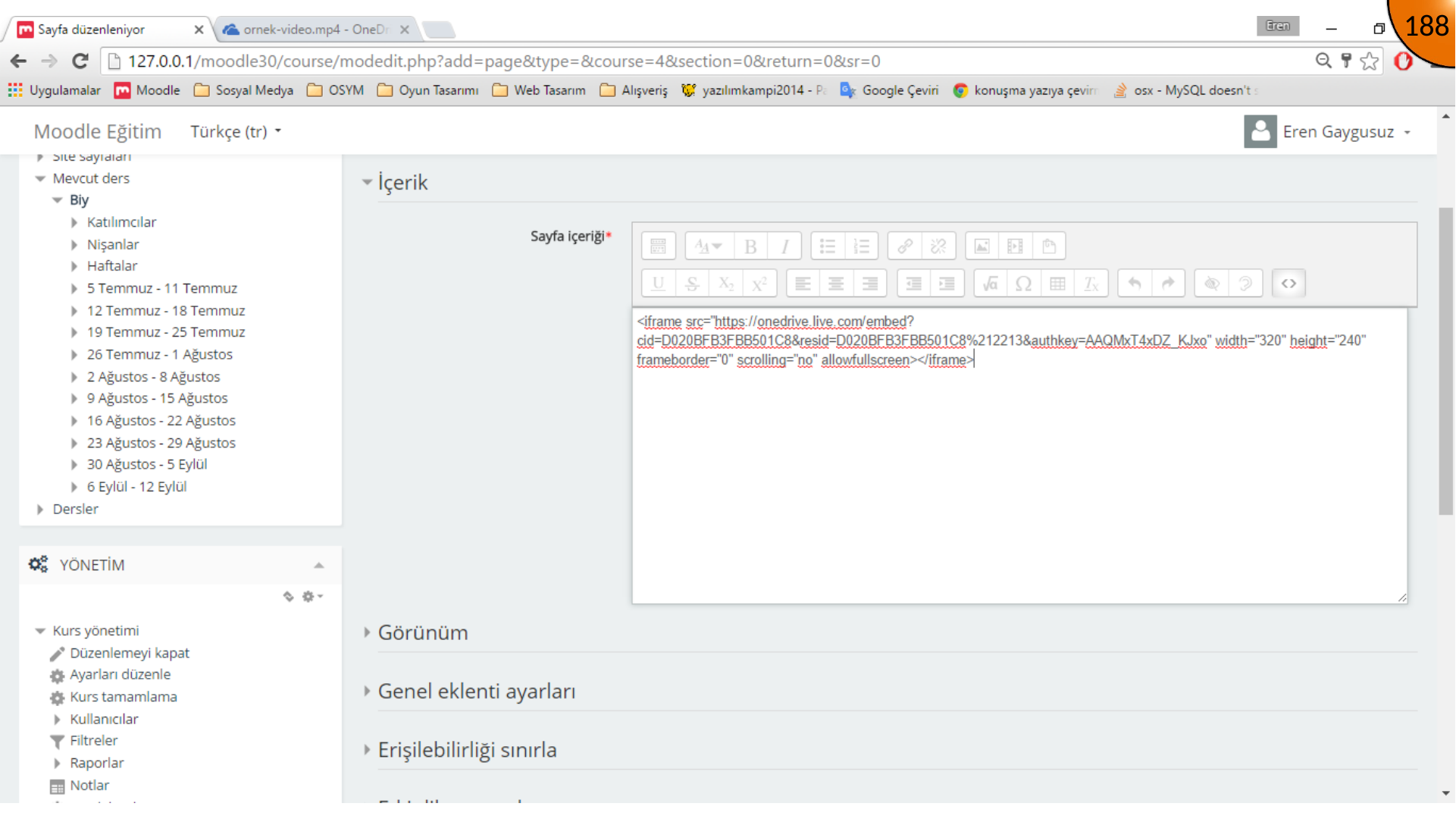
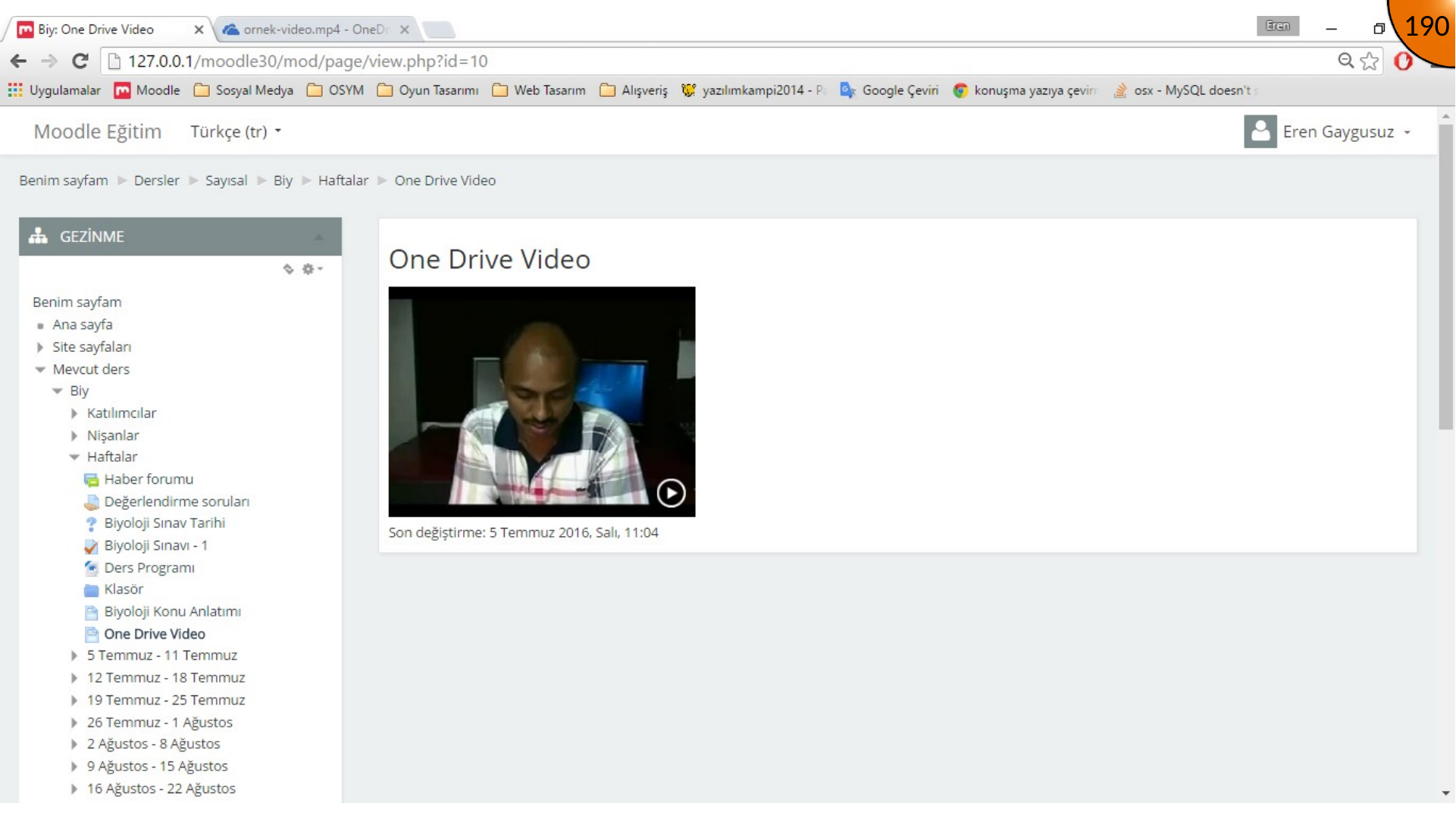
Save and display the page. The video should appear in the Moodle content area.
Summary
Embed code connects the hosted OneDrive video to Moodle without uploading the same media twice. Keep access permissions correct, provide captions where possible, and verify playback with a learner account.
Comments